
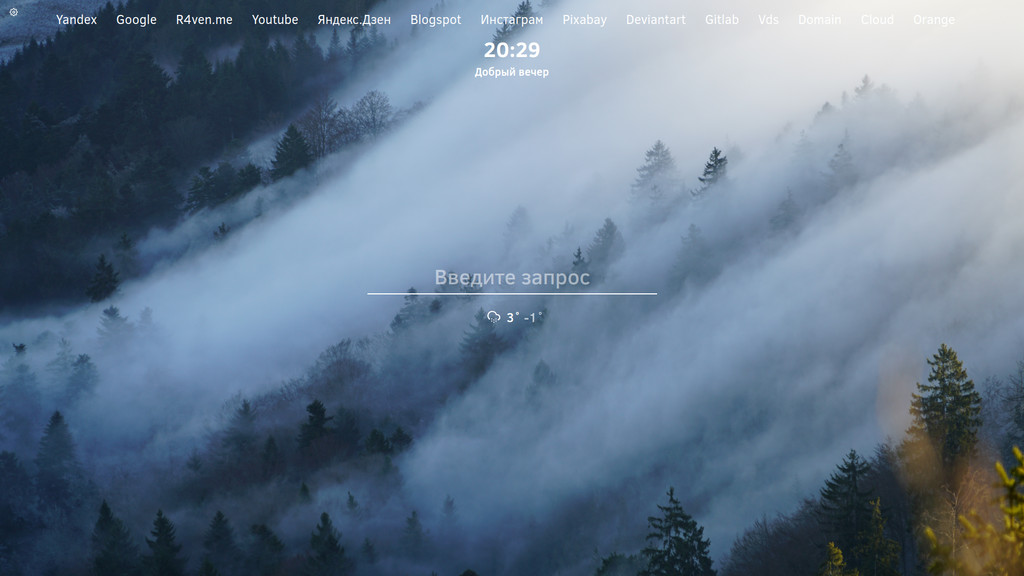
In this post I’ll tell and show you how you can customize the browser’s home page.
I’ll be showing this using the Firefox browser as an example, but the tool I’m using (the browser extension Tabliss) is also available for Chrome and its derivatives (Yandex browser, Microsoft Edge, Opera, etc.). I haven’t tested those, but I’m sure everything will work similarly.
🖐️Hey!
Subscribe to our Telegram channel @r4ven_me📱, so you don’t miss new posts on the website 😉. If you have questions or just want to chat about the topic, feel free to join the Raven chat at @r4ven_me_chat🧐.
First, as usual, a bit of a digression.
Relatively recently, during another version upgrade of Mozilla Firefox, the developers decided to reduce the home page customization options of their browser to a minimum. Honestly, I still don’t understand what influenced this decision. Perhaps it’s a minimalism trend, simplification of the codebase, or even security concerns, or maybe something else. I didn’t dig into the details. In any case, the basic functionality for customizing the start page now only includes the choice of the number of displayed rows of favorite sites and the choice of a color scheme for the tab bar. That’s it. Sad and unfortunate.
But since this browser has open source code and possesses fairly decent functionality built in by the developers for adding third-party extensions, we’ll easily get around these limitations.
So, the tool we’ll install today is the open-source extension Tabliss.
This plugin has been reviewed by Mozilla itself and is on its list of recommended browser extensions, which speaks to the safety of using it.
Tabliss lets you create and flexibly configure a start page. That’s what we’re going to do now.
The raven in the screenshots is a watermark, not a widget 😉
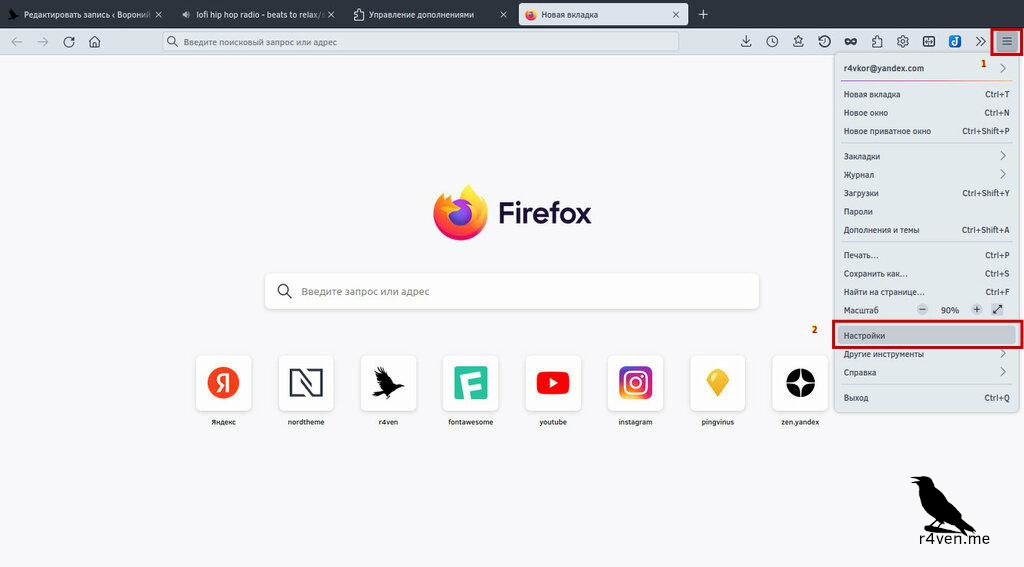
Installation. To do this, go to settings, then to the extensions section:
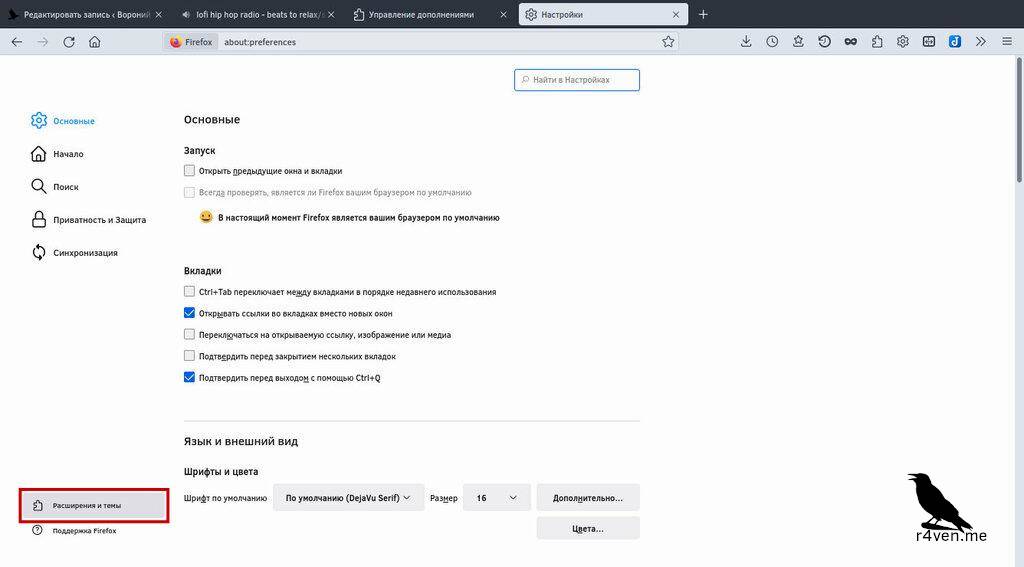
Then select the “Extensions” tab on the left and type “tabliss” in the search box, find the extension you need, and add it to our browser:
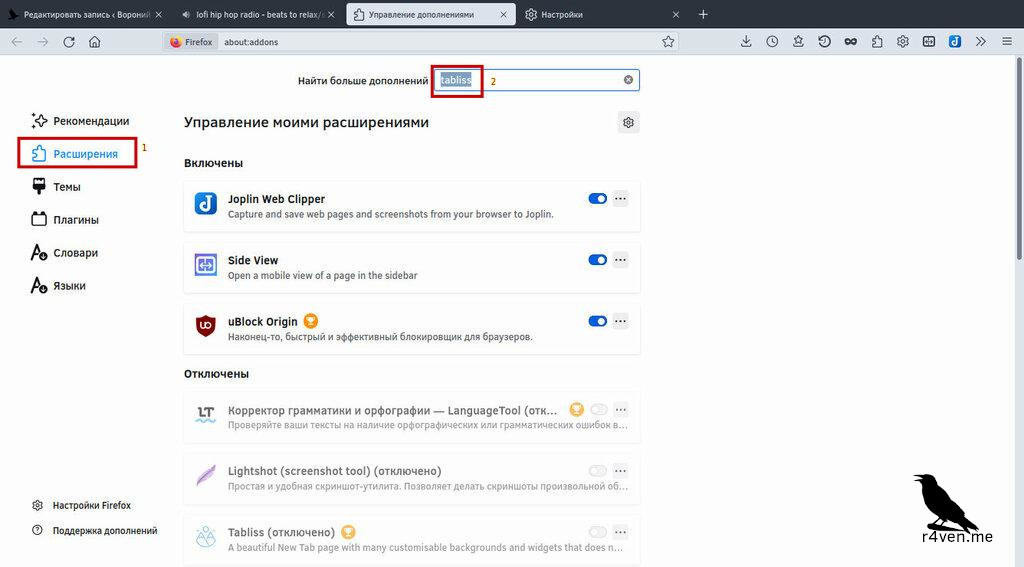
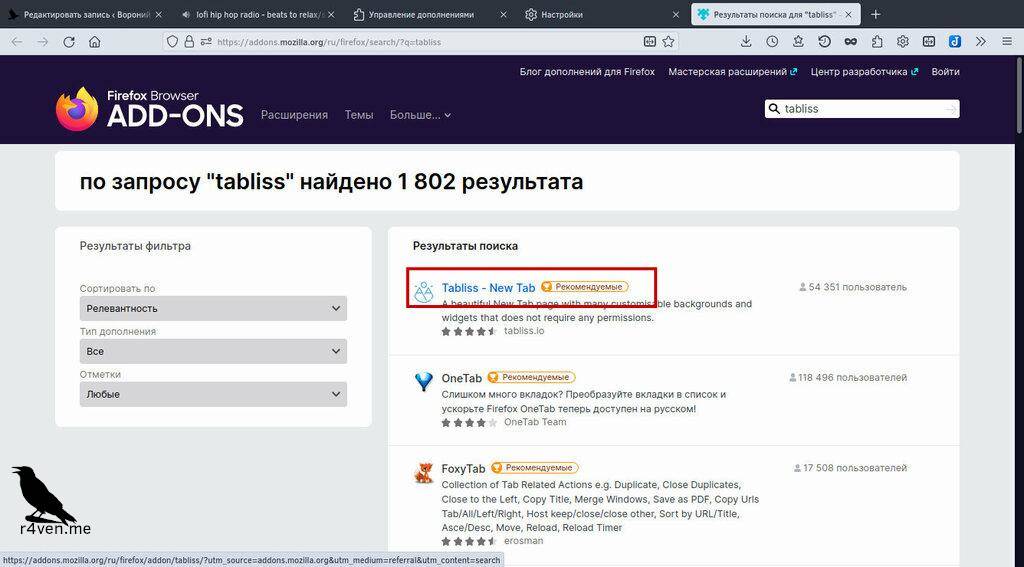
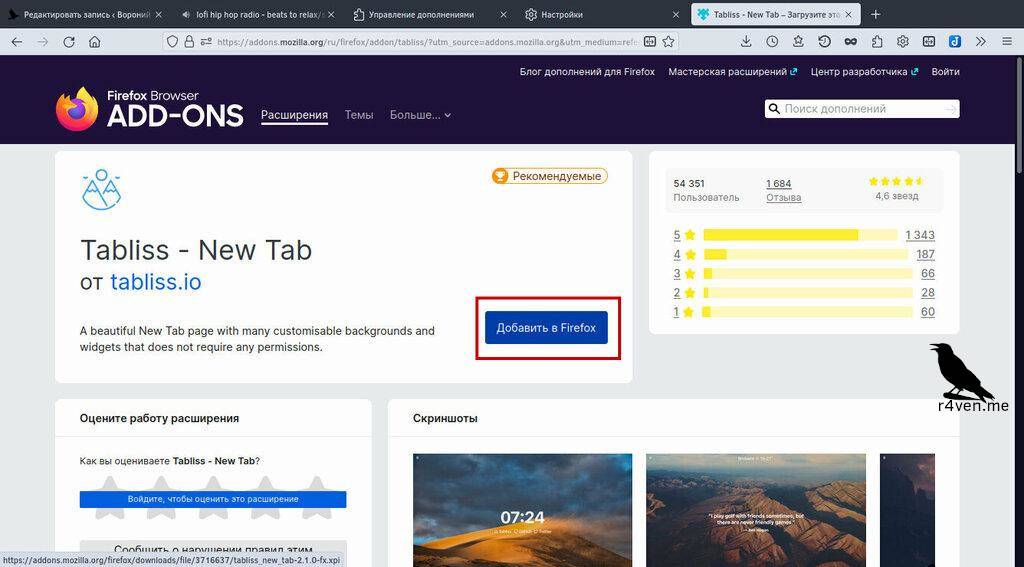
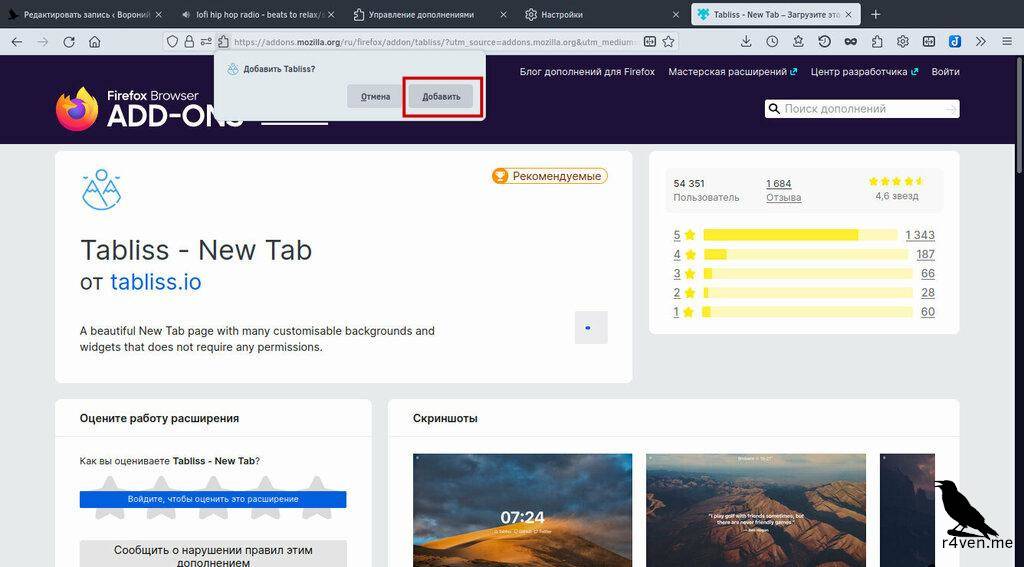
After adding it, simply open a new tab and see that it has changed. A message about replacing the start page will appear, click save.
Out of the box, the new tab has a beautiful and striking look, thanks to random images that periodically change.
Before configuring Tabliss, it’s worth changing the settings display language (though not everything is translated). To do this, go into the Tabliss settings menu by clicking on the gear icon in the top left corner:
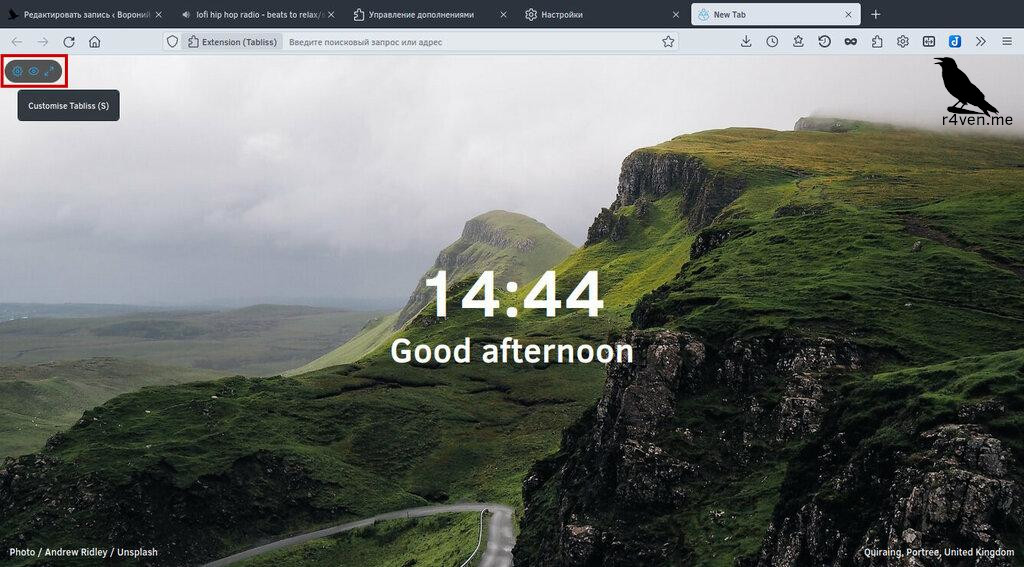
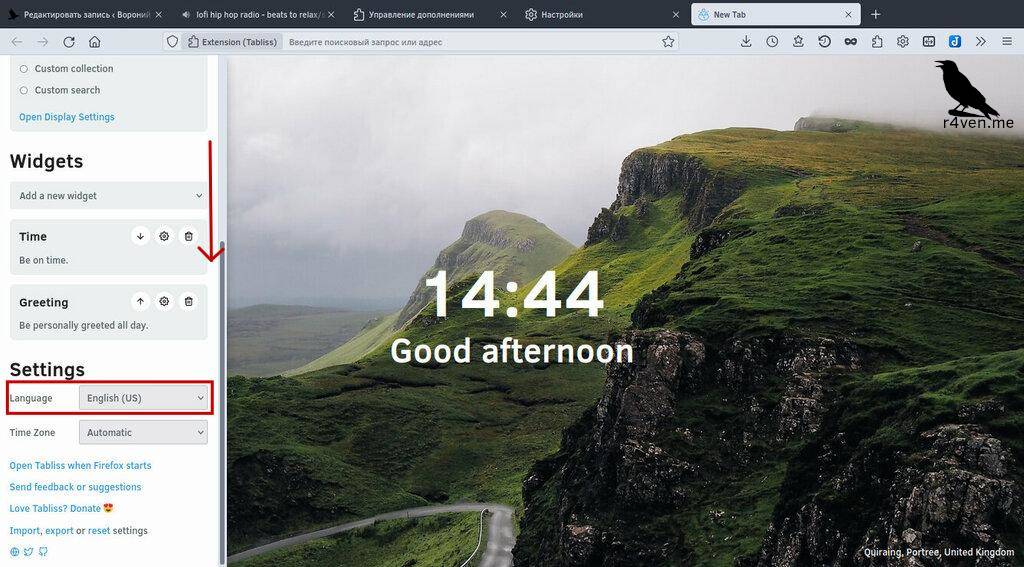
By default, the image source is unsplash.com, but you can also choose a directory of images on your own computer as the source. To do this, open the Tabliss settings and specify the path to the files in the very first parameter.
To set Tabliss as the page that opens when the browser starts, you need to perform a couple of actions. Open the settings, scroll all the way down, click the “Open Tabliss when Firefox starts” button, then copy the resulting link and set it as the start page in the browser’s main settings. To verify, close the browser and start it again. As a result, the widget will start up as the home page:
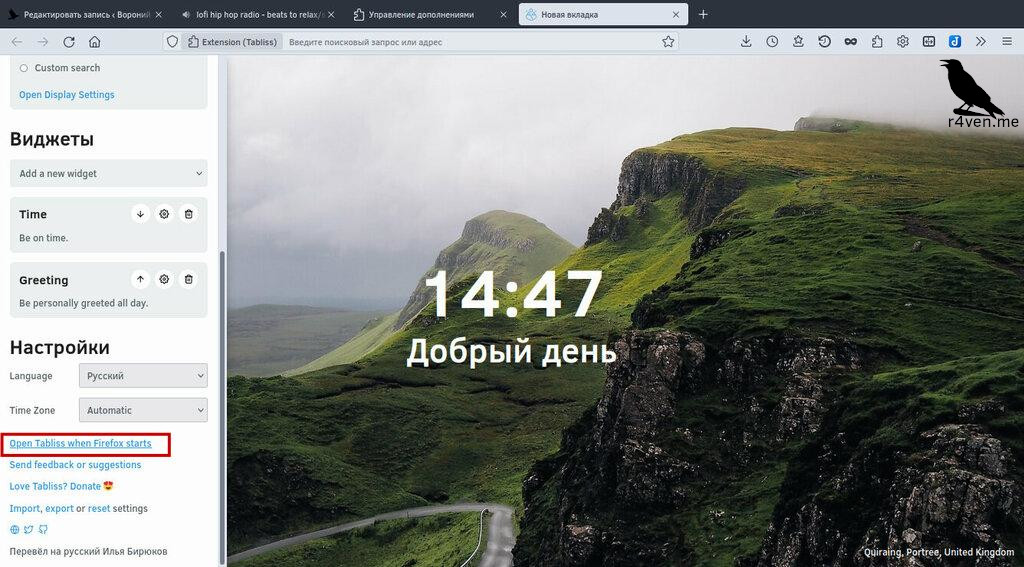
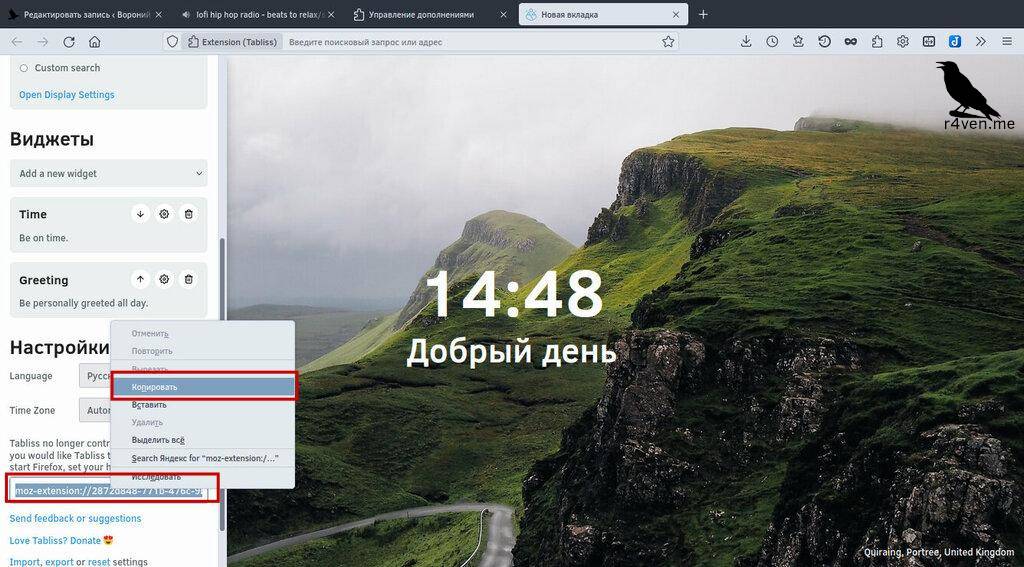
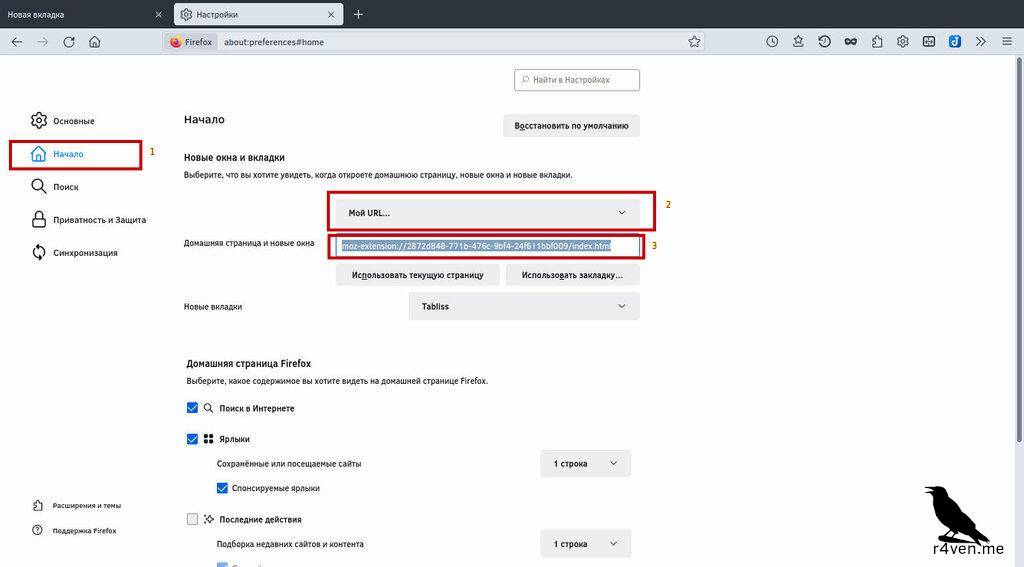
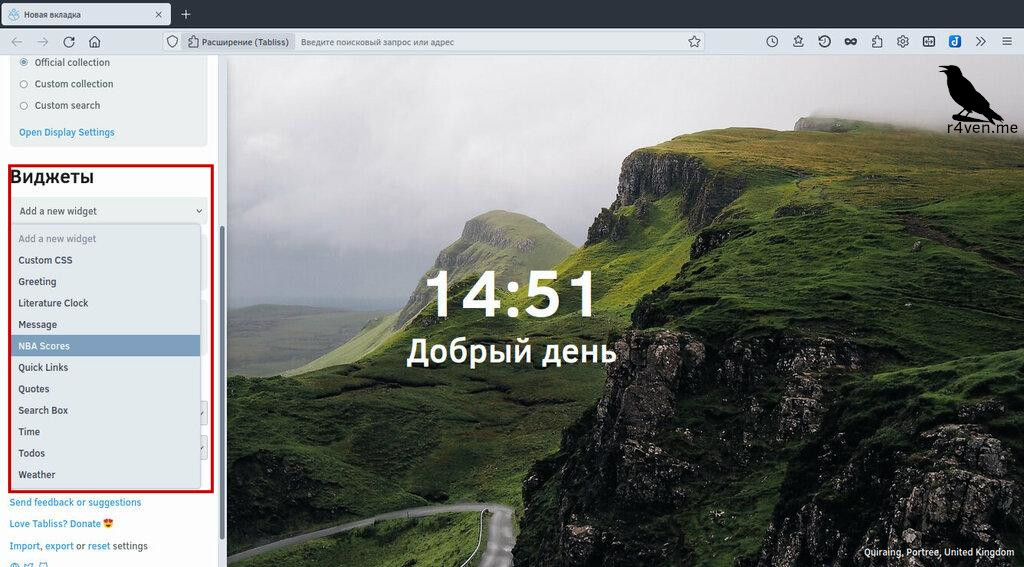
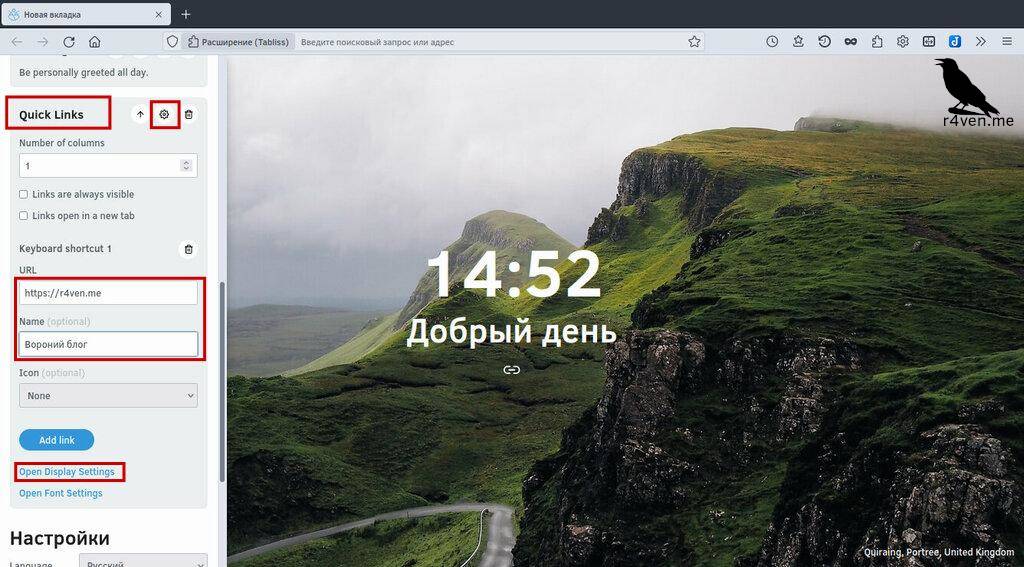
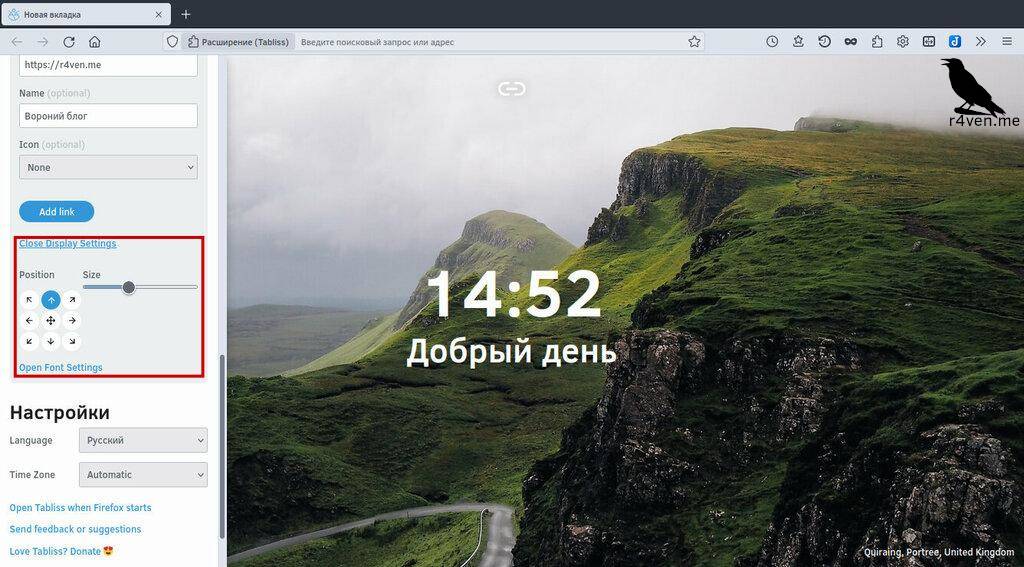
Now we can add available widgets for better customization of the start page. I’ll just show an example of adding quick links. Go into Tabliss settings, then the “Widgets” section, and click on “add a new widget”, fill in the fields with the name and website address, as well as the display settings: font, font size and color, and the widget’s position:
What we ended up with:
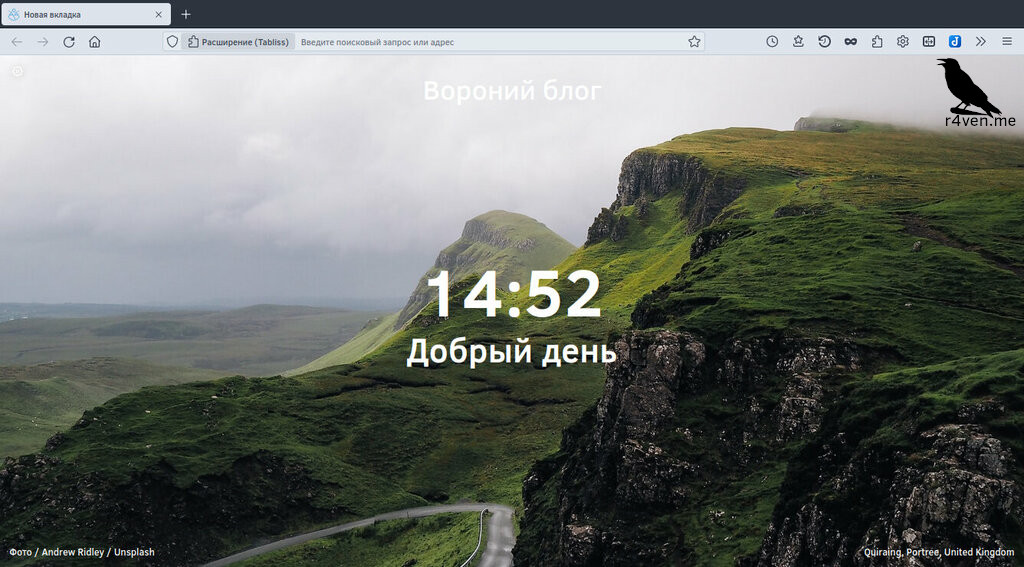
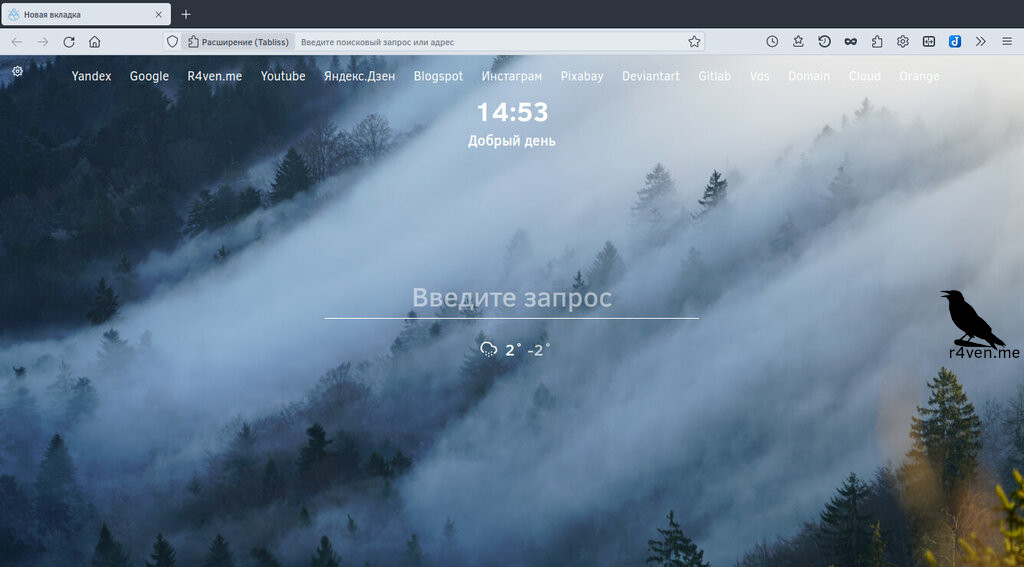
In the end, I configured Tabliss to my own liking, keeping the functionality I need while maintaining a neat appearance:
Thanks for reading. Wishing you a pleasant mood 😉 I hope my post helps you a bit with that 😉
👨💻And…
Don’t forget about our Telegram channel 📱 and chat
Or maybe you want to become a co-author? Then click here🔗
💬 All the best ✌️
That should be it. If not, check the logs 🙂

Comments