
Today we’ll install the popular hypervisor program from Oracle — VirtualBox on our Linux Mint 21.
In the previous post you learned what a hypervisor is, what types exist, and examples of their implementation.
Now let’s talk about the hero of today’s post. VirtualBox is a hypervisor program running on top of the operating system, designed for creating and running virtual machines.
*a virtual machine is an abstract computer inside a running operating system, with a certain set of hardware characteristics allocated to it, such as CPU cores, RAM, disk space, and other equipment.
🖐️Hey!
Subscribe to our Telegram channel @r4ven_me📱, so you don’t miss new posts on the website 😉. If you have questions or just want to chat about the topic, feel free to join the Raven chat at @r4ven_me_chat🧐.
Preparation
Before making any system changes, it’s good practice to fully update packages and back up the OS.
We update the system with this command:
sudo apt update && sudo apt upgrade -y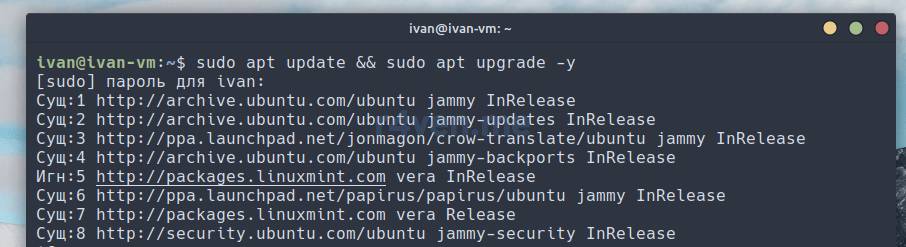
After the system update is complete, we reboot it:
reboot
Then we perform a backup using the Timeshift utility preinstalled in Linux Mint.
I covered backing up the OS with this utility in more detail in the post: Initial Setup of Linux Mint 20/21 — Step 2. Configuring OS Backup with Timeshift
After completing all the preparatory steps, we proceed to installing VirtualBox.
Installing VirtualBox
In this guide, I’ll cover installing VirtualBox from the standard repositories of Linux Mint. At the time of writing this post, the latest released version of VirtualBox is 7. The standard repositories, however, contain the older version 6.1. For our purposes, this stable version will work just fine.
We run in the terminal:
sudo apt install -y virtualbox virtualbox-ext-pack virtualbox-guest-utils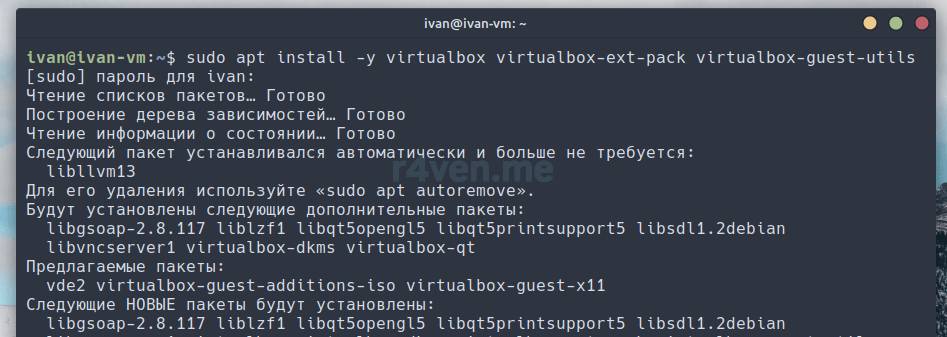
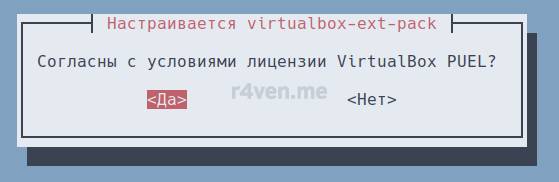
During the installation of the virtualbox-ext-pack package, a message about accepting Oracle’s license agreement will be displayed in the terminal. The thing is, the main program is free for any use, while the additional Extension Pack (ext-pack), which allows connecting external USB devices, using RDP, etc., is closed-source software and restricts free use of VirtualBox to personal use or evaluation purposes only. Which is, in principle, more than enough for us.
We press the Tab key, the cursor moves to the word <Ok>, then Enter.
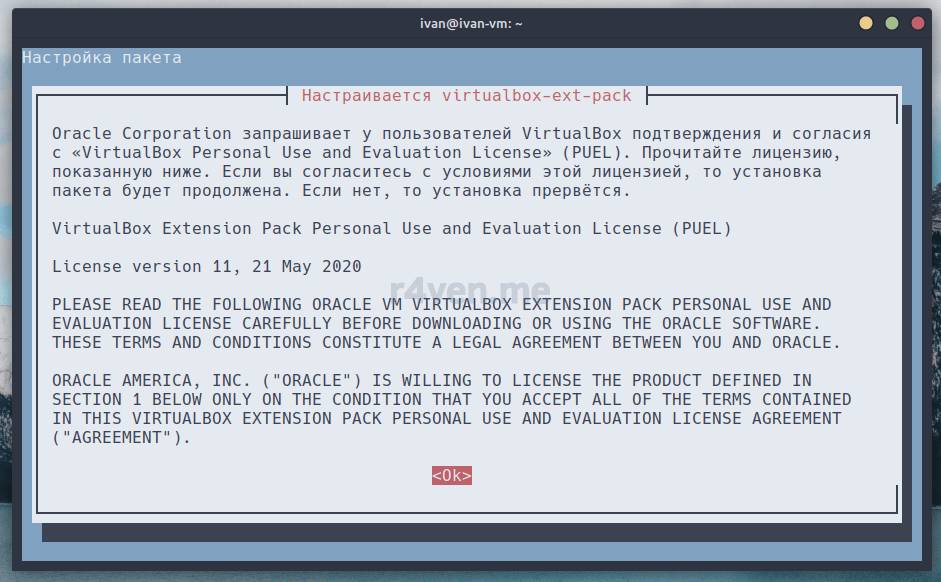
Then select <Yes> and the installation will continue.
After completion, let’s check the package version and the status of the virtualbox service:
vboxmanage -v

systemctl status virtualbox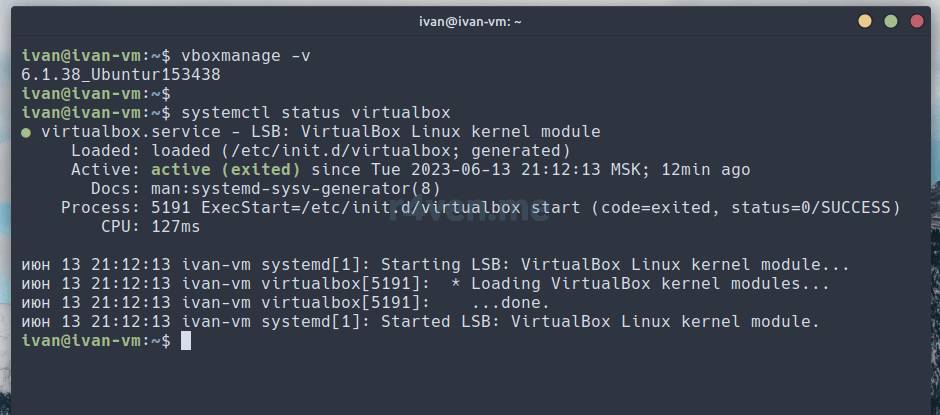
Everything’s great. To be sure, we restart the OS and try to launch the program via the main menu:
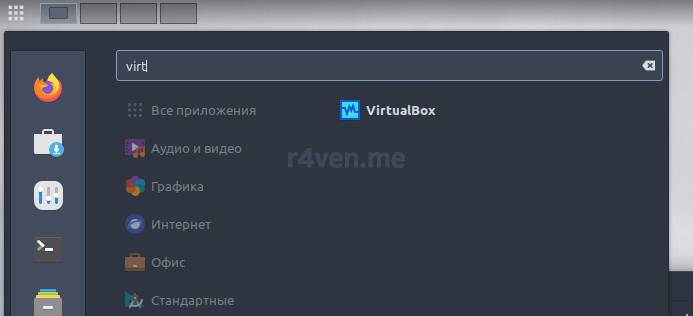
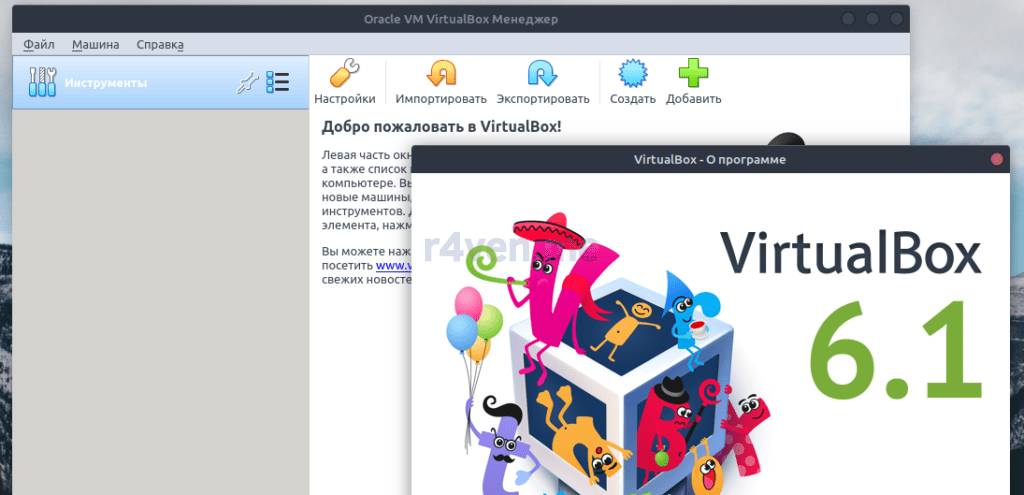
Great, the program has launched.
Creating and running a virtual machine
I described a detailed guide on creating a virtual machine in VirtualBox in my post: Try Linux Right Inside Windows at step 5 — Creating a virtual machine.
I won’t repeat myself here, and will simply provide similar screenshots of the steps to create a VM:
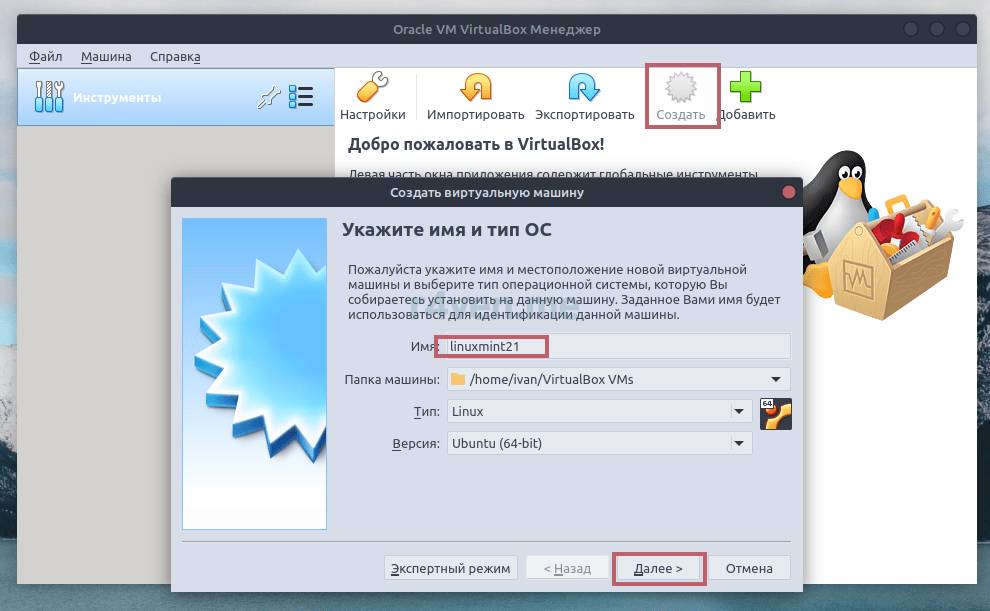
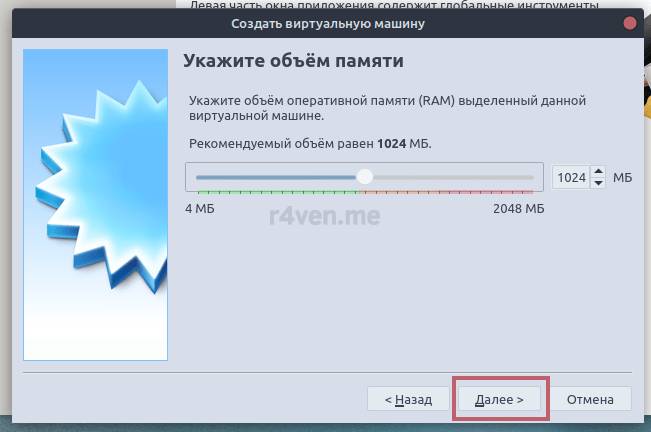
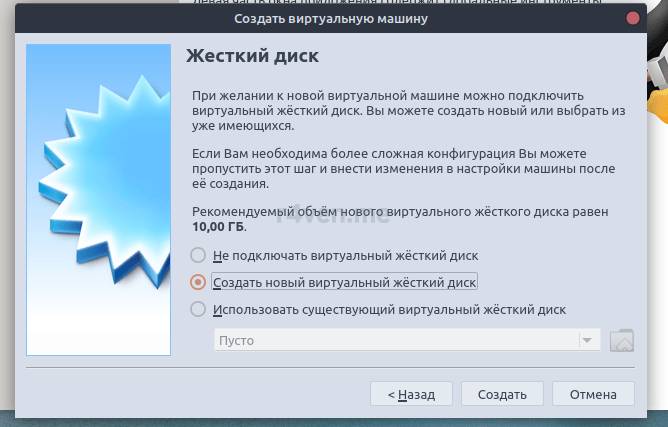
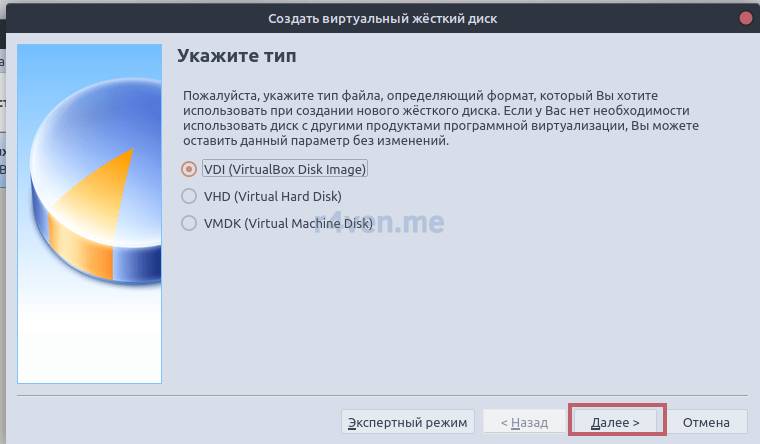
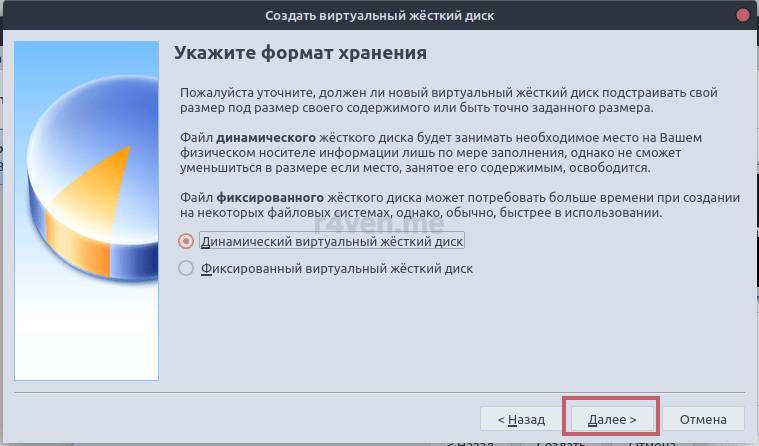
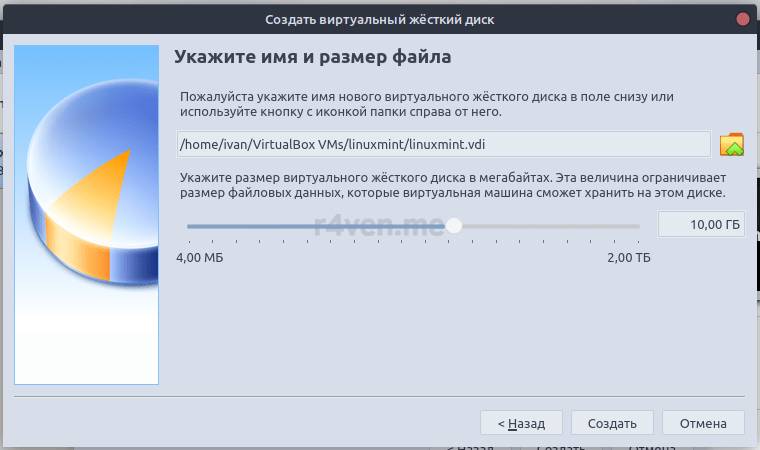
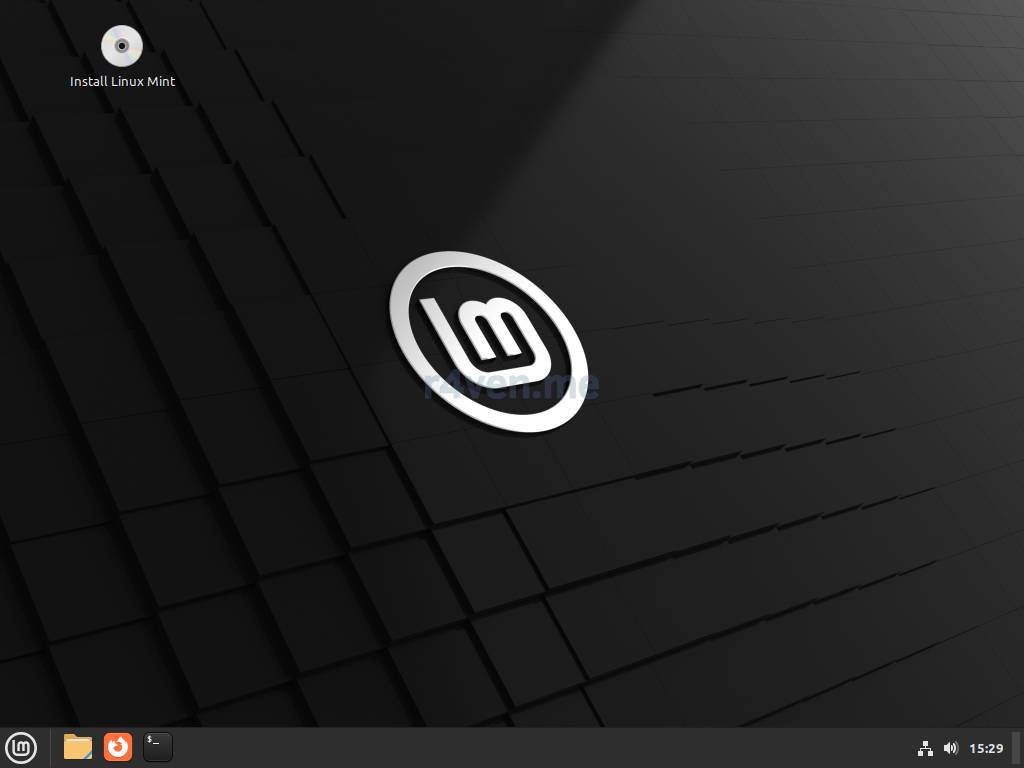
As an example of VirtualBox in action, we’ll start the installation ISO image of the Linux Mint distribution.
I explained in detail where to get the ISO image of the latest version of Linux Mint in the post: Installing Linux Alongside Windows — Step 1. Downloading the Linux Mint Installation File (Distribution).
Or simply follow the link (Cinnamon edition), look for the country Russia, choose a mirror and download.
After downloading, we return to the VirtualBox program window, select our virtual machine, click “Settings,” then “Storage,” and select our downloaded image, as shown in the screenshots:
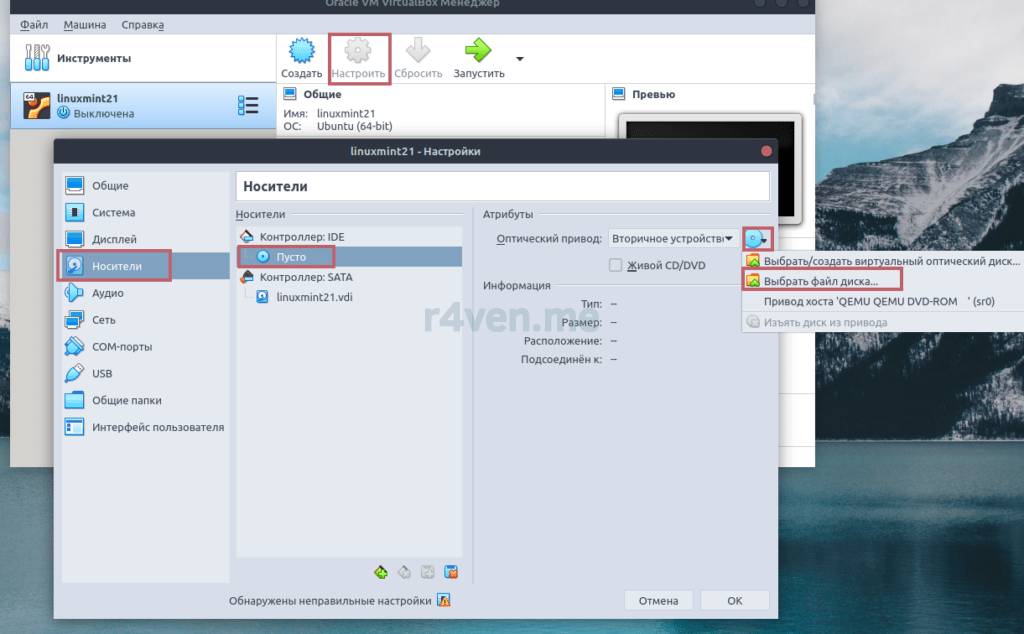
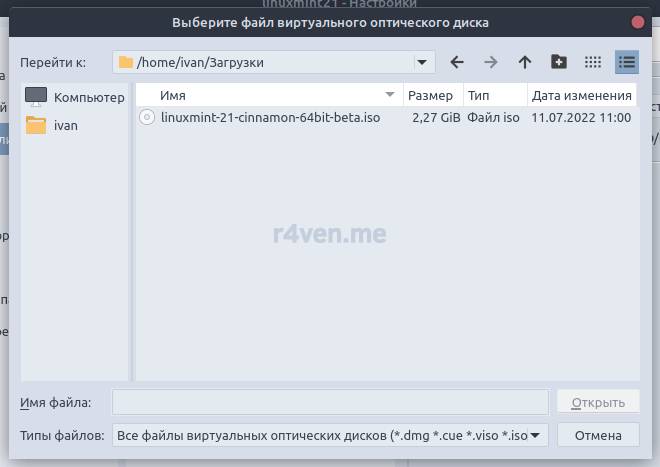
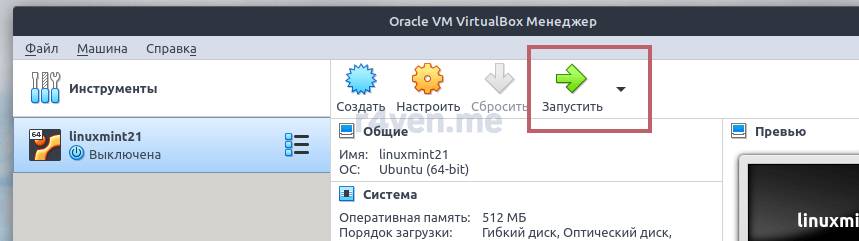
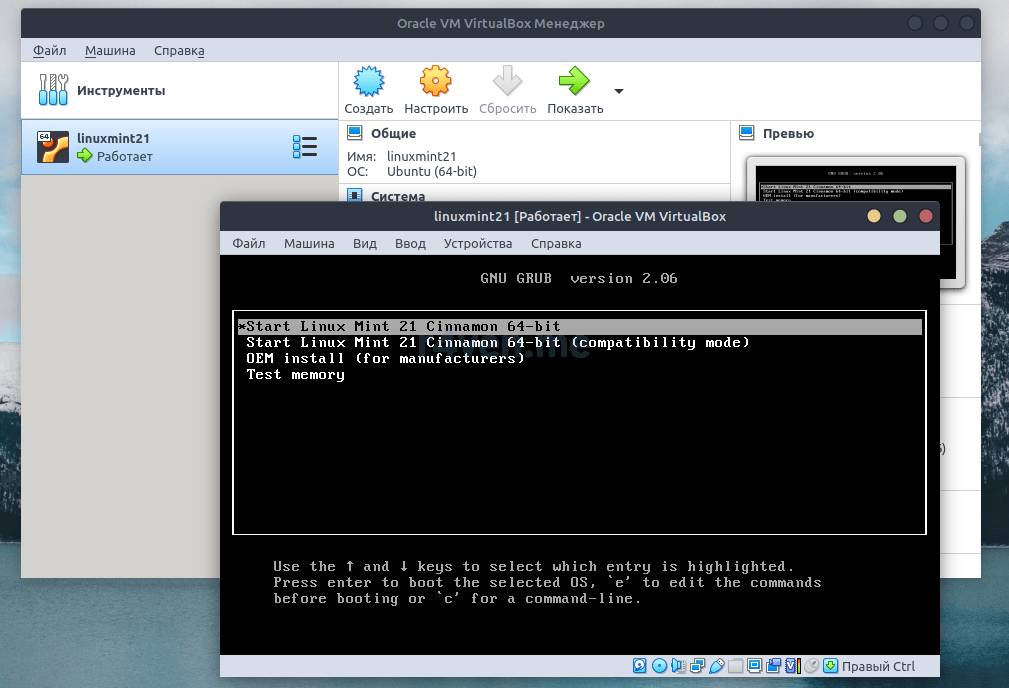
After connecting the image, click “Start,” then a virtual machine “monitor” window will open, through which you can interact with it:
Afterword
Well, we’ve installed VirtualBox and verified it’s working. In the next post, we’ll install a virtual machine with a fresh Debian 12 server. There won’t be any graphics there, just hardcore console. We’ll gradually dive into the wilds of Linux server administration)
Thanks for reading, good luck with virtualization)
That should be it. If not, check the logs 🙂
Useful sources
- Official website of the VirtualBox project
- VirtualBox — Wikipedia
- Virtualization — Wikipedia
- Debian 12 “Bookworm” release — OpenNET
👨💻And…
Don’t forget about our Telegram channel 📱 and chat
Or maybe you want to become a co-author? Then click here🔗
💬 All the best ✌️
That should be it. If not, check the logs 🙂

Comments