
Today we’ll install and run such a wonderful and popular piece of software as Docker engine. We’ll install it on the Debian 12 distribution we’re already familiar with.
Using Docker, there will be many articles in the future about deploying various Linux services. This note is conceptually important, so… please read on 😉
🖐️Hey!
Subscribe to our Telegram channel @r4ven_me📱, so you don’t miss new posts on the website 😉. If you have questions or just want to chat about the topic, feel free to join the Raven chat at @r4ven_me_chat🧐.
In previous articles, we covered the following material:
- Installing VirtualBox in Linux Mint 21
- Installing a Debian 12 server in VirtualBox
- Initial setup of a Linux server using Debian as an example
TLDR
Commands:
# update the system
sudo apt update && sudo apt upgrade -y

# install dependencies
sudo apt install -y curl git apt-transport-https ca-certificates gnupg-agent software-properties-common

# install docker engine
sudo curl https://get.docker.com/ | bash

# check the docker service
systemctl status docker

# add the user to the docker group
sudo gpasswd -a $USER docker

# refresh the group list
newgrp docker

# check for the needed group
groups

# check that it works
docker run hello-world

# preventive server reboot
sudo rebootIntroduction
Docker is the most popular implementation of container virtualization technology, which we talked about in one of the previous notes.
To understand what docker is, what it’s for, and what it consists of — I recommend reading an excellent series of articles on Habr. This series is quite easy to read, so don’t be lazy, go study it)
Articles from Habr.com:
- Learning Docker. Part 1: Basics
- Learning Docker.Part 2: Terms and concepts
- Learning Docker.Part 3: Dockerfiles
- Learning Docker.Part 4: Reducing image size and speeding up their build
- Learning Docker.Part 5: Commands
- Learning Docker.Part 6: Working with data
Well, if you’re already familiar with this software, let’s move on to installing Docker engine on a system running Debian 12.
Installing and running Docker engine
The installation assumes that your server has internet access and your user has root privileges via sudo.
Updating the system and installing dependencies
We update the cache and the versions of packages installed on the system:
sudo apt update && sudo apt upgrade -y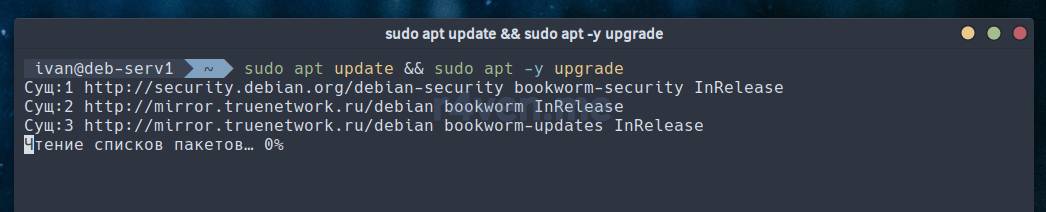
After updating the system, my server has this description:
hostnamectl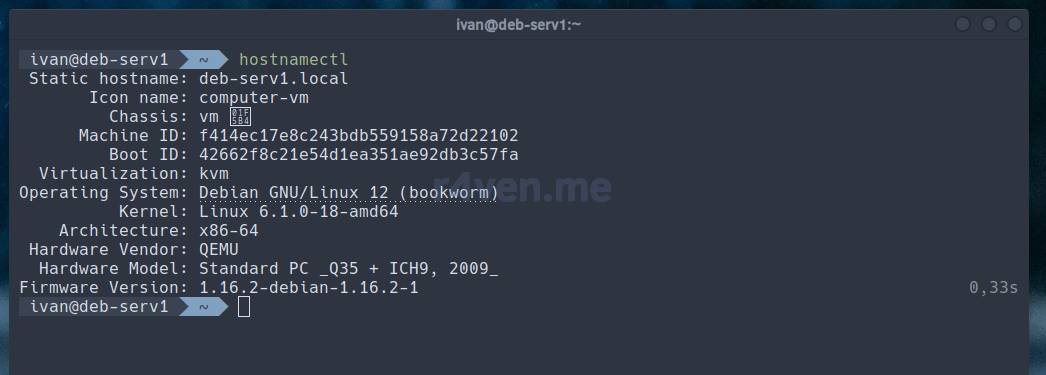
Let’s install the dependencies:
sudo apt install -y curl git apt-transport-https ca-certificates gnupg-agent software-properties-common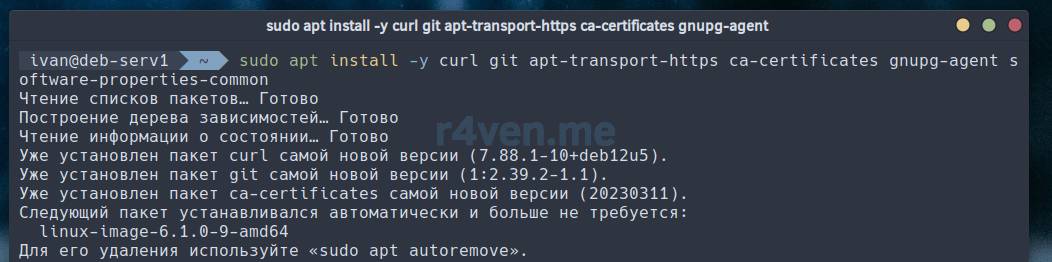
A brief note about the packages being installed:
curl— a utility for transferring data over various protocols via a URL from the command line;git— a version control system;apt-transport-https— a package for transferring data over HTTPS in the Advanced Package Tool (APT) in Linux;ca-certificates— data on certificate authorities distributed with the Mozilla browser, allowing applications to verify the authenticity of SSL connections;gnupg-agent— GnuPG, the GNU tool for secure data exchange and storage;software-properties-common— common utilities for managing software sources in Linux.
Installing Docker engine
When installing docker, I usually take the path of least resistance: I run the automated installation script from the developer, from the official docker project website. To see what this script does, simply go to the URL: https://get.docker.com/ in your browser, or run in the terminal:
curl https://get.docker.com/ | lessWe run the installation with this command:
sudo curl https://get.docker.com/ | bash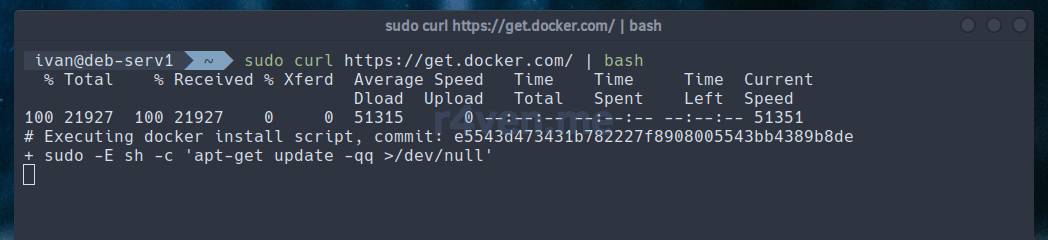
This command uses
curlto fetch the script’s text and pass it to thebashinterpreter using the|pipeline. You can read more about stream redirection mechanisms in Linux in a separate article: Linux command line, input and output redirection: the “>”, “<”, “|” operators.
Installing docker will take some time.
After the script finishes successfully, a message will be displayed with information about the current version of Docker engine:
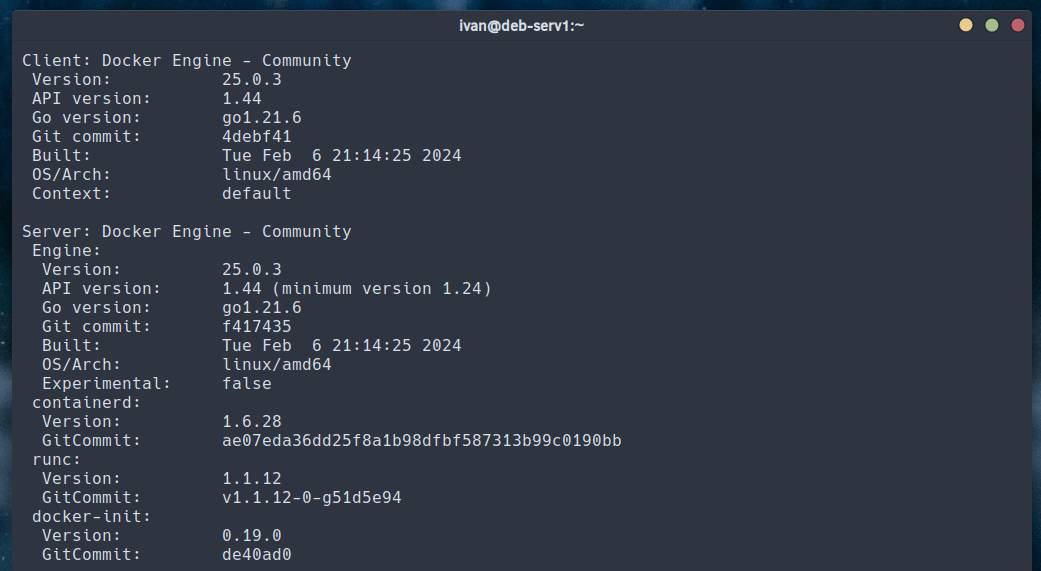
Information about the installed docker
Let’s check the status of the running docker daemon:
systemctl status docker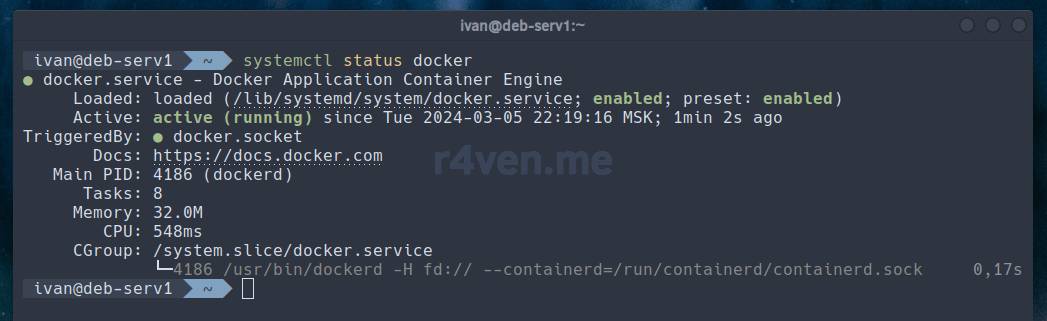
Adding the user to the docker group
Now let’s add our current user to the docker group, so we can manage containers without using sudo. This step isn’t required, it’s just for convenience:
sudo gpasswd -a $USER docker
We refresh the group list and check for the needed one:
newgrp docker

groups
If the command to add to the group ran correctly, but the group isn’t in the list — try restarting the session and checking for the group again.
Checking that docker works
Most often, the operability of the docker service is checked by pulling a small hello-world image and running a container based on it. This is done with the command:
docker run hello-world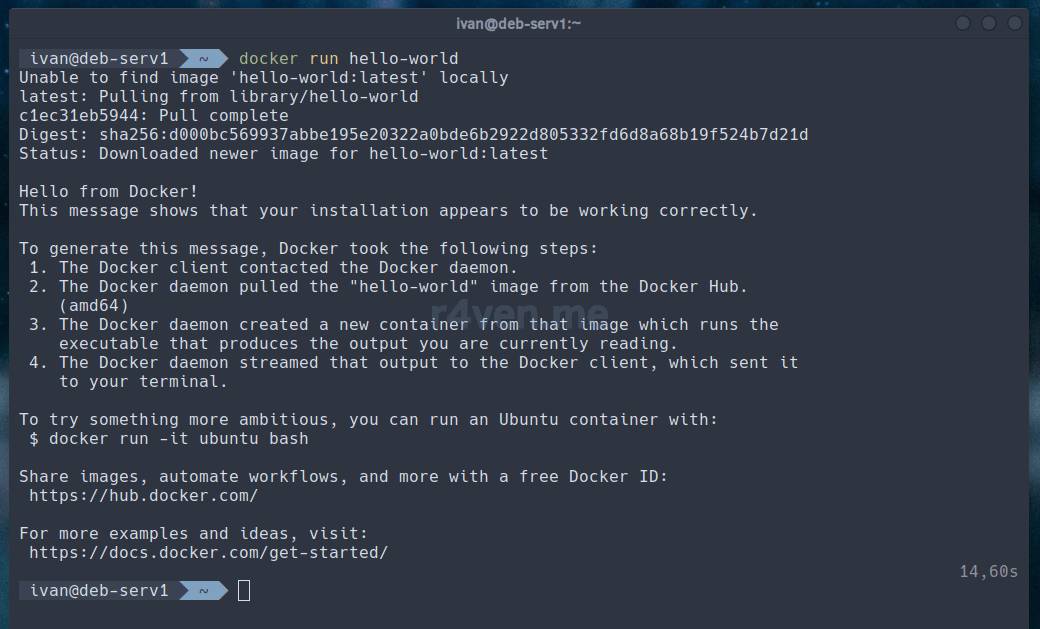
Docker operates with concepts such as image and container. A docker image is a build based on a specific OS, essentially a template. And a container is an instance of that template, running as a Linux service. A fairly primitive description, but this article has a different goal.
Preventive server reboot
Since significant changes are made to the system during the installation of Docker engine, including the creation of netfilter (iptables) firewall rule chains, it’s good practice to do a preventive reboot of the entire server:
sudo reboot
A few docker management commands
Below I’ll give a few commands for viewing and removing images and containers.
- List installed images:
docker image ls -a
- List existing containers:
docker container ls -a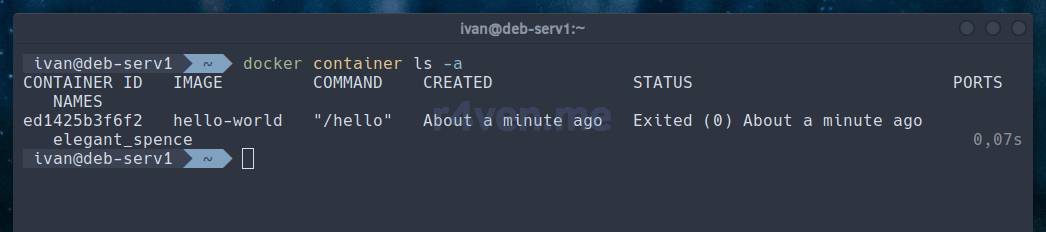
- Remove all unused images and containers:
docker system prune -af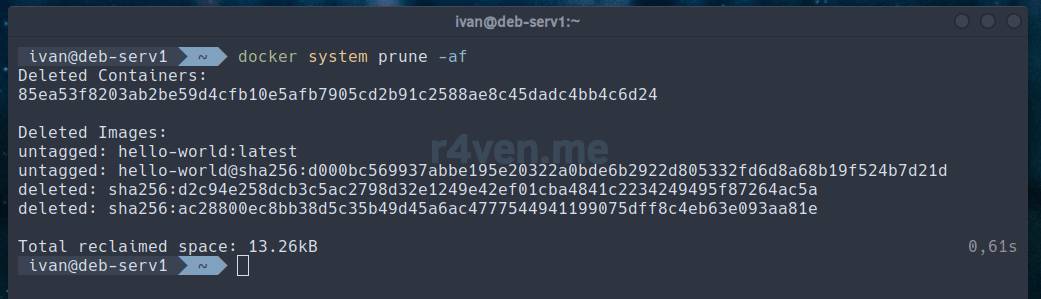
For details on docker commands, please refer to the manual:
man dockeror to the materials I mentioned at the beginning or end of the article.
Conclusion
We’ve installed and started up the docker service. Going forward, we’ll often use this tool to implement various interesting Linux projects. Don’t miss it.
If you still have questions, I invite you to our chat on Telegram: @r4ven_me_chat. To not miss new posts — subscribe to our channel there too: @r4ven_me.
Thanks for reading. Good luck to you!
Related materials
- Official documentation for installing docker engine on Debian (EN)
- Learning Docker, part 1: basics — Habr
- Containerization – OS-level virtualization technology — Raven’s Blog
👨💻And…
Don’t forget about our Telegram channel 📱 and chat
Or maybe you want to become a co-author? Then click here🔗
💬 All the best ✌️
That should be it. If not, check the logs 🙂

Comments