
Все статьи цикла
The second part of the PostgreSQL course - today we tackle two main administrator tools: the console psql and the graphical DBeaver 🐧.
🖐️Hey!
Subscribe to our Telegram channel @r4ven_me📱, so you don’t miss new posts on the website 😉. If you have questions or just want to chat about the topic, feel free to join the Raven chat at @r4ven_me_chat🧐.
Preface
In the first part, we launched PostgreSQL in Docker, connected to it, and executed SELECT version(); using two tools: psql and DBeaver.
psql is a full-featured console environment with its own meta-commands, variables, scripts, and settings.
DBeaver, for all its visual convenience, works over the same protocol and the same SQL - the main difference is that where in psql you would type \dt, in DBeaver you open the Database Navigator tree.
So in this lesson we’ll look at two versions of the same action everywhere: the command in psql and the same thing through the DBeaver interface.
We don’t have tables yet - we’ll create a fictional raven schema in one of the following lessons.
Initial Data
Software used in this article:
| Software | Version |
|---|---|
| PostgreSQL (image) | 18 |
| psql (in image) | 18 |
| DBeaver Community | 26 |
The testbed is that same postgres container from the first part, running and accessible at 127.0.0.1:5432.
Connecting to the Server
Via psql Inside the Container
The method from the previous lesson - psql is already in the image:
cd ~/Postgres

docker compose exec postgres psql -U ivan -d ravenVia psql on the Host
You don’t have to enter the container every time - since the port is published on 127.0.0.1, you can install the console client directly on the host:
sudo apt install -y postgresql-clientpsql -h 127.0.0.1 -p 5432 -U ivan -d ravenpsql will ask for the password interactively.
If you don’t want to enter it every time, you can create a ~/.pgpass file:
echo "127.0.0.1:5432:raven:ivan:r4ven_me" >> ~/.pgpass

chmod 600 ~/.pgpass📝 Format of the ~/.pgpass line: host:port:database:user:password. Any field can be replaced with * - for example, so the password works for all databases on the host.
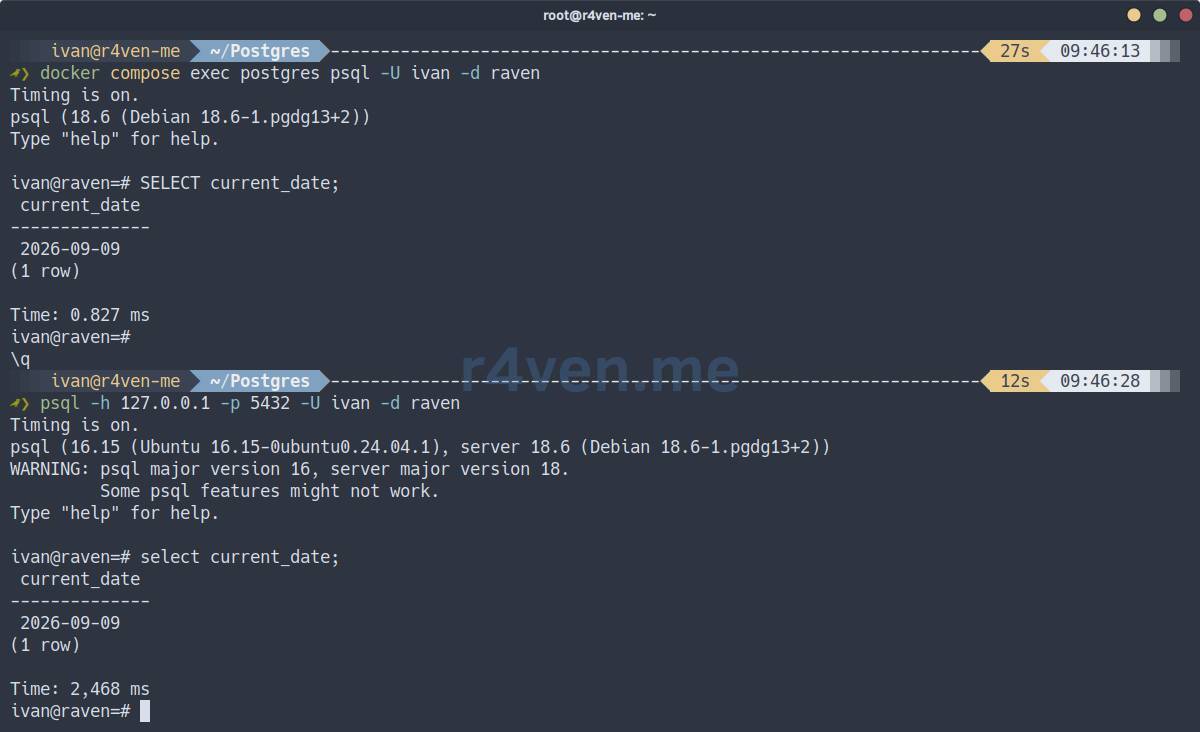
☝️ On Debian, the standard postgresql-client from the repositories usually lags behind the current server version (for example, on Debian 13 it might be the client from the 16th branch, not the 18th). For educational purposes this is not critical - the protocol is backward compatible - but if you want the client from the same version as the server, it’s easier to enable the official PostgreSQL APT repository.
You can check what you’re connected to with a meta-command:
\conninfo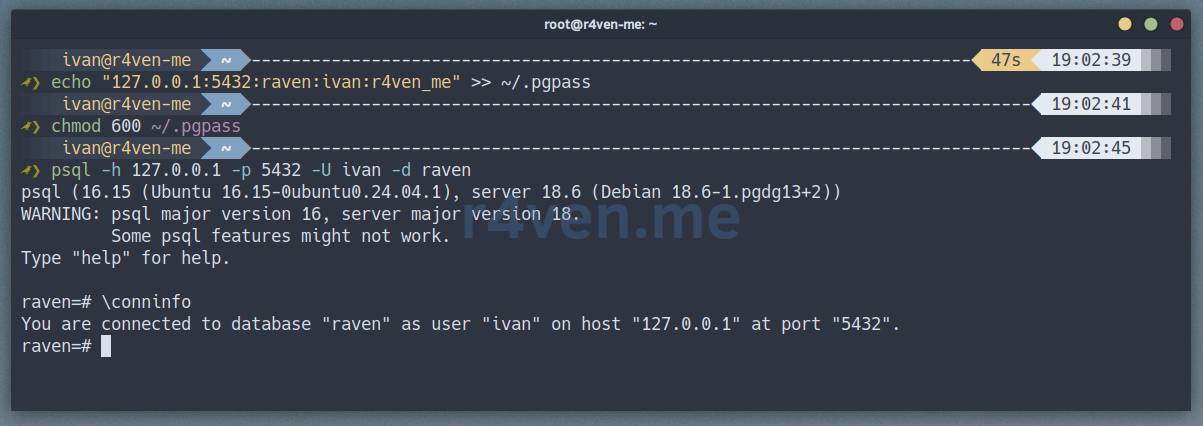
Via pgcli on the Host
pgcli - an alternative console client for PostgreSQL with syntax highlighting and smart autocomplete: unlike psql, it understands the specific tables and columns of your database, not just SQL keywords. It’s also available in the standard Debian repositories:
sudo apt install -y pgcliConnect - the syntax is similar to psql, but it also understands the connection string in URI form:
pgcli -h 127.0.0.1 -p 5432 -U ivan -d ravenpgcli postgresql://ivan@127.0.0.1:5432/ravenThe password will be picked up from the already configured ~/.pgpass above - you don’t need to set up anything separately.
The meta-commands are the same as in psql (\dt, \d, \l and so on) - pgcli is built on top of the same connection logic, it just adds Tab autocomplete, syntax highlighting, and multiline input out of the box.
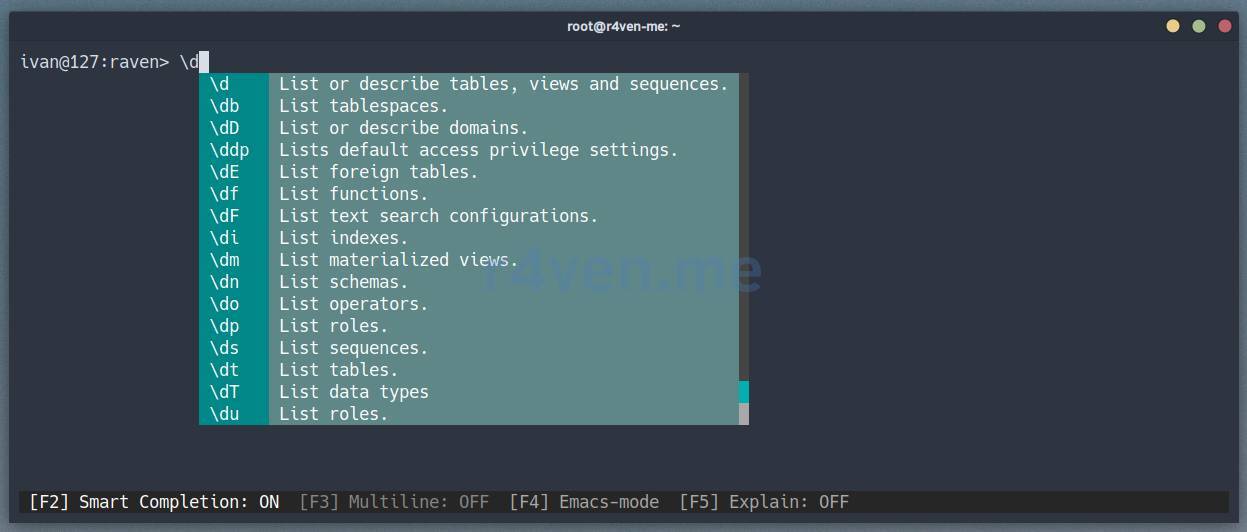
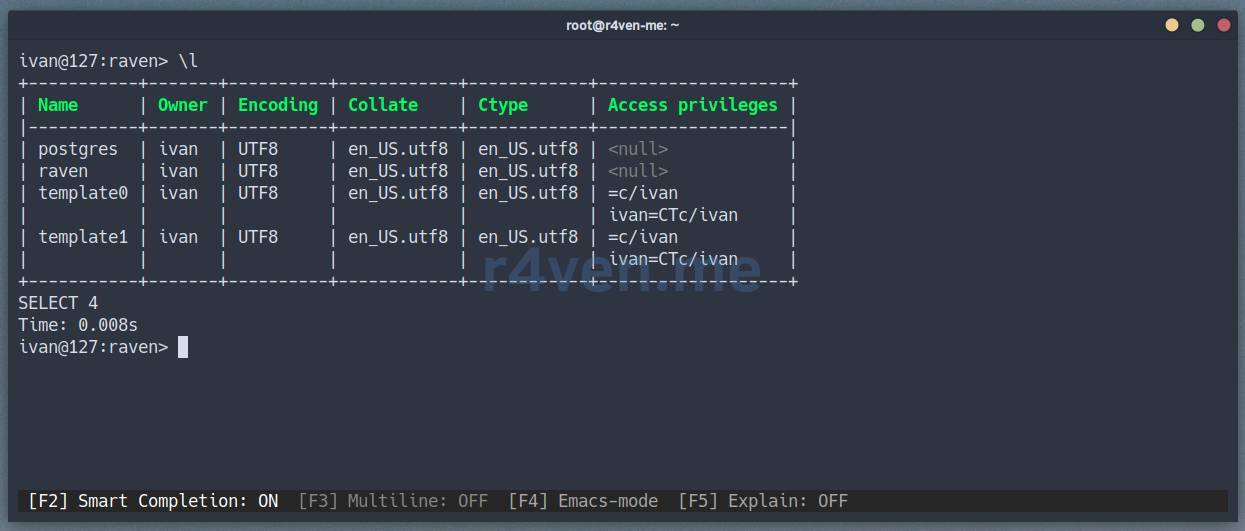
📝 pgcli stores its own settings in ~/.config/pgcli/config - it’s the equivalent of ~/.psqlrc, just in INI format.
💡 The version of pgcli in the Debian repositories can also lag behind the current one. If you want the latest autocomplete features - install it via pipx install pgcli (or pip install --user pgcli) outside of system packages.
Going forward, we’ll use the current version of psql from the container with the Postgres server:
docker compose exec postgres psql -U ivan -d ravenHelp
If you forgot a command - psql will tell you:
\?           -- list of psql meta-commands
\? variables -- list of psql variables
\h           -- list of SQL commands
\h SELECT    -- help for a specific SQL command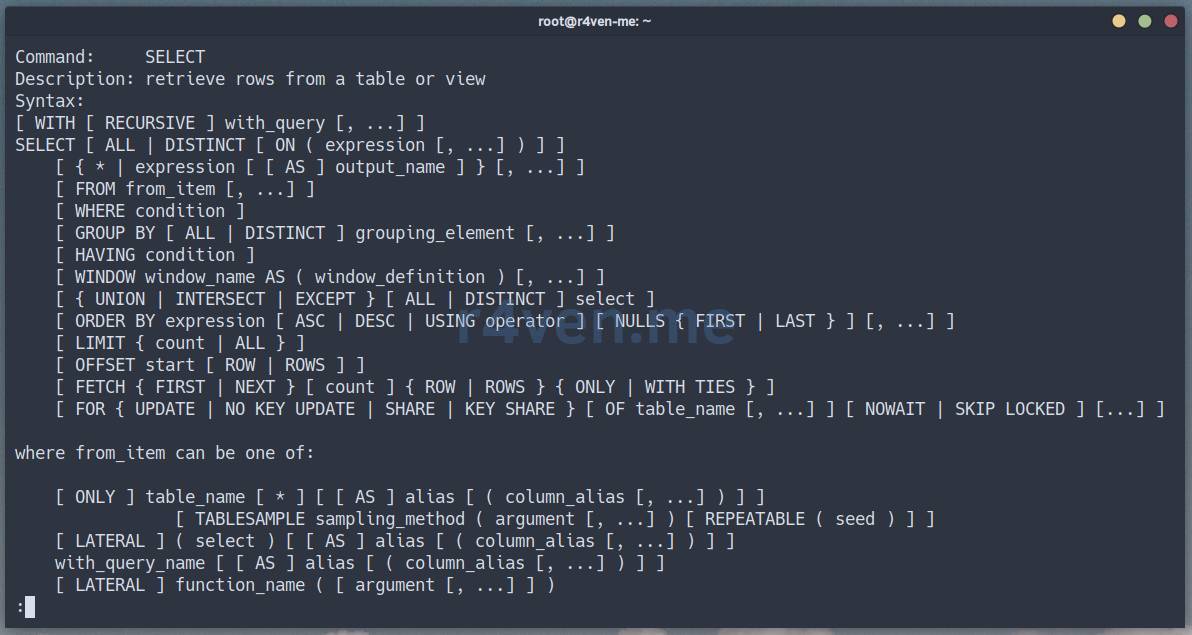
Or the classic:
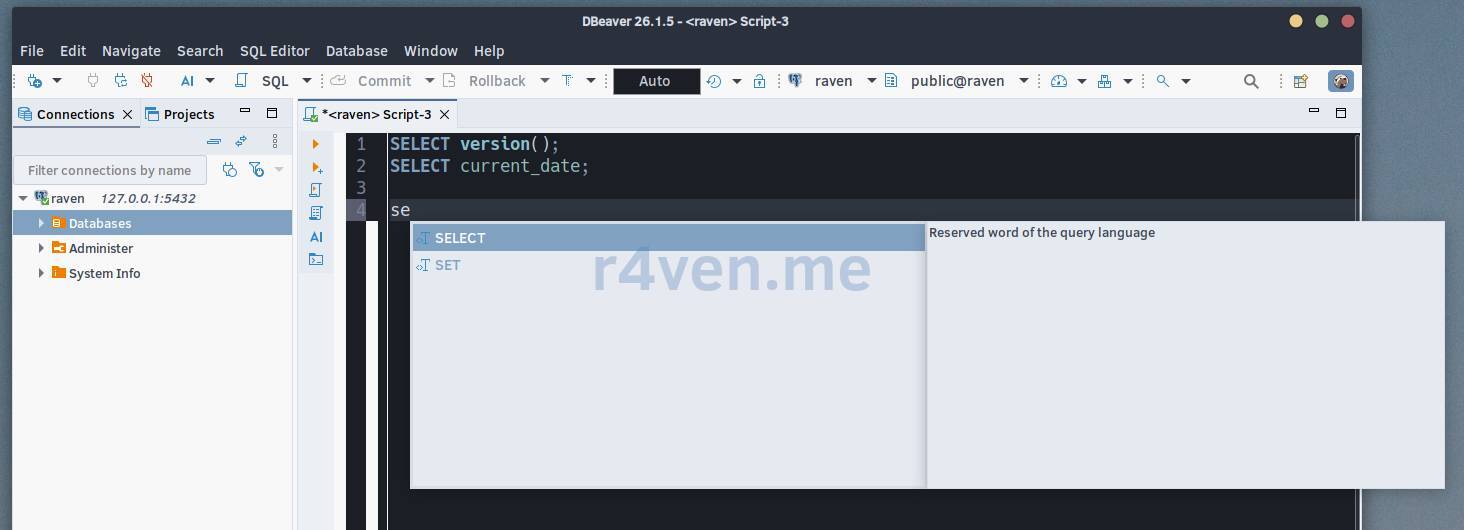
man psqlDBeaver doesn’t have a direct equivalent of \h, but when typing SQL, autocomplete with syntax description is enabled (Ctrl+Space), and DBeaver opens the full PostgreSQL documentation by pressing F1 on the cursor over a command.
Information About Database Objects
The most common meta-commands for reconnaissance:
\l      -- list of databases
\du     -- list of roles (synonym \dg)
\dn     -- list of schemas
\dt     -- list of tables in the current schema (empty for now)
\df     -- list of functions
\d pg_type    -- structure of a specific object
\d+ pg_type   -- the same thing, but with disk size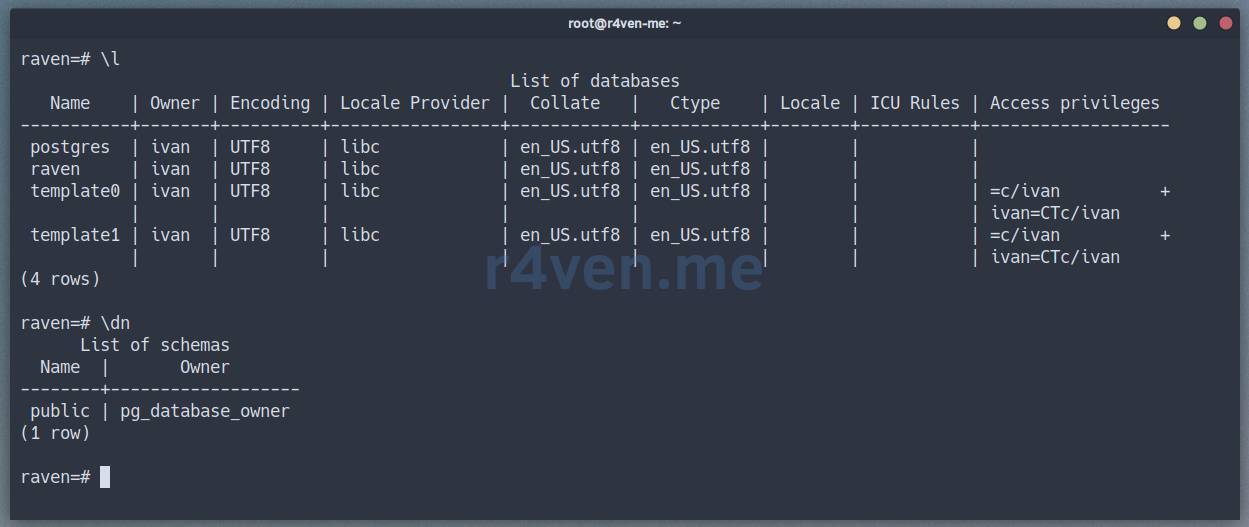
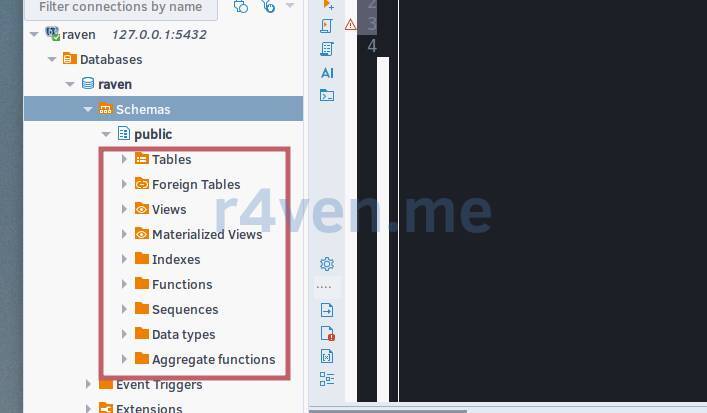
In DBeaver, everything is the same - without a single line of SQL. In the Database Navigator panel, expand raven → Schemas → public, and there are already separate branches for Tables, Views, Functions, Sequences. A double-click on any object opens a tab with its structure, and the DDL tab of the same form shows the very CREATE TABLE that \d+ would generate manually.
Output Formatting
By default, psql outputs the result as a table. If there are many columns and the row doesn’t fit in the terminal - the expanded format comes to the rescue:
\x
SELECT * FROM pg_stat_activity LIMIT 1;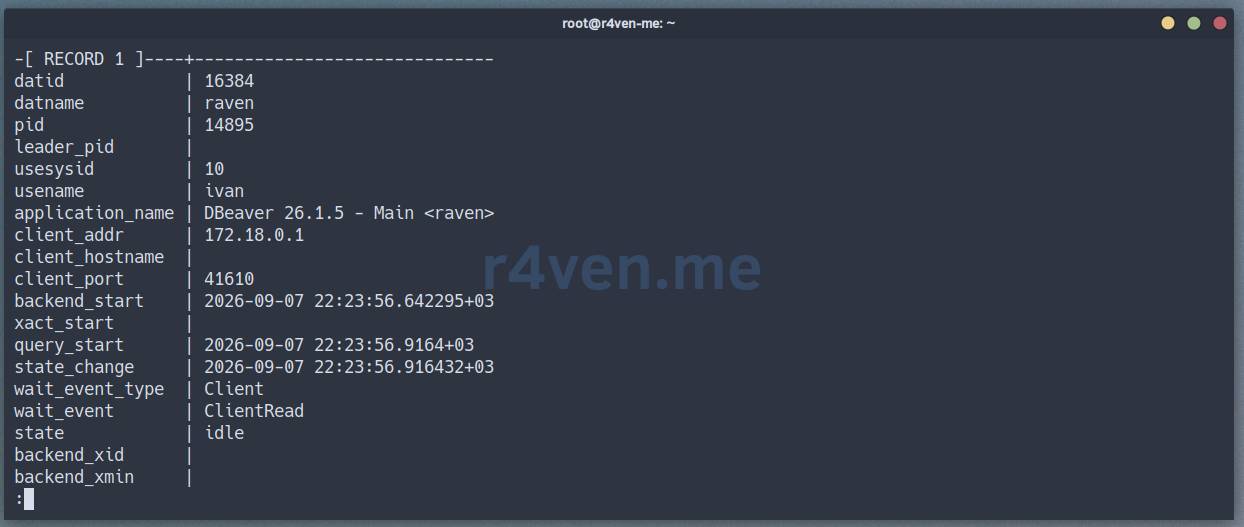
The output becomes a list of “column: value” per record instead of a table. There’s also a one-time option, without switching the mode for the entire session:
SELECT * FROM pg_stat_activity LIMIT 1 \gxOther useful switches:
\a          -- toggle column alignment
\t          -- toggle headers and total row "(N rows)"
\timing on  -- show execution time for each query
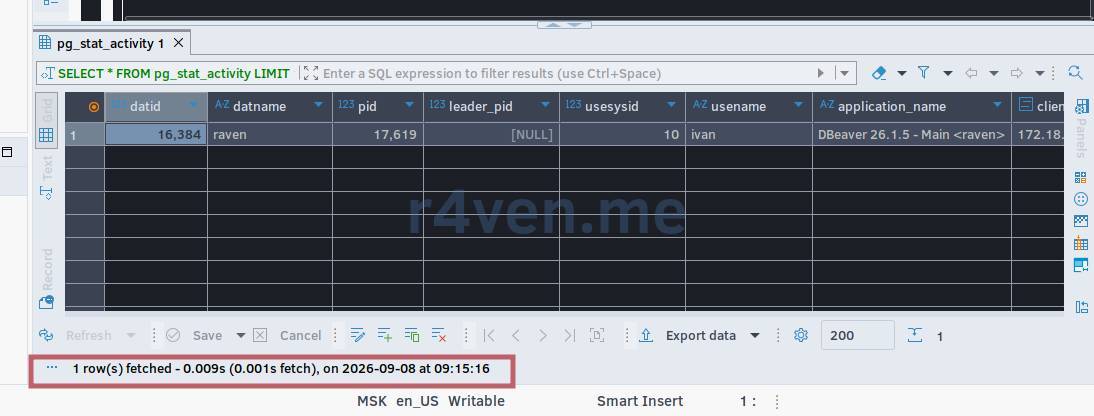
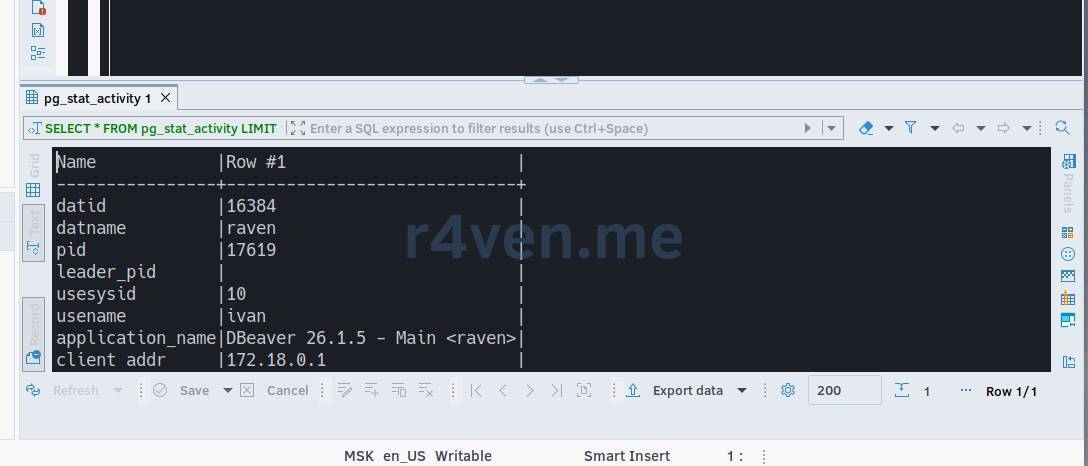
\pset -- full list of formatting parametersIn DBeaver, the query result lives in the Grid (table) or Text (plain text) tabs - switched by buttons at the bottom of the results panel. Execution time is shown automatically in the status bar after each query, the equivalent of \timing is enabled by default. And to view one long value in full - instead of \x, DBeaver uses the Value Viewer panel (opens at the bottom or as a separate window when you click on a cell).
Variables and Value Substitution
psql can store values in variables and substitute them in queries:
\set my_limit 5
SELECT * FROM pg_stat_activity LIMIT :my_limit;

\echo :my_limit
\unset my_limit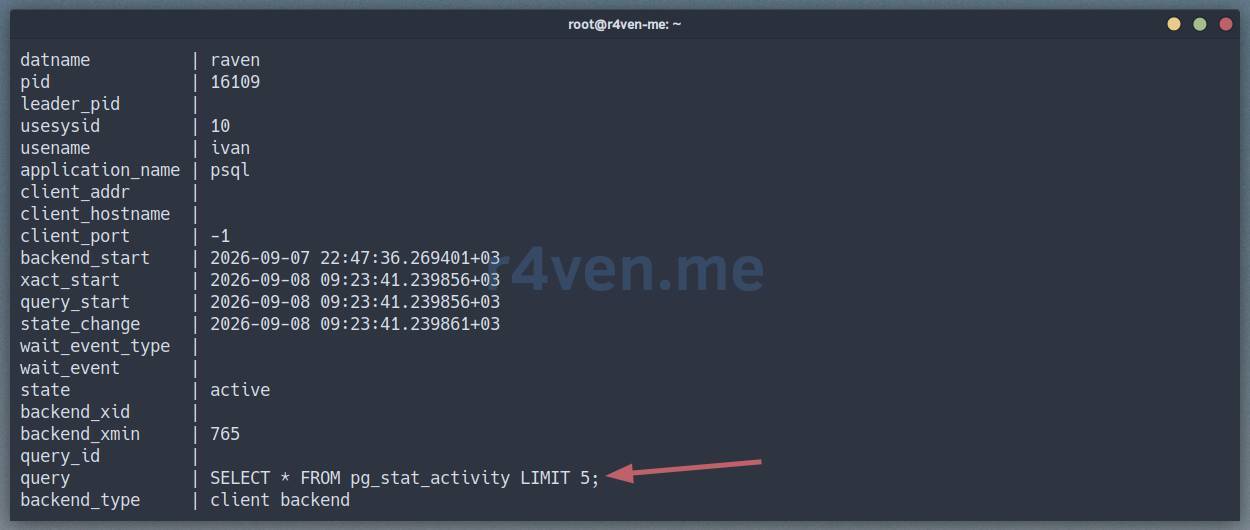
You can also do it the other way - grab the query result into a variable:
SELECT now() AS ts \gset
\echo :ts
Import a host environment variable:
\getenv pg_ver PG_VERSION
\echo :pg_ver
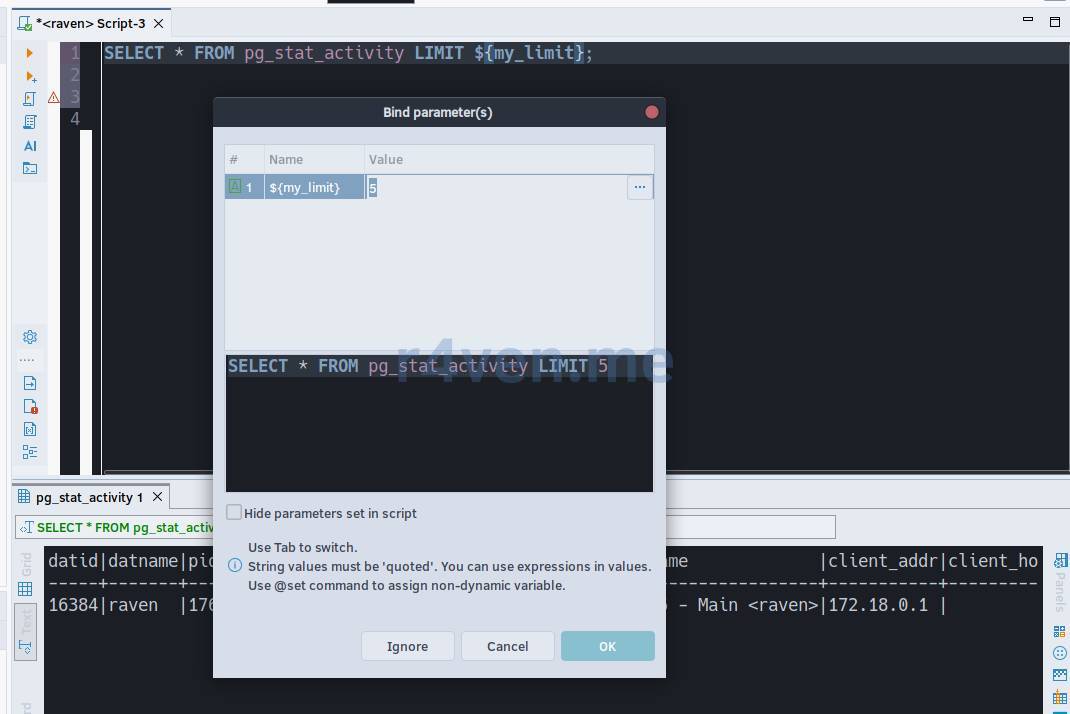
There’s no direct equivalent of psql variables in DBeaver, but a similar task is solved through query parameterization - if you write :my_limit or ${my_limit} in the SQL editor, DBeaver will prompt you with a window to enter a value before execution (Bind parameters).
Running Scripts and Outputting to a File
Run a query from a file:
\i /path/to/script.sqlSend the result to a file instead of the screen:
\o /tmp/result.txt
SELECT * FROM pg_roles;
\o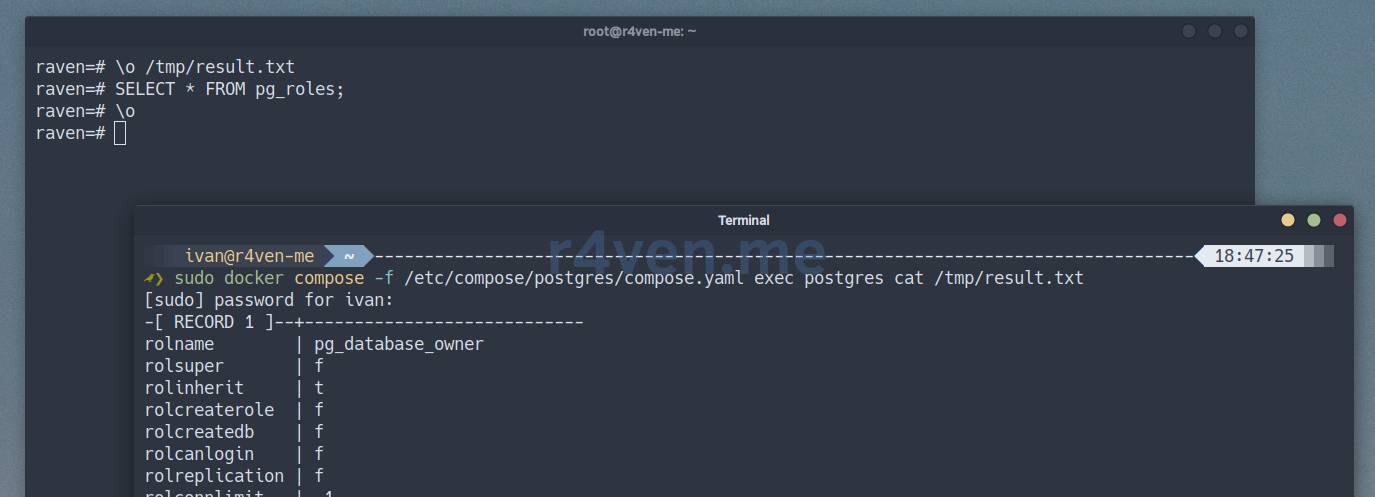
Pipe output to an external OS command:
SELECT datname FROM pg_database \g | sort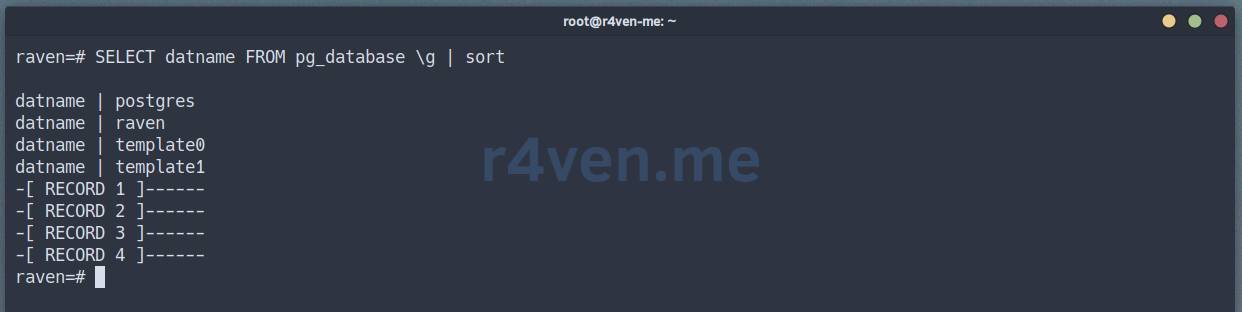
Execute an arbitrary OS command without exiting psql:
\! df -h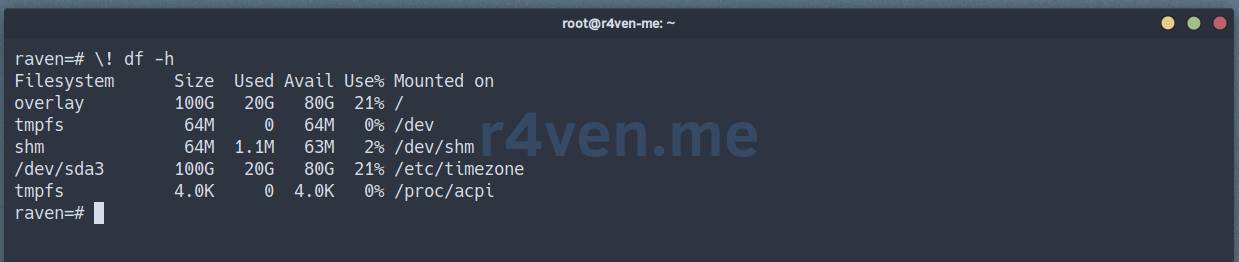
\! echo 'SELECT current_date;' > /tmp/script.sql

\! cat /tmp/script.sql

\i /tmp/script.sql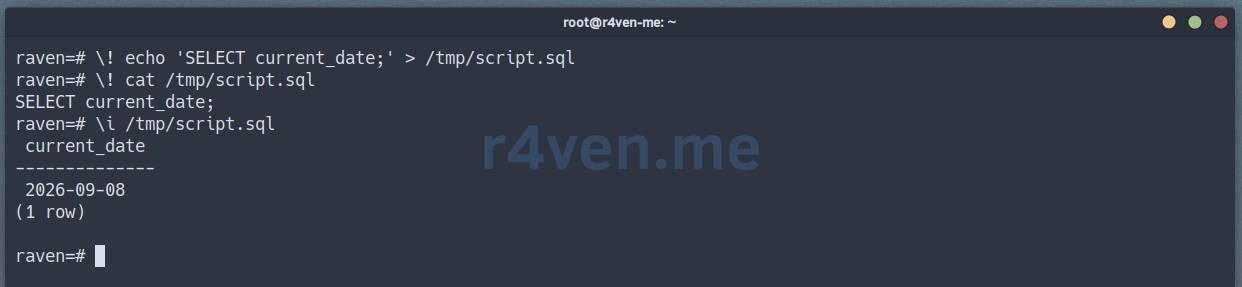
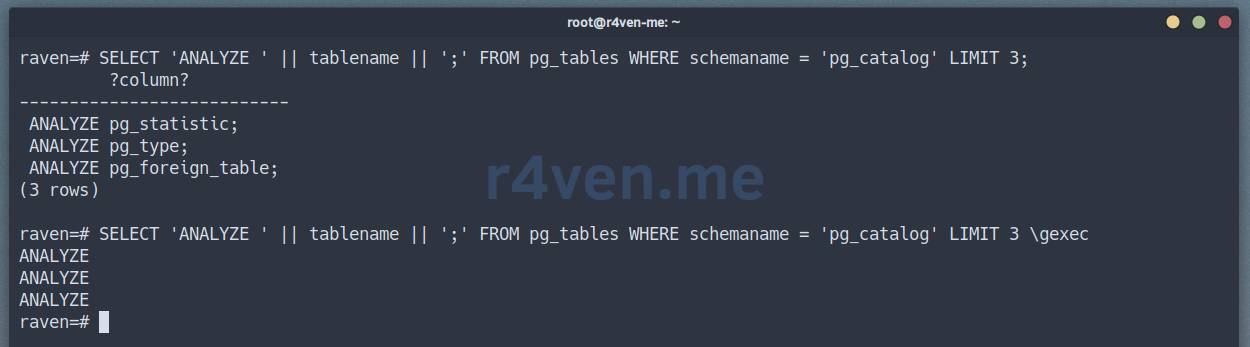
And \gexec - a separate trick: it executes not the query itself, but its result as SQL. It’s handy when you need to generate and immediately apply a set of commands:
SELECT 'ANALYZE ' || tablename || ';' FROM pg_tables WHERE schemaname = 'pg_catalog' LIMIT 3 \gexecIn the example:
SELECT 'ANALYZE ' || tablename || ';' ...generates lines likeANALYZE pg_class;,ANALYZE pg_type;etc.\gexectakes these generated lines and executes them as SQL - that is, it actually runsANALYZEon each table.
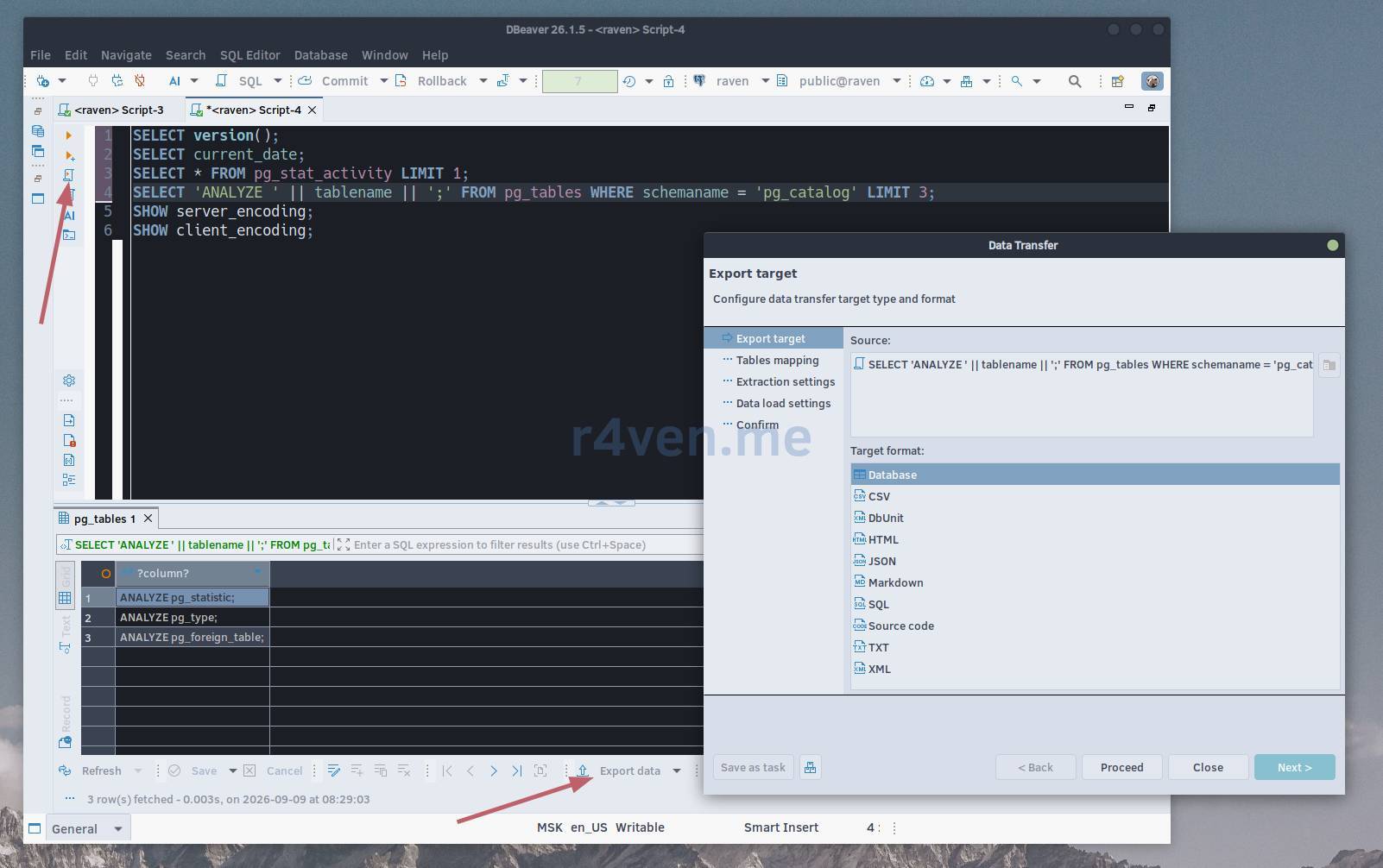
In DBeaver, a script with multiple SQL commands is executed via Execute SQL Script (Alt+X) - unlike a single Execute SQL Statement (Ctrl+Enter), it runs the entire open file at once, like \i. The result of any query can be saved to a file via the Export data button above the results table - the export wizard can handle CSV, JSON, SQL inserts, Excel, and dozens of other formats.
Personalization: ~/.psqlrc
The ~/.psqlrc file is executed automatically every time psql starts - it’s convenient to put your usual settings there:
cat > ~/.psqlrc << EOF
\set PROMPT1 '%n@%/%R%x%# '
\set PROMPT2 '%n@%/%R%x%# '
\setenv PSQL_PAGER 'less -XS'
\timing on
EOF☝️ If you set up the test environment according to the instructions from the first part, then the local ~/.psqlrc file should already be mounted inside the container, therefore it will take effect for both the client on the host and in the container. When you change it, don’t forget to restart the database service:
systemctl --user restart postgres
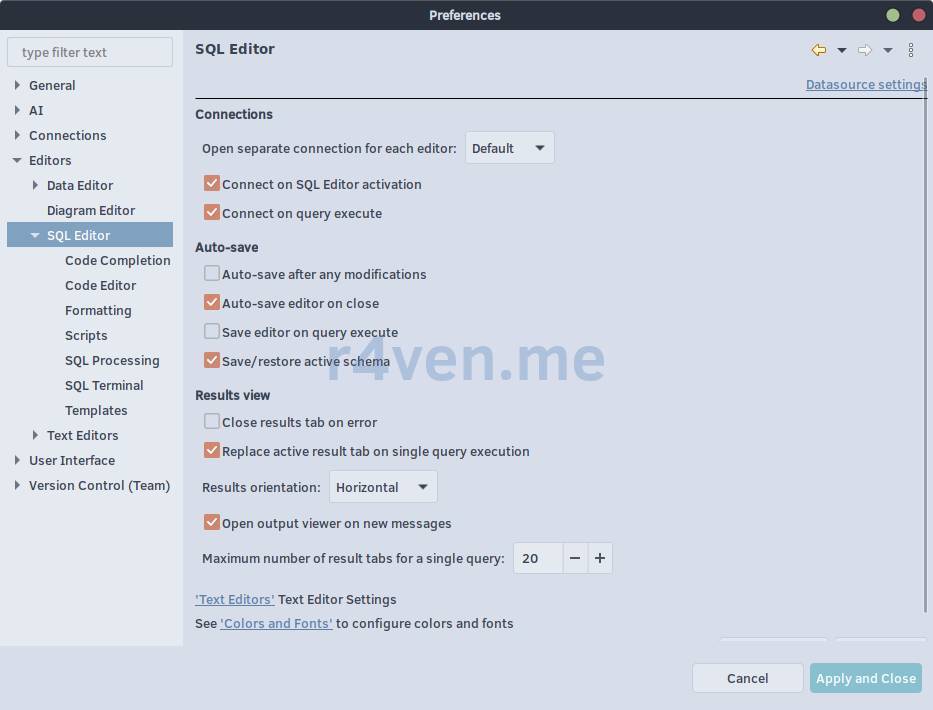
The equivalent in DBeaver is found in Window → Preferences → Editors → SQL Editor: there you configure autocommit, default fetch size, execution plan, syntax highlighting, and SQL formatting - all the same personal environment settings, just through dialog windows instead of a text file.
Transactions and Error Handling
By default, psql operates in autocommit mode - each command is committed immediately. To turn it off:
\set AUTOCOMMIT offInside an explicit transaction, an error usually breaks everything up to ROLLBACK:
BEGIN;
SELECT 1 / 0; -- error
SELECT 1;     -- won't execute, transaction is aborted
ROLLBACK;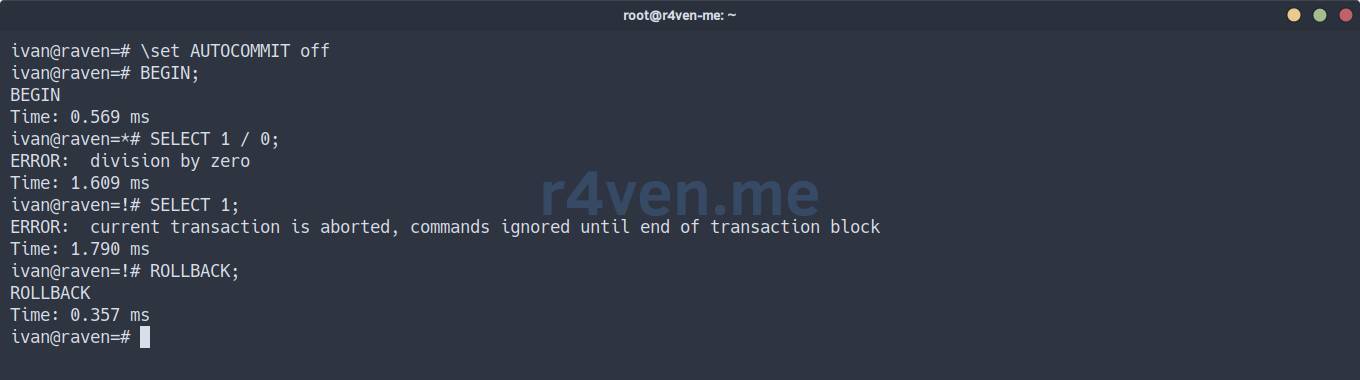
📝 Pay attention to the PROMPT during different transaction states.
The ON_ERROR_ROLLBACK mode saves you from a full rollback - under the hood psql places a SAVEPOINT before each command and only rolls back to it:
\set ON_ERROR_ROLLBACK on

BEGIN;
SELECT 1 / 0; -- error, but the transaction is alive
SELECT 1;     -- this will execute now
COMMIT;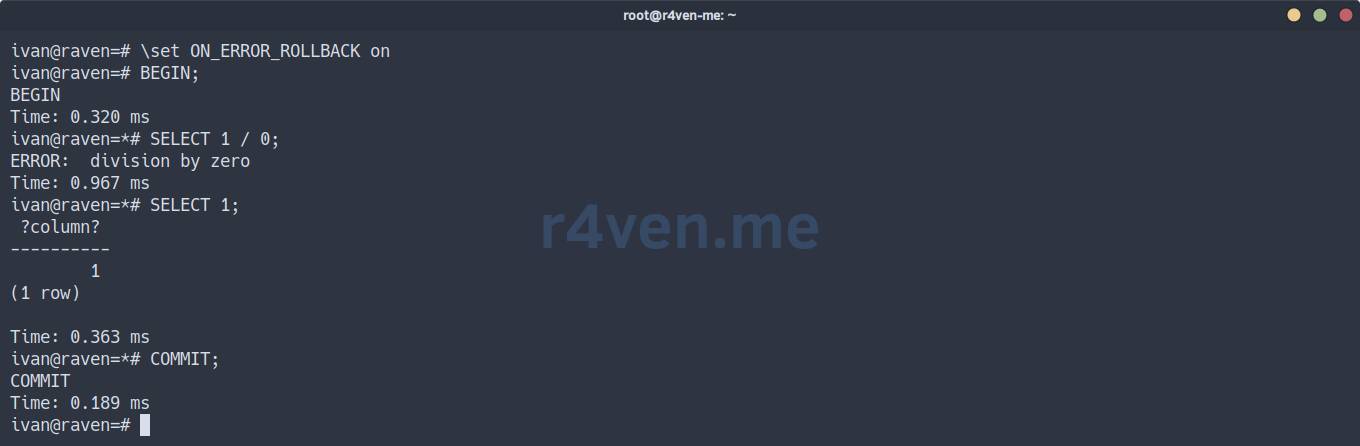
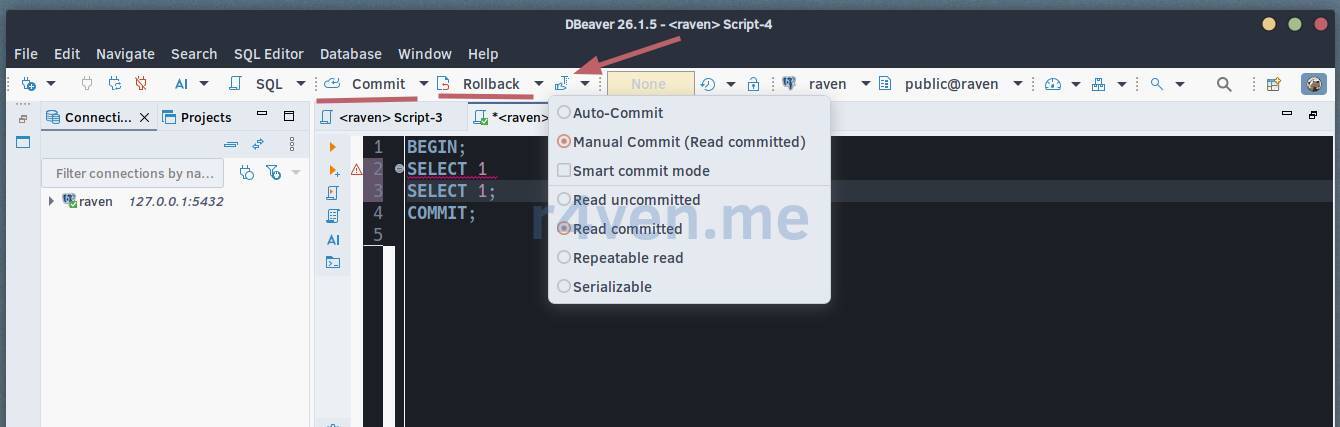
In DBeaver, autocommit is toggled with a single button on the SQL editor panel (Auto-commit / Manual), and manual transaction management is done with neighboring Commit and Rollback buttons. There’s no equivalent of ON_ERROR_ROLLBACK: an error in one of the statements in a manual transaction still requires Rollback or an explicit SAVEPOINT in the SQL itself.
Possible Issues
- output gets “broken” on long lines or truncated by the pager
WARNING: terminal is not fully functionalUsually appears when connecting via a minimal terminal (for example, cron or CI). Quick fix - disable the pager for the session:
\pset pager off- DBeaver doesn’t see Russian data / garbled characters in results
Almost always it’s a character encoding issue. Check the actual server encoding:
SHOW server_encoding;
SHOW client_encoding;Both should be UTF8 - this is the default encoding for the official postgres image, so normally the problem only occurs if you explicitly changed it when creating a connection in DBeaver (Connection settings → PostgreSQL → Client encoding).
- insufficient permissions for an object in Database Navigator
DBeaver silently shows an empty tree instead of an error if the user doesn’t have permissions on the schema. We only have one user so far - the superuser ivan, so within this course the problem won’t come up, but remember the symptom - we’ll have a separate lesson on permissions and roles.
Conclusion
psql is a very powerful tool - it’s actually a small scripting language around SQL. DBeaver, in this sense, honestly handles the same tasks, it just uses a graphical interface for this. I think it’s useful to be able to work with both of these options: psql is relevant in the console, if you need quick access to the database, for example over SSH on a server without a GUI, and DBeaver is of course more convenient for everyday work with databases, including flexible data export.
In the next lesson, we move to the internals - PostgreSQL architecture and MVCC.
Thanks for reading. Good luck learning PostgreSQL! 🐧
All articles in the series
Reference Materials
👨💻And…
Don’t forget about our Telegram channel 📱 and chat
Or maybe you want to become a co-author? Then click here🔗
💬 All the best ✌️
That should be it. If not, check the logs 🙂

Comments