
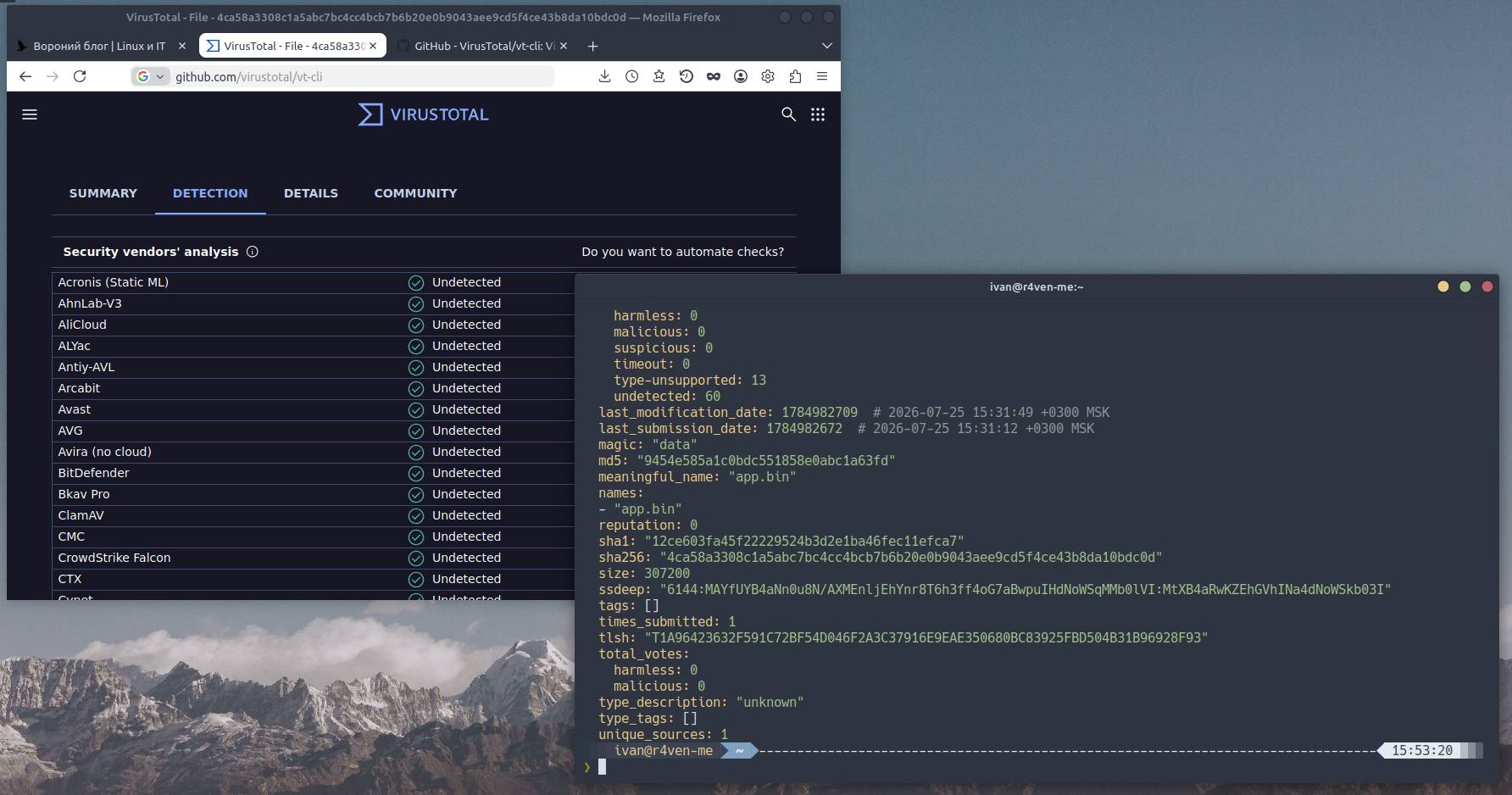
This note shows how to quickly check files with VirusTotal directly from the Linux terminal without visiting the web interface.
🖐️Hey!
Subscribe to our Telegram channel @r4ven_me📱, so you don’t miss new posts on the website 😉. If you have questions or just want to chat about the topic, feel free to join the Raven chat at @r4ven_me_chat🧐.
Introduction
VirusTotal is a cloud service that checks files and links using a set of antivirus engines and behavioral analysis tools. You can upload files manually in the web interface, but there’s also the option to work from the command line using the vt-cli utility. This is the official CLI tool from VirusTotal itself, written in Go, with full support for all major operations: checking files, hashes, URLs, and retrieving historical detection data.
Prerequisites
In the examples below, I used LMDE 7 (Debian 13) and Linux Mint 22 (Ubuntu 24.04). Software versions:
| Software | Version |
|---|---|
| Go | 1.26.5 |
| vt-cli | 1.3.1 |
| Debian/Ubuntu | 13/24.04 |
Getting a Free VirusTotal API Key
First, you need a VirusTotal account and an API key.
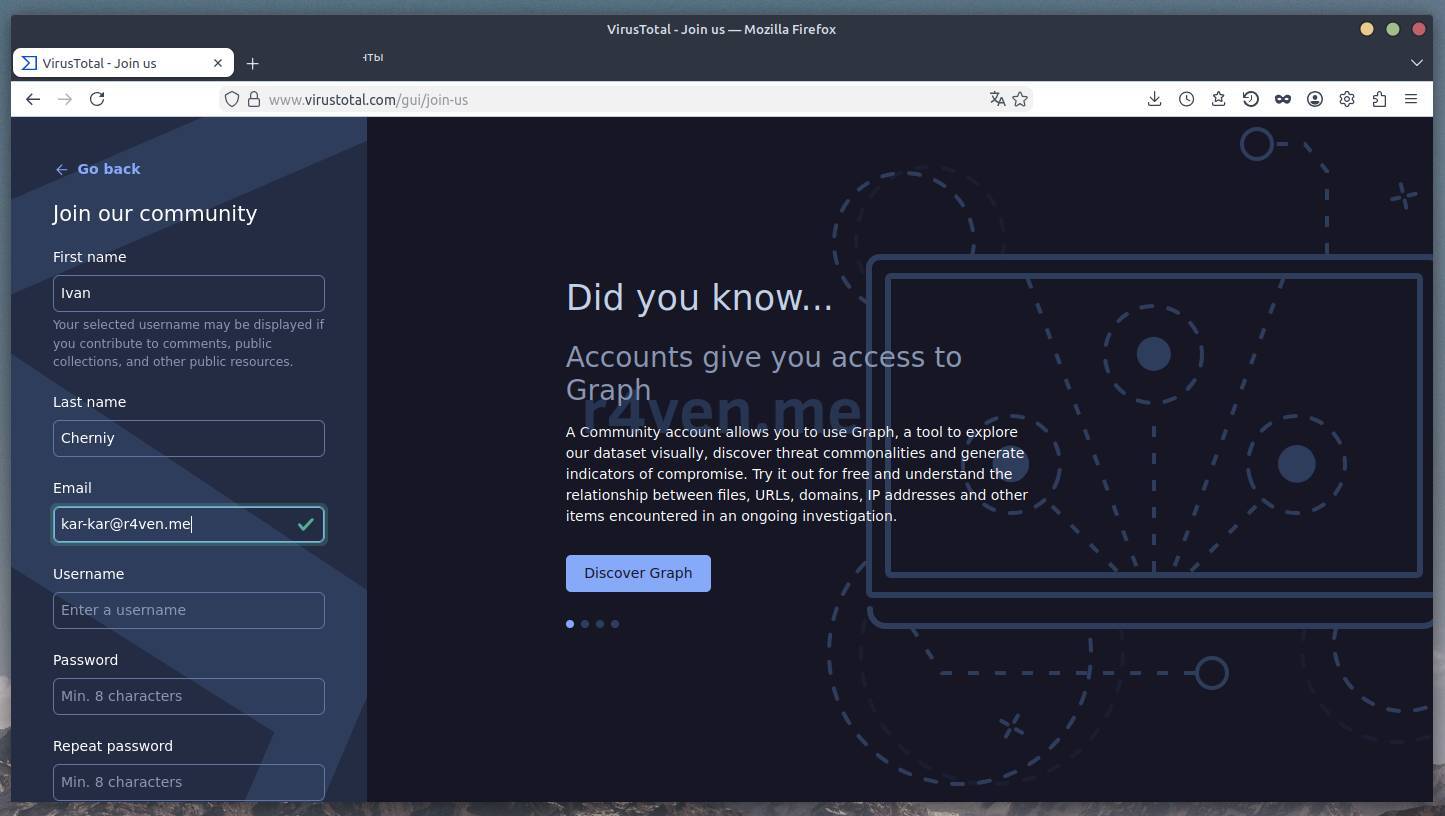
Go to the registration page https://www.virustotal.com/gui/join-us, fill out the form, and confirm your email:
After logging into your account, go to your profile and get the API key:
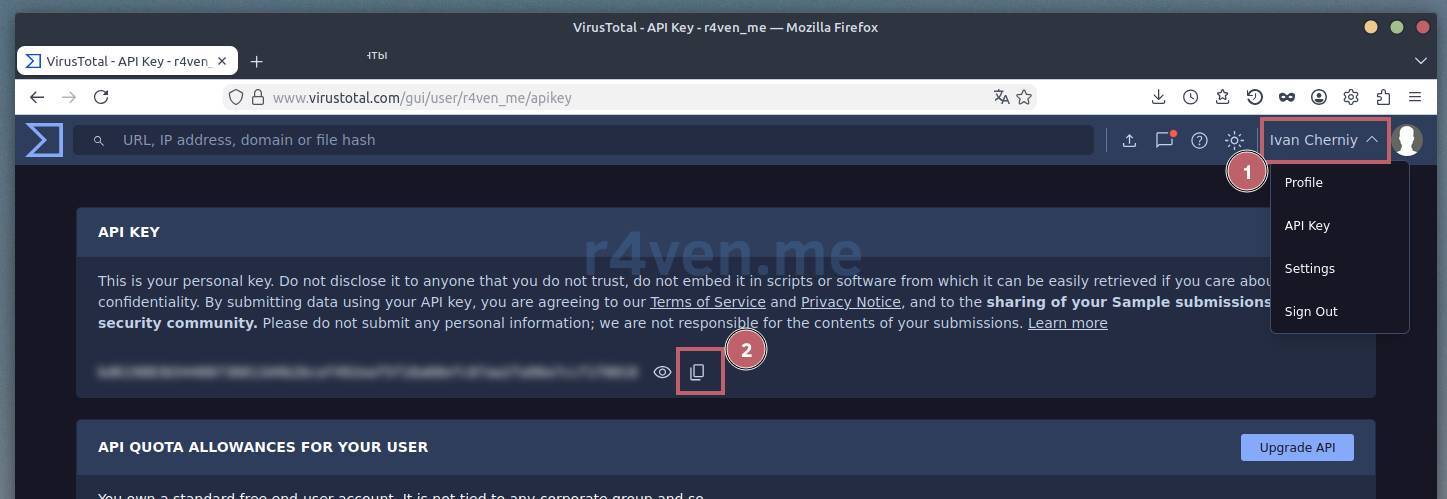
Copy the key - you’ll need it when initializing vt-cli.
📝 The free VirusTotal subscription provides 500 requests per day. This is enough for most cases, but for some automation tasks it may not be sufficient.
Installing Go
vt-cli is written in Go, so we need Go itself! Download the current version from https://go.dev/dl/:
curl -fsSL -o /tmp/go1.26.5.linux-amd64.tar.gz https://go.dev/dl/go1.26.5.linux-amd64.tar.gzExtract it to your home directory using tar:
tar -C $HOME/.local -xzf /tmp/go1.26.5.linux-amd64.tar.gzAdd Go to PATH. If you’re using zsh (like I do):
echo 'export GOBIN=$HOME/.local/go/bin' >> ~/.zshrc
echo 'export PATH=$PATH:$GOBIN' >> ~/.zshrc

exec zshIf using bash, use ~/.bashrc instead of ~/.zshrc.
Verify that Go is installed:
go versionIf everything is fine, you should see output similar to:
go version go1.26.5 linux/amd64Installing vt-cli
Install the utility via go install. Source code and documentation are on GitHub: https://github.com/virustotal/vt-cli.
go install github.com/VirusTotal/vt-cli/vt@latestCheck the version:
vt versionInitialize the utility and add the API key. At this step, you’ll be prompted to enter the key we copied from the VirusTotal account:
vt init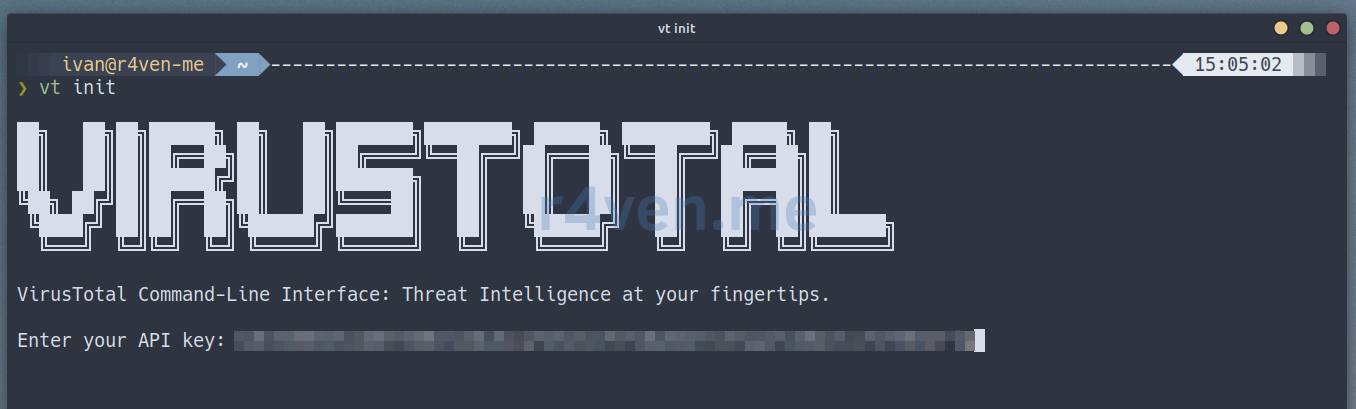
After this, the key will be saved locally in ~/.config/vt/config.json, and vt-cli will be ready to use.
Setting Up Tab Completion in ZSH (optional)
If you use vt-cli frequently and want tab completion, generate a completion script for ZSH:
mkdir -vp $ZSH/completions

vt completion zsh > $ZSH/completions/_vt

exec zshNow when you type vt and press Tab, available commands will be suggested.
📝 If you’re using bash, use vt completion bash > ~/.bash_completion.d/vt-cli (if the directory exists) or vt completion bash | sudo tee /etc/bash_completion.d/vt-cli > /dev/null.
Usage Examples
Now for the fun part - how to actually use the utility to check files from the console 👨💻.
Checking a File by Path
The simplest case is to check a file on your disk:
dd if=/dev/urandom of=./app.bin bs=100K count=3

vt scan file ./app.bin --wait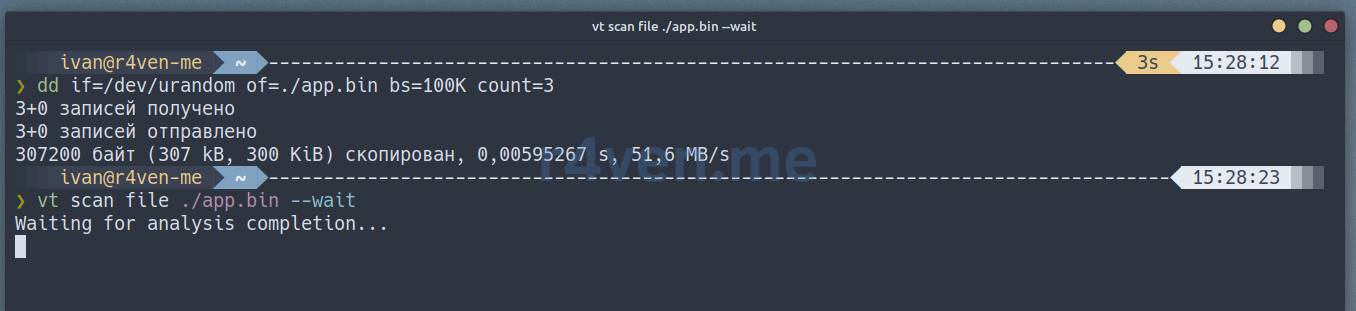
If the file is new and not yet in the VirusTotal database, the utility will upload it and start the check. Thanks to the --wait flag, the result will be returned immediately after analysis:
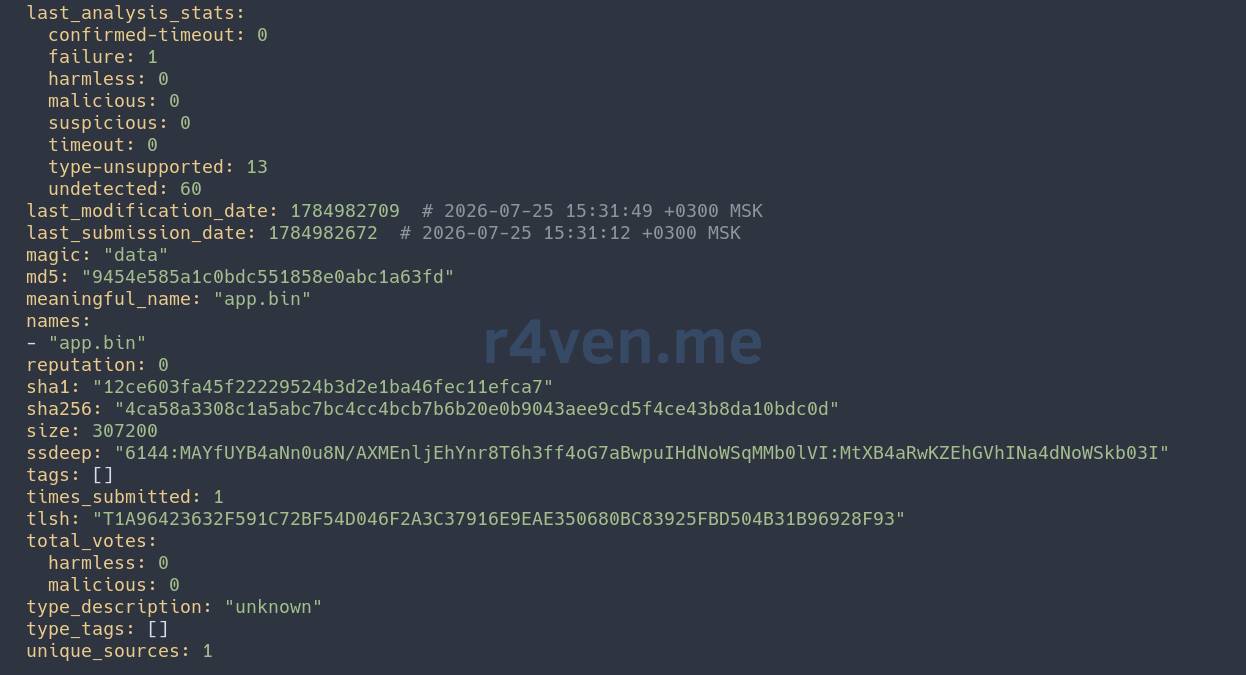
Getting Analysis Results
When a file is uploaded without --wait, it goes into the analysis queue and an identifier is returned:

To get the results, use the command with the analysis ID:
vt analysis <analysis-id>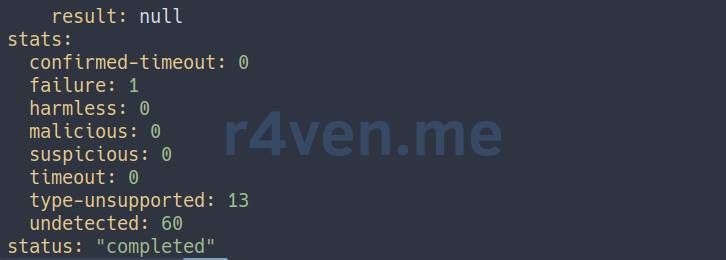
Checking a File by Hash
If you have a SHA-256, MD5, or SHA-1 hash of a file, you can check it directly without uploading:
vt file <HASH>For example:
vt file 4ca58a3308c1a5abc7bc4cc4bcb7b6b20e0b9043aee9cd5f4ce43b8da10bdc0dThis is useful if you need to find an old analysis.
Checking a URL
Check the safety of a link:
vt scan url https://r4ven.meThe scan command tells us we want to run a fresh analysis. The result will be returned with an analysis ID, and you can then request results using the same vt analysis command or use --wait key.
If the URL contains a file, like a Bash script, you can use the stream redirection mechanism to check it without downloading:
vt scan file <(curl -Ls https://raw.githubusercontent.com/jatinkrmalik/vocalinux/main/install.sh) --wait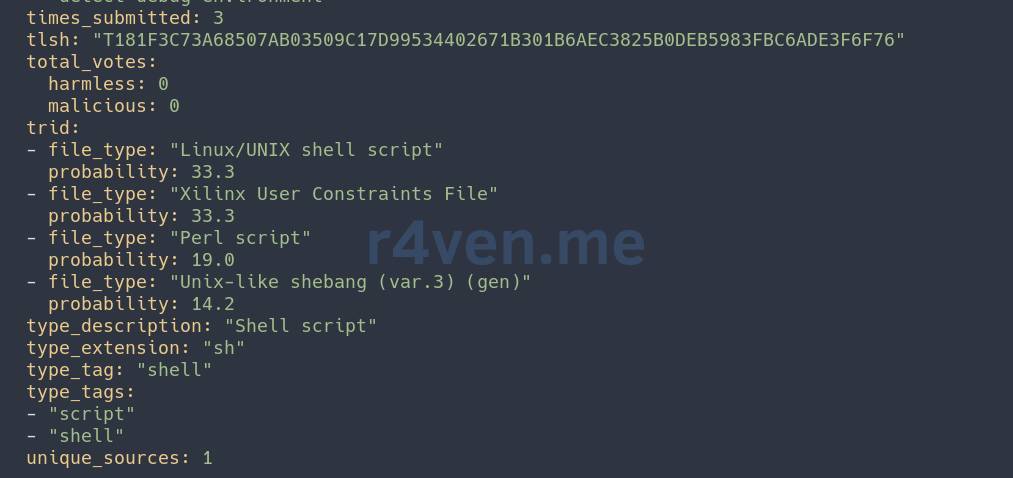
Outputting Results as JSON
By default, vt-cli outputs results in human-readable format. If you need to process results with a script, use the --json flag:
vt file <HASH> --format=jsonFor example:
vt file 4ca58a3308c1a5abc7bc4cc4bcb7b6b20e0b9043aee9cd5f4ce43b8da10bdc0d --format=json | jq '.[0].last_analysis_stats'Here we get JSON with detection statistics, and through jq we can extract the fields we’re interested in.
{
  "confirmed-timeout": 0,
  "failure": 1,
  "harmless": 0,
  "malicious": 0,
  "suspicious": 0,
  "timeout": 0,
  "type-unsupported": 13,
  "undetected": 60
}Conclusion
vt-cli is a convenient tool for quickly working with potentially dangerous files from the console.
The main drawback here is the request limit on the free plan (500 per day). For regular automatic scanning, this may not be enough, but for selective checks and testing it’s perfectly fine. The service does offer a premium subscription, but that’s another story 😉.
Thank you for reading. Remember, you are responsible for your own digital security! 🐧
Useful Materials
👨💻And…
Don’t forget about our Telegram channel 📱 and chat
Or maybe you want to become a co-author? Then click here🔗
💬 All the best ✌️
That should be it. If not, check the logs 🙂

Comments