
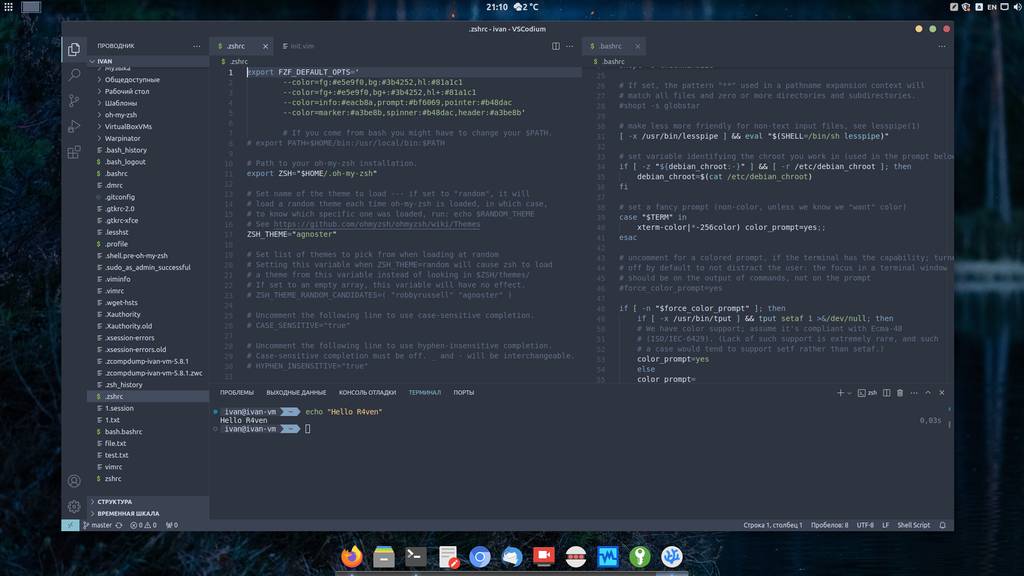
Today let’s talk about (and install) a popular fork of the VSCode code editor, just without telemetry and other unpleasantness — VSCodium.
🖐️Hey!
Subscribe to our Telegram channel @r4ven_me📱, so you don’t miss new posts on the website 😉. If you have questions or just want to chat about the topic, feel free to join the Raven chat at @r4ven_me_chat🧐.
Preface
VSCode is, perhaps, the most popular code editor today. This product is developed by Microsoft and distributed under the MIT license. The editor is built on the Electron platform.
Many people know that this editor has open source code (here’s the proof), but not everyone knows that it’s distributed in binary form, compiled by Microsoft itself, which before building adds a bit of its own “spices” in the form of tracking actions in the editor and sending telemetry. Yes, some of this can be disabled in the settings, but not all of it.
VSCodium, which we’re looking at today, is a special build of the Visual Studio Code editor that includes only open components. This version has been stripped of all Microsoft branding elements and lacks the parts of the code responsible for collecting telemetry.
VSCodium is available for the following platforms: Linux, Windows, macOS.
Installing VSCodium on Linux Mint
In this article, we’ll install VSCodium on Linux Mint 21. But I’m sure it will look +/- the same on other distributions.
I chose the installation method specified in the instructions on the official website: by connecting the official repository for Deb-based distributions. This method is good because VSCodium will update automatically when the system is updated.
But if you prefer clicking with the mouse — don’t be upset! You can simply download the deb package of the program from the project’s releases page on GitHub and install it using the graphical utility pre-installed in Linux Mint — Gdebi.
So, the installation.
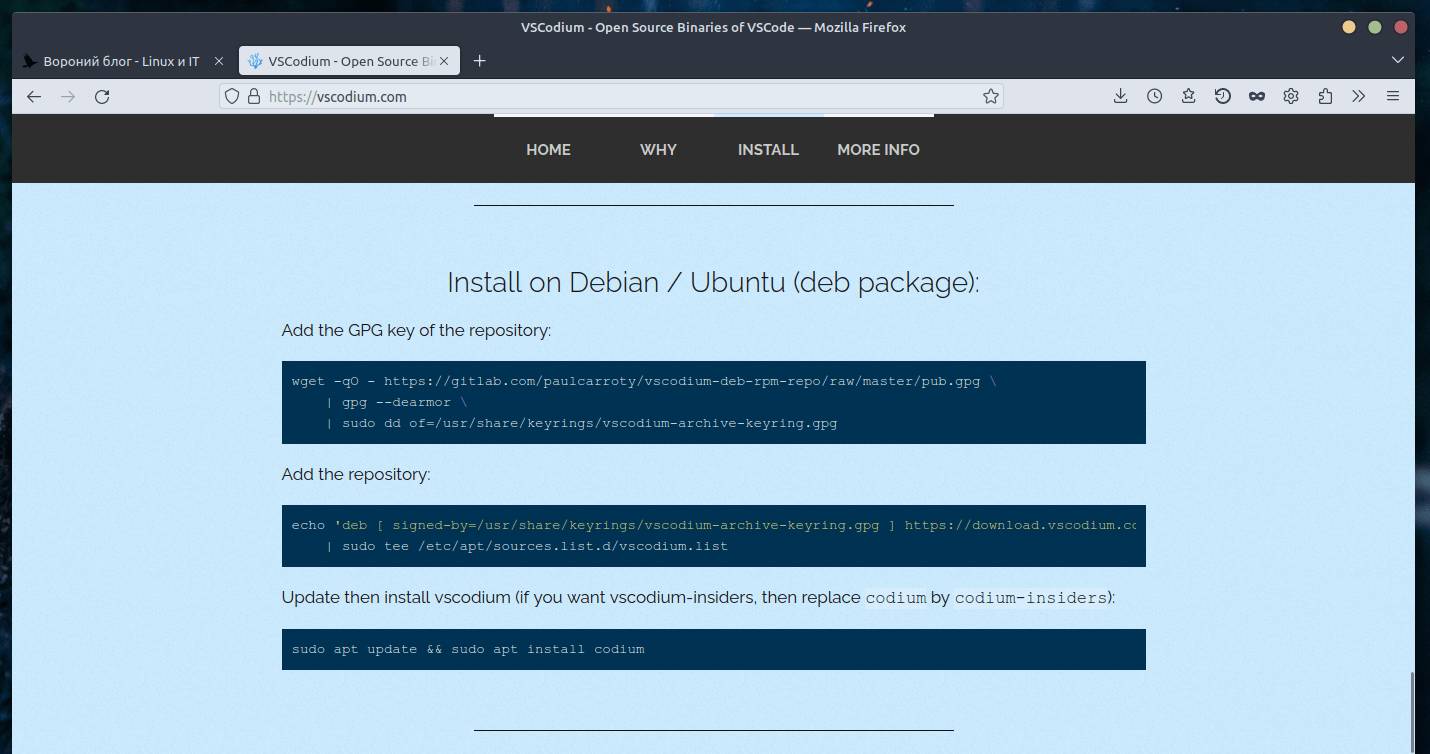
Instructions from the official website
Enter three commands one by one in the terminal:
# Import the developer's GPG key into our system
wget -qO - https://gitlab.com/paulcarroty/vscodium-deb-rpm-repo/raw/master/pub.gpg \
    | gpg --dearmor \
    | sudo dd of=/usr/share/keyrings/vscodium-archive-keyring.gpg

# Add the repository's address to the list
echo 'deb [ signed-by=/usr/share/keyrings/vscodium-archive-keyring.gpg ] https://download.vscodium.com/debs vscodium main' \
    | sudo tee /etc/apt/sources.list.d/vscodium.list

# Update the package cache and install vscodium
sudo apt update && sudo apt install codiumsudo privileges are required for installation.
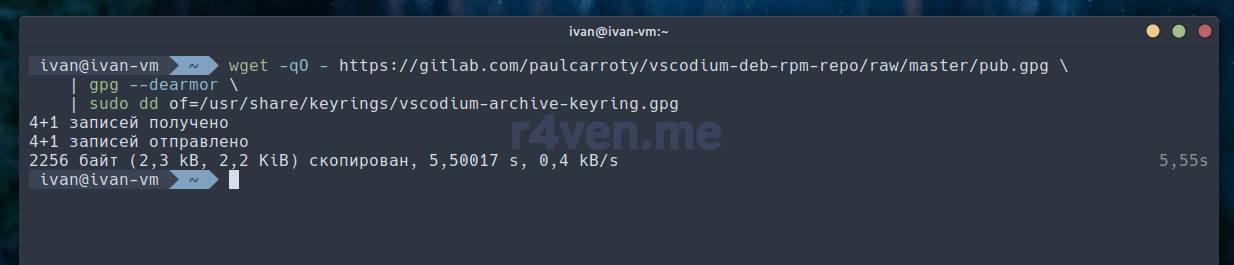
Importing the GPG key
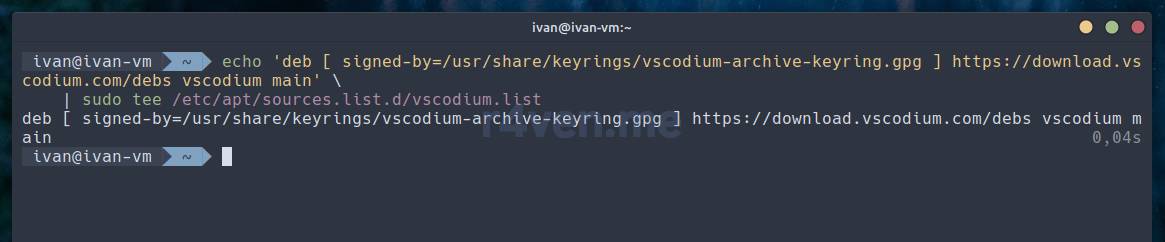
Adding the repository address
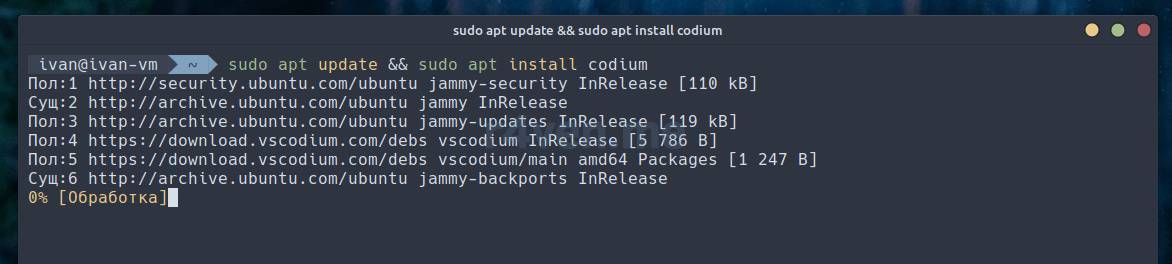
Updating the package cache and installing the vscodium package
After the installation is complete, launch the editor from the main menu:
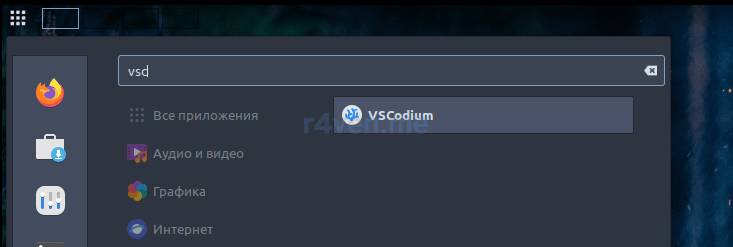
Searching for and launching the code editor
It’s worth noting how promptly VSCodium builds are released by the developers. Below are the versions of VSCodium and the original VSCode:
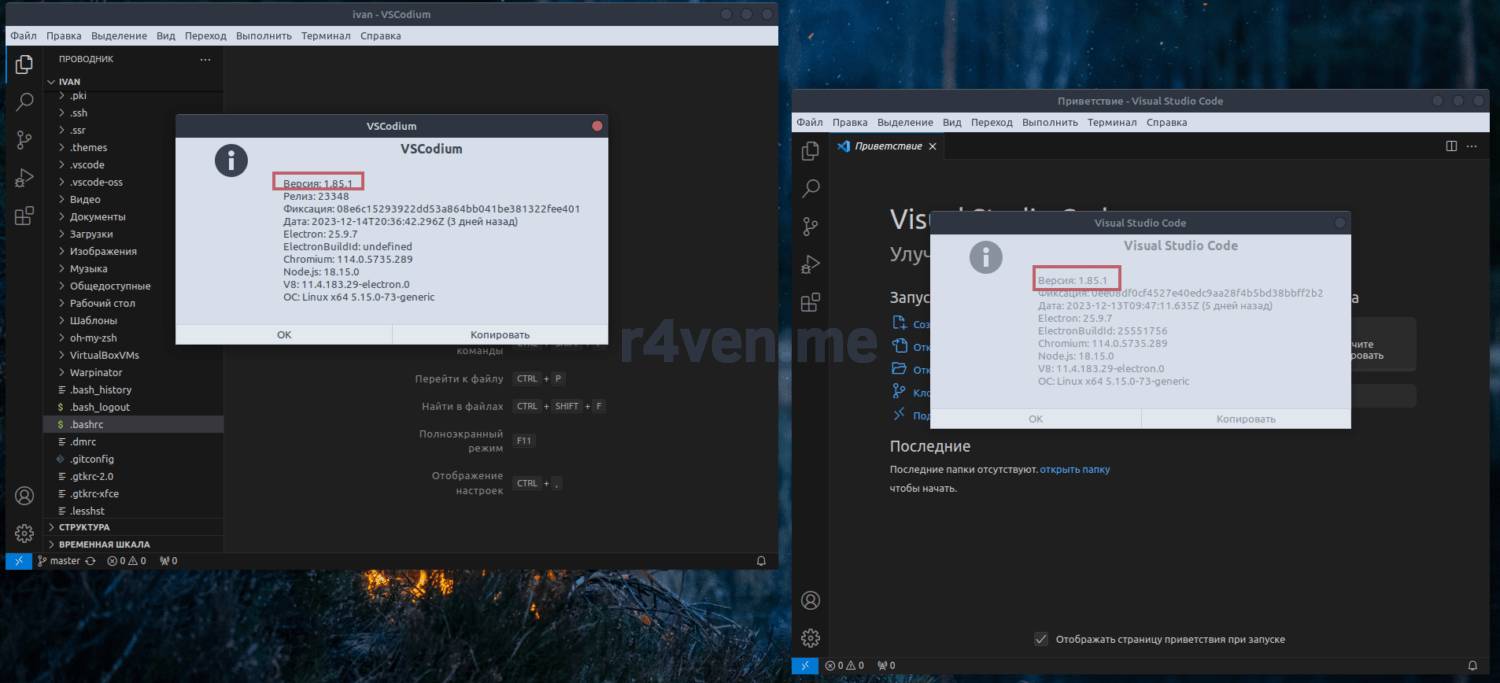
Comparison of VSCodium and VSCode versions
As you can see, the versions are identical.
At the time of writing, the latest stable version of the editor is: 1.85.1
For those who still want to use the original VSCode on Linux, built by Microsoft, here’s the official documentation for installing it on Linux: Visual Studio Code on Linux.
Setting Up the Nord Theme
The default theme doesn’t suit us) Let’s install and activate the Nord theme right away.
Go to the extensions section and type the word Nord. There are several options in the list of plugins. I like two themes: the official one — Nord by Arctic Ice Studio, and a third-party one — Nord Deep.
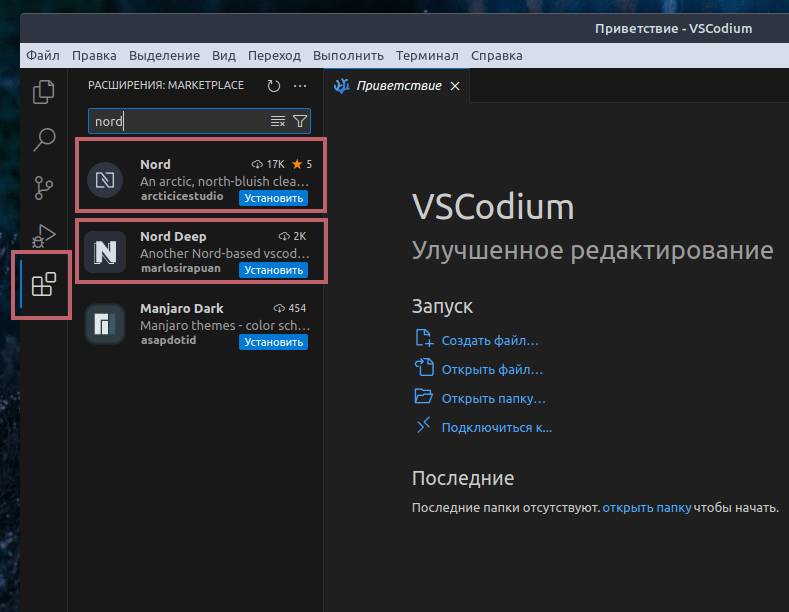
Installing the Nord theme
I install both.
A Couple of Screenshots
Here’s what the editor will look like as a result:
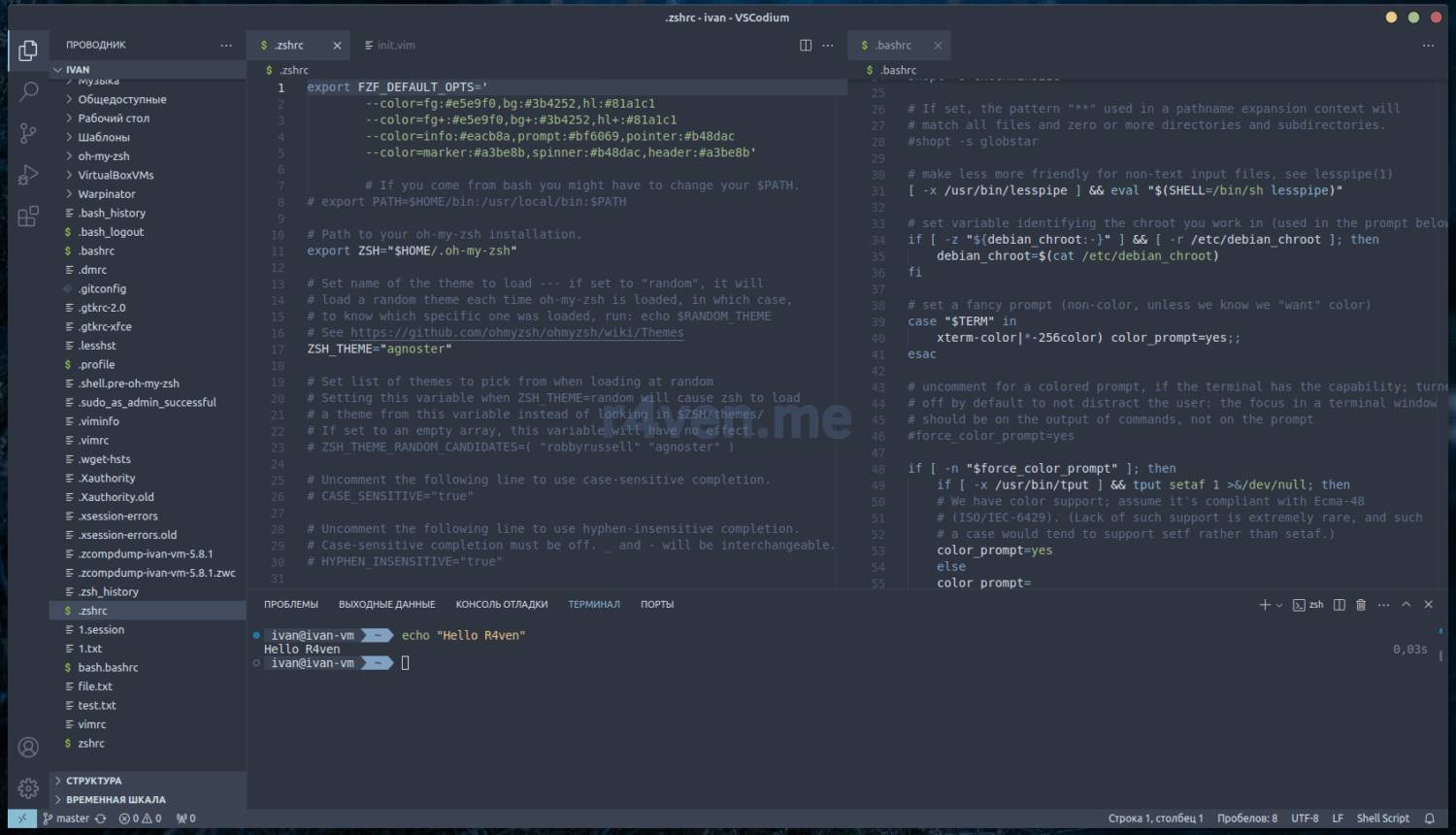
Official Nord theme
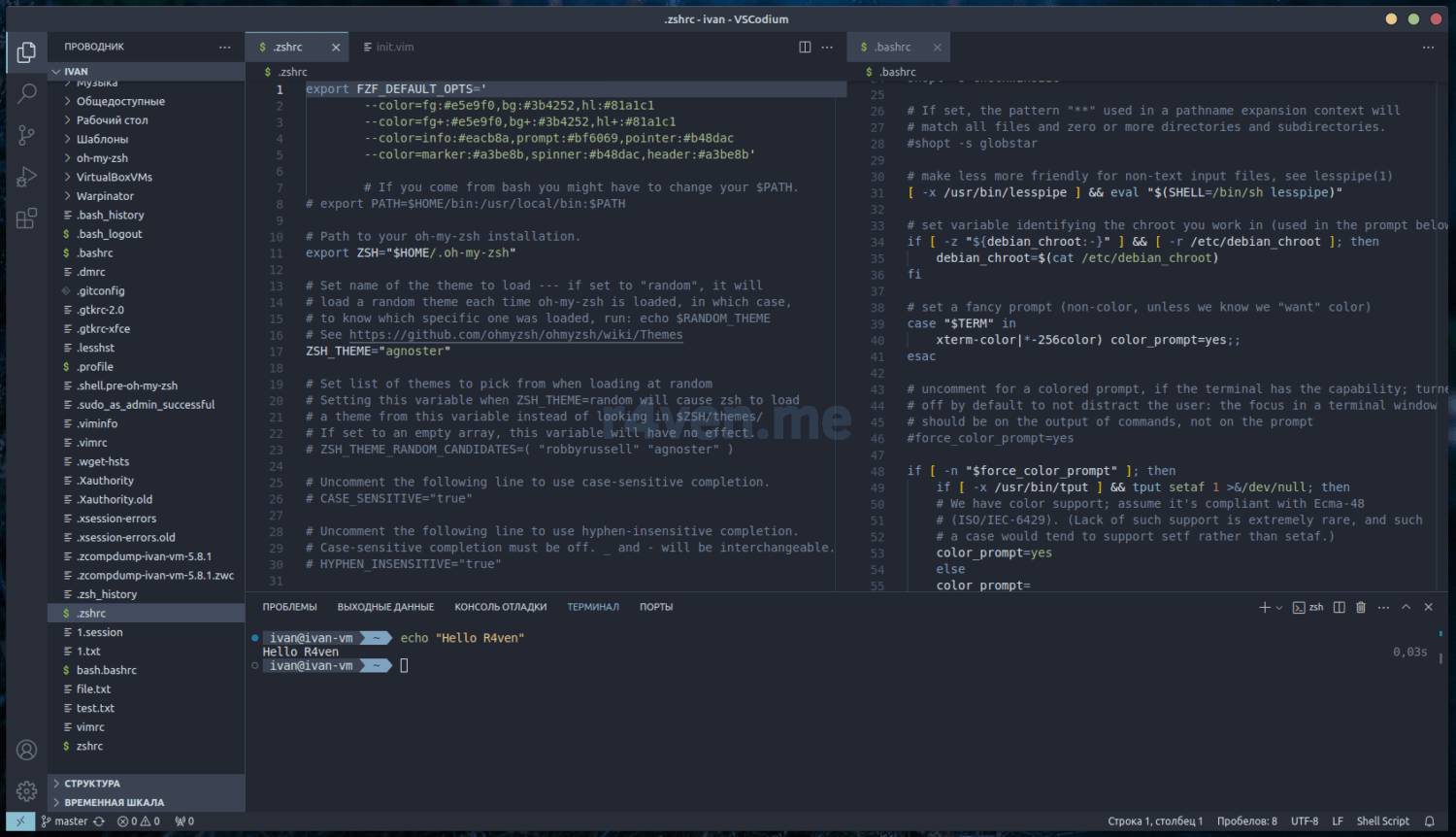
Nord Deep theme
A Few Words About Editor Extensions
Since Microsoft is a guru at using all sorts of licenses, they formally prohibit using their extension marketplace for other products based on their developments, including VSCode.
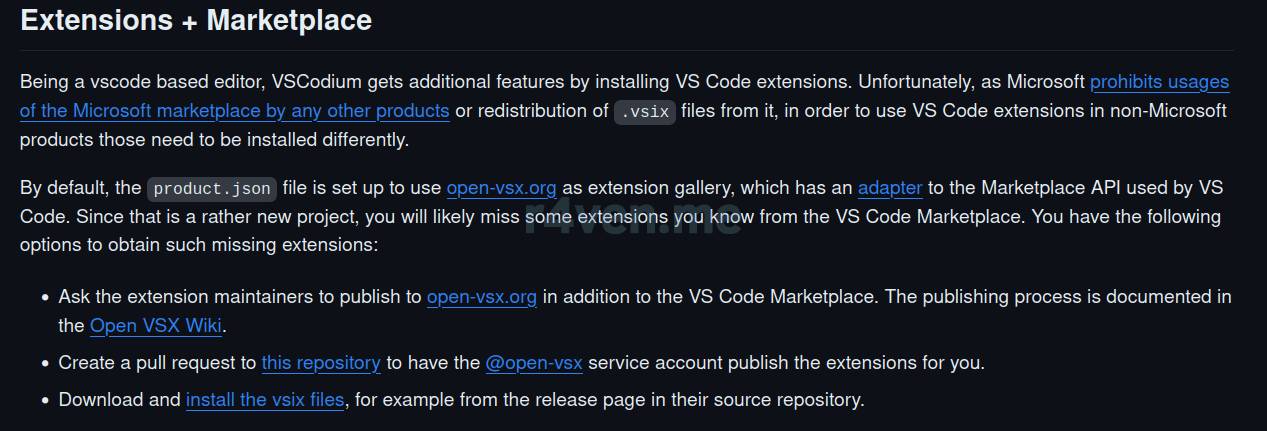
A footnote about the extension marketplace from the VSCodium documentation
Because of this, VSCodium uses an alternative extension repository (with open sources) by default — open-vsx.org. But it may lack some plugins. Unfortunately, this can be a dealbreaker for some.
You can still connect the official VSCode Marketplace, but you’ll have to do it manually. It’s a simple config edit. Let me show you.
Create a product.json file in the VSCodium configuration folder:
codium ~/.config/VSCodium/product.json
Opening the file
And fill it with the following content:
{
  "extensionsGallery": {
    "serviceUrl": "https://marketplace.visualstudio.com/_apis/public/gallery",
    "itemUrl": "https://marketplace.visualstudio.com/items",
    "cacheUrl": "https://vscode.blob.core.windows.net/gallery/index",
    "controlUrl": ""
  }
}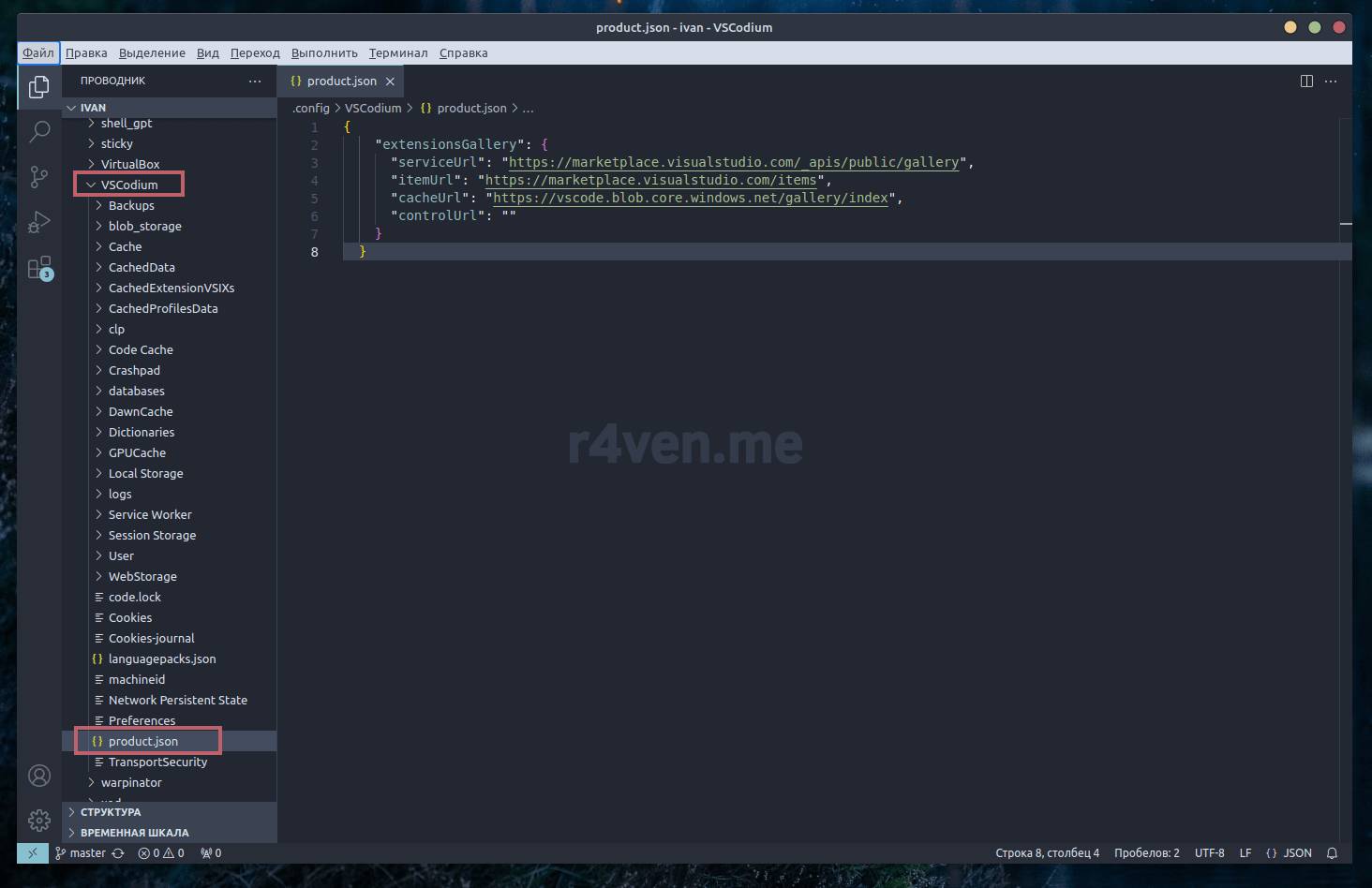
Specifying the extension source addresses
Then save and restart the editor.
To check, go to the extensions section and type the word Nord. As you can see, the search results are much more numerous now, since the official Microsoft extension sources are being used:
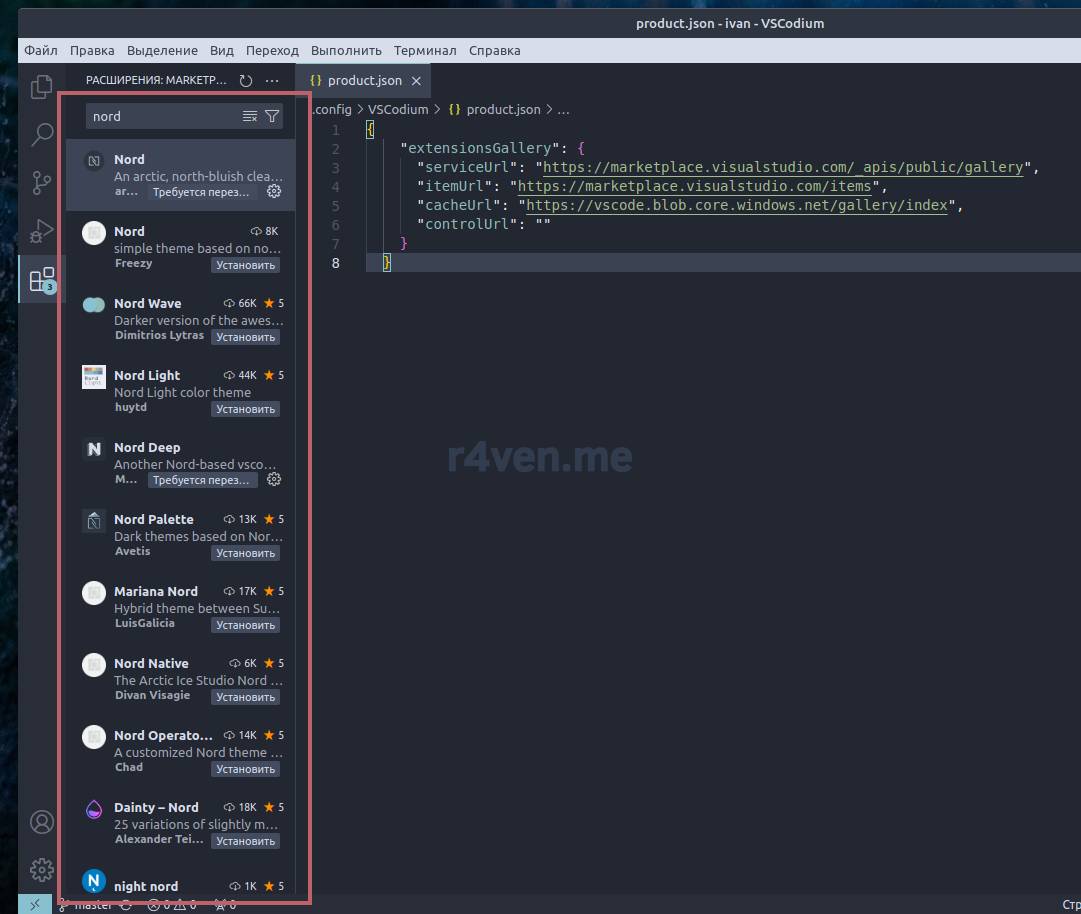
Search results in the extensions section
Please keep in mind that the official repositories contain proprietary extensions, which may, among other things, collect telemetry. Unlike the vetted extensions on open-vsx.org.
Afterword
We’ve gotten acquainted with VSCodium — an ethical build of the popular VSCode code editor from Microsoft. We installed it on Linux Mint 21 and set up the Nord theme.
I’ll be honest, from time to time I still have to use VSCode/VSCodium. There’s no denying their convenience. But casual stuff isn’t really our thing) So I still prefer Vim-like editors.
And if you still can’t manage to exit Vim (like me(: ), be sure to check out the material under the corresponding tag: . An article on configuring plugins in Neovim is coming soon, don’t miss it.
Subscribe to my Telegram channel @r4ven_me — links to new posts arrive there right away.
And if you have any questions about the articles on the raven blog — feel free to join our chat on Telegram: @r4ven_me_chat.
Thanks for reading. All the best!
Related Materials
- Official website of the VSCodium project
- Official GitHub of the VSCodium project
- Documentation section about extensions (EN)
- Official GitHub of the original VSCode by Microsoft
👨💻And…
Don’t forget about our Telegram channel 📱 and chat
Or maybe you want to become a co-author? Then click here🔗
💬 All the best ✌️
That should be it. If not, check the logs 🙂

Comments