
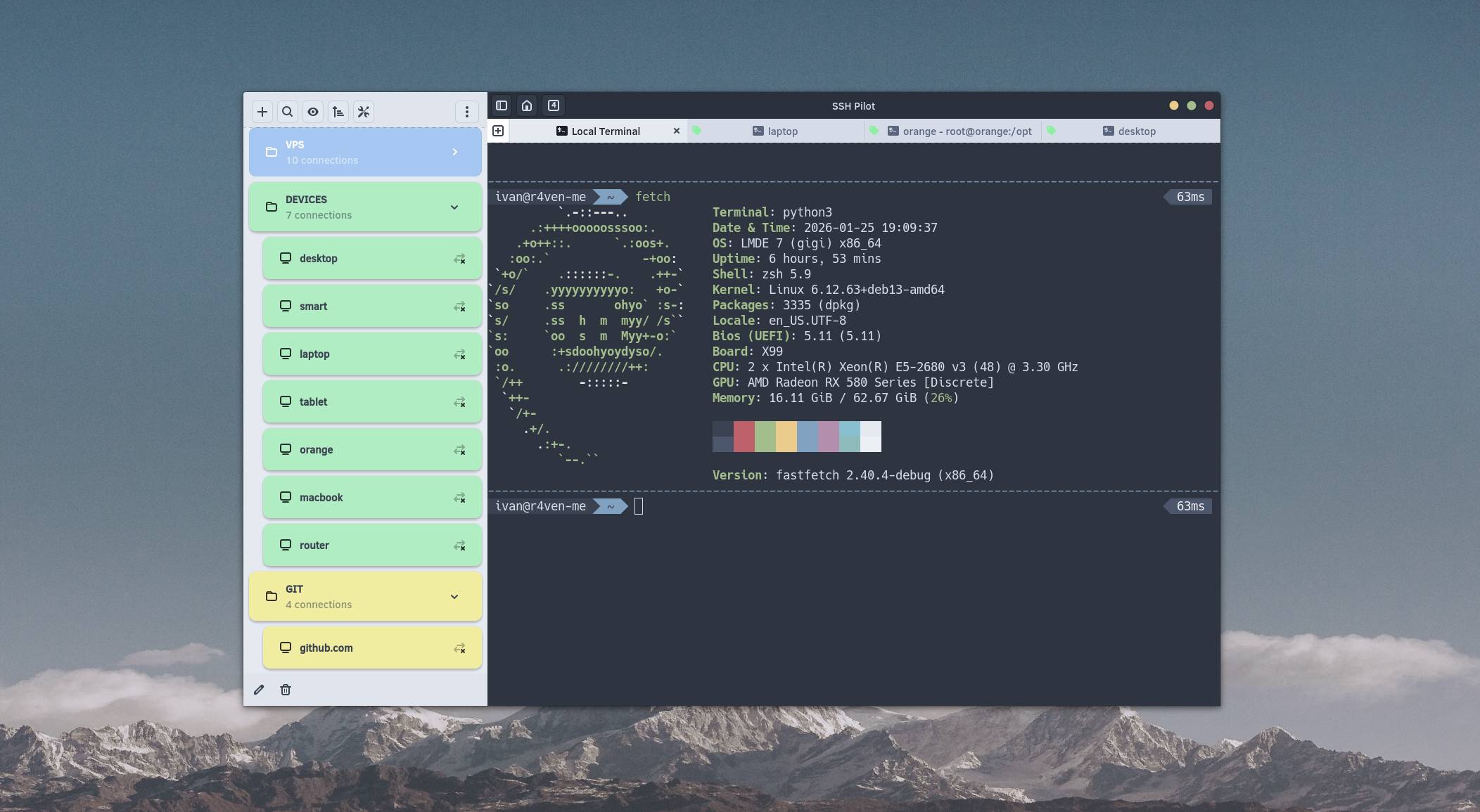
In this note, I will tell you about SSH Pilot - a modern SSH connection manager for Linux, written in Python and GTK.
📝 A MacOS version is also available.
🖐️Эй!
Subscribe to our Telegram channel @r4ven_me📱, so you don’t miss new posts on the website 😉. If you have questions or just want to chat about the topic, feel free to join the Raven chat at @r4ven_me_chat🧐.
Foreword
In the world of open source SSH session managers for Linux, there is quite a diverse selection. But! the situation here is similar to that in the world of note-taking apps: there is a choice, but there’s nothing much to choose from.
For Windows, there is the excellent XShell - for me, this is the benchmark for a functional and convenient SSH session manager. But this software is proprietary software and for personal use, due to ideological views, it is not suitable for me.
For a long time, I searched for something similar to XShell, but for Linux and open source. Asbru Connection Manager came closest to this. Unfortunately, this manager is hardly developed, and the last release was quite a long time ago. Moreover, it has several bugs that are critical for me.
But one day, I asked a neural network a question describing my wishes, and it suggested a name previously unknown to me - SSH Pilot. This interested me, and I went to investigate. As you understand, it’s worth the effort, in my opinion, otherwise you wouldn’t be reading this article.
It’s worth noting right away that in terms of interface customization and working with tabs/windows, SSH Pilot significantly loses to both Asbru and, of course, XShell.
But, I hope this is only for now. After all, the developers are actively working on their product👨💻.
What makes SSH Pilot special?
I won’t invent anything, but simply list them from the official website:
- Manage multiple SSH connections with tabs;
- Use existing SSH configuration🔥 (
~/.ssh/config); - Hotkey support;
- Group servers with color labels;
- Manage files and directories with SFTP/SCP;
- Securely store passwords and passphrases for private keys;
- Local, remote, and dynamic port forwarding;
- Easy key generation and copying;
- Light and dark theme support;
- Terminal color palette customization;
- Lightweight and fast client.
It is worth noting separately the excellent integration of the application with the standard SSH config file: ~/.ssh/config.
For more details on its use, see the separate article:

The modern GTK4 toolkit with libadwaita is used here as the graphical toolkit. This makes the application look native and neat😌 in the Linux🐧 environment. The application’s logic is implemented in Python🐍.
☝️ВImportant
This software is quite “fresh”. If the release page is to be believed, the first version was released on August 1, 2025. Therefore, there may be bugs. Please be understanding about this.
Minimum Software Requirements
Requirements at the time of writing:
| Component | Minimum Version |
|---|---|
| GTK 4 | 4.6 |
| libadwaita | 1.4 |
| VTE (GTK4) | 0.70 |
| PyGObject | 3.42 |
| pycairo | 1.20.0 |
| Paramiko | 3.4 |
| cryptography | 42.0 |
| keyring | 24.3 |
| psutil | 5.9.0 |
| GtkSourceView | 5.0 |
Installing SSH Pilot in Linux
Below is an example of installing SSH Pilot in Linux Mint Debian Edition 7 (Debian 13) by connecting the official repository:
# Add GPG key
curl -fsSL https://mfat.github.io/sshpilot-ppa/pubkey.gpg | \
    sudo gpg --dearmor -o /usr/share/keyrings/sshpilot-ppa.gpg

# Add repository
echo "deb [signed-by=/usr/share/keyrings/sshpilot-ppa.gpg arch=amd64] https://mfat.github.io/sshpilot-ppa any main" | \
    sudo tee /etc/apt/sources.list.d/sshpilot-ppa.list

# Install
sudo apt update && sudo apt install sshpilotYou can also download SSH Pilot from the releases page on GitHub or from the official website in the corresponding section.
Launch the application, as usual, through the main menu.
Interface Overview
After launching the program, we will be greeted by this welcome window:
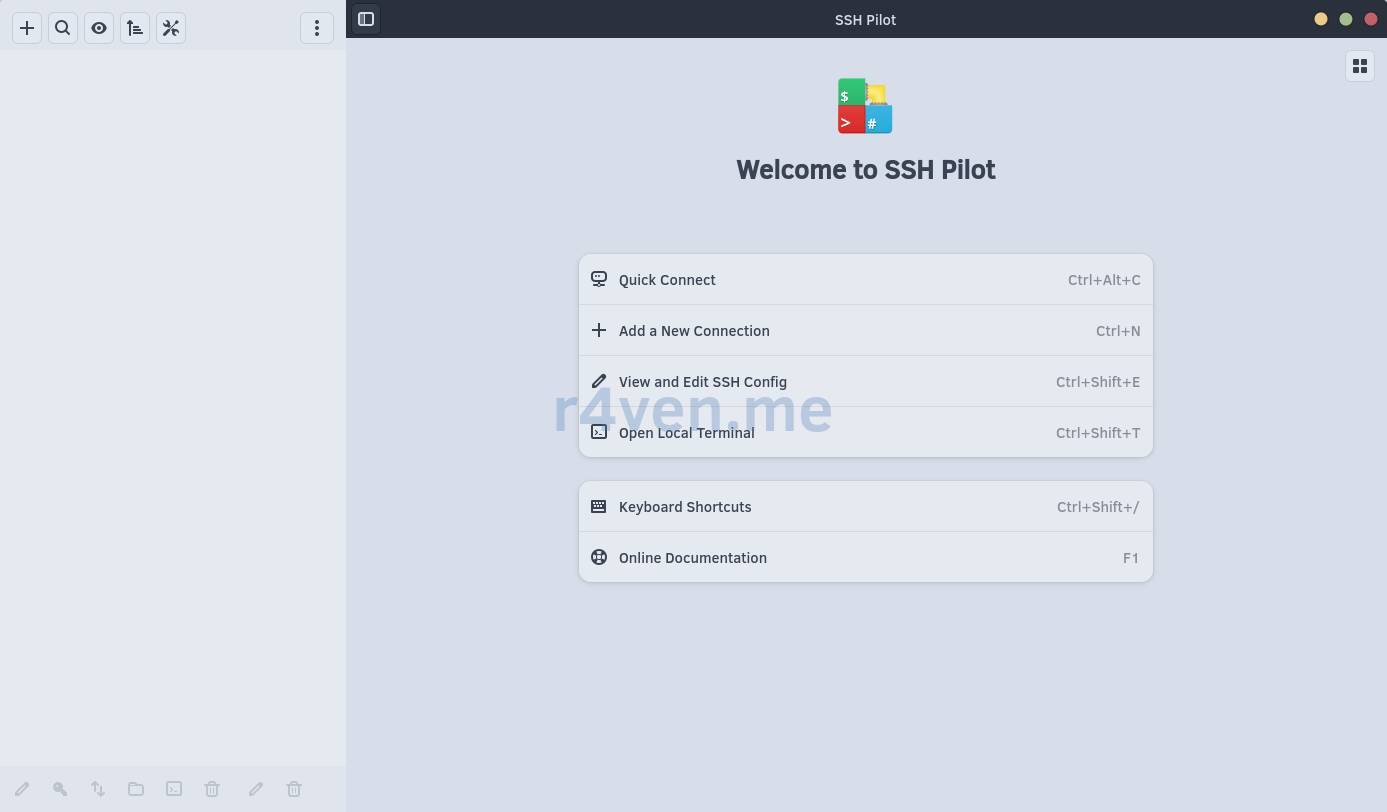
Here you can immediately create a new connection, launch a local terminal, or view/edit the current SSH config.
Overview of SSH Pilot’s Main Features
Application Settings
To go to settings, click the corresponding icon at the top of the program window:

Here we have various parameters available: interface settings, theme selection, terminal parameters, secure file transfer configuration, connection grouping, and, of course, SSH parameters:
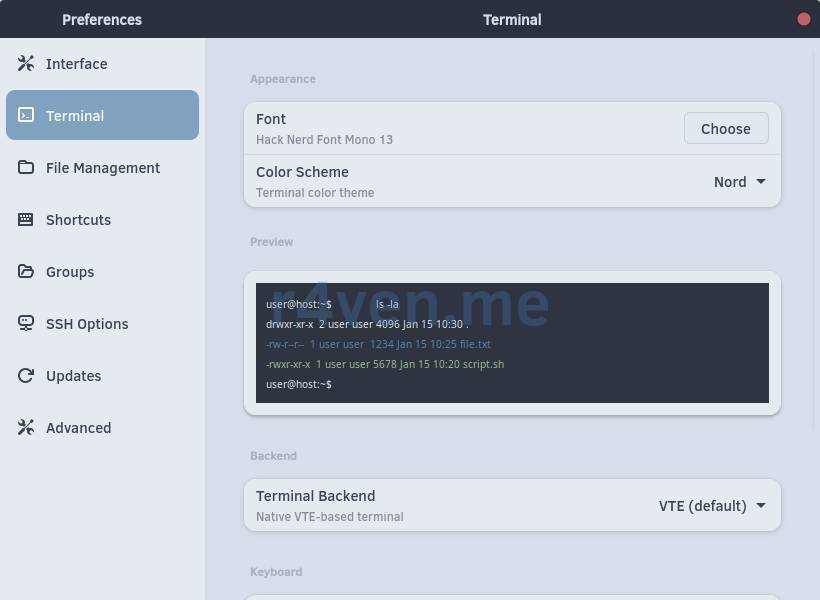
In my configuration, I didn’t change much, except for the terminal font (I use Hack Nerd Font Mono) and the Nord color scheme (it’s in the standard list😌).
Example of adding new hosts
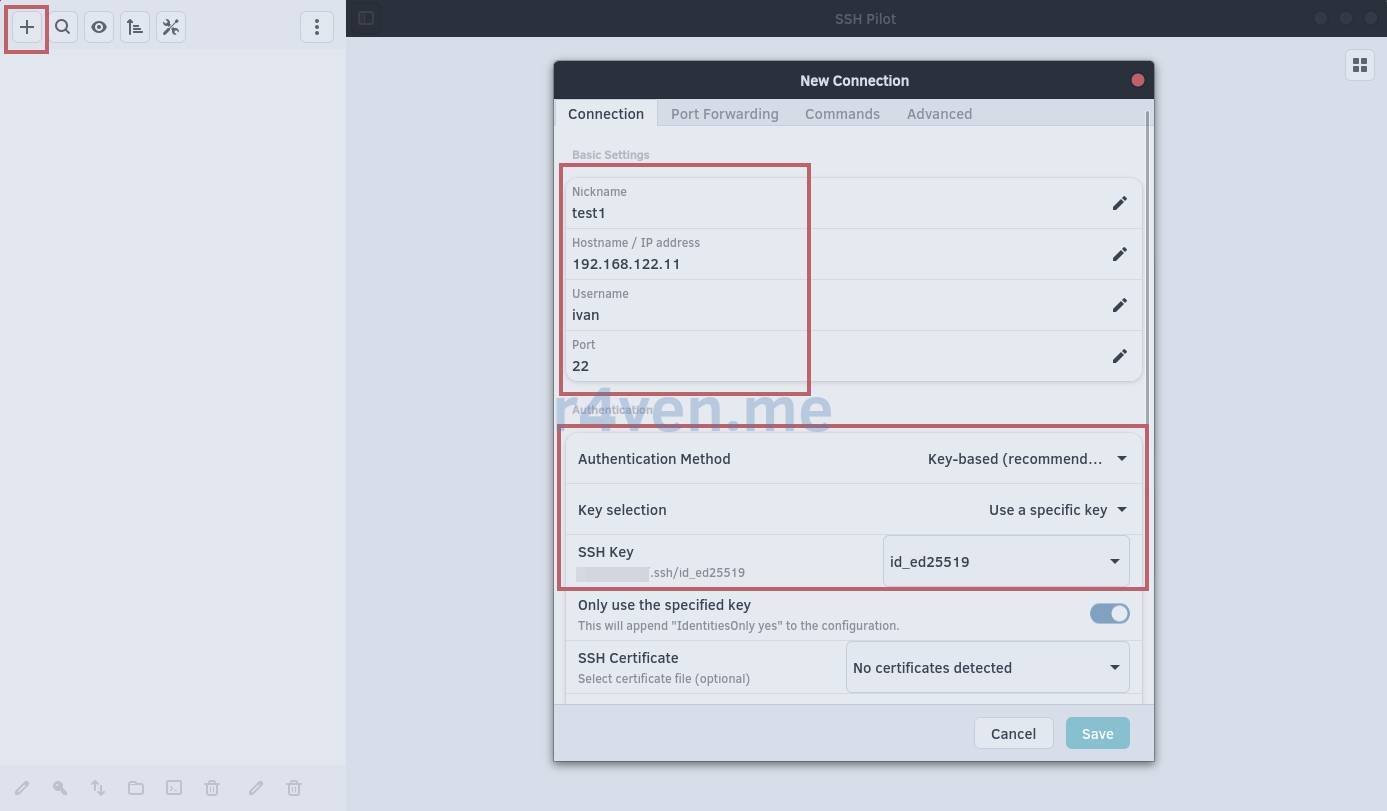
To add a new connection, click the + button at the top.
The first tab, “Connection”, allows you to configure the main connection parameters: host address, username, port, access credentials, and so on:
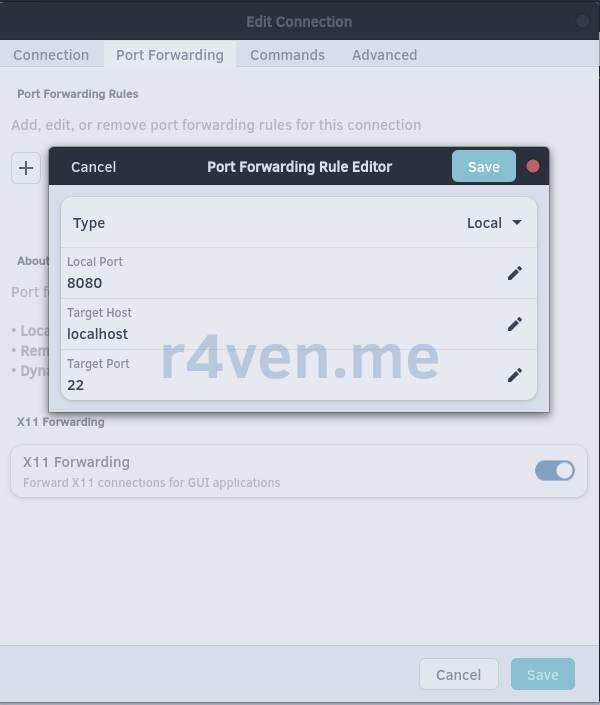
On the “Port Forwarding” tab, you can conveniently configure network port forwarding using SSH:
The next tab, “Commands”, allows you to set shell commands to be run locally and/or remotely when connecting to the host: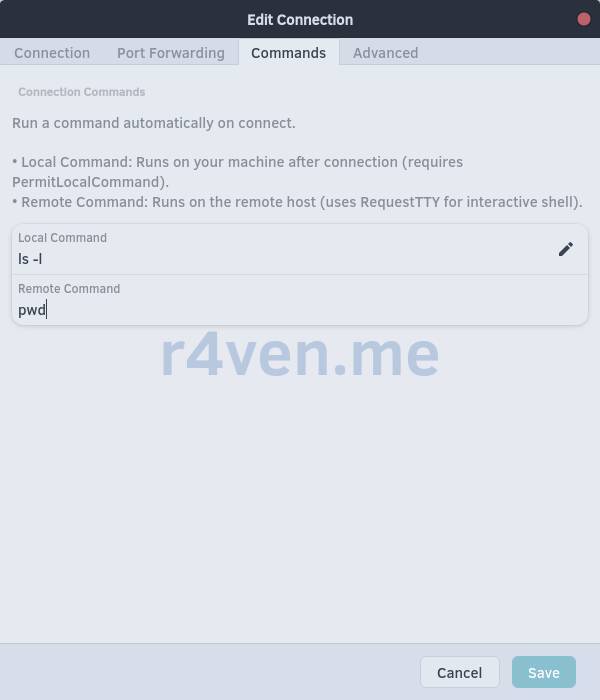
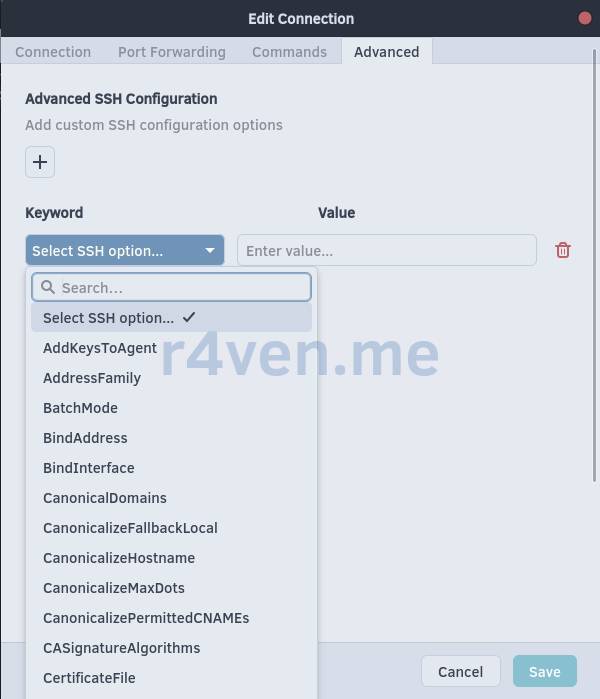
On the last tab, “Advanced”, you can fine-tune the connection. It’s worth noting the graphical ability to search for and specify the necessary SSH parameters (and there are many😉):
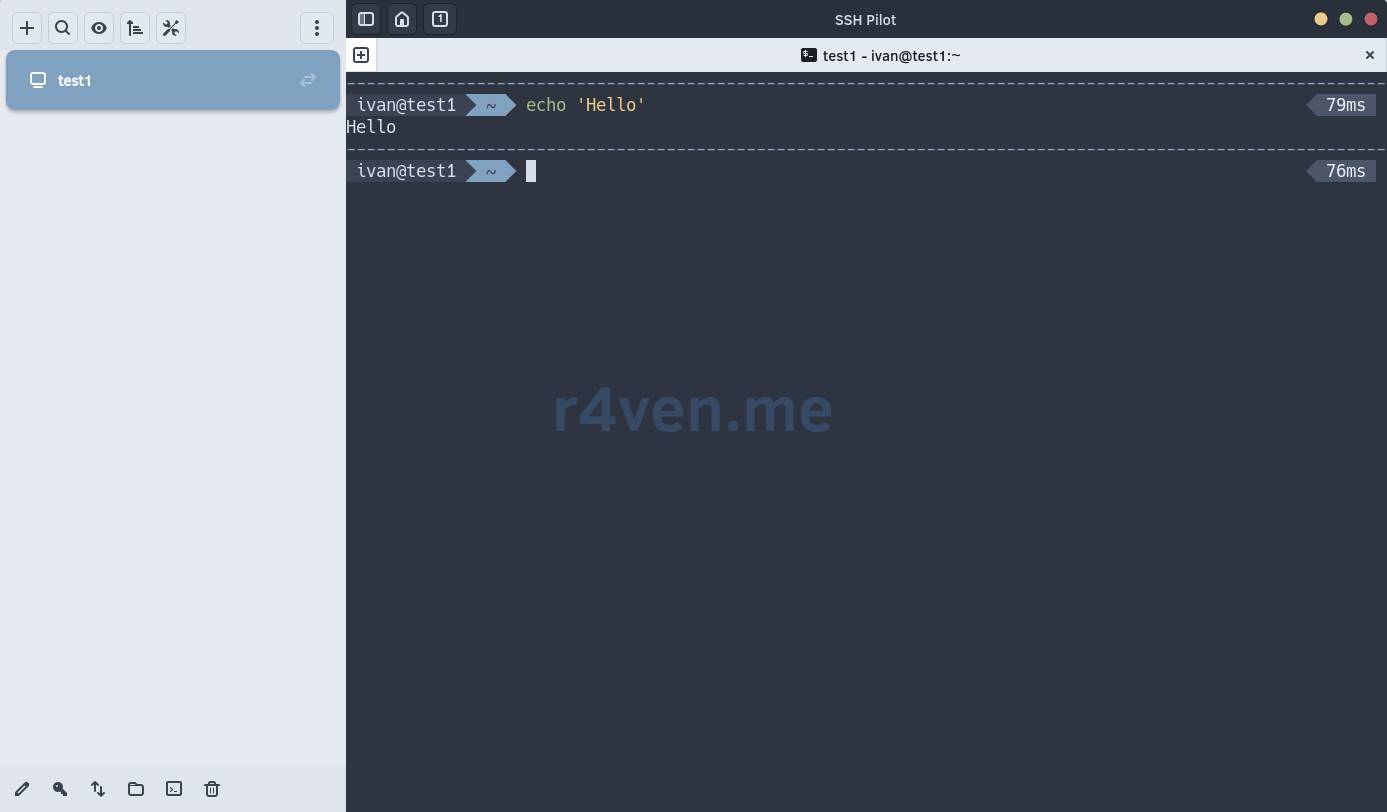
After clicking the “Save” button, a new connection will appear on the left side of the application. Double-clicking it establishes the connection:
About integration with ~/.ssh/config
Let me elaborate a bit on the program’s key “feature” for me: integration with the standard SSH client configuration file ~/.ssh/config.
By default, SSH Pilot reads connection parameters from your client config. Therefore, the program provides the ability to quickly edit it. Click on the “three dots” at the top of the window:

And select “SSH config editor”:
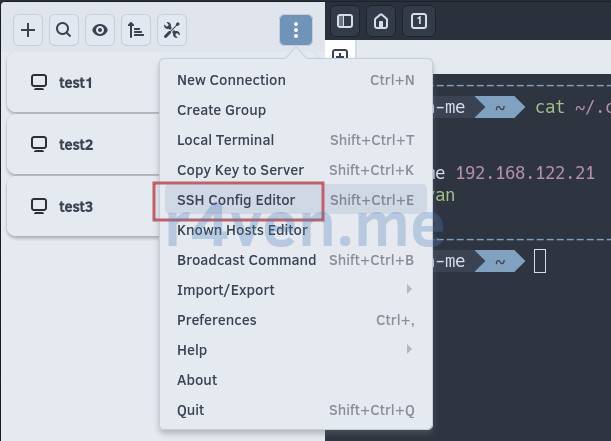
A window will open with a built-in editor for modifying the config:
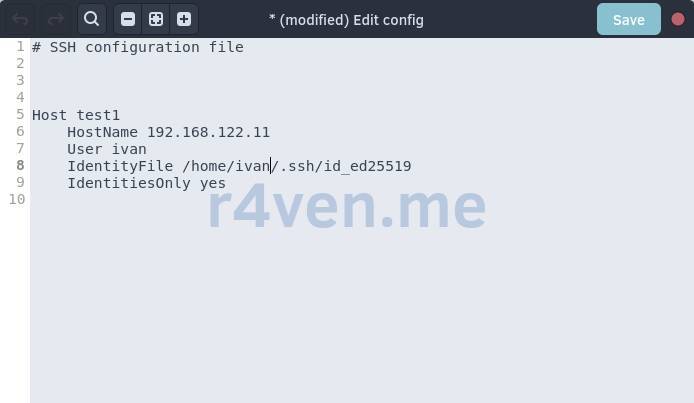
Which is extremely convenient if you need to quickly view the configuration or edit it manually✍️.
Isolated Profile
If you do not want to affect your main configuration file, SSH Pilot offers the ability to create an isolated profile.
This is enabled in the program settings, in the “Advanced” section:
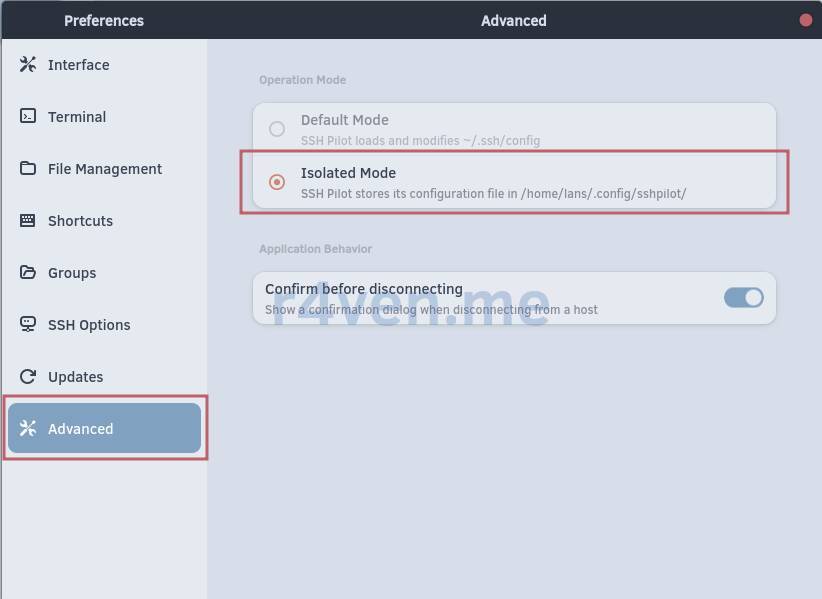
📝 The application needs to be restarted for the changes to take effect.
In this case, the config format is similar to the standard one, but it is now located at: ~/.config/sshpilot/ssh_config:
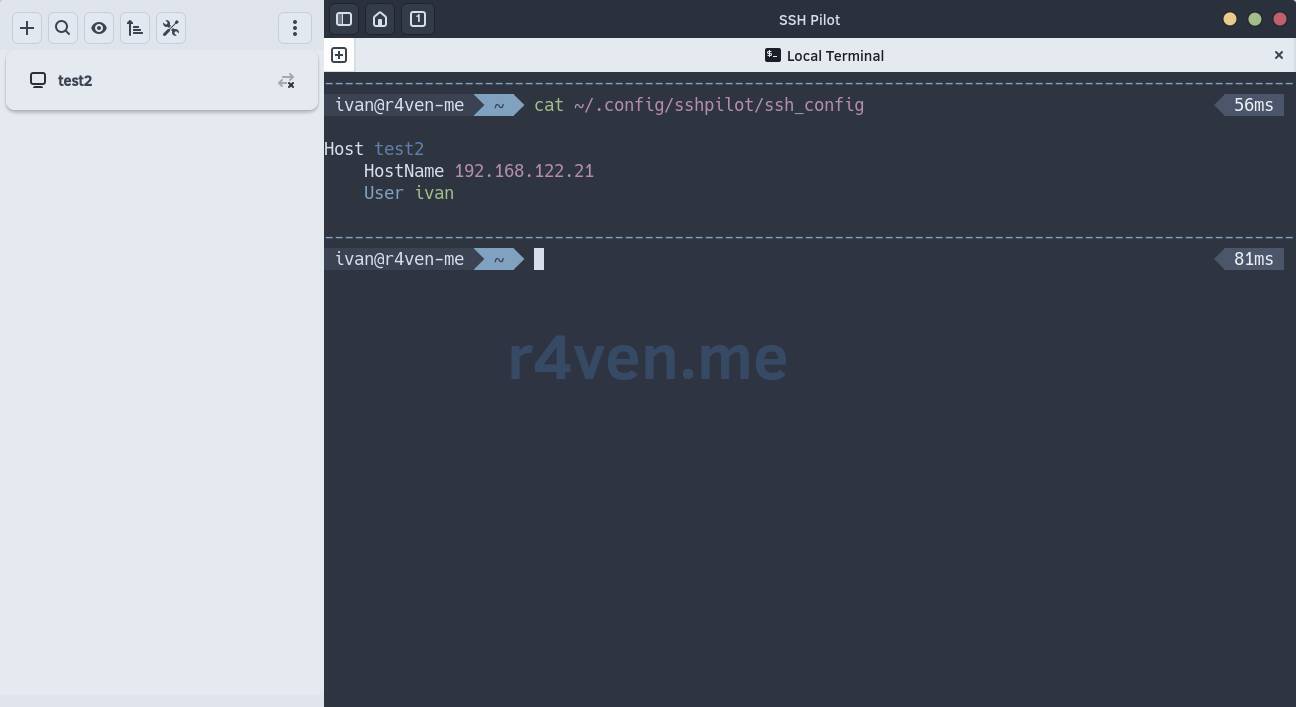
Host Grouping
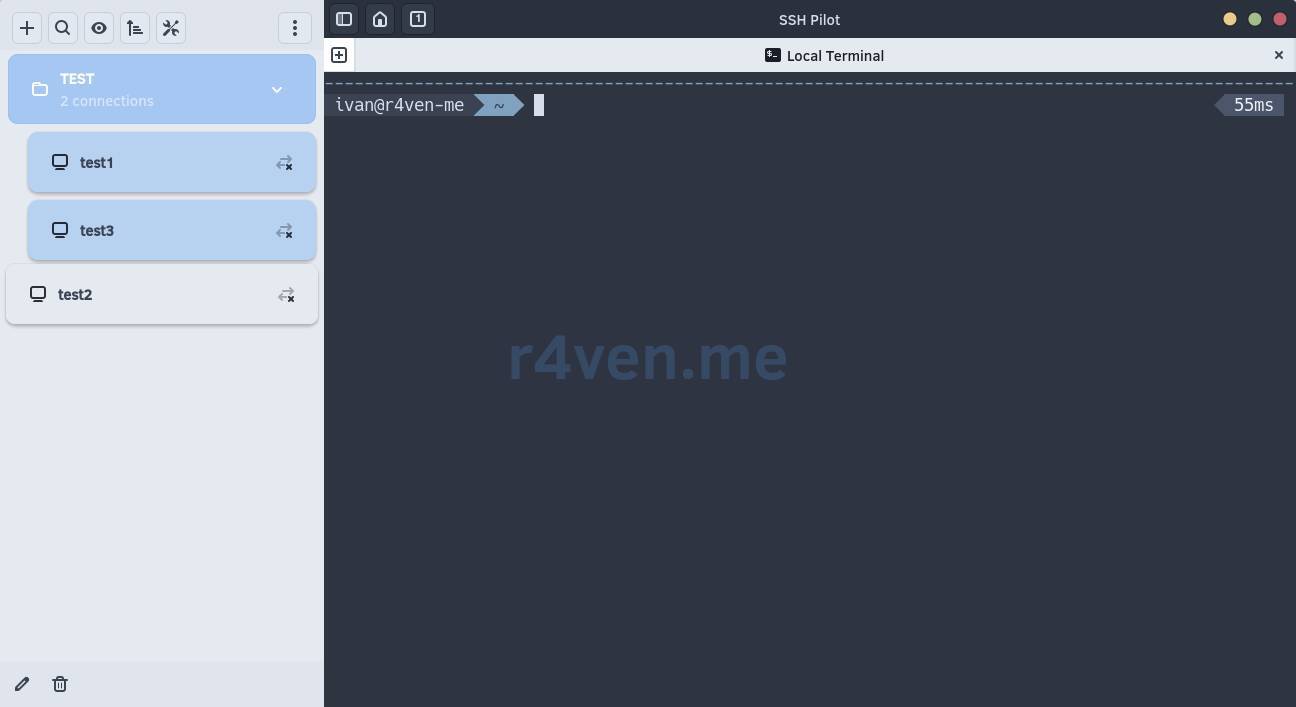
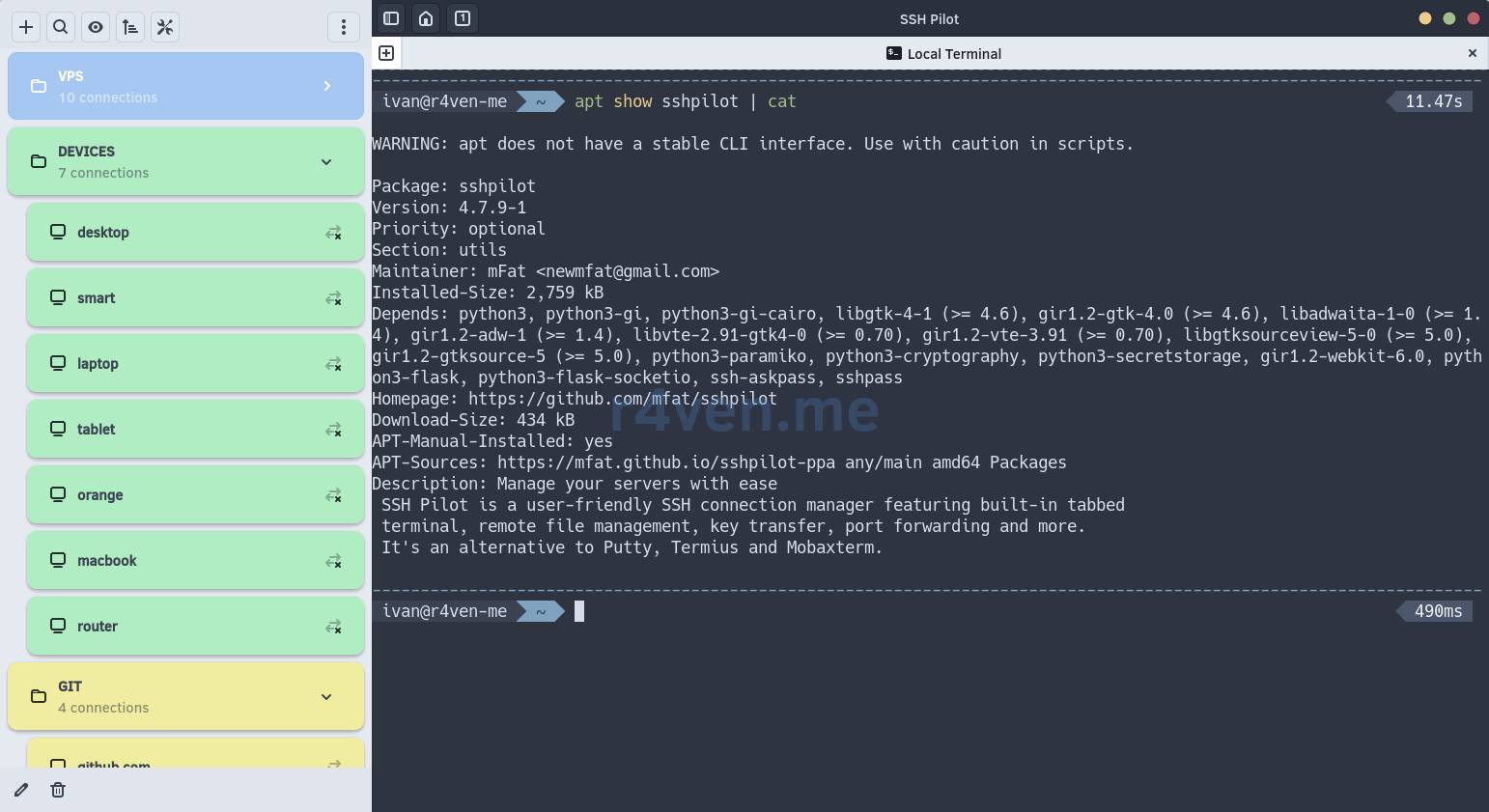
One of the useful features is grouping hosts into separate folders with the ability to specify a color.
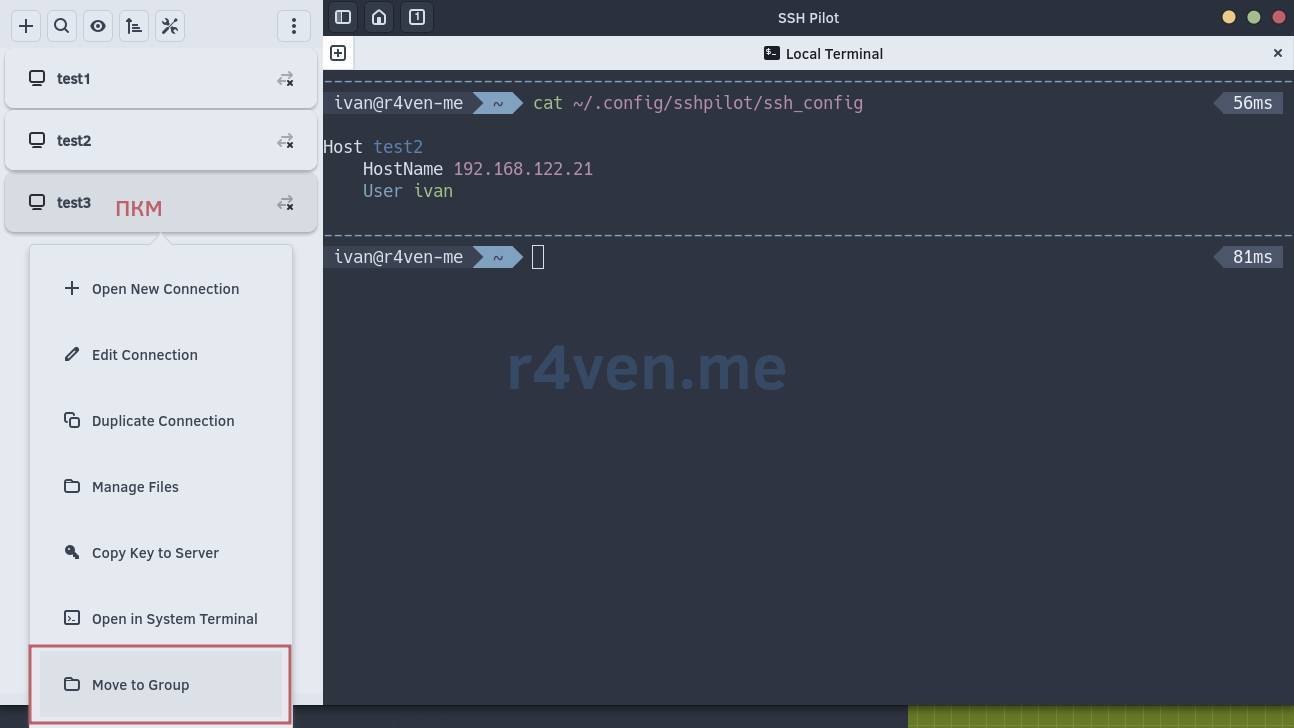
To do this, right-click on a host and select “Move to Group”:
In the window that appears, you need to specify a name and you can set a color. It will look like this:
Or like this:
About Storing Secrets
Naturally, SSH Pilot allows you to save user passwords or passphrases for SSH private keys required to connect to hosts.
They can be specified in the connection parameters or at the time of authorization.
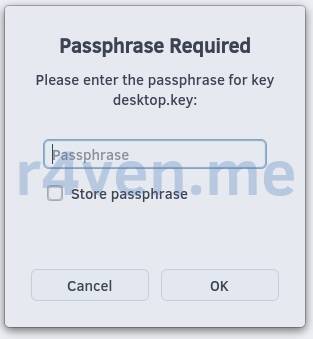
If a password-protected key is used, a window like this will pop up:
All secrets are stored in the OS’s built-in keyring. In Linux Mint, the gnome-keyring with the Seahorse frontend is used:
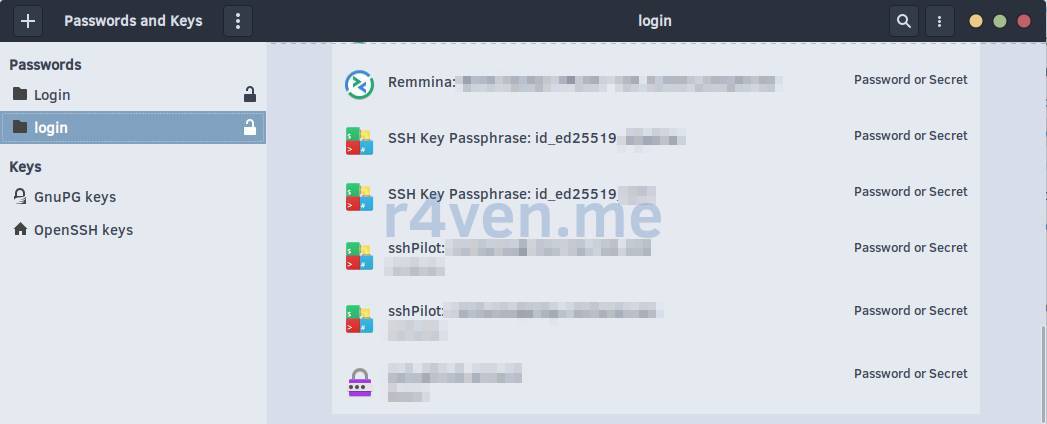
Read more about keyrings here.
Secure File Transfer
Method №1 - External File Manager (SFTP)
It’s worth noting separately how secure file transfer is implemented using sftp.
To initialize it, simply click on the “Manage files” icon within the connection itself:
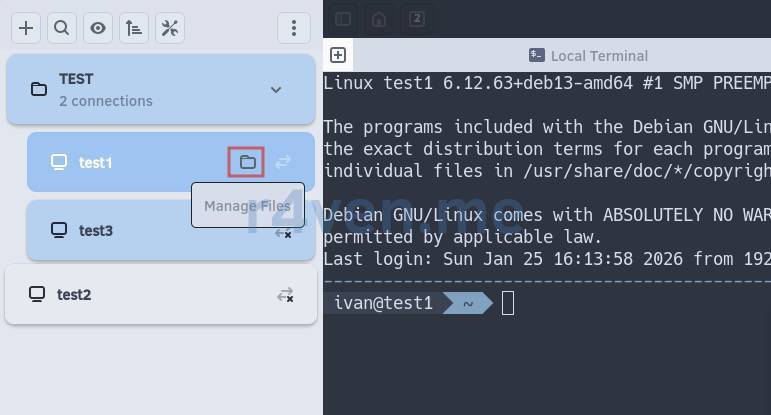
It opens file transfer in your file manager. In Linux Mint, this is Nemo:
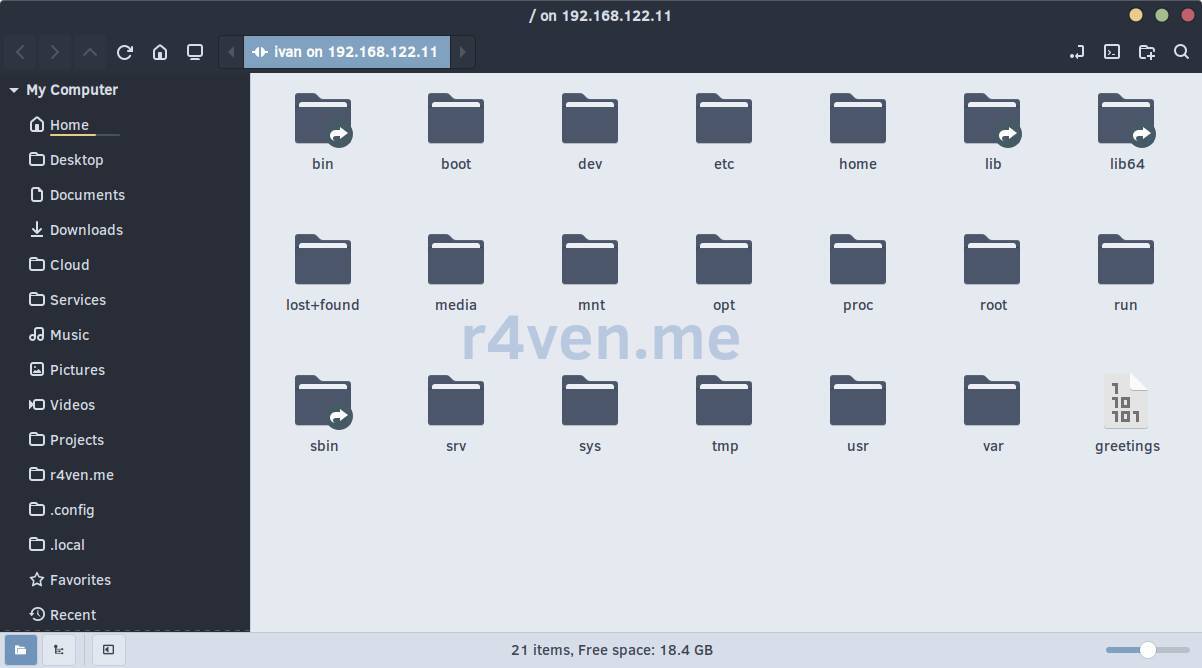
In my opinion - very convenient!
Method №2 - Built-in File Manager (SFTP)
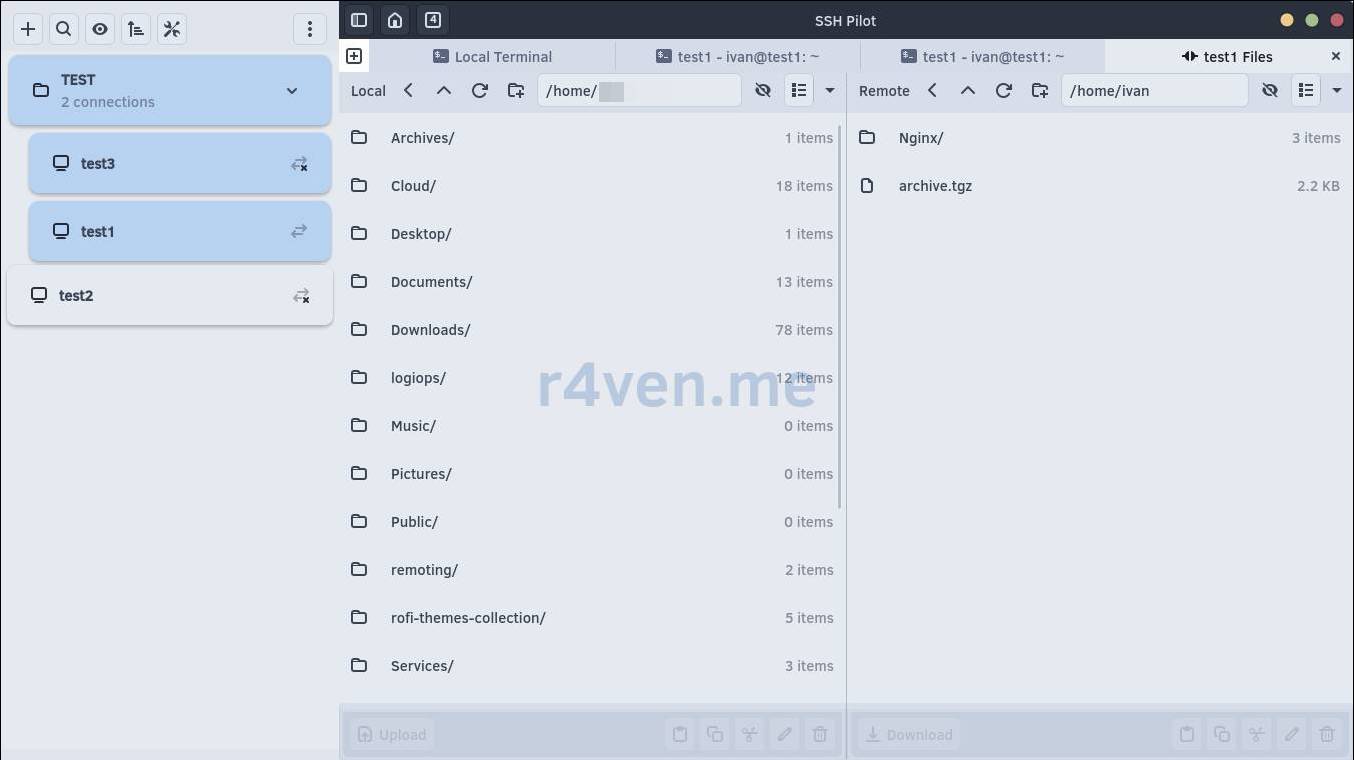
The built-in file manager is implemented no less impressively. By default, it is disabled. To enable it, go to settings, “File Management” section, and activate this checkbox:
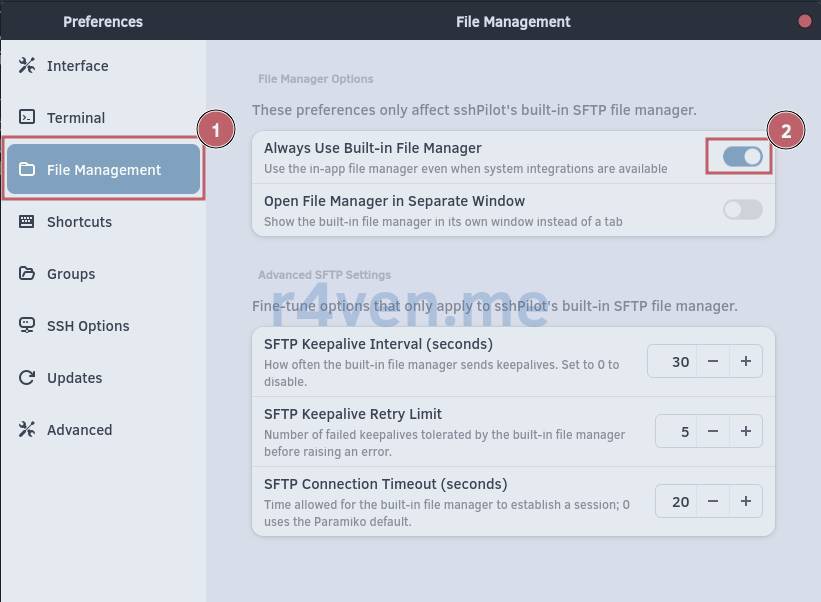
After that, open secure transfer in the same way as described above, in Method №1.
The file manager will open directly within the program window:
Method №3 - Built-in File Transfer (SCP)
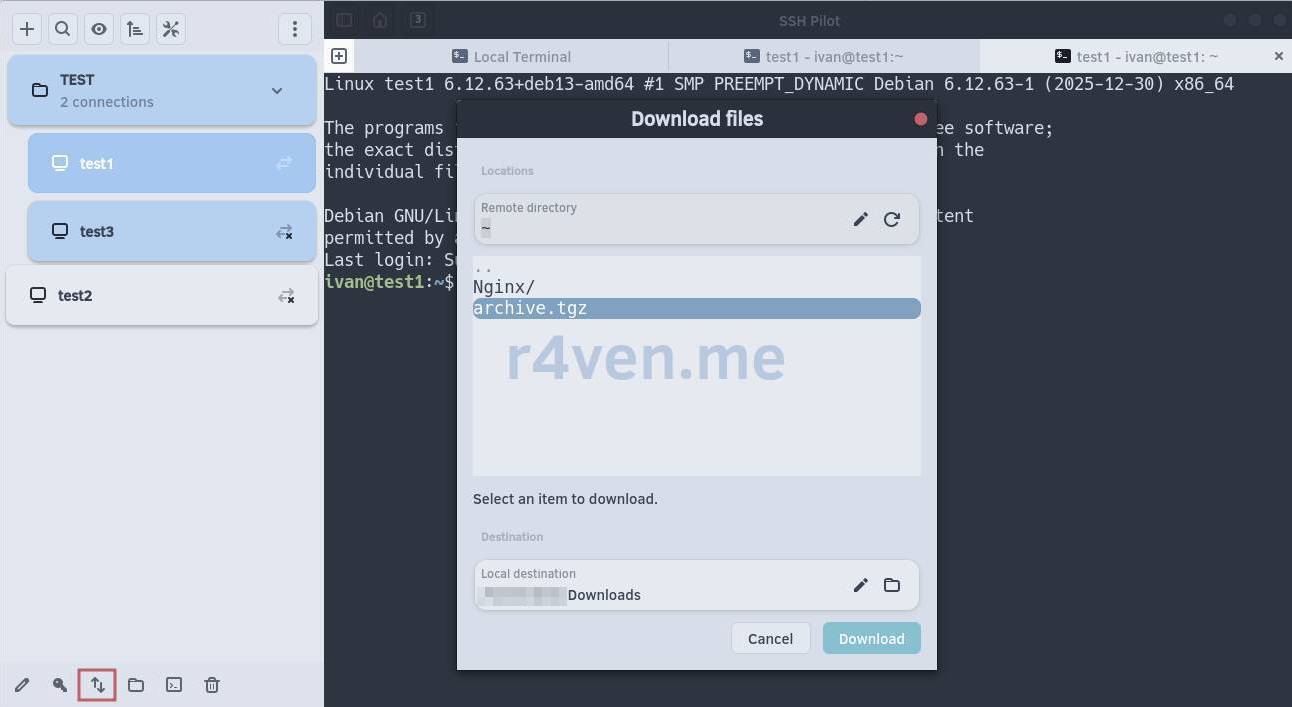
To use the built-in scp, click the “transfer” button at the bottom of the window:
Export-Import SSH Pilot Configuration
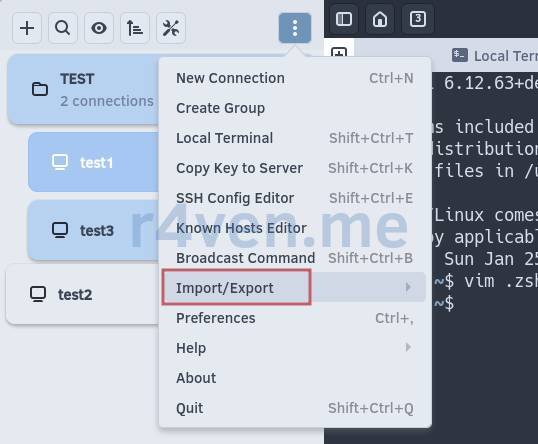
To export/import the application configuration, including connection settings, use the corresponding menu item:
Afterword
In this small overview note, we got acquainted with such a convenient and modern tool as SSH Pilot.
Many people are skeptical of various graphical session managers, preferring to use only the command line SSH client for remote connections.
I have nothing against this. Moreover, I most often connect to my hosts in this way. But I also see nothing wrong with increasing convenience during work, including through GUI clients. Here, everyone chooses for themselves.
In my previous job, I actively used XShell as my primary SSH client for a long time. I really liked it - a truly high-quality and well-thought-out tool. But changes occurred, after which its use became impossible. And for personal purposes, I repeat, I fundamentally try to use open source software as much as possible.
Thank you for reading my blog. Good luck to you!
Used Materials
- Official SSH Pilot website
- SSH Pilot source code on GitHub
- SSH Pilot Wiki documentation (EN)
- SSH Pilot Apt repository
- SSH Pilot Telegram channel
Raven’s blog articles on the topic:
- SSH – Secure connection to remote hosts: introduction
- SSH – Fine-tuning the client in Linux: config file and ssh-agent
- SSH — Port forwarding: direct and reverse tunnels
- Forced command in SSH: running only one command without shell access
👨💻Ну и…
Don’t forget about our Telegram channel 📱 and chat 💬 All the best ✌️
That should be it. If not, check the logs 🙂