
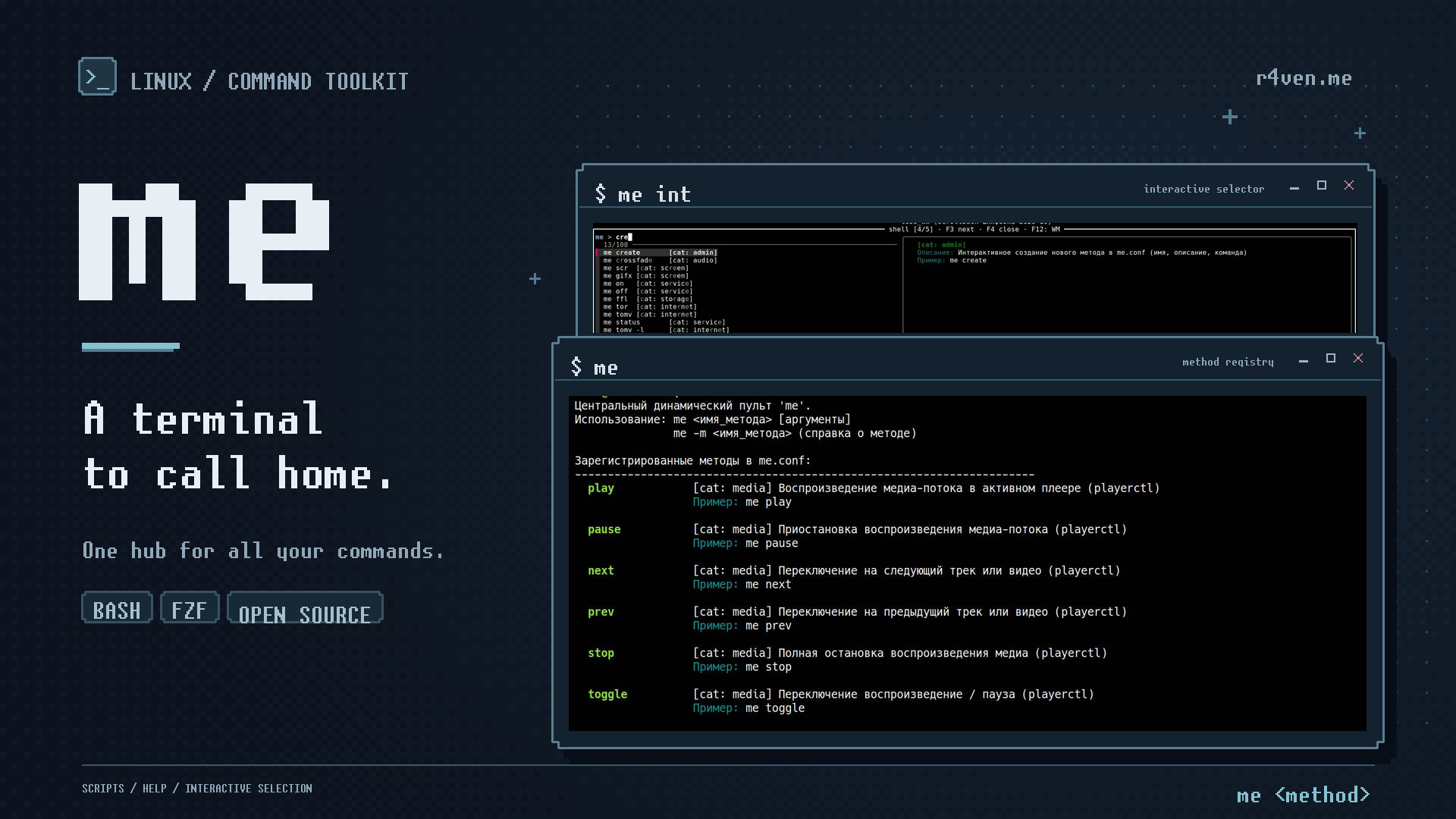
Aliases in .bashrc are the first thing people write in bash. But once there are a lot of them, they start to conflict, don’t work in scripts, get forgotten after a month and silently break after updates.
What I actually needed was just a remote control: one button - one command, with documentation, autocompletion and the ability to be called from a terminal or a script. That’s how me appeared - a tool that brings order to everything you do in the terminal.
🖐️Hey!
Subscribe to our Telegram channel @r4ven_me📱, so you don’t miss new posts on the website 😉. If you have questions or just want to chat about the topic, feel free to join the Raven chat at @r4ven_me_chat🧐.
Foreword
For a long time my terminal looked like a workshop where all the tools are piled into one heap, and you don’t even remember why you took half of them. Aliases kept piling up in .bashrc: I added them, forgot about them, added them again. Some conflicted with others, some stopped working after a system update, some were silently ignored in scripts. To increase screen brightness I googled busctl every single time and every time was surprised that I couldn’t remember that line.
I tried different ways to get things in order: wrote separate scripts, sorted them into folders, bound them to hotkeys. All of it lived its own life, had no unified documentation and couldn’t be kept under control.
I didn’t need yet another launcher or a command manager. I needed a remote control. Like on an old tape recorder: you see all the buttons, you press one - it works. One that you can take with you to another machine, that won’t break from a single wrong line and where every button tells you what it does by itself.
That’s how me appeared.
What it looks like
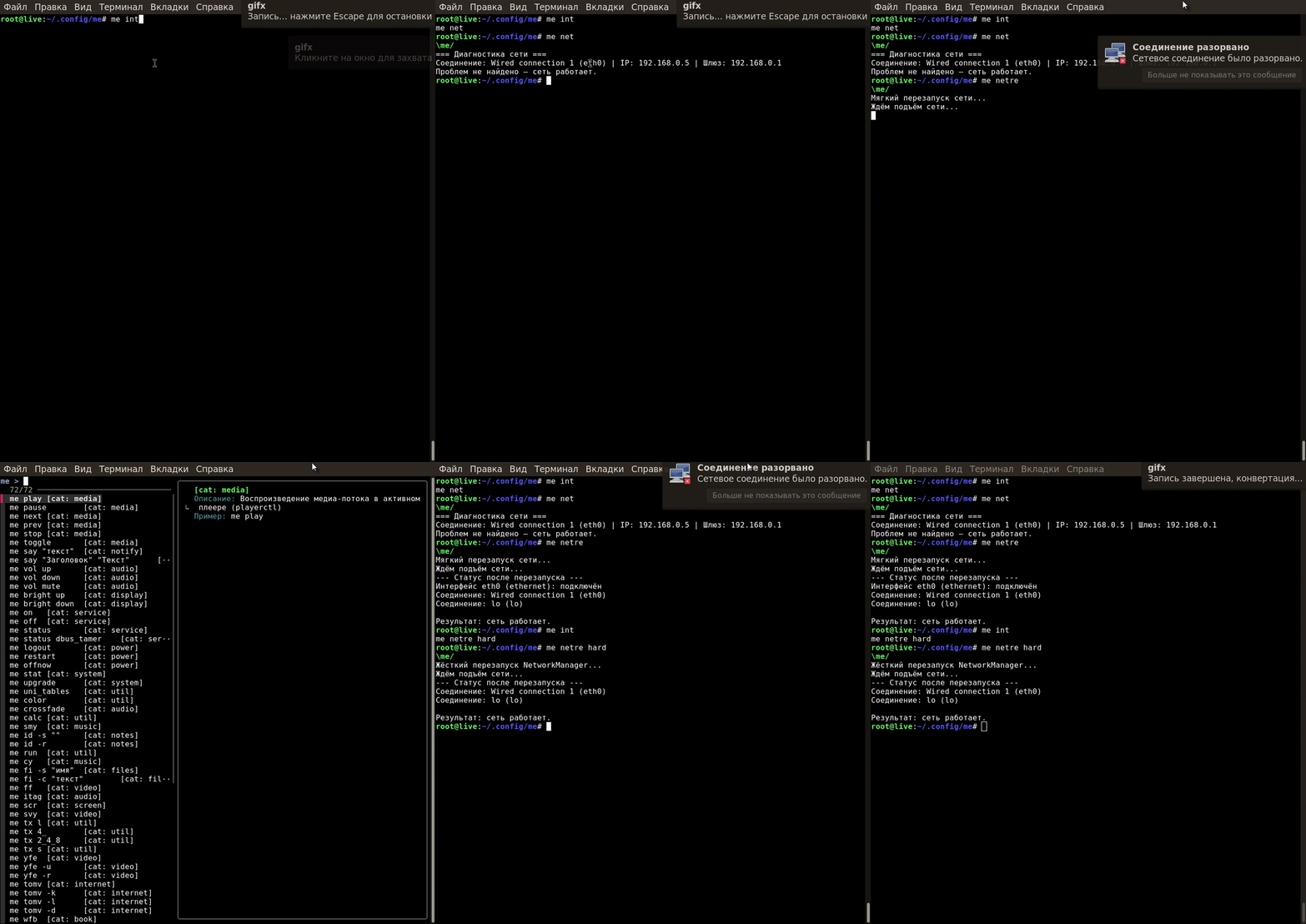
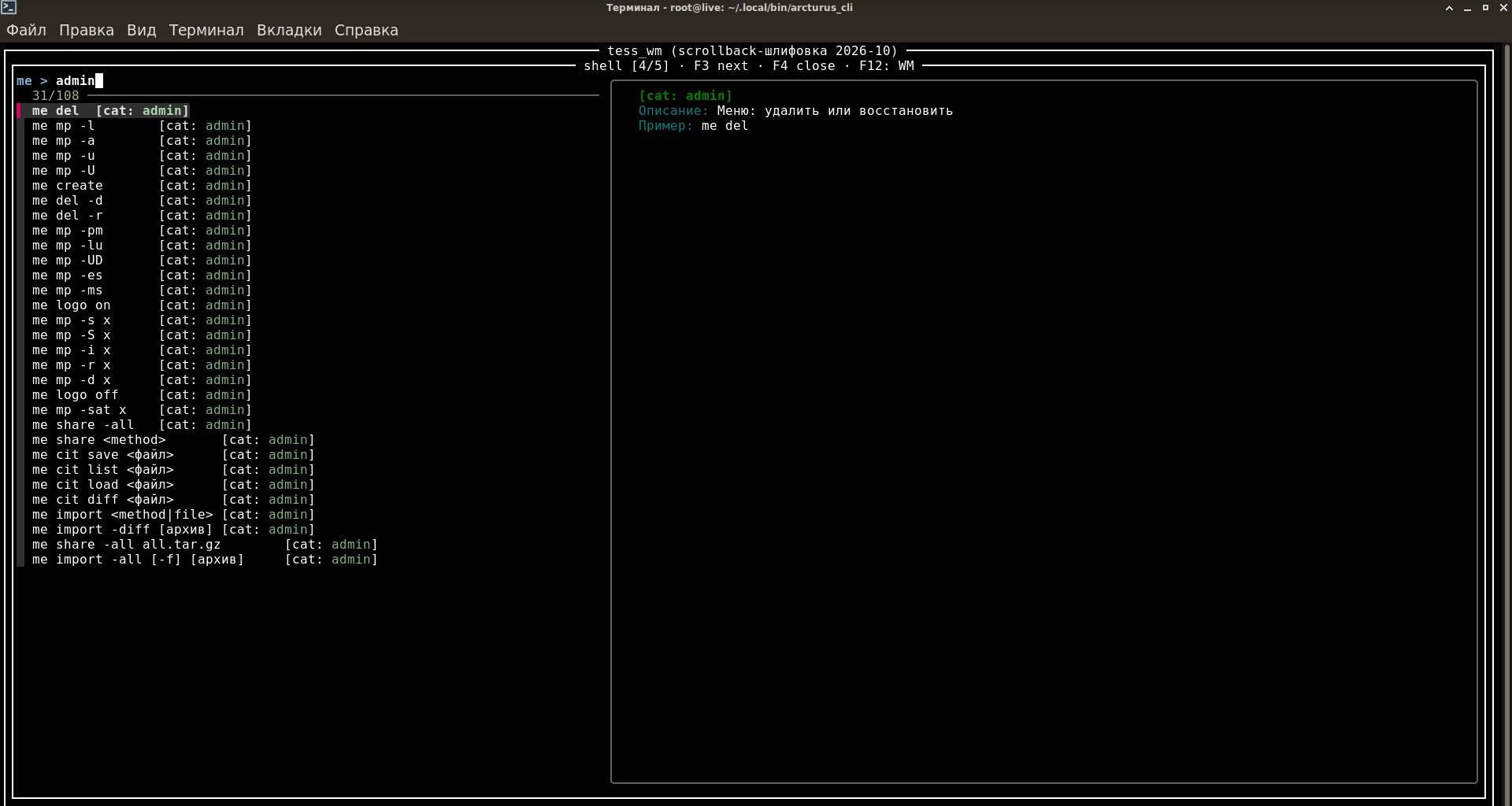
me int: fzf opens with a list of methods. On the right is a preview with a description and an example. With me.completion loaded, the selection is printed and lands in the Bash history. Press ↑, check the command and run it with Enter.
What hurts about aliases in .bashrc
For me an alias is a hook on which I hang a command. It’s convenient while there are five hooks. When there are thirty, they start falling off: one was put in the wrong place, another broke after an update, a third silently conflicts with a fourth. And most importantly - these hooks simply don’t exist in scripts. Here is what I took away from a long life with .bashrc:
| Problem | Why it hurts |
|---|---|
| Don’t work in scripts | Bash scripts don’t see aliases without shopt -s expand_aliases (which nobody sets). A script with aliases will fail on another machine - and you’ll be hunting for the reason. |
| No documentation | A month later you don’t remember what alias rd='rm -rf' does and what alias rd='rdesktop' does. Then comes grep alias ~/.bashrc - and so every time. |
| Arguments only at the end | alias backup='tar -czf' - you can’t pass a path into the middle. You need a function, but in .bashrc that’s yet another dump. |
| No checks | You have to write checks and error handling yourself. An alias returns the command’s status, but doesn’t add diagnostics automatically. |
| No isolation | All aliases are in one heap. Variables, exports, custom functions - all mixed together. Version control? Cut it out of .bashrc by hand. |
| Name conflicts | Two aliases with the same name - the last one silently wins. No diagnostics. |
| Tied to the shell | Hotkeys and background jobs don’t automatically get definitions from the interactive .bashrc. You need to explicitly launch a suitable shell or a separate script. |
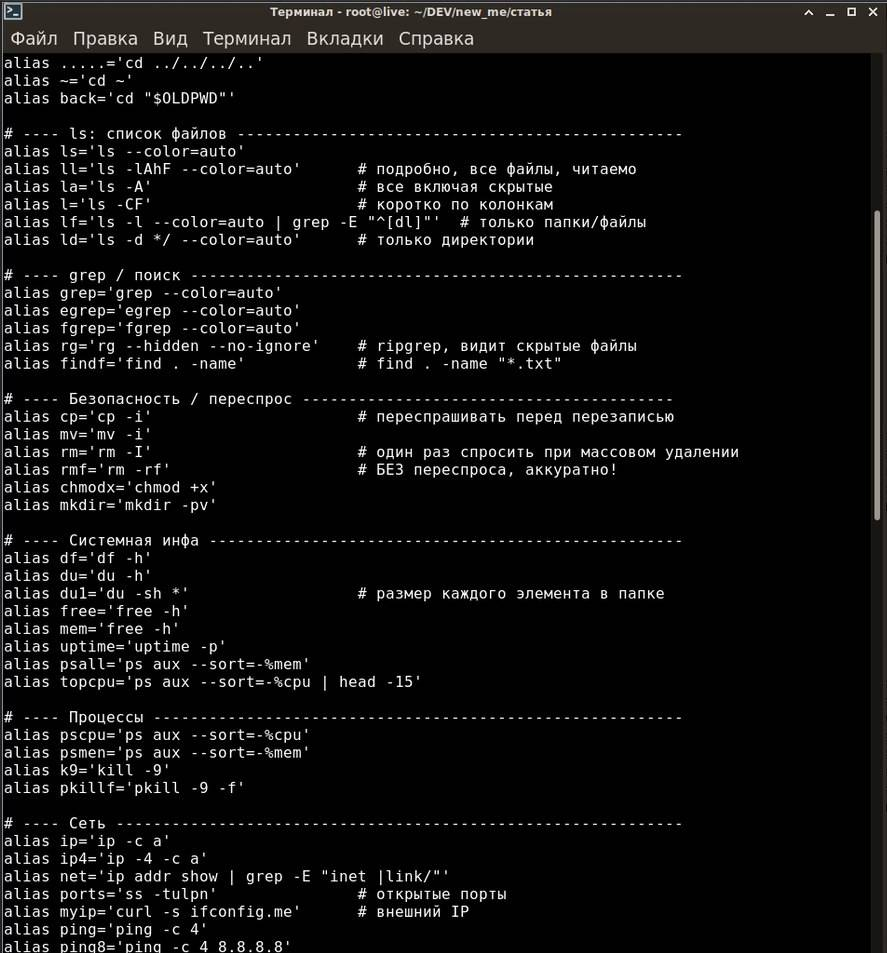
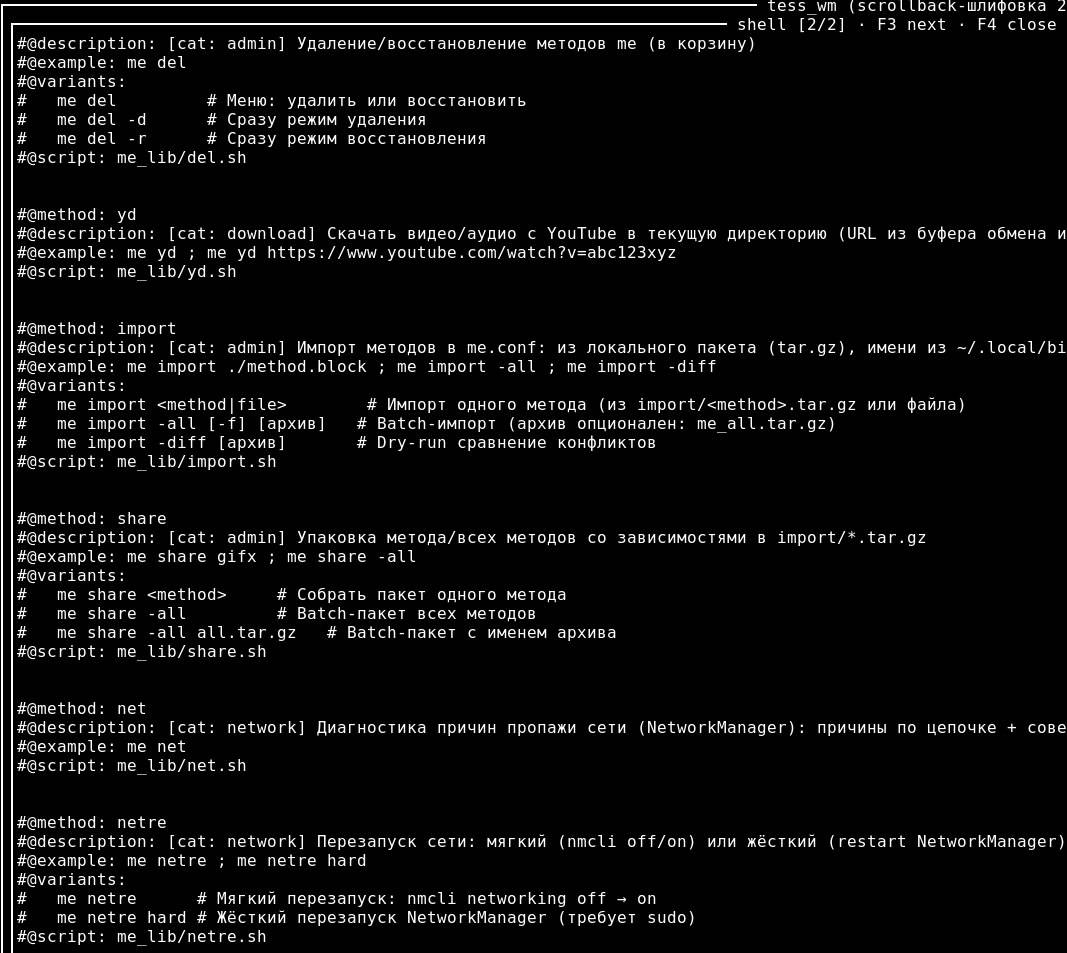
.bashrc, where aliases are mixed with exports, comments, completions and forgotten functions. The second is me.conf: a clean column of methods with annotations. The file size is comparable, but the readability is different.
Prerequisites
me is simple: the registry stores metadata and paths, and each method is executed by a separate executable script. To work with a method, you don’t need to load its code into the shell.
~/.local/bin/me/me- the command dispatcher;~/.config/me/me.conf- the method registry with descriptions, examples and#@script:tags;~/.local/bin/me/me_lib/- method scripts and helper files.
License - GNU GPLv3. The examples were checked against a snapshot of the main branch main - commit 85192dc dated October 24, 2026. Below we’ll install this exact snapshot so that later project changes don’t alter the behavior of the examples.
| Software | Version / status |
|---|---|
me | main, commit 85192dc |
bash | 4.0+ |
fzf | for interactive methods |
playerctl | for controlling MPRIS players |
ripgrep | for content search |
ffmpeg | optional |
Dependencies are installed for the methods you choose. For example, me smy needs yt-dlp, fzf and mpv, and me fi needs ripgrep, fzf and the micro editor. The registry itself doesn’t install these programs. Below we’ll start with a minimal installation and our own method without additional dependencies.
How me works
me was born as a registry of everything I do in the terminal. It’s a bash script (~/.local/bin/me/me) plus a config (~/.config/me/me.conf). The config describes methods with meta tags, and they are called via me <verb>.
The path from the call to execution looks like this:
terminal / script / hotkey
        │
        ▼
  me (Bash engine)
        │
        ▼
  me.conf (method registry)
        │
        ├── #@script: me_lib/play.sh
        ├── #@script: me_lib/upgrade.sh
        └── #@script: me_lib/ff.sh
                     │
                     ▼
separate processThinking out loud: I deliberately made the engine not load everything at once. I got burned myself when one broken .bashrc took down the whole shell. Here, if one method fails, the others keep working. That seems right to me.
How a method is formally structured
Each method is an entry in the registry and a separate executable script. For example, the entry for pause looks like this:
#@method: pause
#@description: [cat: media] Pause the player via playerctl
#@example: me pause
#@script: me_lib/pause.shWhen me pause is called, the engine:
- Finds
#@script:in the method block viaawk; - Resolves the path relative to
~/.local/bin/me/and checks that the file exists and is executable; - Runs
"$sdir" "$@"in a child process and returns its exit code.
The registry is read as text, not executed via source or eval. An error in one script doesn’t prevent running other methods, but it doesn’t undo the actions it managed to perform. A separate process is not a sandbox: the script runs with the user’s privileges.
What it looks like in practice
I like listening to music through mpv in the background. Before, to pause it I would go to the terminal and type busctl with a mile-long path - madness. Now I just press me pause or, if my hands are busy, switch it with a hotkey that calls me toggle. Same with brightness.
Before:
busctl --user call org.xfce.PowerManager \
  /org/xfce/PowerManager \
org.xfce.Power.Backlight IncreaseBrightnessAfter:
me bright upThe difference isn’t that the second variant is shorter, but that it has:
- Documentation -
me -m brightwill show the description and an example; - Autocompletion - Tab will complete the name
bright; theup/downarguments are not completed by the current completion; - Notification -
notify-sendfires after the brightness changes; - Fallback - if XFCE doesn’t work, it tries GNOME;
- Interactivity -
me int→fzf→ selection → command in the Bash history (ifme.completionis loaded, press ↑, then Enter).
Thinking out loud: honestly, I’ve stopped memorizing method names. When I type me int, I see the list and just pick. Like a quick launcher on a phone, only in the terminal.
Minimal installation
Let’s install me into the home directory of a regular user, without running the remote control as root.
The dispatcher needs Bash and standard Linux utilities, and Git for downloading. We’ll add fzf right away for interactive selection. Pick the command for your distribution:
# Arch:
sudo pacman -S git bash fzf

# Debian/Ubuntu:
sudo apt install git bash fzf

# Alpine:
sudo apk add git bash fzfDownload the project from the main branch main into the standard directory and pin the commit used to check this article:
mkdir -p "$HOME/.local/bin"

git clone --branch main https://github.com/totiks2012/me "$HOME/.local/bin/me"

git -C "$HOME/.local/bin/me" checkout --detach 85192dc20942d499c58e11514826d864f3235328checkout --detach selects the exact snapshot without moving the main branch. You don’t need to create a separate Git branch to run methods.
Set up the permissions and copy the registry. This path doesn’t run the installers of individual methods and doesn’t change desktop hotkeys:
cd "$HOME/.local/bin/me"

chmod +x me

find me_lib -maxdepth 1 -type f -exec chmod u+x {} \;

mkdir -p "$HOME/.config/me"

# We don't overwrite an existing config.
test -e "$HOME/.config/me/me.conf" || cp -v me.conf "$HOME/.config/me/me.conf"In the current Bash, add the directory to PATH and load the autocompletion with the wrapper for me int:
export PATH="$HOME/.local/bin/me:$PATH"

source "$HOME/.local/bin/me/me_lib/me.completion"

me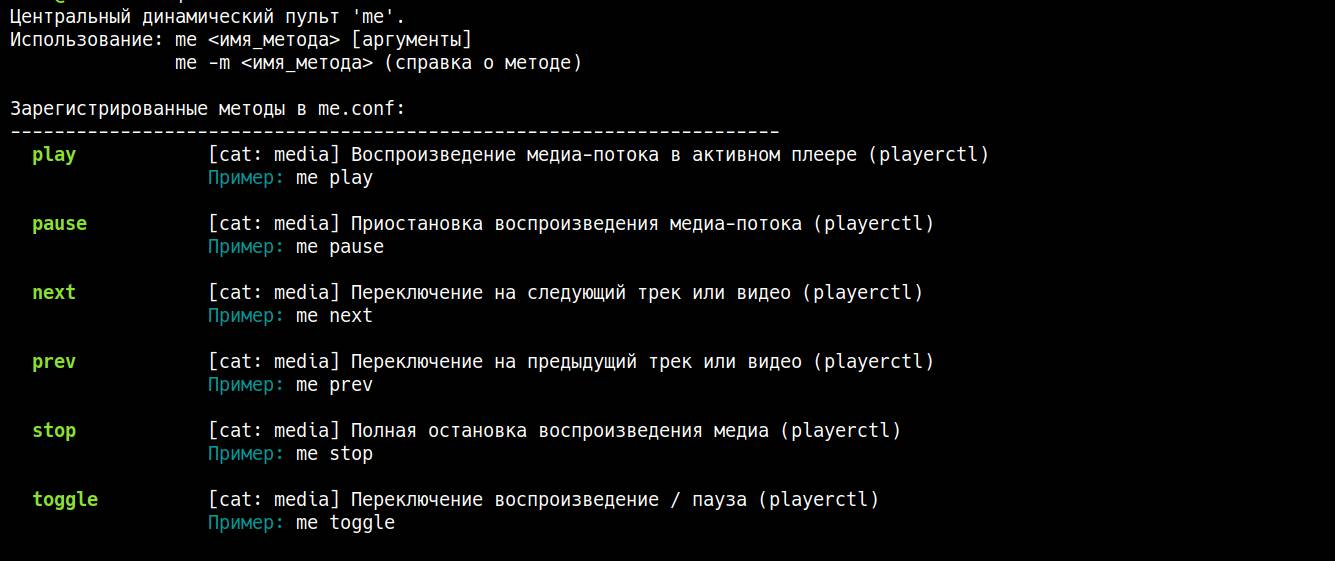
For permanent use, add the two lines above (export and source) to ~/.bashrc.
echo 'export PATH="$HOME/.local/bin/me:$PATH"' >> ~/.bashrc
echo 'source "$HOME/.local/bin/me/me_lib/me.completion"' >> ~/.bashrcBash completion doesn’t work with other shells; the me executable itself can be called by its full path.
If you’re curious how to build your own Tab completion, there is a separate example with host completion from an Ansible inventory for Bash and Zsh. It’s not a setup for me, but a breakdown of the same mechanism on a different task.
Running me will show the catalog of registered methods. This is not yet a check of their system dependencies: install playerctl, ripgrep, ffmpeg and other programs as needed. The full install_me.sh and its side effects are covered in the section on dependencies and environment.
How to add your own method
A method always follows one model: an entry in me.conf points to an executable file. The approaches below differ only in who creates the file and the entry - you don’t need to change the engine or the config format for this.
| What you already have | What to choose | What you get |
|---|---|---|
You want to write your own script or have already copied it to me_lib/ | The #true_method marker + me make | An entry in the registry is added for the existing script |
| A ready command that needs wrapping | me create | A launcher and a registry entry will be created |
| A script in another directory or special metadata | Manual registration | You specify the description, example and #@script: yourself |
To begin with, we’ll go through the first path. The others are alternatives, not mandatory next steps.
First method: your own script and me make
Let’s start with a command that doesn’t depend on a graphical session and extra utilities. Make sure the name hello and the file hello.sh aren’t taken yet, then create the script:
cat > "$HOME/.local/bin/me/me_lib/hello.sh" <<'EOF'
#!/usr/bin/env bash
#true_method
printf 'Hello, %s!\n' "${1:-terminal}"
EOF

chmod +x "$HOME/.local/bin/me/me_lib/hello.sh"

bash -n "$HOME/.local/bin/me/me_lib/hello.sh"

me makeHere the file is written via a here document. The quotes in <<'EOF' disable substitutions when the file is created: ${1:-terminal} ends up in the script literally and is expanded only when it runs.
#true_method on the second line tells the auto-registrar that this file should be added to the registry. When running me make in a terminal, enter the description “My first command” and the example me hello. The upstream prompts are in Russian; the description and example are your own input.
Описание для метода hello: My first command
Пример (Enter = "me hello"): me helloIf you leave the answers empty, default values will be used. Already registered methods will be skipped.
Now we call it:
me hello
me hello "world"We get:
Hello, terminal!
Hello, world!Two things stand behind this: the executable hello.sh and the block created for it in me.conf. The me hello call itself doesn’t require running make beforehand every time.
What exactly me make does
me make is the auto-registrar. It scans only the files ~/.local/bin/me/me_lib/*.sh, without recursion, checks the marker and appends the missing methods to ~/.config/me/me.conf.
Auto-registration conditions:
- The first line is a shebang, the second is exactly
#true_method, without indentation and without a space after#; - The method name is taken from the file name without
.sh:a-z,0-9,_are allowed, the first character is a letter or_; - Execute permissions are set separately:
me makedoesn’t runchmodand doesn’t check the script’s syntax; - Files without
.sh(for example,cit), nested files and scripts without the marker are not registered automatically. Helper libraries don’t need to be marked.
If stdin and stdout are connected to a terminal, the auto-registrar will ask for a description and an example for each new method. For hello, empty answers will give метод hello and me hello. Without a terminal (for example, with output redirection) these values are used automatically. The result is the counters добавлено (added), уже зарегистрировано (already registered), проигнорировано (ignored).
A repeated me make doesn’t duplicate standardly formatted entries: a method is considered known if the registry already has the exact line #@method: <name> or #@script: me_lib/<name>.sh. This is adding, not synchronization: descriptions and paths of existing methods are not updated, and deleted files don’t disappear from the registry. The marker doesn’t make a script safe: check its code before running.
A ready command: me create
If the command already exists, me create will create an executable launcher for it and immediately add an entry to the registry. You won’t have to write a separate file by hand.
It’s run as me create without a name in the argument: the script asks for the name itself. Lowercase Latin letters, digits and _ are allowed, the first character is a letter or _. A hyphen in docker-ps won’t pass the check; we’ll use docker_ps.
The generator:
- Asks for the name, description, the command to run and an example;
- Creates the launcher
me_lib/<name>.shwith the#true_methodmarker on the second line and the commandexec <command> "$@"; - Checks the launcher via
bash -n; - After confirmation, makes the file executable and appends the metadata block to the end of
me.conf.
An example of answers in the order of the questions (Docker must be installed, and the user must have access to it). Here too, the upstream prompts remain in Russian; the description is your own input:
$ me create
Имя метода: docker_ps
Описание: List running Docker containers
> docker ps
Пример (Enter = 'me docker_ps'): me docker_ps
Добавить? (Y/n): yA script with the command will be created:
exec docker ps "$@"And the registry entry:
#@method: docker_ps
#@description: List running Docker containers
#@example: me docker_ps
#@script: me_lib/docker_ps.shNow these work:
me docker_ps

me docker_ps --allThe generator accepts not only a path but also a command line, which it inserts into the launcher literally. For conditions, pipelines and complex logic it’s better to write a separate script and specify its path: the automatic insertion of exec and "$@" doesn’t suit arbitrary shell code. The bash -n check doesn’t verify the presence of Docker or access rights to it.
Before creating, check that the file me_lib/docker_ps.sh isn’t taken: the check for a duplicate name in the registry doesn’t protect an unregistered file from being overwritten.
Manual registration: when you need full control
A manual entry is handy if you need to set your own metadata or point to a script outside me_lib/. The #true_method marker isn’t required for such a launch: it’s read by make, not by the dispatcher.
For manual registration, let’s take our own method press. It’s not in the stock registry. It uses xdotool and is intended for X11, not for native Wayland/Sway applications.
Let’s create the file:
cat > "$HOME/.local/bin/me/me_lib/press.sh" <<'EOF'
#!/usr/bin/env bash
#true_method
if [ "$#" -eq 0 ]; then
    echo "Specify a key combination: me press ctrl+t" >&2
    exit 1
fi
if ! command -v xdotool >/dev/null 2>&1; then
    echo "Install xdotool; this method is intended for X11" >&2
    exit 1
fi
exec xdotool key "$1"
EOF

chmod +x "$HOME/.local/bin/me/me_lib/press.sh"And add to ~/.config/me/me.conf:
#@method: press
#@description: Key combination via xdotool (X11)
#@example: me press ctrl+shift+t
#@script: me_lib/press.shNow it can be called manually:
me press ctrl+shift+tThe result depends on the application in focus and its key bindings. For window manager hotkeys it’s more reliable to specify the full path to me; the presence of the command in the interactive Bash PATH doesn’t guarantee its presence in the window manager’s environment.
Another example of automation via xdotool is a script for simulating mouse activity. A ready script of this kind can be registered as a separate method, without moving its logic into the config.
A relative path in #@script: is counted from ~/.local/bin/me/, not from the current directory and not from the config folder. An absolute path is also allowed. ~ and $HOME are not expanded inside the tag: for an external script specify the full path like /home/user/bin/press.sh. Quotes around the path itself in the tag are not needed.
create and make complement each other: the file generated by create already contains the marker and is registered, so make doesn’t add it again. After changing the body of any script you can call the method right away; re-registration is not needed.
What aliases don’t have
Without me, searching for and picking a track can be assembled into a regular command pipeline:
query="led zeppelin kashmir"
url=$(yt-dlp --flat-playlist --print $'%(title)s\t%(url)s' "ytsearch20:$query" | \
  fzf --reverse --delimiter=$'\t' --with-nth=1 | cut -f2)
if [ -n "$url" ]; then
    mpv --no-video "$url"
fiWith me it’s:
me smy "led zeppelin kashmir"Not because me is smart. But because smy is a method in the library me_lib/smy.sh, in which all the logic is moved into a separate script:
- a query via
yt-dlp(dependencies must be installed in advance); - search for 20 results →
fzf→ selection; - playback in
mpv.
An alias is a text substitution, not a separate program. It can contain checks and returns the status of the executed command, but it doesn’t provide its own positional arguments. In non-interactive Bash alias expansion is disabled by default; other shells also support aliases, but definitions from .bashrc won’t get there on their own.
The same checks and argument handling can be written in a regular shell function or script without me. A lighter version of this approach is covered in the article on a quick-access function for complex commands for Zsh and Bash. The value of the remote control is in the single registry, the help and the method selection. Opening me.conf, you see what a command is for and the path to its implementation.
What moving from aliases to me gives you
1. Centralized management
Instead of 50 lines in .bashrc - the registry ~/.config/me/me.conf and scripts in ~/.local/bin/me/me_lib/. They can be put in git, diffed, rolled back. It’s important to keep under version control not only the registry but also the implementations of the methods themselves.
2. Documentation as you go
The meta tags #@description: and #@example: are written once, when the method is created. A month later me will show the help, and a year later too.
3. Script compatibility
me can be called from a script, cron, systemd --user and window manager hotkeys. But whether a particular method works depends on its utilities and environment: for example, pause requires access to the user’s D-Bus session and an MPRIS player.
4. Environment inheritance
One of the common problems when moving commands into separate scripts is missing environment variables: DISPLAY, DBUS_SESSION_BUS_ADDRESS, PULSE_SERVER. Without them notifications, brightness and sound stop working.
me doesn’t run methods via setsid or env -i: each script is a regular child process ("$sdir" "$@"). It inherits the exported variables of whoever called me. For example, for the X11 method created above:
# :0 is just an example; use the DISPLAY of your X11 session.
DISPLAY=:0 me press ctrl+shift+tThis is ordinary Unix environment inheritance, not a special property of me. A script in /usr/local/bin behaves the same way if it’s run by the same user from the same session.
Important: cron and systemd --user aren’t required to have all the variables of a graphical session. DISPLAY alone may not be enough: you need the correct D-Bus address, XDG_RUNTIME_DIR, and for X11 sometimes XAUTHORITY too. For background jobs, specify the full path to me and set up the environment for the specific method; there is no universal crontab line for all GUI commands.
Environment inheritance and the way methods are stored are different things. Your own Bash script can be checked via bash -n independently of the remote control.
5. Portability separate from .bashrc
On different Linux machines .bashrc often differs a lot: in one distribution it loads bash_completion, in another profile.d, in a third custom variables for the GUI. Extracting aliases from this zoo and moving them to a new system is tedious and prone to conflicts.
The registry ~/.config/me/me.conf doesn’t depend on shell settings. For the transfer you need both directories: ~/.config/me/ and ~/.local/bin/me/. The dispatcher itself depends on .bashrc very little: the installer appends PATH and autocompletion there.
On the new machine, method dependencies are installed separately. Absolute paths in the registry, differences between desktop environments and machine-specific configs must be checked manually: copying two folders doesn’t guarantee that all commands will work.
6. Error isolation
A syntax error in a script is visible when it’s run, and me returns the status of that process. The other methods remain available on subsequent calls: their files aren’t loaded together with the faulty script.
7. Extension through a single registry
A new method is a metadata block in me.conf and an executable script. The me create generator checks whether the name is taken, and me make can add an entry for a marked script. With manual editing you have to watch for uniqueness yourself: the engine doesn’t diagnose duplicates.
8. Interactive selection
me int → fzf with the list of methods, a preview, an example. The engine itself only prints the selected command without executing it. The wrapper from me.completion loaded into Bash adds it to the history: press ↑, add arguments if needed and run it with Enter. Without the wrapper you’ll only see a string in stdout. me int uses its own fzf options and clears FZF_DEFAULT_OPTS, so global settings from that variable don’t apply to the menu. If fzf is missing, me int itself has a text menu, but many library methods don’t.
9. Transferring methods
A method can be packed together with its metadata and the local files found for it. This helps to transfer a set of commands, but doesn’t replace installing system dependencies. A practical scenario is in the section about transferring to other machines.
10. The help is cached, not the code
The general list of methods is stored in ~/.cache/me/me.cache, and the registry hash in ~/.cache/me/me.hash. When printing the general help, the engine compares the hashes and rebuilds the text if necessary. The path to a script is read from the registry at call time, and its code isn’t cached. After changing a script there is no need to rebuild the cache.
List of methods
The list is incomplete: I add methods to the repository as they become ready. A method whose files haven’t been published yet may leak into me.conf. This doesn’t affect how me works, it will simply say that the method’s files were not found.
System
| Command | What it does | Example |
|---|---|---|
me vol up/down/mute | Volume (pulseaudio → alsa fallback) | me vol up |
me bright up/down | Brightness (XFCE → GNOME fallback via D-Bus) | me bright down |
me upgrade | System update (pacman/apt/apk) | me upgrade |
me restart | Reboot via systemctl | me restart |
me offnow | Shutdown via systemctl | me offnow |
me logout | Log out of the session via loginctl | me logout |
me stat | State snapshot: CPU, battery, volume | me stat |
me status [service] | List of active services or a status | me status dbus_tamer |
me on <service> | Start a systemd service | me on dbus_tamer |
me off <service> | Stop a systemd service | me off dbus_tamer |
Media
| Command | What it does | Example |
|---|---|---|
me play/pause/stop | MPRIS player control | me pause |
me next/prev/toggle | Track navigation | me toggle |
me smy <query> | Search music on YouTube → mpv | me smy "kashmir" |
me svy <query> | Search video on YouTube → mpv 720p | me svy "linux review" |
me say <text> | On-screen notification | me say "Done" "Backup completed" |
Utilities
| Command | What it does | Example |
|---|---|---|
me fi -c <text> [path] | Content search (ripgrep + fzf + micro) | me fi -c "TODO" . |
me fi -s <name> [path] | Name search (find + fzf, opening via micro/thunar) | me fi -s "config" "$HOME/.config" |
me ff | Interactive ffmpeg builder (trim/concatenate) | me ff |
me calc <formula> | Calculator (bc with trigonometry) | me calc "sqrt(2^10)" |
me id -s <text> | Save a note/idea | me id -s "Buy transistors" |
me id -r | Pick a note and an action: copy, edit, print, delete | me id -r |
me run <name> | Run a script by name from ~/.local/bin/ | me run pam4.sh |
me color <color> <text> | Color text in the terminal | me color red "Error" |
me uni_tables <columns> | Format tables with automatic width calculation | me uni_tables "A" "B" |
me itag | MP3/FLAC ID3 tag editor (fzf + micro + mutagen) | me itag |
me crossfade [path] | Join MP3s with a smooth crossfade (ffmpeg) | me crossfade |
me gifx | Record a GIF/MP4 of a screen area (F5 - start/stop) | me gifx |
me fl -con <text> [path] | Contextual search with a jump to the editor | me fl -con "TODO" . |
me id -l | Print notes to stdout without a menu | me id -l |
me make | Add marked scripts from me_lib/*.sh to the registry | me make |
Without a path, fi searches from /, not from the current directory, which is why the examples specify the path explicitly. The optional name filter for -c is passed after the path and is interpreted as a grep regular expression, not a glob: me fi -c "TODO" . '\.c$'.
fl -con searches by a case-insensitive regular expression; it needs ripgrep, fzf and micro or geany. The category and application launch modes need separate preparation - see limitations.
id has a menu-less output (me id -l), while me id -r opens an action menu after the selection. Copying uses xclip or wl-copy, otherwise it prints the entry; editing opens the shared ideas.txt via micro or ${EDITOR:-vi}. There are no separate -d/-e flags.
Communication
| Command | What it does | Example |
|---|---|---|
me share <method> | Pack a method’s local files into an archive | me share hello |
me import <archive> | Import a local tar.gz | me import ./hello.tar.gz |
Navigation
| Command | What it does | Example |
|---|---|---|
me | Print the help with all methods | me |
me -m <method> | Help for a single method | me -m ff |
me int | Interactive selection via fzf | me int |
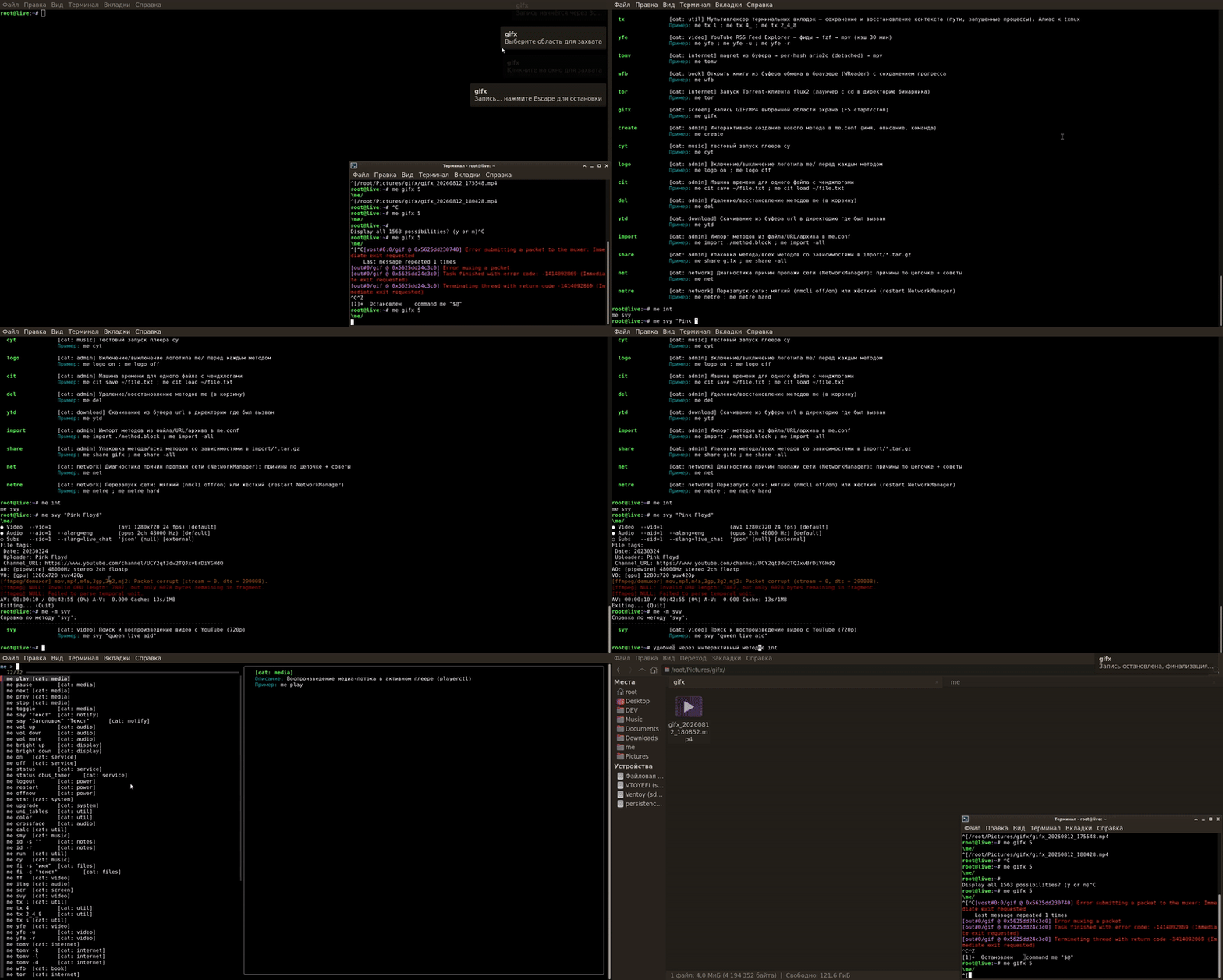
me (list of all methods) → me -m smy (description of smy) → me smy "query" (search and playback). Three modes in one screencast.
File versioning with cit
Besides calling ready-made methods, me provides a tool for lightweight file versioning - cit. It’s not a replacement for Git, but a way to save file states right in the middle of work, without initializing a repository or making commits.
cit stores snapshots of files in .cit/ of the current working directory. Run it from the root of the project you need. The storage names encode the absolute paths of the source files, so this is not a portable history like in Git. A snapshot contains a copy of the file and a comment - a changelog; the name format is: file_name__dd-mm-yyyy_hh-mm-ss.cit.
Main operations:
- Create a snapshot (Push) - choose files or folders via
fzf, enter a comment. The snapshot is saved with a timestamp. If the file contains a shebang (#!), the comment is automatically inserted into its header; - Roll back to the previous version - the current file is replaced with the latest snapshot from
.cit/; - Pick a version to restore -
fzfshows all snapshots with their changelogs, and the selected one is copied over the current file; - Delete to the trash - the snapshot is moved to
.cit/tr_cit/preserving the path structure, versions are not deleted irrecoverably; - Restore from the trash - a list of deleted snapshots with the ability to return them to the main storage;
- Empty the trash - completely deletes all snapshots from
.cit/tr_cit/.
On rollback the current file is moved to <file>.WIP, but the next rollback may overwrite this copy. When picking a version and finalizing, don’t count on the automatic saving of your current edits. Make a separate backup before such operations. For automation, a Bash backup script using tar will do.
The -f (finalize) flag collects the changelogs and overwrites the source file with the contents of the latest snapshot chosen by the code, adding the journal in supported formats. At the same time it creates a copy with the -F suffix and a separate log file. Changes not saved to a snapshot are lost. There is also an implementation limitation: DD-MM-YYYY dates are sorted as strings, so when the month/year changes the “latest” snapshot may not be the newest one.
Working entry points:
# From the project directory:
me cit       # interactive menu
# Only after making a backup and checking the required snapshot:
me cit -f # interactive finalizationcit needs fzf and an interactive terminal. Use the me cit menu; the help in the registry in places promises unsupported subcommands - see limitations for details.
Transferring methods to other machines
Methods can be transferred one by one or as a common archive. me share builds a package from the registry and local files, and me import installs it on another machine with a prepared me.
# On the source machine: package the hello method created above.
me share hello
# Result: ~/.local/bin/me/import/hello.tar.gz

# On the target machine after copying the archive there:
me import ./hello.tar.gzThe package contains metadata, the local files found, and install.sh. Dependency detection is heuristic: system packages are not installed, and dynamically computed paths may not end up in the archive. Check the contents before handing it over. The import runs install.sh from the archive with your privileges, so use only trusted packages.
For a common package:
# On the source machine:
me share -all
# Result: ~/.local/bin/me/import/me_all.tar.gz

# On the target machine after installing me and copying the archive:
me import -diff ./me_all.tar.gz
me import -all ./me_all.tar.gz-diff shows the differences, but is not an audit of install.sh. A batch import without -f skips existing methods; -all -f allows replacing them. The -all package includes all files of me_lib/, so check before sending that there is no private data there. Import by URL is not supported by the current code: the archive must first be downloaded and checked separately.
A scenario for a fleet of machines:
- A set of methods is created on the master machine;
- Separate packages or a common archive are built via
me share; - The archives are transferred via
scp,rsyncor a shared folder; - On each target machine, after checking the package,
me importis run with a local path; - System dependencies are installed separately and the methods’ environment is checked.
This is a way to transfer scripts and their registration, not a full-fledged configuration management system. Names of shared and personal methods have to be coordinated: me has no automatic namespaces.
Numbers
The stock me.conf has 49 registered methods, but the presence of an entry doesn’t mean there is a working script and all its dependencies. So it’s more reliable to look not only at the number of commands but also at the code of a specific method.
The engine is written in Bash and uses standard utilities like awk and md5sum. fzf, playerctl, ripgrep, ffmpeg and other programs are needed by the corresponding methods, not by every me call.
Startup speed depends on the method itself and its utilities. The presence of the help cache doesn’t mean that the result of running a method is cached.
Why it’s just a tool
me doesn’t have:
- automatic resolution of all method dependencies;
- a mandatory YAML/TOML/JSON for the registry;
- a separate plugin API: a method is a regular executable file;
- ORM, DI, middleware and the rest.
The me engine does have:
awk, which finds the script path in the registry;- a check that the file exists and is executable;
- direct launch of the script with arguments;
- a text help cache in
~/.cache/me/andmd5sumfor its automatic invalidation.
bash -n is used by the create generator to check the new launcher, not by the dispatcher on every method call.
The dispatcher is responsible for finding and launching a method, and leaves all the domain logic to regular scripts. That’s why the implementation of a command can be read, checked and run separately from the remote control.
Dependencies and environment
The dispatcher launches methods, but doesn’t prepare the desktop, system services and external programs for them. Before using a specific command, check its dependencies and environment requirements.
The full installer and the desktop environment
The main scenario of the article uses the minimal installation. If you need additional method settings, there is a full installer. Before running it, read its source. It does the following:
- Permissions - sets
+xon files with a shebang found by the masksme*,install_me.shandme_lib/*; - Config - copies
me.confto~/.config/me/, doesn’t overwrite an existing file; - Method installers - runs
gifx_install.sh,scr_install.shandinstall_yfe.sh(first looks for them in the root ofme/, then inme_lib/); - PATH - appends
export PATHwith the~/.local/bin/medirectory to~/.bashrcand~/.profileif it’s not there yet; - Autocompletion - adds
sourceforme_lib/me.completionto~/.bashrc; - ripgrep - if
rgis not found, installs it viaapt-get,pacmanorapk. This requiressudo, which is elevated only at the moment of package installation.
The installer runs sub-installers not only for the remote control itself but also for desktop methods. The GIF and screenshot installers use apt-get: on Arch/Alpine the full scenario can’t be considered universal. They may also change hotkey settings and ask for sudo. If this suits your system, run it as a regular user, not via sudo bash:
cd ~/.local/bin/me

bash install_me.shEnvironment changes made inside the installer don’t propagate to the parent shell. The PATH and completion settings in the current Bash must be applied separately, as in the minimal installation; in new sessions they will be loaded from the shell files.
Application search via fl
fl -con searches case-insensitively by a regular expression and, without a path, starts from /. It needs ripgrep, fzf and micro or geany. The other fl modes are application categories (-cat) and search/launch (-app). But on a clean installation the categories are not ready: the script expects an external cache apps_cache.txt and the generator la.sh, which is not in the repository. The default path is tied to /root/.local/bin/arcturus_cli/; it can be overridden via FL_CACHE_DIR. The example me fl -cat Development makes sense only after preparing the cache, and me fl -app geany, when there are no matches in the cache, looks for the program in PATH and launches the first path found.
Media and dependencies
Not all methods check for the presence of utilities. The current smy.sh calls the programs right away and suppresses stderr of yt-dlp. If the search shows nothing, first check command -v yt-dlp fzf mpv. Controlling mpv via playerctl requires the player’s MPRIS integration; an installed mpv alone is not enough.
cit help and the actual interface
cit needs fzf and an interactive terminal. The commands me cit save <file>, list, load, diff declared in me.conf are not implemented by the current script: a regular menu opens instead. There is no separate CLI diff; snapshot comparison is available in the menu preview. Calling cit directly without me also requires adding me_lib to PATH separately; the standard installation doesn’t do this.
When you don’t need it
me doesn’t do the following:
- doesn’t replace
man/info- read complex tools through their documentation; - doesn’t automate what you do once a year;
- doesn’t turn the terminal into a GUI.
If you have 3 aliases and they work, you don’t need me. But if you spend time remembering, googling or writing a command that you use daily, me can remove that step.
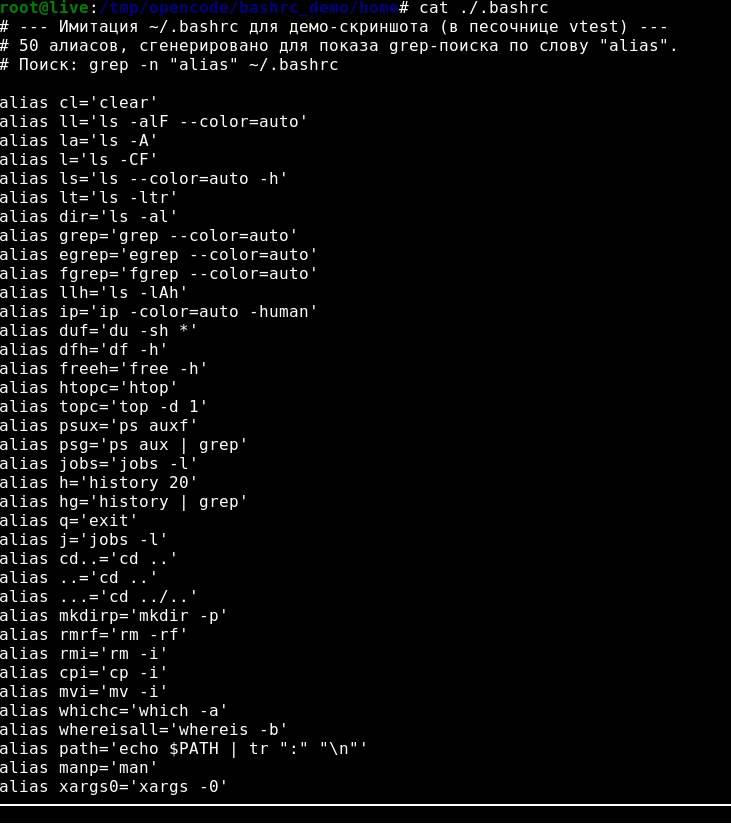
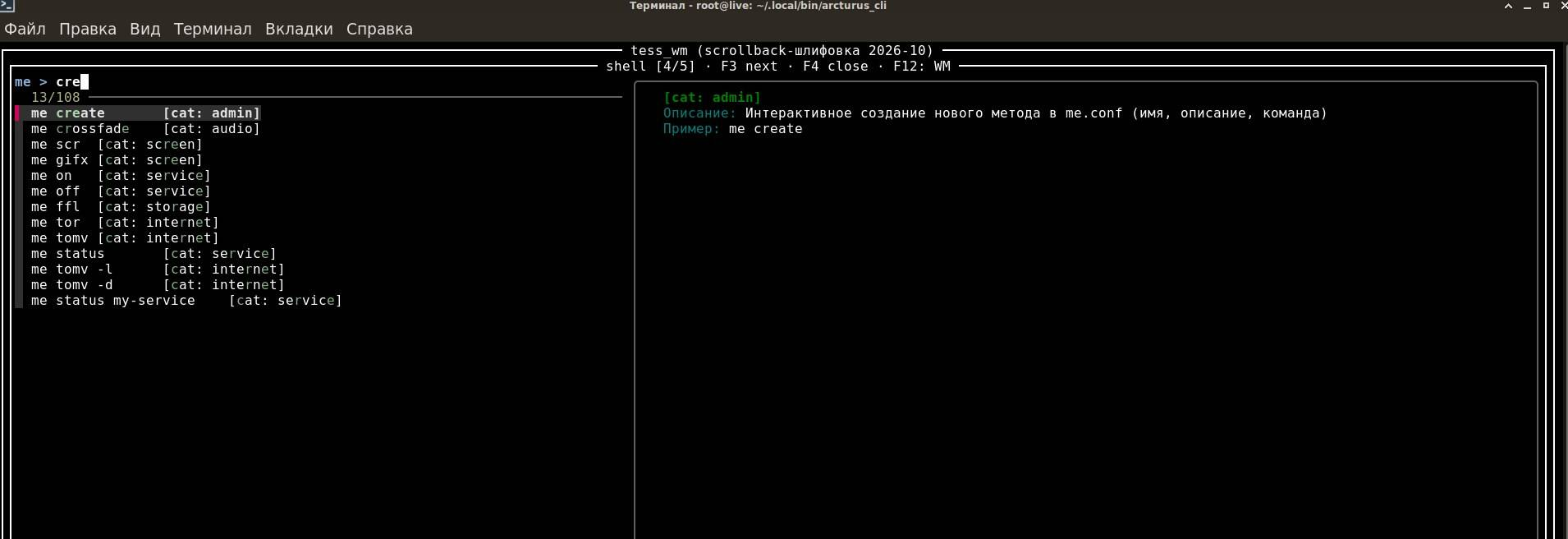
me (searching the history, grep .bashrc), the second and third are me int (a list of commands in a second).
Afterword
Right now I can’t imagine my work without me. It has become my second language for the terminal. If you feel the same pain - give it a try.
It’s not a framework and not an attempt to replace the shell. Just a neat shelf for the commands that would otherwise live in .bashrc and be forgotten.
References
👨💻And…
Don’t forget about our Telegram channel 📱 and chat
Or maybe you want to become a co-author? Then click here🔗
💬 All the best ✌️
That should be it. If not, check the logs 🙂

Comments