
⚠️ Warning
This software hasn’t been updated in a long time. Serious bugs are possible. Be careful when using it.
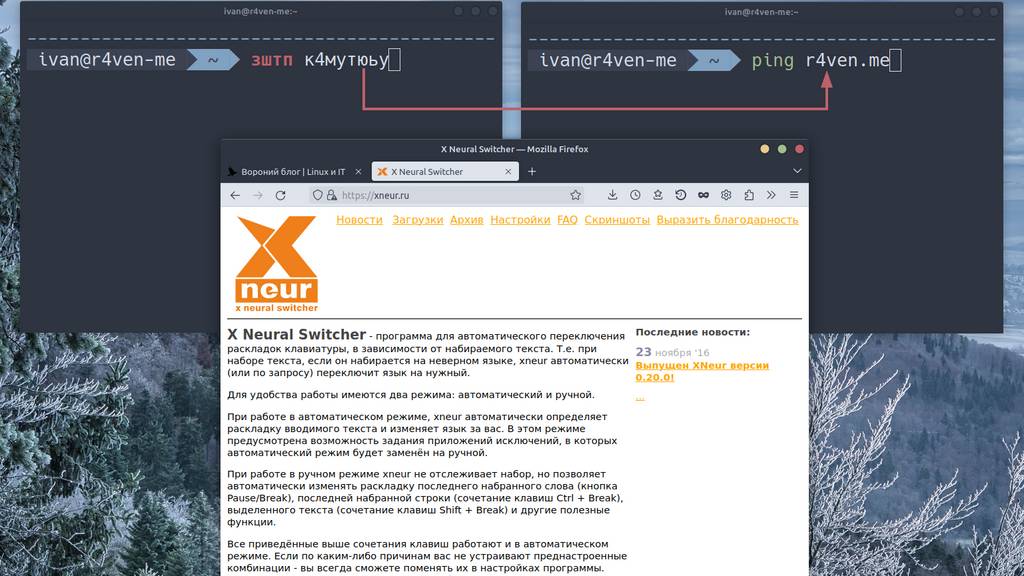
In this note we’ll talk about a useful program for Linux — Gxneur, which, upon pressing a set key combination, switches the keyboard layout and corrects “mistakenly typed” text already in the correct language.
For example: after typing the line ыгвщ фзе гзвфеу, pressing the set key will turn the text into sudo apt update. In my opinion this is a useful thing, and it can serve as an open source alternative to the well-known Punto Switcher by Yandex for Linux.
🖐️Hey!
Subscribe to our Telegram channel @r4ven_me📱, so you don’t miss new posts on the website 😉. If you have questions or just want to chat about the topic, feel free to join the Raven chat at @r4ven_me_chat🧐.
Preface
For some unclear reason, programs like automatic text correctors passed me by. I only learned about them quite recently.
During one of the work calls, while screen sharing, a colleague typed part of a console command in Russian letters, and after pressing some key, the word was converted to the English layout. At that moment I realized I had missed something important.
Many people are familiar with the situation of dealing with more than one layout, and typing a word, or even a whole sentence, in the wrong language.
Sometimes this is terribly annoying, although I had come to terms with it. But after seeing this “magic,” I could no longer sleep peacefully and “went online with this question.”

After checking various options, from homemade scripts using xdotool and xsel, to daemons written in Pascal, I stumbled upon the program Gxneur. That’s what we’ll talk about today.
A Short Overview
First of all, it’s worth noting that Gxneur is a frontend for the program Xneur (X Neural Switcher).
Thus, X Neural Switcher consists of two components:
- The xneur server, running in the background as a daemon and implementing all the main functions of the program. Configured via configuration files and requires only the X Window System to work;
- The gxneur graphical interface, providing convenient management and configuration of xneur. Written using the GTK+ libraries.
The program’s developer is Andrey Kuznetsov.
Unfortunately, there’s no up-to-date information about the state of the project on the developer’s website. The latest version, 0.20.0, was released on November 23, 2016. But despite this, the program is available in the standard repositories of Ubuntu and Debian.
I’ve verified the program works on Linux Mint 21 in the Cinnamon and XFCE editions.
Installing Gxneur on Linux Mint
Run the following command to update the package cache and install:
sudo apt update && sudo apt install -y gxneur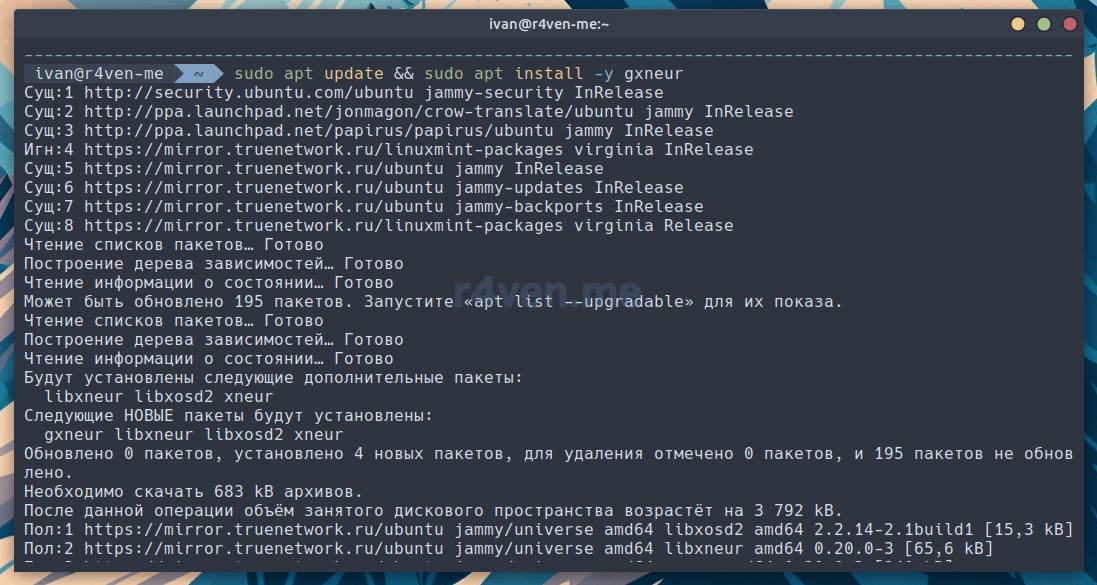
Launching and Configuration
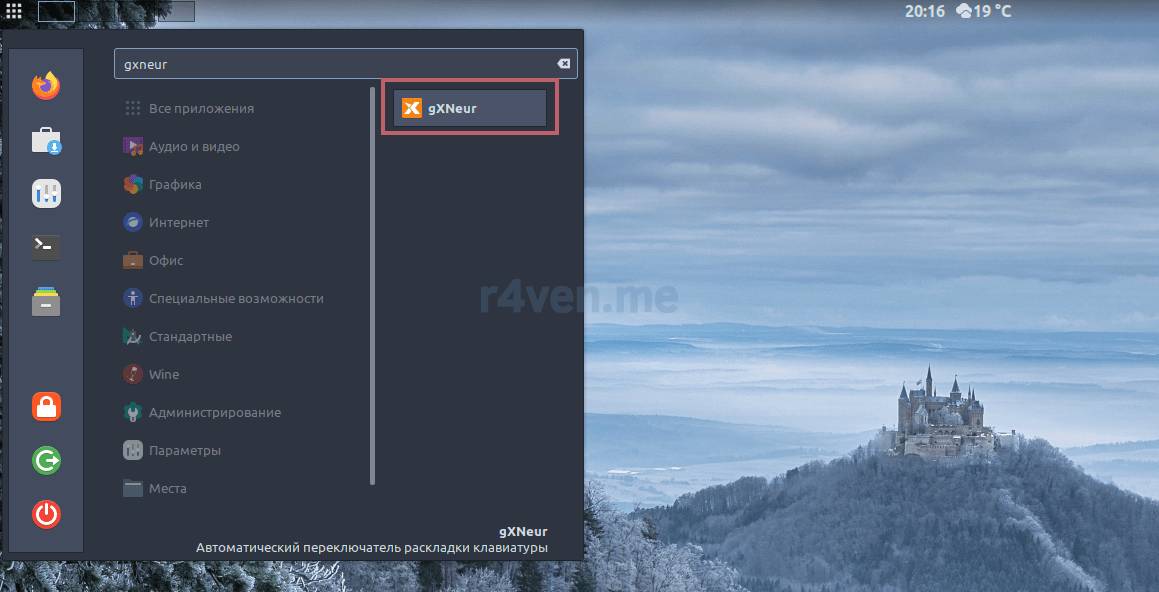
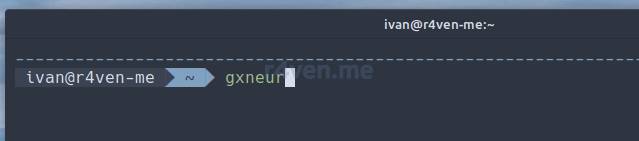
After installation is complete, launch the program via the applications menu or in the terminal:
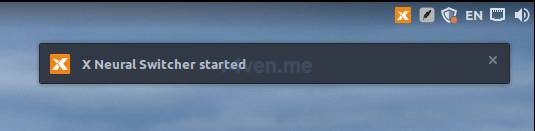
After launching, a Gxneur icon and a corresponding notification will appear in the system tray:
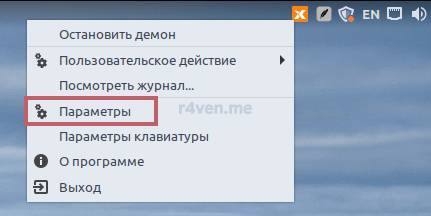
Right-clicking the icon opens a context menu, here select “Preferences”:
A window with the program’s main settings will appear:
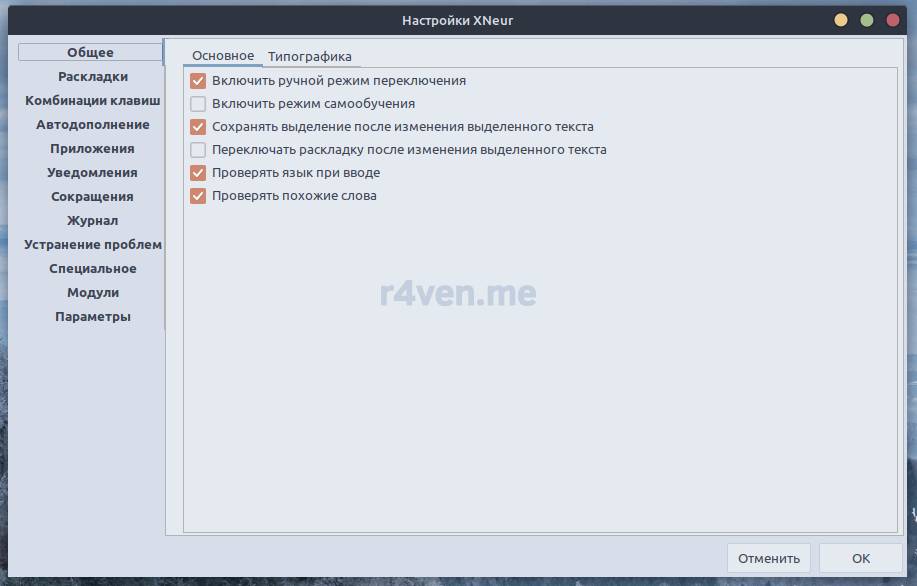
Manual Mode
Manual mode, i.e. correction upon a key press — is activated by default.
When using this mode, first let’s take a look at the “Hotkeys” section:
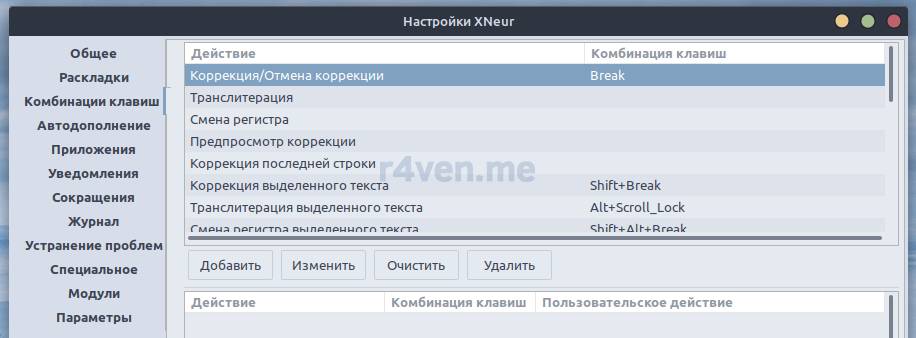
As you can see, the Break key (also known as Pause) corrects the last typed word. And the Shift+Break/Pause combination corrects the selected text.
From experience, I can say that correcting selected text doesn’t always work adequately everywhere. And personally, it’s not convenient for me. So I change the key for correcting the last word to the Ctrl+Space combination, and also set Super+Space as the key combination for the “Correct last line” action.
The
Superkey function in Linux is performed by theWinkey on most keyboards.
To set/change a key or key combination for an action, simply double-click it with the left mouse button, then set the desired key or combination. Example:
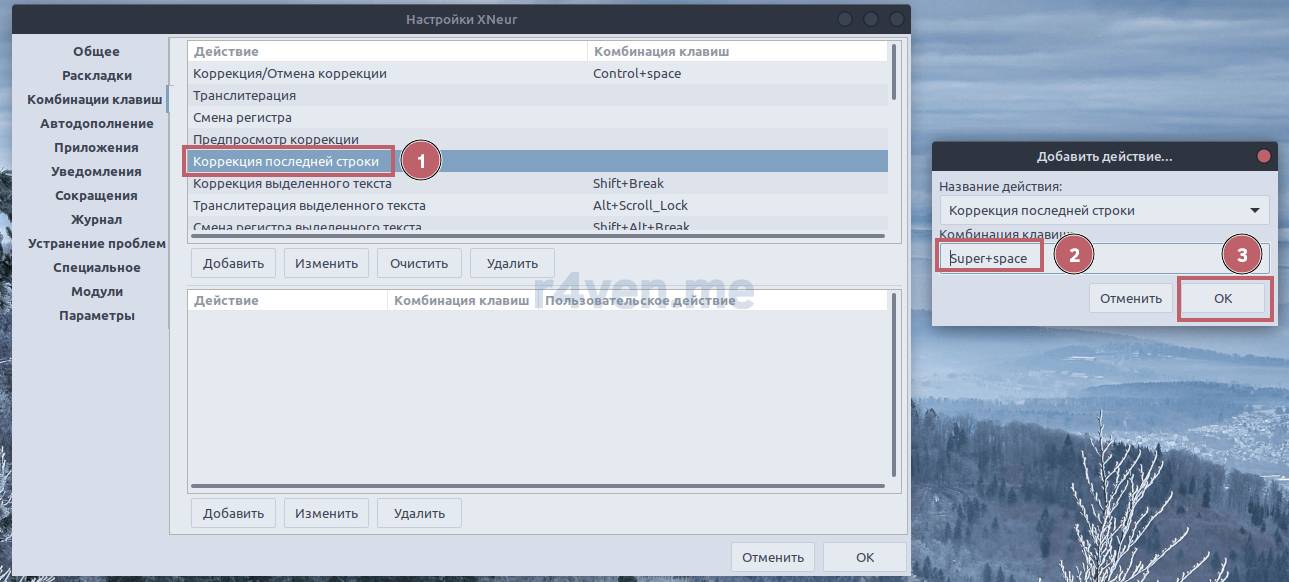
Confirm by clicking “OK”. And then click “OK” once more in the main program window.
Note that for the Super+Space combination to work correctly in Gxneur, you need to free up this combination in the Linux Mint keyboard settings, since by default this combination is set as the system key for switching the keyboard layout.
To do this, go to the Linux Mint keyboard settings:
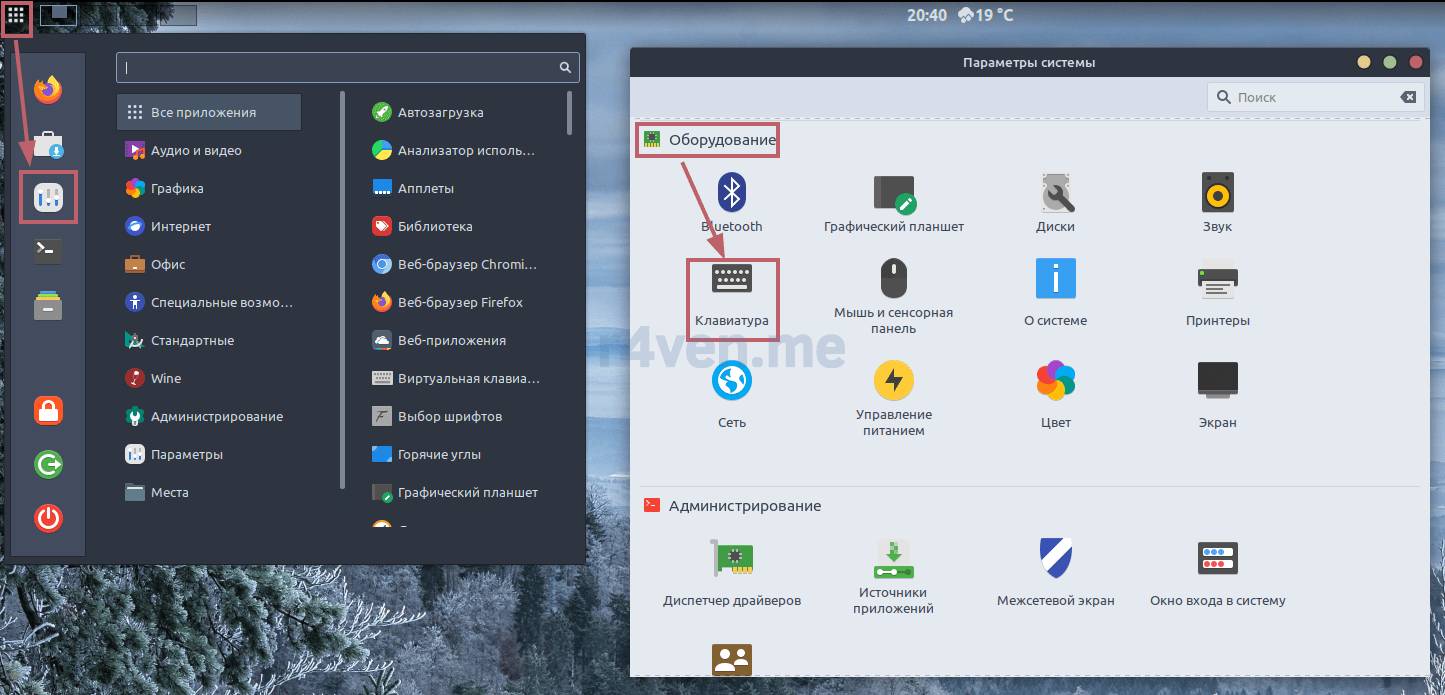
Then go to the “Layouts” tab, then “Options”:
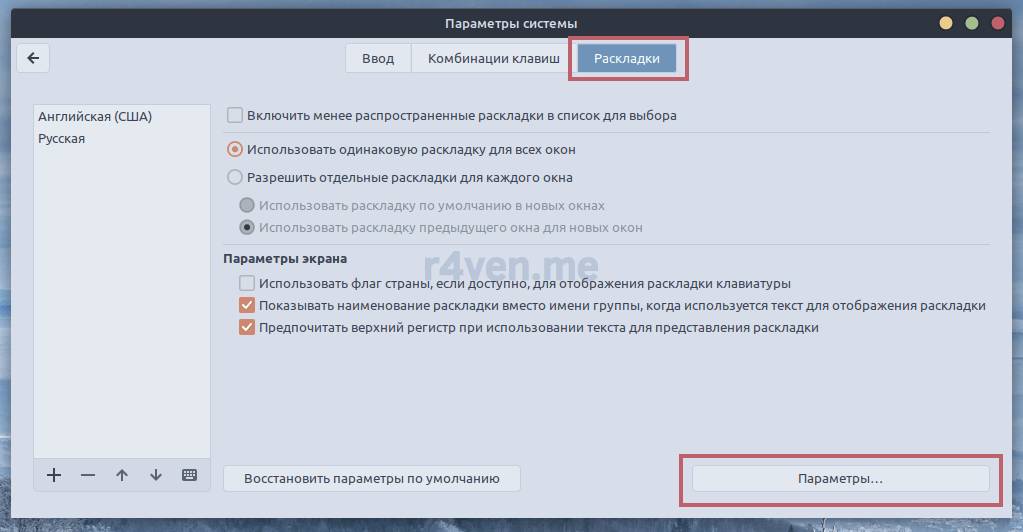
Then, in the window that opens, find the “Switching to another layout” section and uncheck Win+Space:
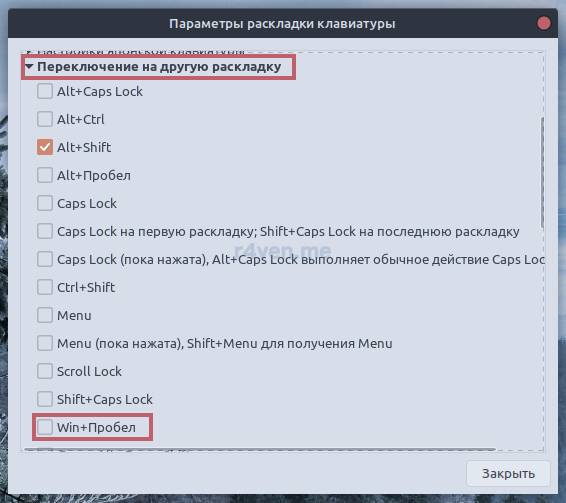
Done.
Automatic Mode
To activate automatic correction mode while typing text, you need to disable the use of manual mode and restart the program’s daemon:
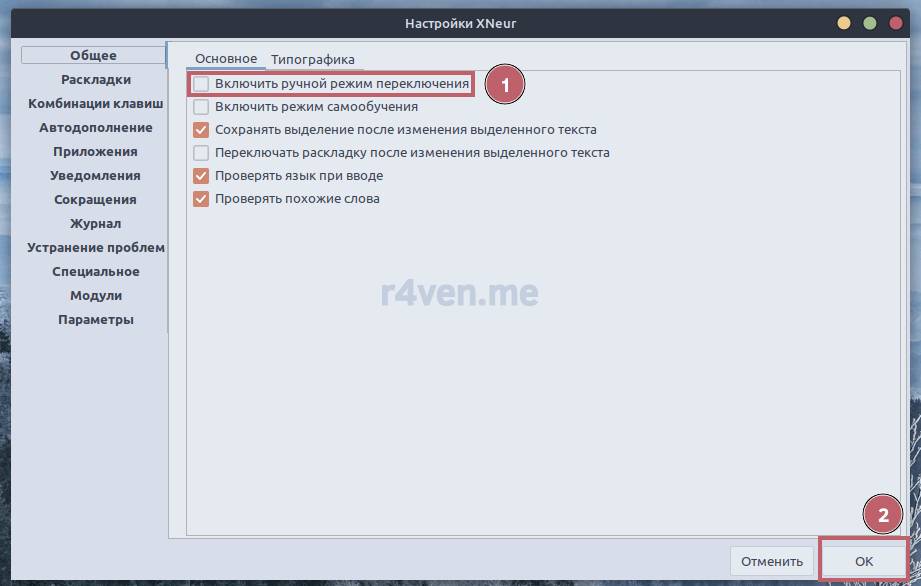
For reliability, let’s restart the daemon manually:
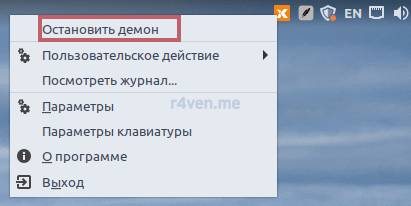
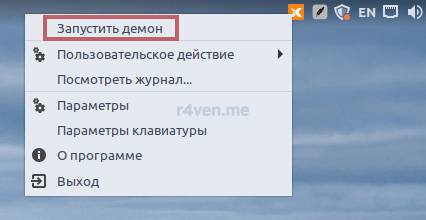
Done. Automatic correction mode is activated. Let’s move on to the demonstration.
Demonstration
The most common case for me, when I need to correct a typed word, is the moment of switching from using a web browser to a terminal window, and vice versa. So I’ll demonstrate Gxneur working in such a situation:
Enabling Program Autostart
For Gxneur to launch automatically at login, you need to go into the application’s settings menu, then the “Options” section (the very last one). And there, activate the “Start automatically at system startup” option. It’s also advisable to set a startup delay of a few seconds:
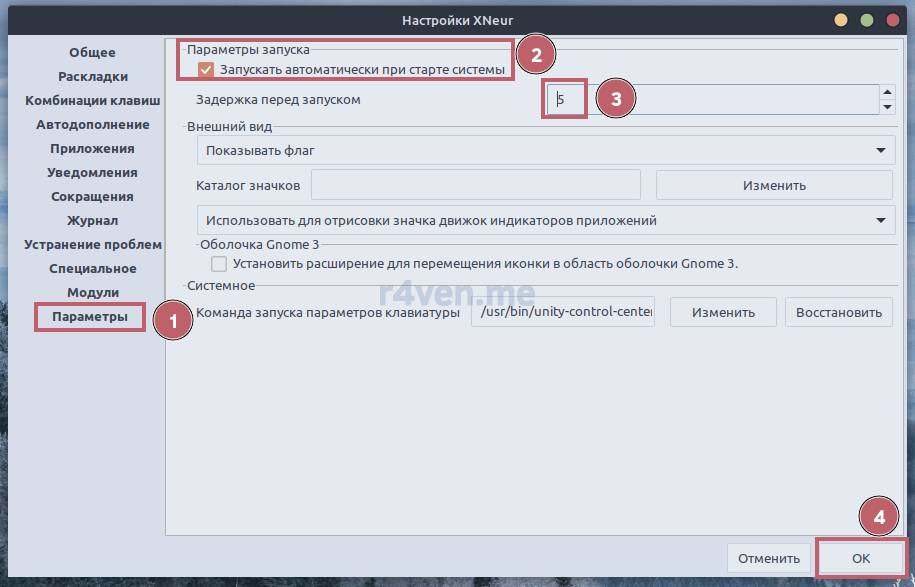
Now the program will start together with the user’s desktop environment session.
Afterword
Today our arsenal of software for the advanced Linux user has been enriched with a useful text correction utility — Gxneur. Overall, I got by for many years without it. But I’m sure that once I get used to using it, I’ll save myself some nerve cells, and that can only make me happy)
The configuration options of Gxneur are quite extensive. Which, for me personally, is excessive. So I disable most of the default-enabled functions as unnecessary, only using “last word” and “last line” correction.
As for “bugs,” I’ve run into a situation a couple of times where, after saving Gxneur’s settings, even though it displayed a notification about restarting the daemon, it still didn’t start. So after making changes to the program, it’s worth double-checking whether the daemon is running, via right-click on the system tray icon. It should look like this:
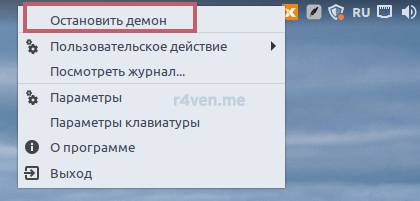
If not, just click “Start Daemon”.
Thanks for reading. All the best!
Useful Resources
- Official website of the Xneur project
- Author’s article on Habr
- Instructions in Russian with screenshots on the RedOS project website
👨💻And…
Don’t forget about our Telegram channel 📱 and chat
Or maybe you want to become a co-author? Then click here🔗
💬 All the best ✌️
That should be it. If not, check the logs 🙂

Comments