
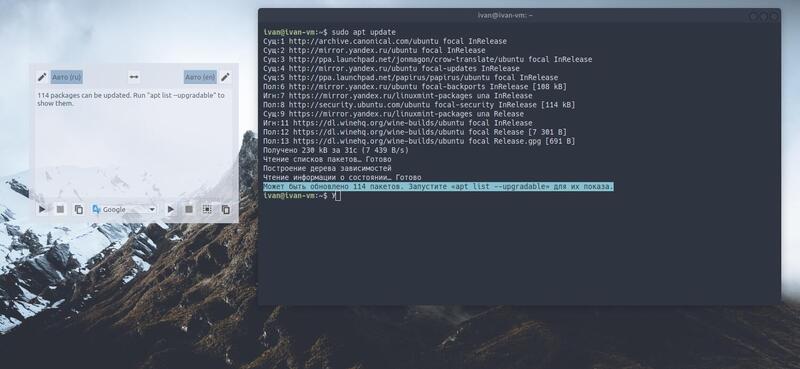
Historically, most IT documentation has been written in English. It’s quite hard to remember all the terms, but fortunately there are tools that help offset the lack of an extensive vocabulary, especially technical vocabulary.
Today I’ll tell you about an incredibly convenient translator that’s always at hand and able to translate text from anywhere. The only condition is the ability to select text. The program is available for installation on both Windows and Linux
🖐️Hey!
Subscribe to our Telegram channel @r4ven_me📱, so you don’t miss new posts on the website 😉. If you have questions or just want to chat about the topic, feel free to join the Raven chat at @r4ven_me_chat🧐.
The principle of operation of this application is as follows:
- The program runs in the background and is invoked by pressing a hotkey;
- You need to select any text, anywhere, then Crow Translate reads the primary system clipboard;
- It sends an API request to one of the selected translation providers: Yandex, Google, Bing, etc.;
- Then it shows a popup window with the translation;
- Clicking anywhere outside the window closes it.
In practice, the whole thing takes mere seconds and saves a ton of time, without having to go to the website of the needed translator, then paste the text there, and so on… too long 😉
Installing Crow Translate on Linux Mint
To install the program, let’s add the developer’s official ppa repository and install the latest version of Crow Translate. Open a terminal and run these 3 commands one by one, entering your password after the first one:
sudo add-apt-repository -y ppa:jonmagon/crow-translate

sudo apt update

sudo apt install -y crow-translate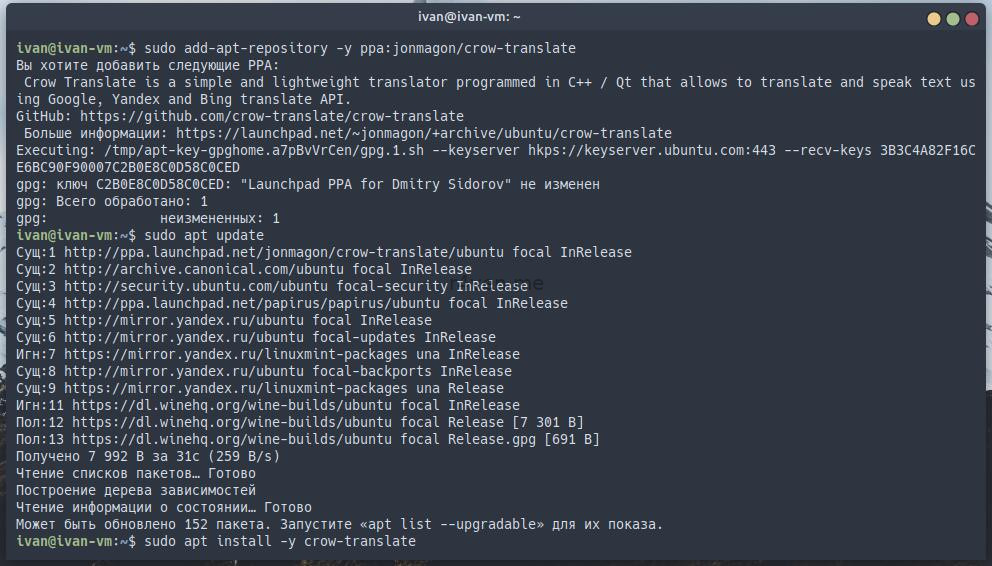
Or download the *.deb package for your architecture from the releases page, open it with a regular mouse click, and click install.
On the same page you’ll also find *.exe installers for Windows.
Using the Crow translator
After installation, you need to launch Crow. To do this, go to the main menu or press the Win key and type crow in the search:
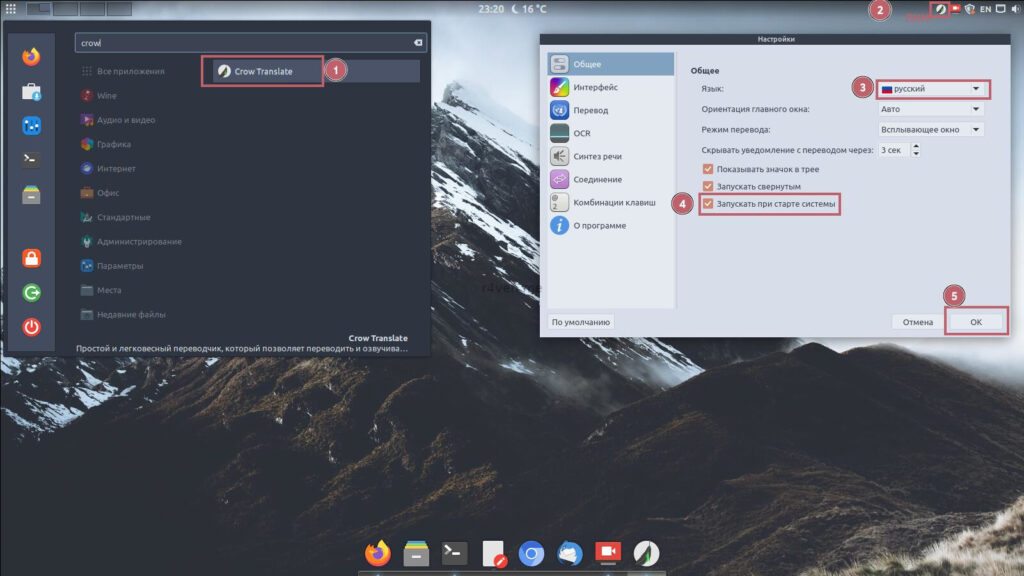
After launching the program, a corresponding icon will appear in the system tray. Right-click on it and go to settings. On the “General” tab, specify the program language and enable autostart of the program when the system boots (as in the screenshot above), then click “OK”.
Now let’s test the program. Select any text anywhere and press the Ctrl+Alt+E key combination — a window with the translation will appear. You can also select the translation source right there.
Translation from English:
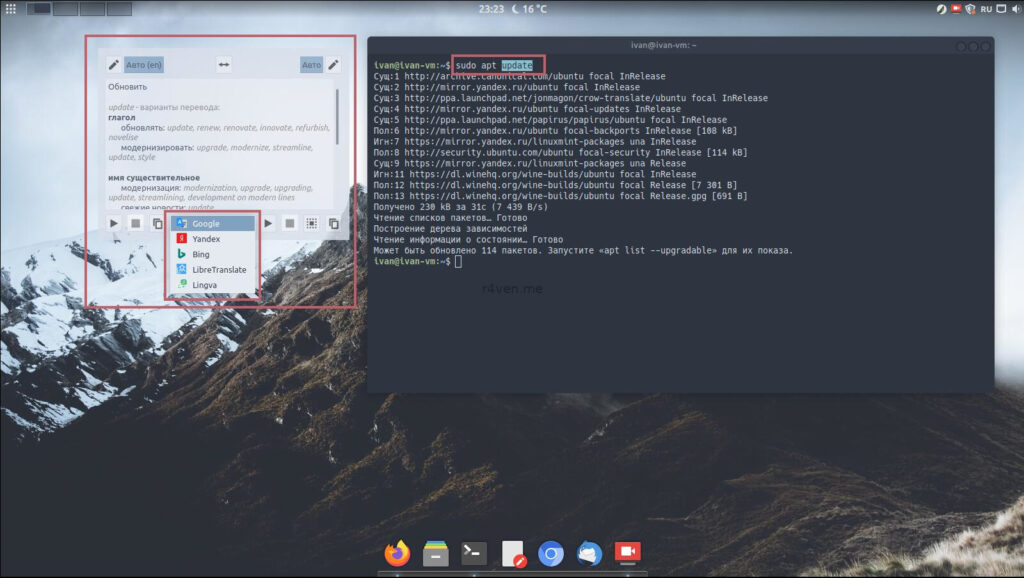
Translation from Russian:
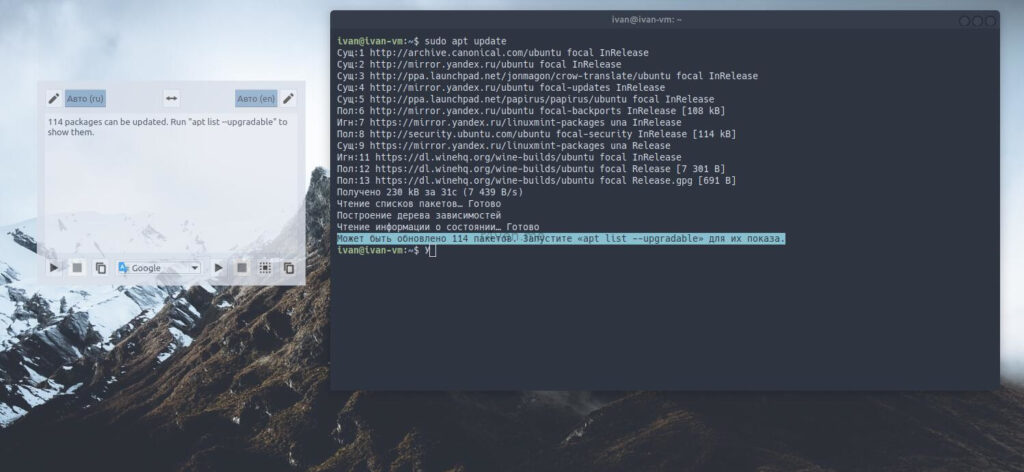
The program’s settings allow you to fine-tune it to your preferences in detail. For example, I don’t really like the transparency of the popup window that’s set by default. I also usually change the size of this window. To configure these parameters, go to settings, in the “Interface” section:
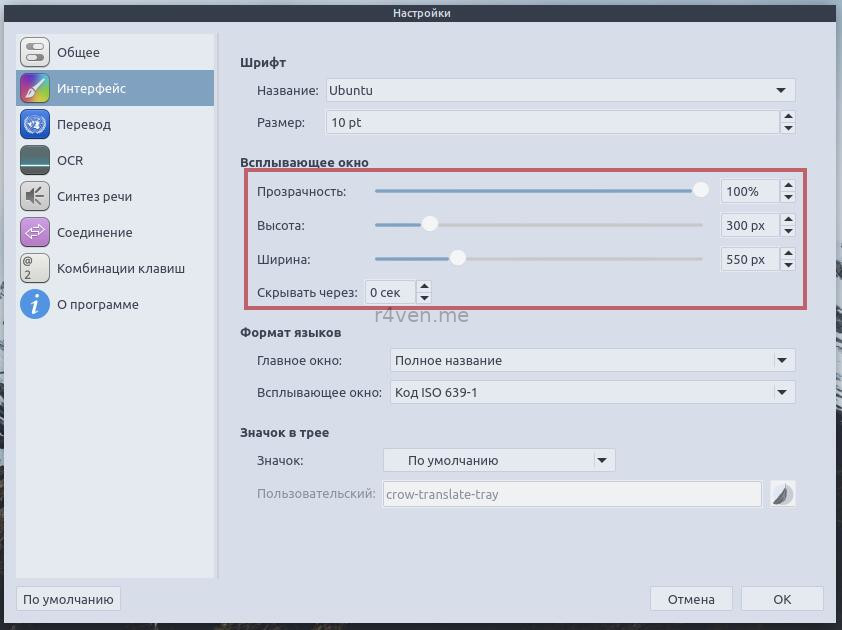
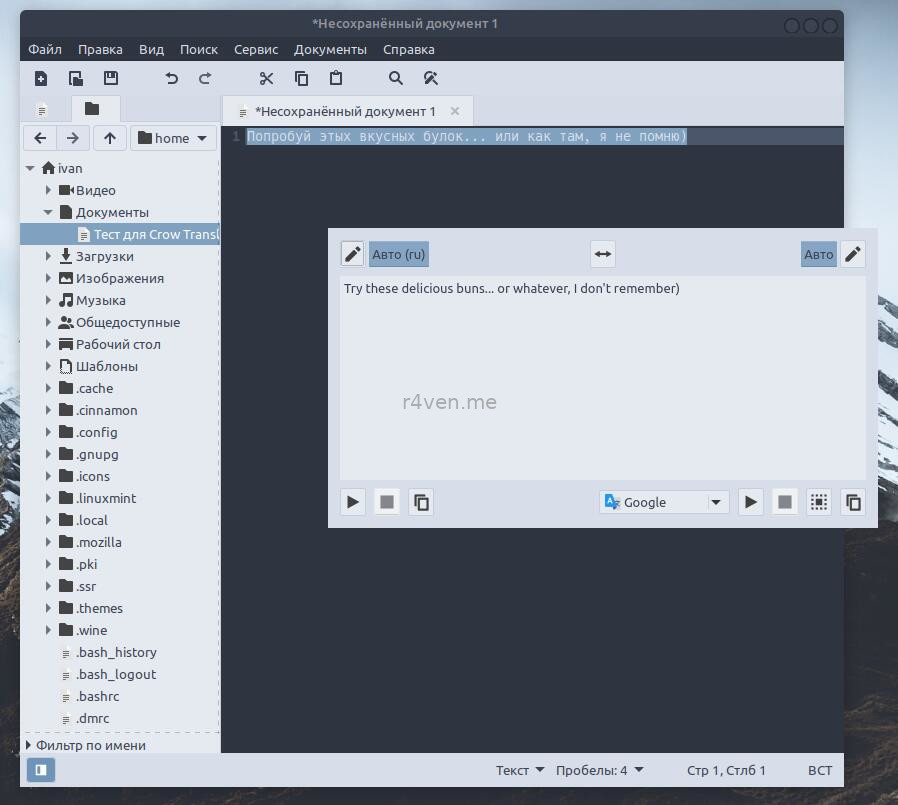
Let’s check:
Crow Translate also has the ability to open a full-fledged translation window. To do this, simply press Ctrl+Alt+C. A static program window will appear, in which you can work as in a regular translator:
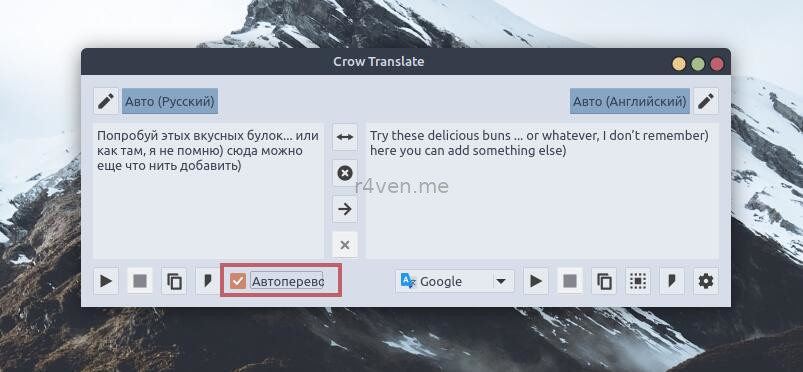
The last text from the clipboard is immediately pulled into this window.
The key combinations for translating and calling the main window can be changed in the settings. I usually set Alt+F1 and Alt+F2, as that’s more convenient for me.
Video demonstration of how this program works:
Thanks for reading. Good luck with your work!
Useful links:
👨💻And…
Don’t forget about our Telegram channel 📱 and chat
Or maybe you want to become a co-author? Then click here🔗
💬 All the best ✌️
That should be it. If not, check the logs 🙂

Comments