
In this note, we will look at the “Forced command” mechanism in SSH, which allows SSH keys to be limited to executing a single command.
🖐️Hey!
Subscribe to our Telegram channel @r4ven_me📱, so you don’t miss new posts on the website 😉. If you have questions or just want to chat about the topic, feel free to join the Raven chat at @r4ven_me_chat🧐.
Forced command is a mechanism that allows an SSH key to be bound to executing strictly one command specified in authorized_keys. The user does not receive an interactive shell, cannot execute other commands, and works only within the specified scenario.
This mechanism is used for:
- Automation (scripts, backups, deployment), when you need to grant the minimum required access;
- Security - limiting a key to one operation reduces the risk if the key is compromised;
- Integrations between servers - for example, allow only
rsync,mysqldump, and so on to run.
In a recent article about how to set up your own static website with Hugo, I used this SSH technique to initiate running a deploy script in Bash.
Since the topic is interesting, I decided to make a separate note with examples👨💻.
Preparation on the Client - desktop.lan
First, let’s define the input data:
| Key | Value |
|---|---|
| Server | test.r4ven.me |
| Client | desktop.lan |
| User | ivan |
☝️The following actions are performed on the local machine desktop.lan as a regular user (ivan in my case).
Generate a new SSH key on the client machine:
ssh-keygen -q -N "" -t ed25519 -f ~/.ssh/id_ed25519_test-q: Quiet mode - minimizes console output;-N "": New passphrase - sets an empty passphrase for the key, which makes the key unprotected by a password. Double quotes mean an empty string. Remove this flag if you want to set a passphrase;-t ed25519: Type - specifies the key type to generate, in this caseed25519- a modern, more secure algorithm;-f ~/.ssh/id_ed25519_test- Filename - specifies the file name where the private key (and the corresponding public key with the.pubextension) will be saved.
In this case, the keys will be saved in the ~/.ssh directory under the names id_ed25519_test (private) and id_ed25519_test.pub (public).
Print the public part of our key, the one with the .pub suffix, to the terminal:
cat ~/.ssh/id_ed25519_test.pubYou will get a line like:
ssh-ed25519 AAAAC3NzaC1lZDI1NTE5AAAAIAXsCuHrzzbYmJXJqeui8j78pkYf+VbYuGeX8iK/W0EW ivan@r4ven-meThis completes the client setup. Let’s move on to the server side.
Preparation on the Server - test.r4ven.me
☝️The following actions are performed on the remote server test.r4ven.me as a regular user (ivan in my case).
Now create a specially configured authorized_keys for SSH on the server:
mkdir -p ~/.ssh/

chmod 700 ~/.ssh/

echo 'command="echo Pong",no-port-forwarding,no-X11-forwarding,no-agent-forwarding,no-pty ssh-ed25519 AAAAC3NzaC1lZDI1NTE5AAAAIAXsCuHrzzbYmJXJqeui8j78pkYf+VbYuGeX8iK/W0EW ivan@r4ven-me' >> ~/.ssh/authorized_keysWhere instead of ssh-ed25519 AAAAC3NzaC1lZDI1NTE5AAAAIAXsCuHrzzbYmJXJqeui8j78pkYf+VbYuGeX8iK/W0EW ivan@r4ven-me
specify your public key, which you printed to the terminal on the client machine in the previous step.
The line in the authorized_keys file contains the public SSH key and a specific command. The point is that when connecting via SSH using the corresponding private key, instead of opening an interactive shell, only the specified command will be executed, in this example - echo Pong🏓.
Additional options are also specified:
no-port-forwarding: forbids port forwarding;no-X11-forwarding: forbids X11 forwarding;no-agent-forwarding: forbids SSH agent forwarding;no-pty: forbids requesting a pseudo-terminal (interactive sessions).
The server side is configured too. Let’s move on to tests.
Testing Force Command Operation
☝️The following actions are performed on the local machine desktop.lan as a regular user (ivan in my case).
Try connecting to the server using our new key:
ssh -i ~/.ssh/id_ed25519_test ivan@test.r4ven.me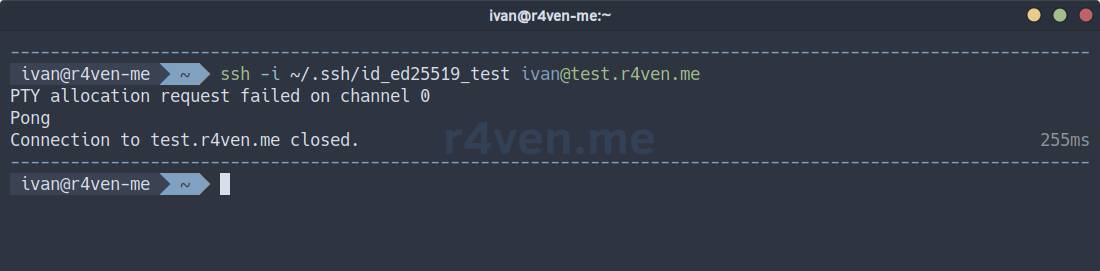
If you try to execute an arbitrary command, for example ls -l :
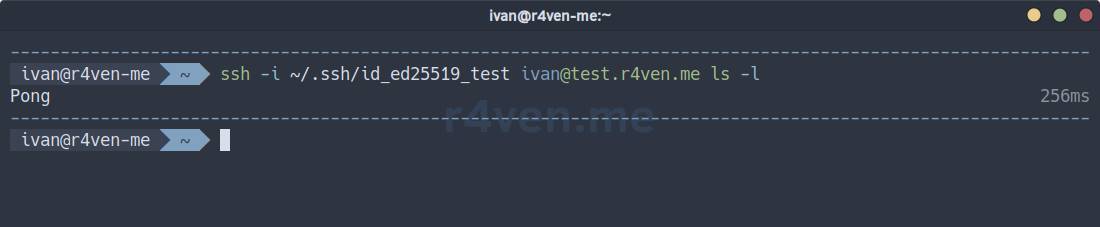
The output will still show Pong🏓.
ssh -i ~/.ssh/id_ed25519_test -L 8888:localhost:9999 ivan@test.r4ven.me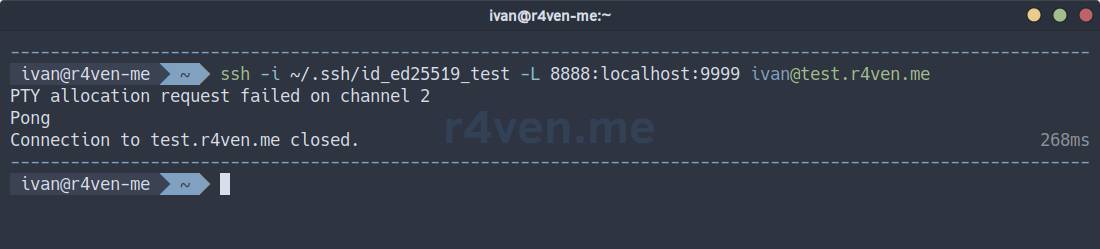
Still Pong🏓.
Practical Example: Running a Command with sudo
Now let’s configure, for example, running the /opt/script.sh script through the sudo utility:
☝️The following actions are performed on the remote server test.r4ven.me as the root user.
Create a sudoers file:
sudo visudo -f /etc/sudoers.d/90_scriptFill it with:
ivan ALL=(root) NOPASSWD: /opt/script.sh☝️ Important
Specify your user’s name instead of ivan.
❗️ Caution
Be very careful when editing sudo files. If you make a syntax error, you may lose access to privileged mode through sudo. Always keep a second terminal with the root account open just in case.
Now create a test script.sh on the server:
echo -e '#!/usr/bin/bash\necho Sudo-Script-Pong' | sudo tee /opt/script.sh

sudo chmod 700 /opt/script.shEdit the ~/.ssh/authorized_keys file and change the command to sudo /opt/script.sh:
from="10.10.10.5",command="sudo /opt/script.sh",no-port-forwarding,no-X11-forwarding,no-agent-forwarding,no-pty ssh-ed25519 AAAAC3NzaC1lZDI1NTE5AAAAIAXsCuHrzzbYmJXJqeui8j78pkYf+VbYuGeX8iK/W0EW ivan@r4ven-me📝Note that at the beginning of the line we added a new parameter: from="10.10.10.5", which limits execution of the specified command to a host with a specific IP address.
Let’s test it from the client where we generated the key: id_ed25519_test.
☝️The following actions are performed on the local machine desktop.lan.
Try connecting to the server:
ssh -i ~/.ssh/id_ed25519_test ivan@test.r4ven.meIn response, you should get Sudo-Script-Pong from our script.sh:
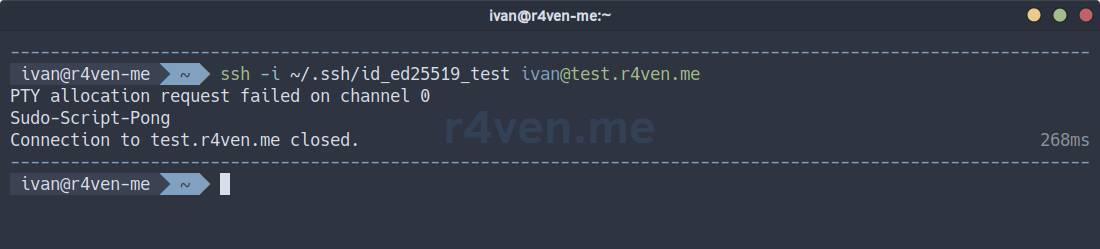
If so, we configured everything correctly. Fill script.sh with the logic you need and run it safely.
Allow Only File Transfer via sftp
In a similar way, you can allow access only to the sftp file transfer subsystem. In this case, the line in authorized_keys will look like this:
command="internal-sftp",no-port-forwarding,no-X11-forwarding,no-agent-forwarding,no-pty ssh-ed25519 AAAAC3NzaC1lZDI1NTE5AAAAIAXsCuHrzzbYmJXJqeui8j78pkYf+VbYuGeX8iK/W0EW ivan@r4ven-meAnd connect like this:
sftp -i ~/.ssh/id_ed25519_test ivan@test.r4ven.me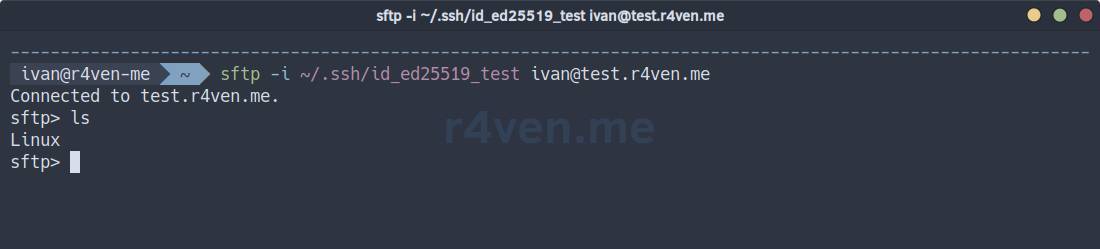
Instead of a Conclusion
It is important to understand that the forced command mechanism in SSH significantly reduces the risk of unauthorized key use, but it is not absolute protection: if the restricted command or script contains vulnerabilities (for example, allows arbitrary arguments, file substitution, or privilege escalation), an attacker can still bypass the restrictions.
Therefore, approach the security configuration of your systems wisely. Good luck!
👨💻And…
Don’t forget about our Telegram channel 📱 and chat
Or maybe you want to become a co-author? Then click here🔗
💬 All the best ✌️
That should be it. If not, check the logs 🙂

Comments