

A short note about how to check Download/Upload speed using SSH on Linux. This kind of diagnostics is useful when analyzing issues related to data transfer over secure communication channels, such as VPN.
🖐️Hey!
Subscribe to our Telegram channel @r4ven_me📱, so you don’t miss new posts on the website 😉. If you have questions or just want to chat about the topic, feel free to join the Raven chat at @r4ven_me_chat🧐.
The demonstration in this article was performed in Linux Mint Debian Edition 6 (Debian 12). Everything will work the same way in other Linux distributions.
Preparation
To do this we’ll need:
- SSH access to a remote server;
- a pipeline monitoring utility —
pv(pipeviewer); - a low-level data transfer utility —
dd; - a content output utility —
cat.
Of the list above, only the pv utility needs to be installed (an extremely useful tool). It’s available in the standard repositories:
sudo apt update && sudo apt install pv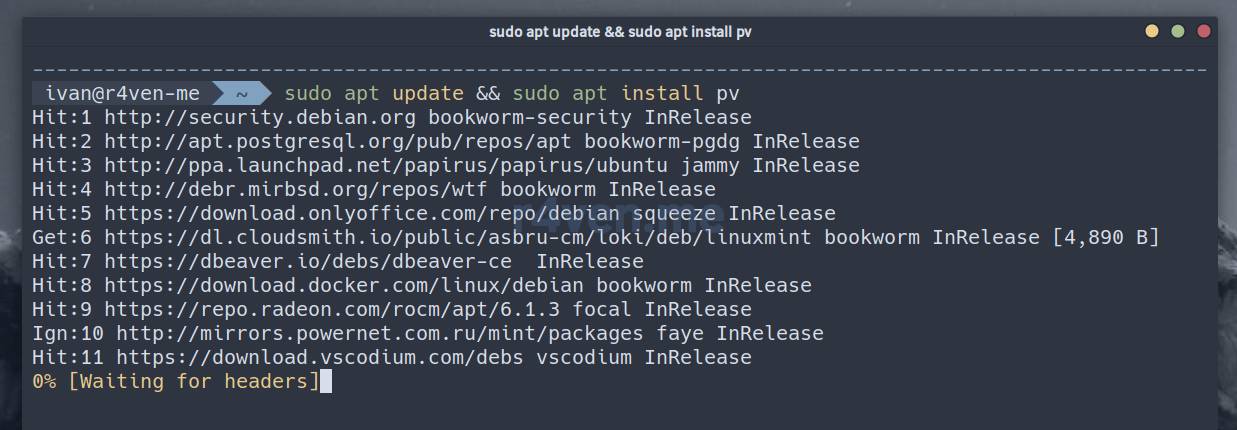
Checking the speed
📝 Note
It’s worth noting right away that data transfer speed can depend on:
- network bandwidth;
- CPU performance, since SSH uses encryption;
- SSH settings, such as encryption algorithms.
In my example, the username on the remote server is ivan and the host address is vpn.r4ven.me (an IP address can be specified as well). Replace these values in the commands with your own.
Disable the VPN and check the download speed with the command:
Be careful with the dd command! Make sure you don’t accidentally overwrite important data.
ssh ivan@vpn.r4ven.me dd if=/dev/zero bs=1M count=1024 | pv | cat > /dev/null
To stop the check, use the
Ctrl+ckey combination.
And now the upload speed:
dd if=/dev/zero bs=1M count=1024 | pv | ssh ivan@vpn.r4ven.me 'cat > /dev/null'
Then enable the VPN and run both commands again. If the speed without tunneling the traffic is significantly higher, this means the factors affecting the data transfer speed lie on the server itself where the VPN is deployed. If the speed is low in both cases, the issue is likely with the channel to the server.
What these commands actually do
1st command (Download)
ssh ivan@vpn.r4ven.me dd if=/dev/zero bs=1M count=1024— generates a stream of zero data (from/dev/zero) on the remote server using theddutility, 1 GB in size (1024 blocks of 1 MB), and sends it over the SSH connection;| pv— on the local machine, using the redirection mechanism, measures the speed of receiving data over SSH;| cat > /dev/null— redirects the data stream passing throughpvto a pseudo-device (a black hole), avoiding disk load.
2nd command (Upload)
dd if=/dev/zero bs=1M count=1024— generates a stream of zero data (/dev/zero) on the local machine, also using theddutility (1 GB);| pv— measures the data transfer speed;| ssh ivan@vpn.r4ven.me 'cat > /dev/null'— transfers the data over SSH to the remote server, also into a black hole.
This way a synthetic check is performed that simply utilizes the channel without creating any files.
If the route to the remote server doesn’t go through the tunnel when the VPN is enabled
In this situation, try temporarily adding a route manually, and remove it after the checks are done. But only if the remote server is not the VPN server itself!
Here’s an example of the commands:
# check the route
ip route get <IP_address>

# add a route through the tun0 network interface
ip route add <IP_address> dev tun0

# remove the previously added route
ip route del <IP_address> dev tun0Where <IP_address> is the server’s IP address, and tun0 is the virtual network interface of your tunnel connection on the local machine. Replace the values with your own. You can find them out using the commands:
# ip address
ping -c1 vpn.r4ven.me | head -1 | awk -F'[()]' '{print $2}'

# list of interfaces
ip addressFurther reading
- SSH – Secure connection to remote hosts: introduction | Raven Blog
- Linux command line, input and output redirection: operators “>”, “<”, “|”
- Setting up an OpenConnect SSL VPN server (ocserv) in docker for internal projects | Raven Blog
- pv — a small but very useful utility | Habr
- pv utility manual | ubuntu.com (EN)
👨💻And…
Don’t forget about our Telegram channel 📱 and chat
Or maybe you want to become a co-author? Then click here🔗
💬 All the best ✌️
That should be it. If not, check the logs 🙂

Comments