
Today I’ll show you how to run programs designed for Windows on Linux Mint 20, which we previously installed and configured.
I’ll warn you right away that not all Windows applications work correctly on Linux. It all depends on how complex and heavy the application’s design is. Nevertheless, a large number of Windows programs run on Linux without any problems, and today I’ll demonstrate this to you.
Introduction
There is open-source software for running Windows applications in a Linux environment — Wine. There are many articles on the internet about installing it on Linux Mint, and they all differ from one another. I’ve often come across non-working instructions and had to tinker a lot by hand. In this note I will try to describe a working, and at the same time simple, installation option for Linux Mint 20.
🖐️Hey!
Subscribe to our Telegram channel @r4ven_me📱, so you don’t miss new posts on the website 😉. If you have questions or just want to chat about the topic, feel free to join the Raven chat at @r4ven_me_chat🧐.
Because the Wine project is actively developed and its new versions are released often, the standard Linux Mint repositories usually contain not the newest versions. So we’ll connect the developer’s repository and install the latest version of the program, perform its initial setup, and then install and run a couple of Windows applications for demonstration.
So, let’s get started.
Installing Wine on Linux Mint 20
First, we need to enable support for the i386 architecture, so that it’s also possible to run 32-bit Windows applications. Open a terminal and run this command:
sudo dpkg --add-architecture i386To connect third-party repositories (where programs that aren’t in the standard Linux Mint repositories can be found), you need to import the developer’s gpg key.
The key import procedure is required to confirm the authenticity of the packages being installed on the system.
It’s also implied that by connecting repositories manually you trust their owners.
Let’s add the official Wine repository key. Run two commands:
wget -nc https://dl.winehq.org/wine-builds/winehq.key
sudo apt-key add winehq.key && rm ./winehq.keyThe first command downloads the key file via a direct link, and the second command imports the downloaded key into the trusted list.
After importing the key, connect the official Wine repository with this command:
sudo add-apt-repository 'deb https://dl.winehq.org/wine-builds/ubuntu/ focal main'In this command, focal denotes the operating system version. For example, for Linux Mint 21 it would be bionic instead of focal.
After connecting the new repository, you need to update the package cache so our OS learns about the new software source. Run in the terminal:
sudo apt updateBoth stable and testing versions are available in the Wine developer’s repository. Let’s not take any risks and install the latest stable version:
sudo apt install --install-recommends winehq-stableConfiguring Wine
A couple of steps remain. Before installing and running Windows programs, Wine needs to create and configure a working Windows environment. By default, a 64-bit environment is created. To start the configuration, type this command in the terminal:
winecfgAfter that, Wine will start creating the environment. This will take some time. Afterwards you should see a window like this:
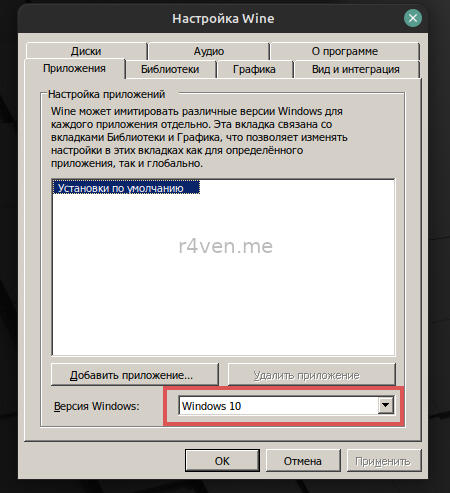
Set it to Windows 10 and close it.
Example: installing a Windows program on Linux
Now, for a demonstration, let’s install notepad++ and try to run it. After installing Wine, files with the .exe extension will be opened by it by default. So just download the exe file you need and open it in the file manager, or via right-click —> Open with:
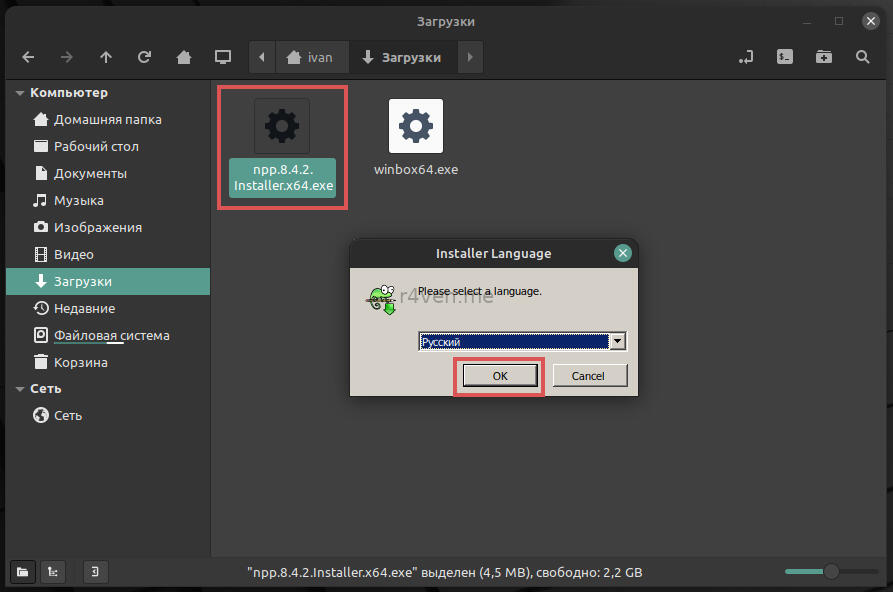
Then go through the usual steps of installing Windows programs. You can even leave the checkbox for creating a desktop shortcut. Install and run it:
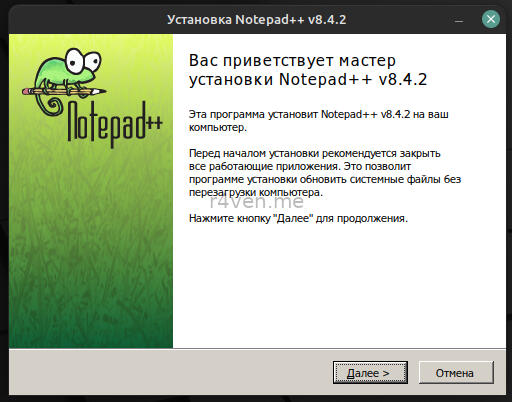
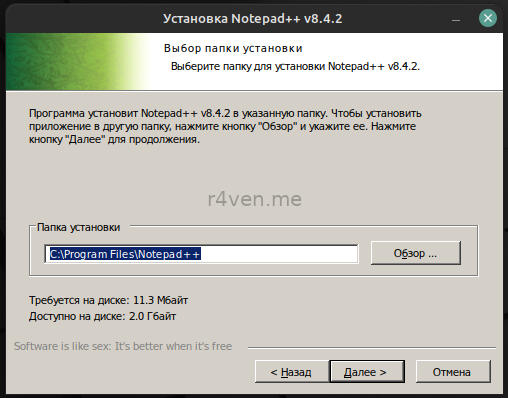
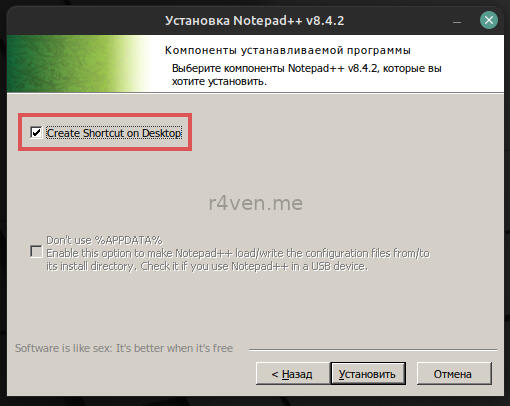
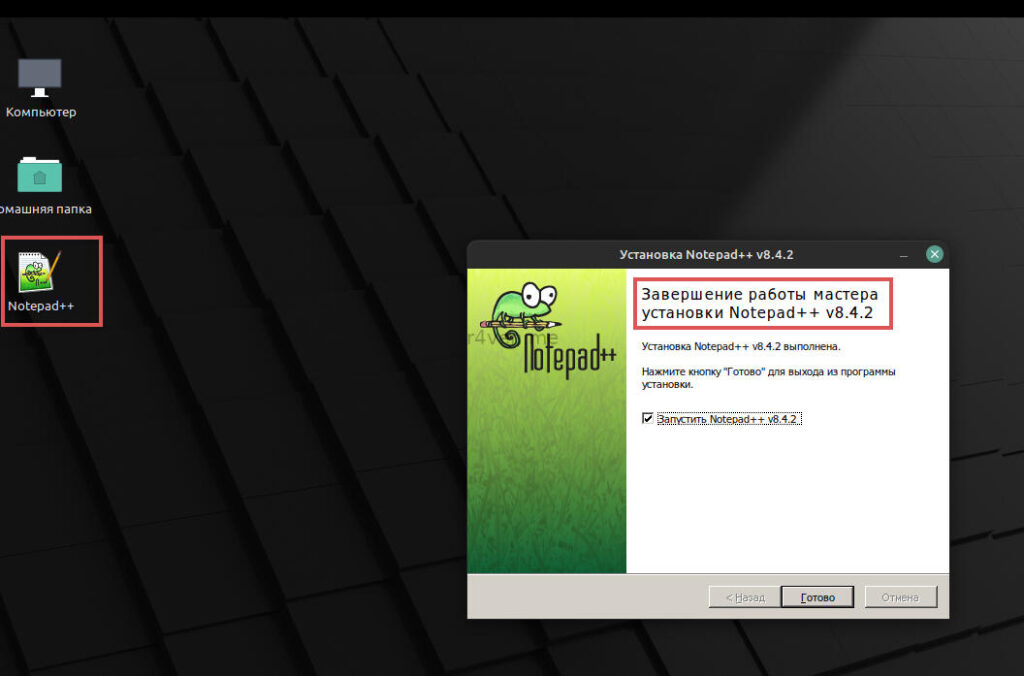
Everything works.
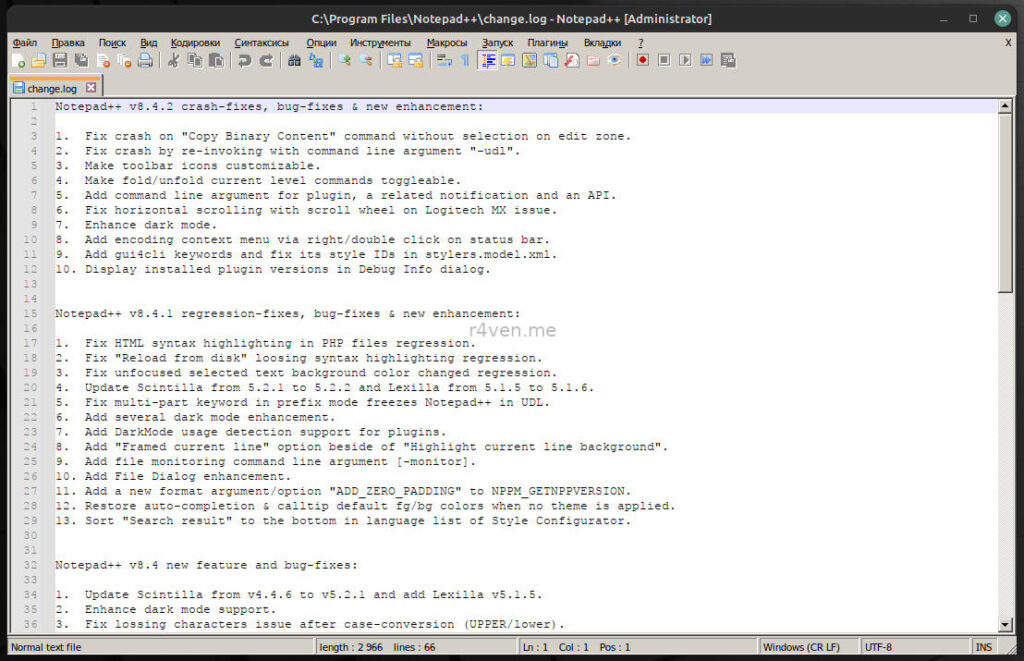
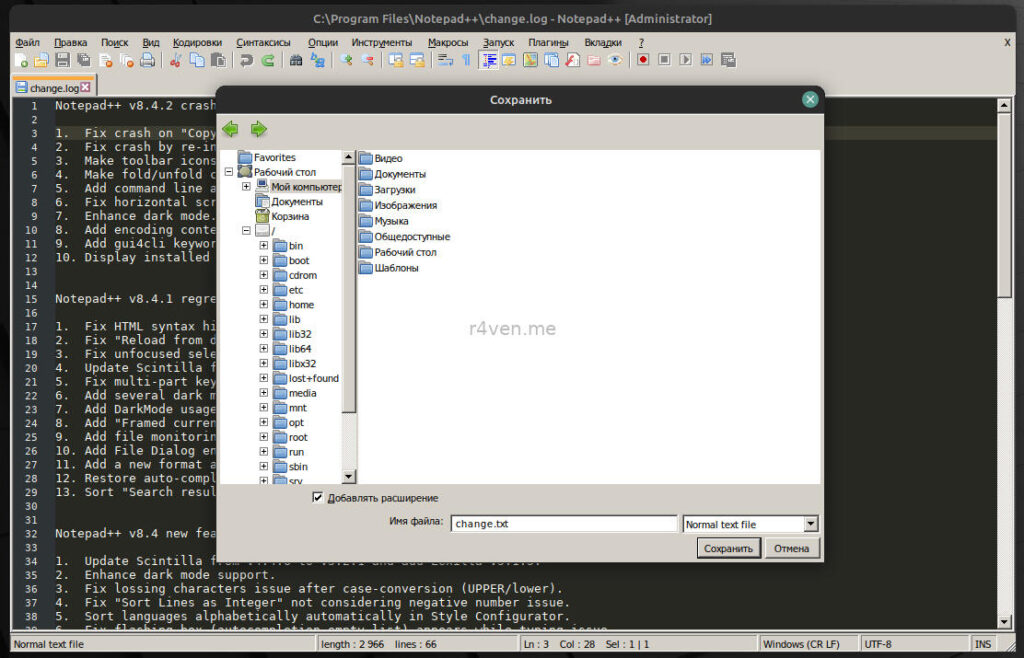
Note that in the Wine file viewer, when opening and saving documents, in the My Computer section there is a Z drive — this is the path «/» — the root of your Linux system.
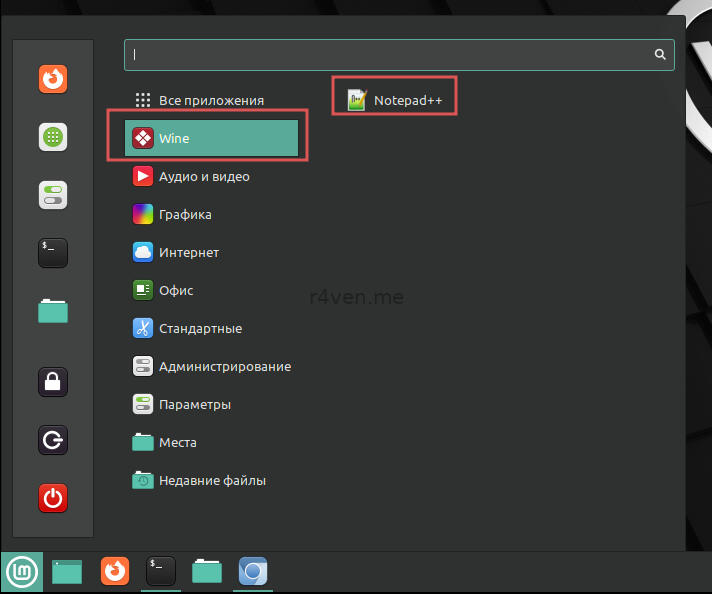
All programs installed via Wine also show up in the main menu:
The Wine environment is created by default in the folder /home/username/.wine
On Linux, a dot before a file/folder name means the file/folder is hidden.
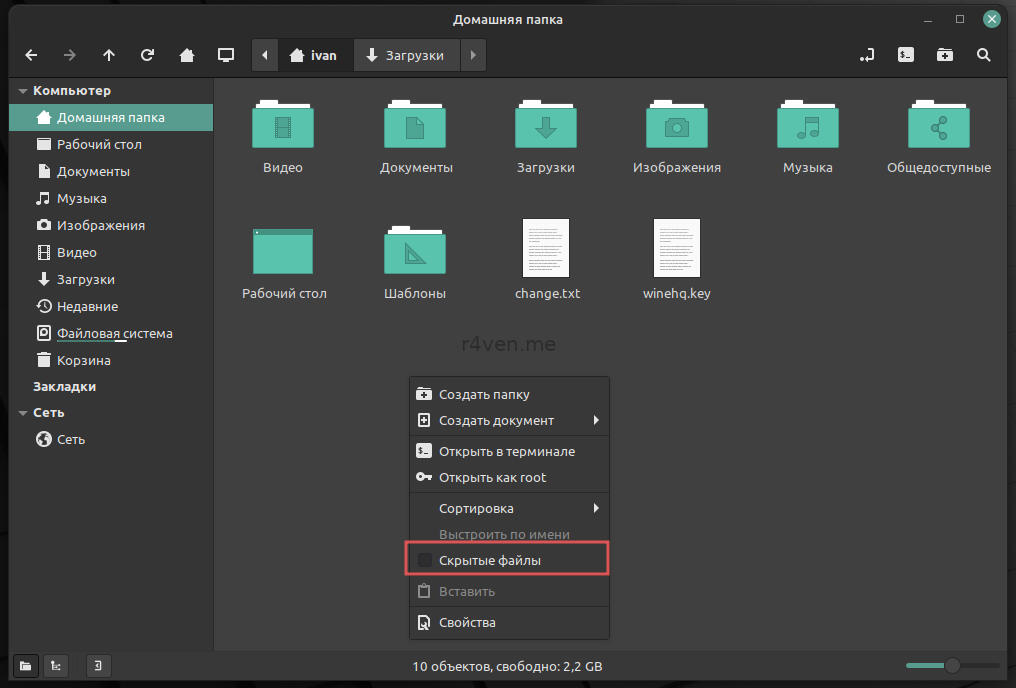
To see hidden files in Nemo, open the context menu and enable the corresponding checkbox:
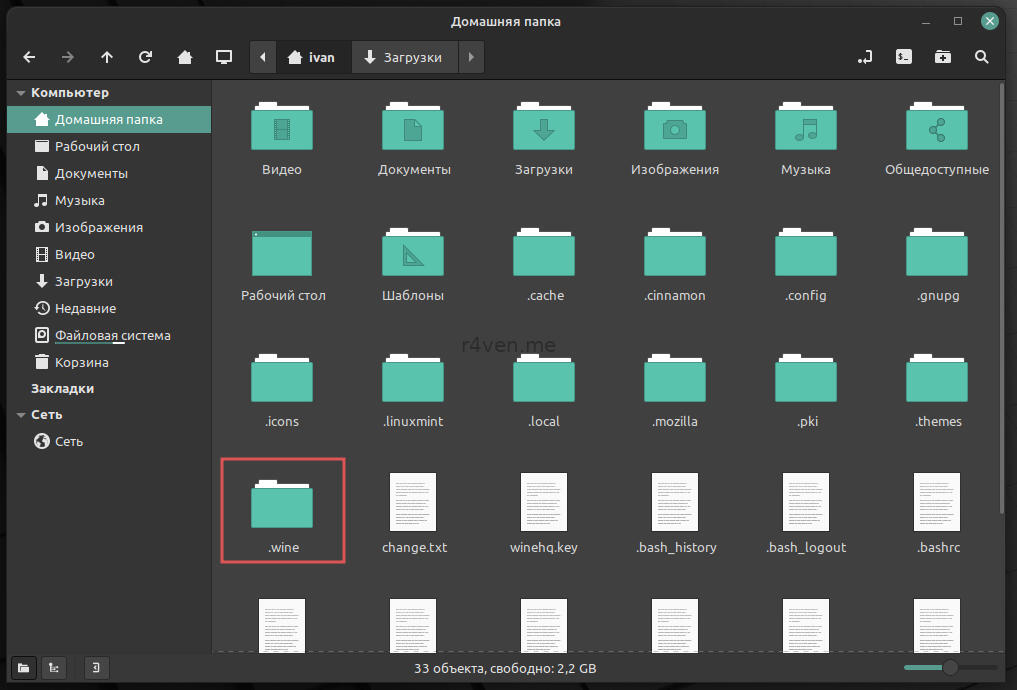
This directory contains a file tree in Windows format:
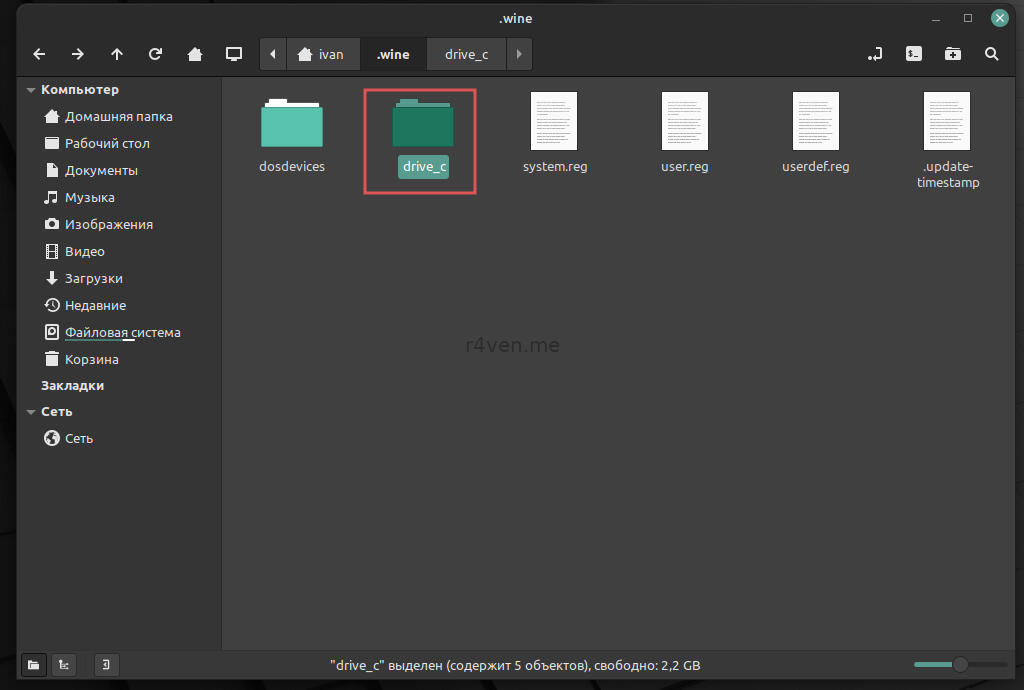
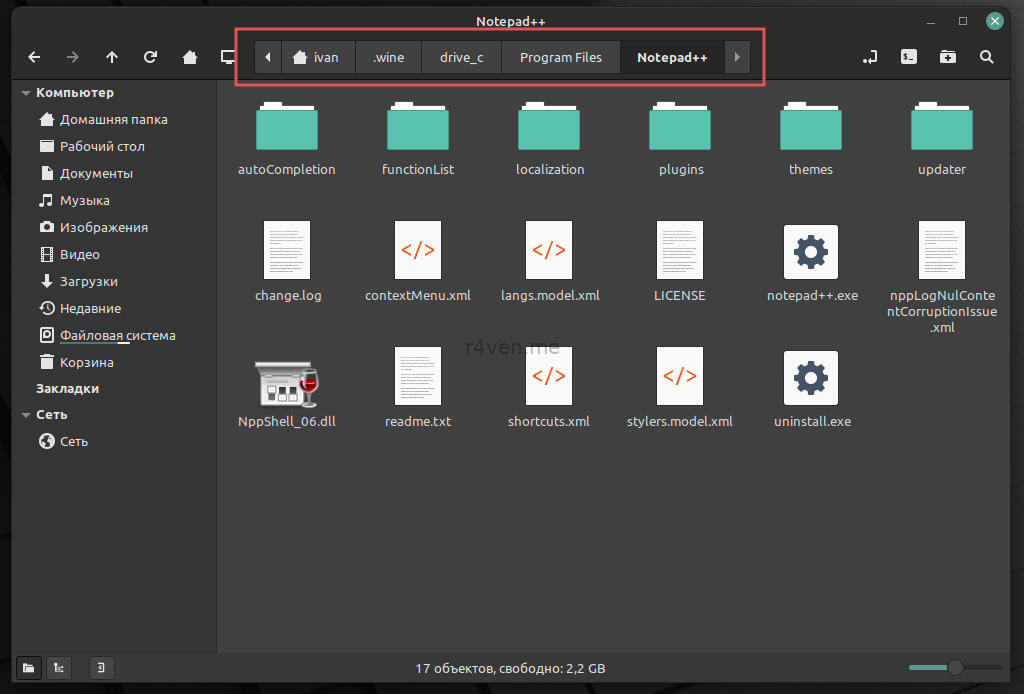
Accordingly, our notepad++ will be located in the Program Files folder.
Running portable Windows programs
Running portable applications is also no problem for Wine. To do this, you need (guess what?) to simply run them.
Example of running an application for working with Mikrotik routers — winbox:
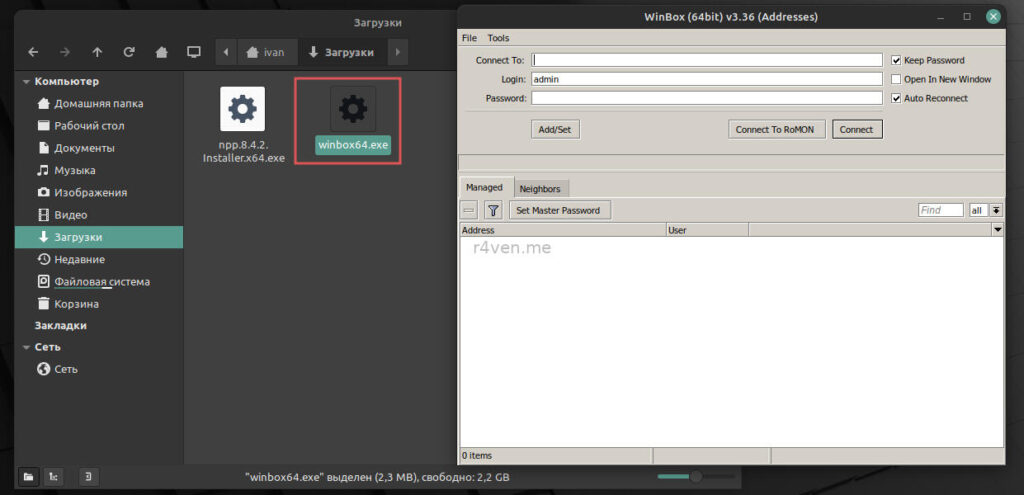
Everything works perfectly. The only nuance is that in this case the program is not installed into the Wine environment and won’t show up in the main menu. For that you’ll have to find and run the file manually. But that’s a minor detail.
That’s all for today. Thanks for reading. Good luck 😉.
Links:
Wine — a detailed article on ArchWiki
👨💻And…
Don’t forget about our Telegram channel 📱 and chat
Or maybe you want to become a co-author? Then click here🔗
💬 All the best ✌️
That should be it. If not, check the logs 🙂

Comments