
This is the third post in a series dedicated to working in the Linux command line. Today we’ll look at commands for outputting text to the console and viewing file contents: echo, cat, less.
If you’re just starting to learn Linux, I strongly recommend checking out the previous posts:
- Linux command line, introduction: command types, plain text, file system, shell prompt
- Linux command line, navigating the system and viewing directories: pwd, ls, cd commands
🖐️Hey!
Subscribe to our Telegram channel @r4ven_me📱, so you don’t miss new posts on the website 😉. If you have questions or just want to chat about the topic, feel free to join the Raven chat at @r4ven_me_chat🧐.
The practical examples in this series of posts were performed in a Linux Mint 21 distribution environment.
Let’s get started.
About standard data streams in Linux: input, output, error output
Standard input, output, and error output streams in Linux (and other Unix operating systems) are the primary mechanisms for interaction between programs and the operating system. They are represented as follows:
- Standard input (stdin) — this is a data stream intended for input into a program. Usually this is the keyboard, but it can also be redirected to read from a file or another data source.
- Standard output (stdout) — this is a data stream intended for outputting the results of a program’s work. Usually this is the terminal screen, but it can also be redirected to write to a file or passed to another program as arguments.
- Standard error output (stderr) — this is a data stream intended for outputting errors and diagnostic messages from a program. It differs from standard output in order to separate errors from normal output. Usually this is also the terminal screen, but it can also be redirected to write to a file or another data destination.
Linux and other Unix operating systems use special redirection characters, such as >, < and |, to redirect data between streams and files.
I’ll do a separate post on this topic in the near future with practical examples and a detailed breakdown. For now, just know what it is and what it’s called)
List of commands
So, today our toolkit will be expanded with the following commands:
| Command | Description |
|---|---|
echo | outputs the passed text, also used to output variable values (substitution mechanism) |
cat | outputs the contents of a file or several files |
less | line-by-line viewing of standard output |
The echo command — outputting passed text
Syntax:
echo [keys] [arguments]Square brackets indicate optional command arguments.
The echo command in Linux is a simple command that outputs the arguments passed to it to standard output. It is one of the basic commands, widely used in shell scripts to output text messages or variables.
The arguments for this command can be text strings or variables that need to be output. You can pass one or several arguments, separated by spaces.
Examples of using the echo command:
1. Simple output of a text string:
echo "Hello, R4ven!"
2. Outputting a variable’s value:
hello="Привет, R4ven!"

echo $hello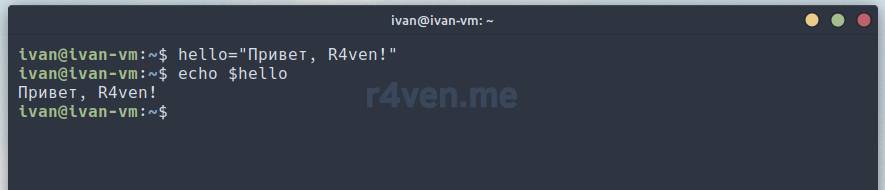
We set the variable “hello” and output its value to the screen.
3. Outputting several arguments:
name="Ivan"

age=30

echo "Имя: $name, Возраст: $age"
Outputs “Имя: Ivan, Возраст: 30” to the screen.
4. Using options:
echo -n "Текст без новой строки"
Outputs “Текст без новой строки” without a newline character ( \n ) at the end.
The echo command is a simple and convenient tool for outputting text data in the Linux terminal. However, you should be careful when using it with variables containing special characters, as they may be interpreted by the shell. In such cases, it’s recommended to use the escaping mechanism to avoid incorrect data interpretation. I’ll also talk about this mechanism in a separate post.
The cat (concatenate) command — outputting the contents of file(s)
Syntax:
cat [keys] [file_name]This command outputs the contents of a file or several files (concatenation), combining them into a single stream.
For example, let’s create a file text_file.txt using the graphical file manager in our home directory. Then let’s fill it with any content:
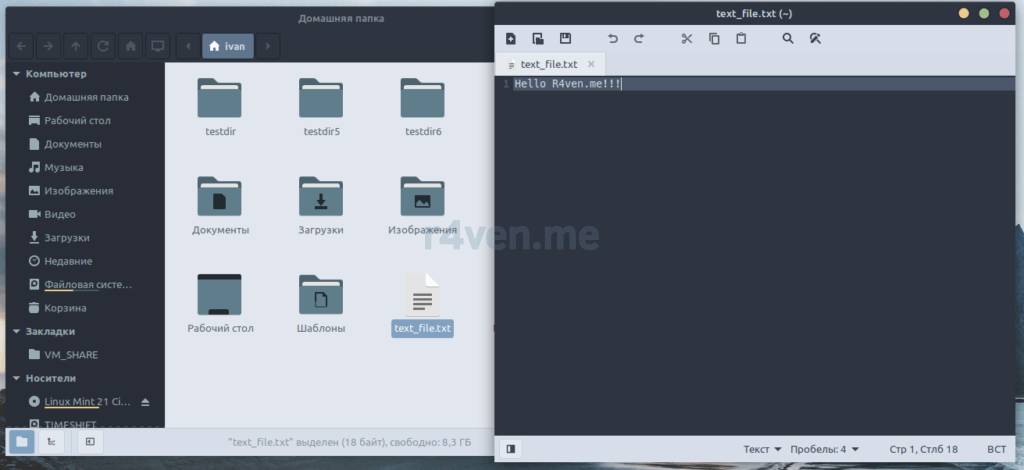
Now let’s go back to the terminal and output the contents of the just-created text_file.txt file using the cat command:
cat text_file.txtThe command displayed the text we added to this file:
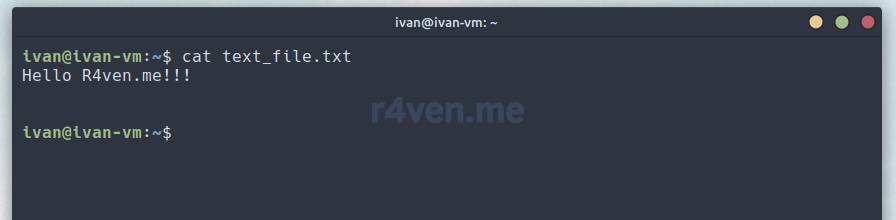
To demonstrate the cat command further, let’s create another file text_file2.txt and add any content to it. To make it more interesting, let’s do this through the terminal:
touch text_file2.txt

xed text_file2.txtThe touch command creates an empty file, which we’ll open with xed — this is the name of the graphical text editor in Linux Mint.
Now let’s run the command in the terminal:
cat text_file.txt text_file2.txt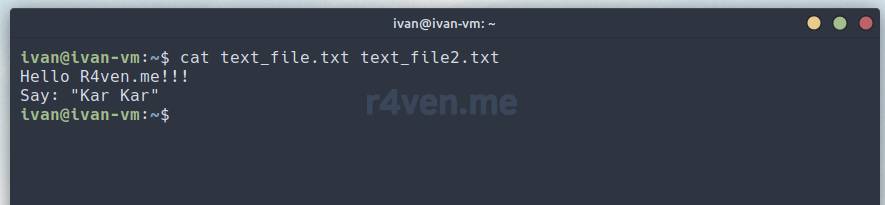
As you can see, when we specified two text files as arguments to the cat command, their output was combined into a single stream.
Practice with this command by viewing the contents of hidden (starting with a dot) configuration files located in your home directory, for example look at (and be horrified by) the contents of the bash shell’s config file:
cat ~/.bashrc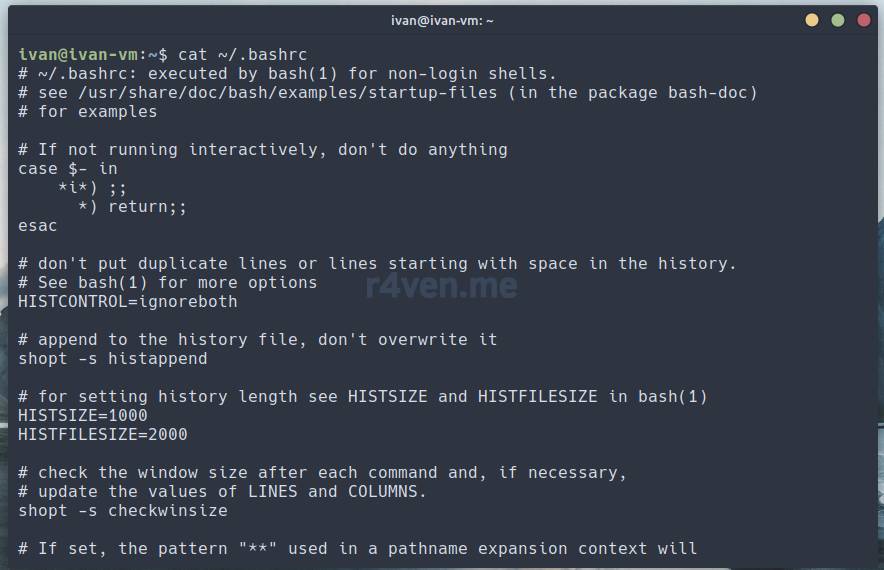
Let’s move on.
The less command — line-by-line content viewing
Syntax:
less [keys] file_nameAs you may have noticed when viewing file contents with the cat command, the terminal window scrolls to the end of the content, which is not always convenient when viewing large files.
The less command solves this problem nicely. Let’s try viewing the contents of our shell’s configuration file with “less” 😉
less $HOME/.bashrc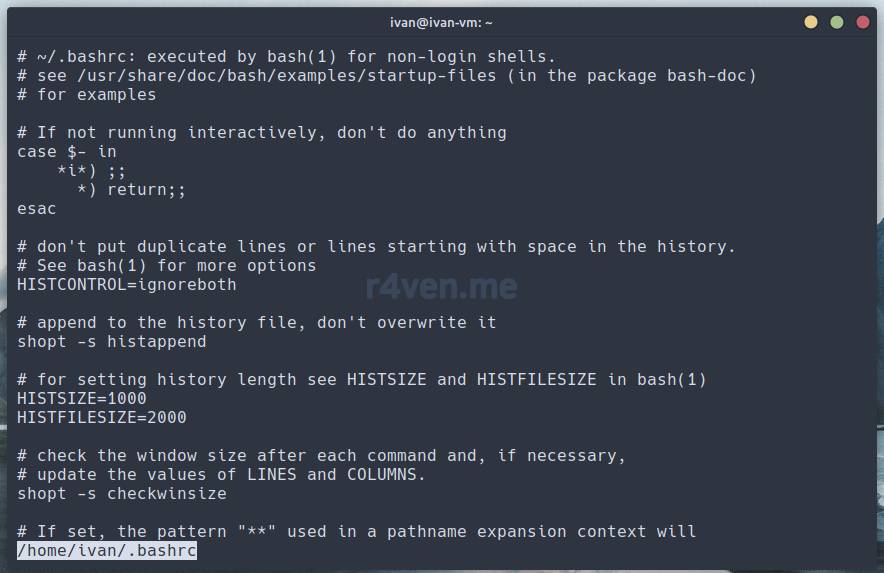
As we can see, the terminal window output didn’t run ahead, but stayed fixed at the beginning of the file’s content. Use the up and down arrow keys on the keyboard to navigate through the file.
When using the less command, you enter an interactive file viewing mode that has convenient navigation functionality using vim-like hotkeys. By the way, this style is widely used in Unix-like systems as a built-in content navigation mechanism in many console programs. Knowing these hotkeys is very useful. The main thing is knowing how to exit 😉
As an example, let’s talk about search. It’s done like this: in viewing mode press the slash / and you’ll enter the input mode for search values by content.
Here you need to remember that Unix-like OSes are case-sensitive.
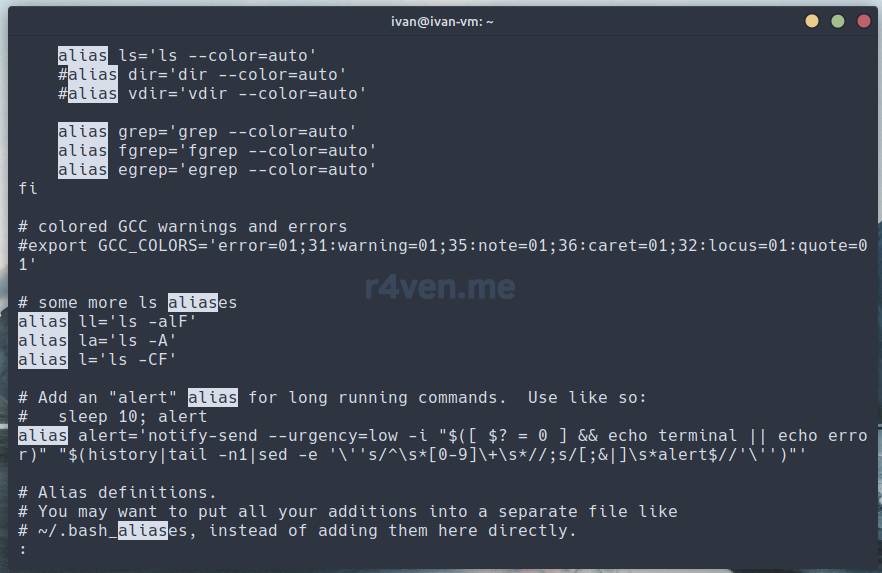
Next, enter the search key, for example let’s search for the word alias:
aliasThen press Enter. Matches found will be highlighted. Pressing the n key will move the search cursor forward through the text, and pressing the N key (Shift+n) will perform a search in the reverse direction.
History is saved in the search key input mode. You can view previously entered values using the arrow keys, just like with commands in the terminal.
To remove search result highlighting use the key combination Alt+u
The same combination turns highlighting back on.
less supports page-by-page viewing, which is performed using the PageUp / PageDown keys on the keyboard.
To return to the beginning of the file press the g key, and to move to the end press the G key (Shift+g).
To exit viewing mode use the q key
I’d like to point out that if you have a keyboard layout other than English enabled while in less viewing mode, the hotkeys won’t work. To fix this, simply switch the layout to English and everything will be fine. You don’t need to close the terminal window or restart the computer 😉
Afterword
Today we learned how to output and view content in the Linux terminal. We also talked a bit about the basic mechanisms of interaction between the OS and programs: standard data streams.
In the next post we’ll look at file management commands in the terminal: touch, mkdir, cp, mv, rm.
Thanks for reading. Good luck learning Linux
Useful sources
- Book “The Linux Command Line. Complete Guide. William Shotts” – itsecforu.ru
- Standard streams — Wikipedia
- Manual for the echo command — OpenNet
- Manual for the cat command — OpenNet
- How to use the less command in Linux — toadmin.ru
- Vim — Wikipedia
Previous posts in the series
- Linux command line, introduction: command types, plain text, file system, shell prompt
- Linux command line, navigating the system and viewing directories: pwd, ls, cd commands
👨💻And…
Don’t forget about our Telegram channel 📱 and chat
Or maybe you want to become a co-author? Then click here🔗
💬 All the best ✌️
That should be it. If not, check the logs 🙂

Comments