
I present to your attention the first (introductory) part of a series of posts devoted to working in the Linux command line. This post is a kind of foundation for future entries on this topic. It will be followed by posts with descriptions and practical examples of using popular console utilities.
I’ll give one recommendation right away. If you want a comprehensive resource on the Linux command line, I recommend reading William Shotts’ book with the simple title: The Linux Command Line. This book is an excellent source that lets you thoroughly study the basics of working in the Linux console. Material from this book will also be used and quoted in this and future posts about Linux.
🖐️Hey!
Subscribe to our Telegram channel @r4ven_me📱, so you don’t miss new posts on the website 😉. If you have questions or just want to chat about the topic, feel free to join the Raven chat at @r4ven_me_chat🧐.
And as usual, at the end of the article you’ll always find links to useful sources and materials on the topics from the posts.
So, let’s get started.
Introduction
When talking about the command line, people mean the command shell, also known as the command interpreter. Let’s recall what that actually is.
A command shell is a program that is part of the operating system and lets you control the computer by entering text commands in a command line interface (CLI — command line interface). It’s also often called a console.
Most Linux distributions ship with a command shell from
the GNU project, called bash.
The name bash is an acronym for Bourne Again Shell, reflecting the fact that bash is an enhanced replacement for sh, the original command shell for Unix, written by Steve Bourne.
William Shotts. The Linux Command Line.
As is usually the case with true unix folks, the name of something is a play on words 😉
Let’s also recall what a Linux terminal/terminal emulator is.
A terminal emulator is a graphical program emulating a classic terminal — a device for interacting with a computer, inside which a program — the command interpreter — runs.
What are commands in Linux?
There are 4 types of commands in the Linux command line:
- An executable program — such files are usually located in the
/bin,/sbin,/usr/bin, etc. directories. This category includes: compiled binary programs, for example, written in C and C++; programs written in scripting languages such as shell, Perl, Python, Ruby, etc. - Built-in commands — commands implemented inside the shell itself. The bash shell supports many internal commands, which are called shell builtins. The
cdcommand, for example, is a builtin command. - Shell functions. Shell functions are tiny scripts in the shell’s language, embedded in the environment. We won’t cover them in this post, just know they exist 😉
- Aliases. An alias is a command that we can define ourselves, constructing it from other commands.
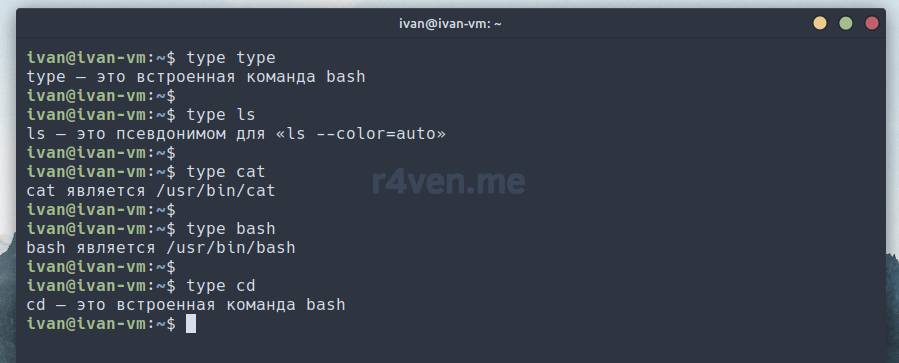
To find out which type a particular command belongs to, run in the terminal:
type <имя_команды>For example, let’s find out the type of some commands:
The role of plain text in Linux
In Linux operating systems, plain text in ASCII encoding plays a significant role. For example, configuration files of the system itself or programs installed on it often store their settings as plain text.
A bit more about ASCII:
WHAT IS “TEXT”
There are many ways to represent information in a computer. All methods are related to defining a relationship between meaningful information and the numbers used to represent it. In the end, computers can only work with numbers, and all data in a computer is converted into a numerical representation.Some of these representation systems are very complex (for example, compressed video files), others, on the contrary, are very simple. One of the earliest and simplest systems is called ASCII text. ASCII (pronounced “as-kee”) is an abbreviation for “American Standard Code for Information Interchange”. This simple encoding system was first used in teletypes.
Text is a simple one-to-one mapping of characters to numbers. This is a very compact format. Fifty characters of text are converted into fifty bytes of data. But this is not the same as text in a document created by a word processor such as Microsoft Word or OpenOffice.org Writer. Document files, unlike plain ASCII text files, contain many non-text elements used to describe their structure and formatting. Plain ASCII text files contain only the characters themselves and a very small number of the simplest control codes, such as tab, carriage return, and line feed characters.
In Linux, many files are stored in text format, and many tools work with text files. Even Windows recognizes the importance of this format. The well-known Notepad program is an editor for plain ASCII text files.
William Shotts. The Linux Command Line.
About the structure of the Linux file system
Earlier in my posts, I already mentioned that files in Linux are located differently than in Windows. In Linux, the address of any files starts from the “root” of the file system, which is denoted by the slash character /
For example, the path to the pictures directory on my computer would have this address: /home/ivan/Изображения.
Here the first slash denotes the “root” of our FS, and the rest are just separators between nested directories and files.
The structure of the file system in Linux is defined by the concept of the Filesystem Hierarchy Standard — FHS (Filesystem Hierarchy Standard). A brief excerpt from Wikipedia:
📝 Note
FHS (Filesystem Hierarchy Standard) is a standard that unifies the location of common-purpose files and directories in the UNIX file system. Currently, most Unix-like systems follow these rules to one degree or another.
If you visualize the structure of the Linux FS, it will look something like this:
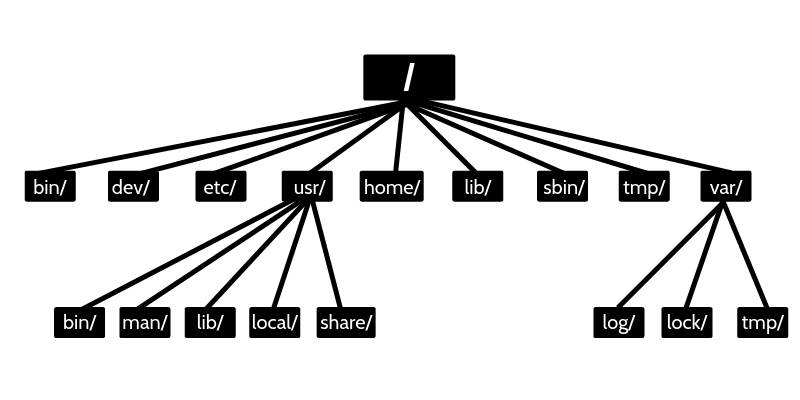
Source: wiki.merionet.ru
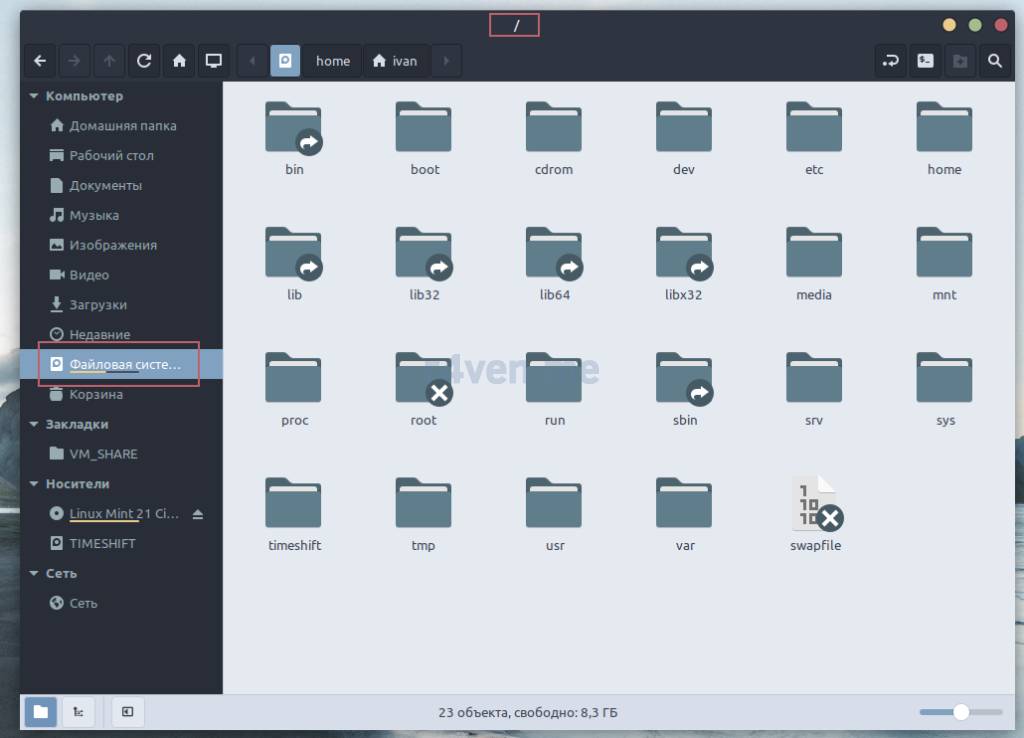
For example, in Linux Mint, if you go to the “root” of the file system in the file manager, we’ll see this picture:
Interesting fact. You’ve probably paid attention to website URLs on the internet, whose elements are separated by the slash character /. For example, https://r4ven.me/en/tag/oboi/. Originally, web technologies, including web servers on which websites run, were developed and operated in Unix and Unix-like environments. And Linux, as we recall, is precisely a Unix-like OS.
Absolute and relative paths
In Linux there are concepts such as absolute and relative paths.
Absolute paths always start with the “root”, i.e. the slash character /
For example: /home/ivan/Изображения/image.png is an absolute path.
Relative paths imply specifying the path relative to the current or parent directory, which are denoted as:
. or ./ | denotes the current directory |
|---|---|
.. or ../ | denotes the parent directory, relative to the current one |
For example: ./image.png is a relative path to the file image.png. It is implied that the working directory is /home/ivan/Изображения/.
We’ll take a closer look at working with paths in the next post, where we’ll look at utilities such as: cd, pwd.
The shell prompt
So, the terminal 😉
When you open a terminal, the first thing we see is the shell prompt for entering commands. By default, in many Linux distributions, the appearance of the prompt has roughly the same structure. Nevertheless, this element is very flexibly configurable, but that’s not what we’re discussing now.
Let’s take a closer look at the “classic” prompt.
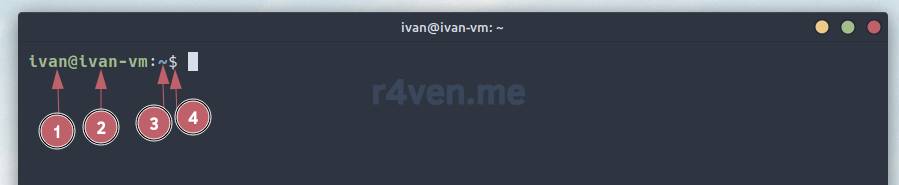
| Prompt element № | Description |
|---|---|
| 1 | The name of the user under which the shell session was logged in. |
| 2 | The computer’s name (its hostname). |
| 3 | The address of the current working directory. In Linux systems, the tilde character ~ denotes the address of the user’s home directory. |
| 4 | Privilege level. The dollar sign $ in the prompt line indicates that work in the command line is being done as an unprivileged user. The # sign indicates work as the root user (system administrator). |
For comparison, let’s look at the prompt’s behavior if we switch to privileged mode and change the working directory:
sudo su

cd /usr/share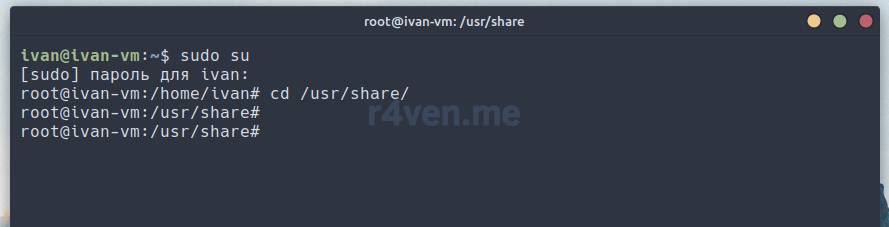
The magic Tab key
I want to draw your attention to a command line feature such as autocomplete. This feature can greatly simplify life working in the command line.
Here’s how it works: while partially or fully typing a command and/or its keys/parameters, you need to press the Tab key once or several times, after which the shell, if there are possible options, will give you a hint. This action is popularly also called “Tab-ing” a command.
Here’s what it looks like. For example, the ls (list) command lists directory contents; type it in the terminal (without a space) and press Tab twice:
lsAnd below we see the possible command variants existing in our system whose names start with ls*:
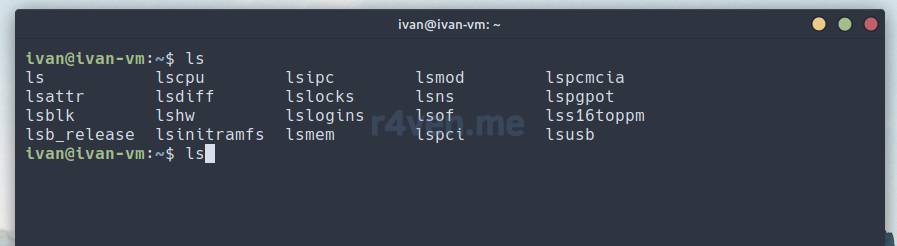
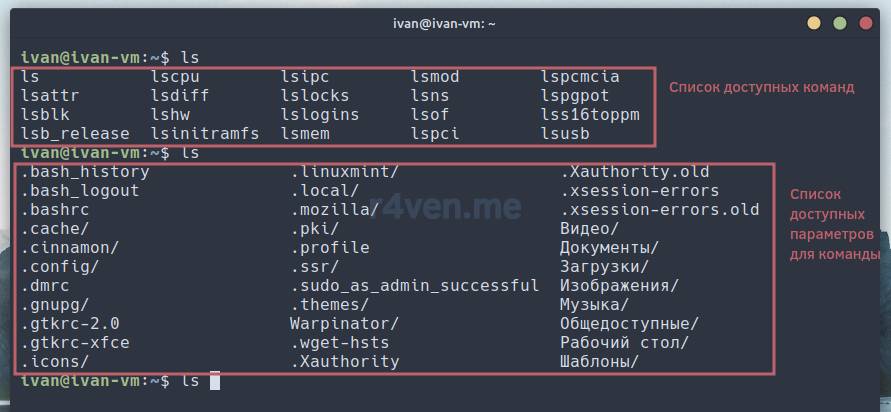
If you add a space to this command and press Tab twice again, the command line will display a list of directories available to us as arguments to pass to the ls command:
Afterword
Today our knowledge has grown with an understanding of some basic things in Linux: command types, file system structure, the role of plain text, the shell prompt, and the important autocomplete feature.
In the next post, taking into account the knowledge gained today, we’ll take a detailed look at the utilities: pwd, ls, cd, which we’ll use to navigate our file system in the command line.
Thanks for reading. Good luck studying Linux. Caw-caw)
Useful sources
- The book “The Linux Command Line. Complete guide. William Shotts” — itsecforu.ru
- Explanation of the Linux directory structure — merionet.ru
- ASCII encoding — Wikipedia
👨💻And…
Don’t forget about our Telegram channel 📱 and chat
Or maybe you want to become a co-author? Then click here🔗
💬 All the best ✌️
That should be it. If not, check the logs 🙂

Comments