
This is the fifth post in the series on the Linux command line. Today we’ll talk about file links (hard and symbolic), and also look at the command for creating them: ln.
Previous posts in the series
If you’re just starting to learn Linux, I strongly recommend checking out the previous posts:
- Linux command line, introduction: command types, plain text, file system, shell prompt
- Linux command line, navigating the system and viewing directories: pwd, ls, cd commands
- Linux command line, output and reading content: echo, cat, less commands
- Linux command line, working with files: touch, mkdir, cp, mv, rm commands
The practical examples in this series of posts were performed in a Linux Mint 21 distribution environment.
🖐️Hey!
Subscribe to our Telegram channel @r4ven_me📱, so you don’t miss new posts on the website 😉. If you have questions or just want to chat about the topic, feel free to join the Raven chat at @r4ven_me_chat🧐.
Introduction
Link files, also known as hard links and symbolic links, are a core part of many operating systems, including Linux. Links allow a user to create links to files and directories and use them as alternative access paths to data.
The linking mechanism was introduced in Unix in the early 1970s, and since then it has become an important part of Unix-like operating systems.
To work with links in Linux there’s the ln command. With this command you can create both hard and symbolic links.
To create hard links it’s enough to use the ln command without keys. To create symbolic links, the -s key is required. Symbolic links are more commonly used.
Let’s move on to the ln command.
The ln (link) command — creating file links
Syntax:
ln [keys] <path_to_target_file> <path_to_link_file>Frequently used keys:
| Key | Value |
|---|---|
| -v | output of the actions being performed |
| -i | interactive mode (asks before overwriting the target file with the link file) |
| -s | create a symbolic link to a file |
| -f | ignore warnings about existing files |
For help use the commands:
ln --help

man lnSymbolic links (Symbolic link)
Symbolic links in Linux are often compared to shortcuts in Windows. They’re similar, but they differ somewhat in their working mechanism.
To create a symbolic link, as already mentioned, you need to pass the -s (symbolic) key to the ln command, then specify the path to the file the link will point to, and then the path to the link itself.
The -v -i -f keys of the ln command work the same way as with the cp and mv commands, which we got acquainted with last time.
! Note that the path to the file the link points to is a fundamentally important parameter — it can be absolute or relative, and this matters. We talked about absolute and relative paths here.
Now let’s practice.
Let’s create test directories and simple test files. If you don’t know how this is done, we covered working with files in detail in the previous post.
Let’s create two directories: testdir and, inside it, testdir2, as well as one empty file new_text_file.txt, which we’ll fill with any content using the graphical editor xed (I added the line “Bye R4ven.me!!!”):
mkdir -p testdir/testdir2

cd testdir

touch new_text_file.txt

xed new_text_file.txtSo, we’re in the ~/testdir directory, let’s create a symbolic link to our file ~/testdir/new_text_file.txt in the testdir2 subdirectory:
ln -sv ~/testdir/new_text_file.txt testdir2/

ls -l testdir2/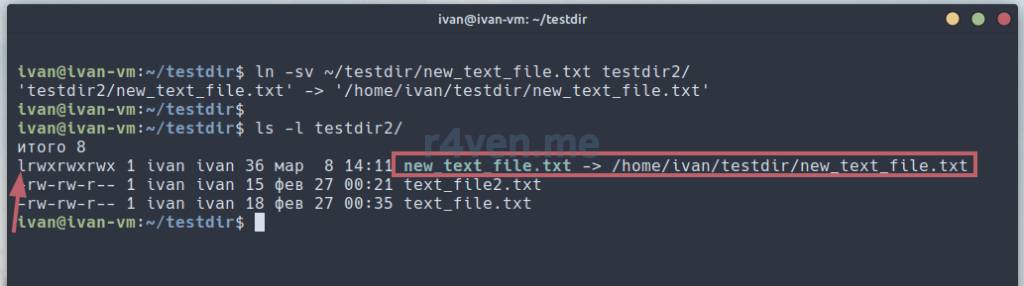
Note that in the ls command output, the link file is highlighted in a different color, and in the ls -l output, the first character in the link’s description denoting the file type is l, which stands for symbolic link. Also, with this output you can see what this link points to. When accessing this link, it will redirect us to another file. Let’s try outputting the content of the link file:
cat testdir2/new_text_file.txt

cat new_text_file.txt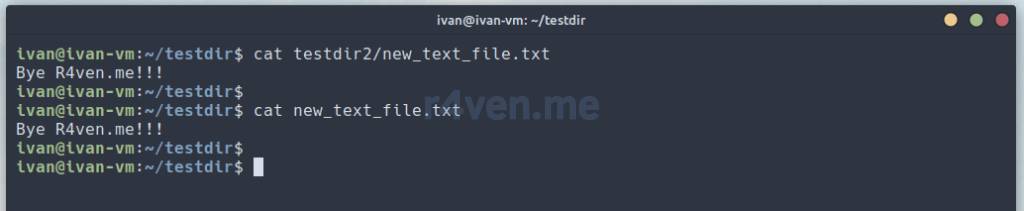
As we can see in the cat command output, the content is identical. Let’s create a symbolic link to this file with a relative path:
ln -sv ../new_text_file.txt ./testdir2/We’ll see an error, since a file with that name already exists. To overwrite it we use the -f key:
ln -svf ../new_text_file.txt ./testdir2/

ls -l testdir2/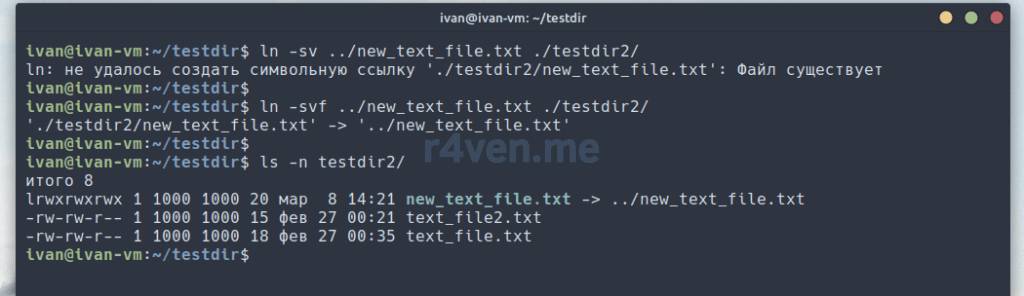
We see that the link’s address has changed.
Symbolic links can be created for directories and any other Linux files as well. Let’s create a link to our home directory and go to that path:
ln -sv ~/ ./link_to_home

ls -l

cd link_to_home

pwd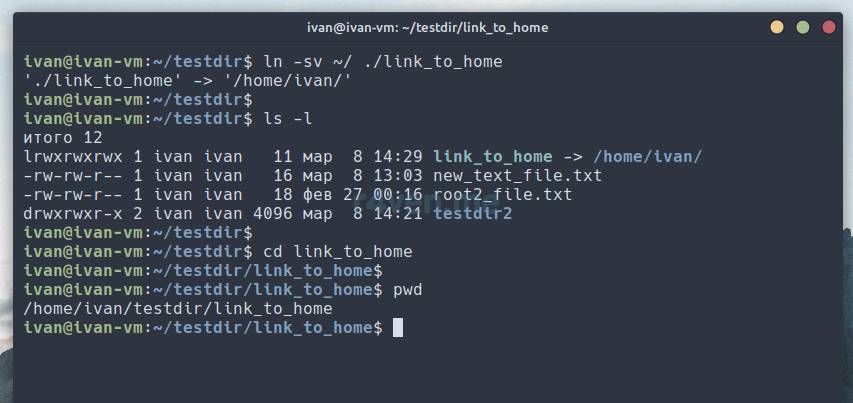
As we can see, we ended up “inside” the link, this is the so-called logical path. This is shown by the output of the pwd command and the address in our shell’s prompt (more about prompt). But in fact, we simply went into our home directory.
You can verify this with the pwd command using the -P (physical) key, which outputs our physical location:
pwd -P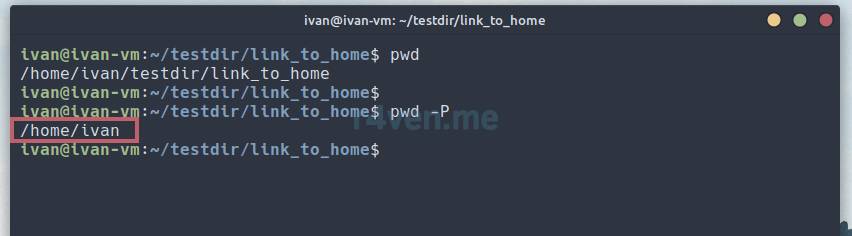
The linking mechanism is very convenient and is often used to maintain compatibility, if system files or program files have changed their location in newer versions, or if the name/version of some program has changed.
For interest, run the ls -l command in the /usr/bin directory, where executable files are stored, and see how many symbolic links there are and where they lead:
ls -l /usr/bin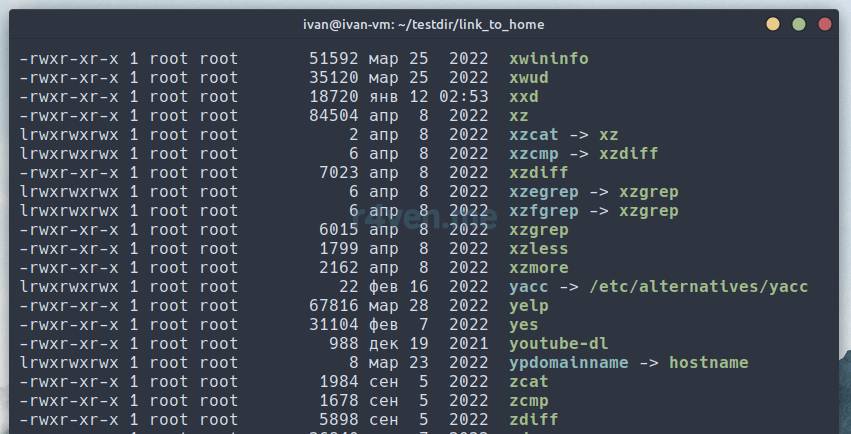
Hard links (Hard link)
Hard links are links to files that point to the same index record (inode) on the file system as the original file. A hard link and the original file can be used as alternative access paths to the same file, and for any application or user that uses either of these paths, the file will look and work the same.
One of the main differences between hard links and symbolic links is that hard links can only be created for files, while symbolic links can be created for both files and directories. Additionally, hard links cannot be created for files located outside a single file system/disk partition, whereas symbolic links can.
Let’s look at a few examples. Being in the testdir directory, let’s copy the executable file of the ls command into it and create a hard link to it with a different name:
cd ~/testdir

cp /usr/bin/ls .

ln ./ls hard_ls

ls -l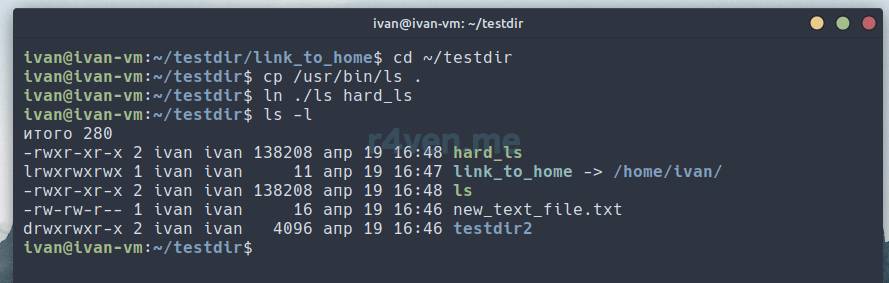
As we can see, we now have two executable files: ls and hard_ls. In fact, this is the same file, which takes up one disk space. And these files ls and hard_ls are just links to this space.
Here are a few features of hard links in Linux:
- Hard links to the same file have the same
inodenumber. - Hard links don’t have their own data block in the file system, they are simply other names for the file.
- Deleting a hard link doesn’t affect the original file, as long as there’s still another hard link pointing to it. Only when all links to the file are deleted is it actually deleted.
To view a file’s inode (disk descriptor) you can use the ls -i command. Let’s check:
ls -li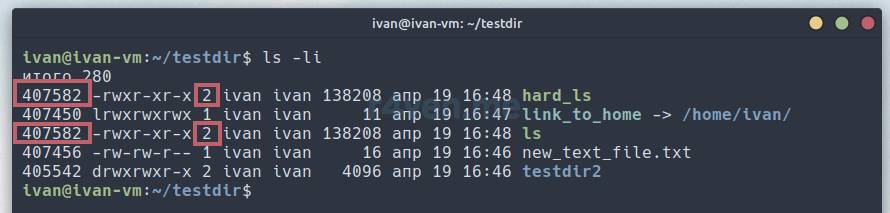
The inode number is shown in the first column of the ls command output. As you noticed, our file ls and its hardlink have the same disk descriptor, i.e. inode number. This means both of these files point to the same data block on the hard disk.
Also pay attention to column №3 of this output: here the number of hard links of the file existing in the system is shown.
We covered the ls command output in detail in the post about the ls command.
Let’s create one more hardlink to our ls file, only in a different place, for example in the Documents folder of our home directory:
ls -li

ln -v ./ls ~/Документы

ls -li ~/Документы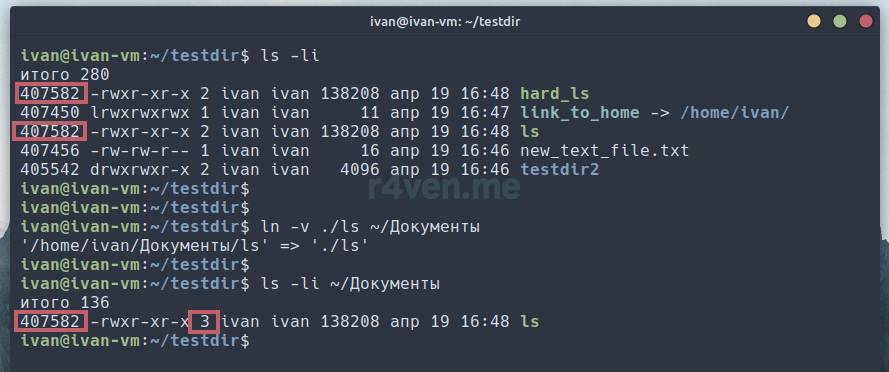
As we can see, after creating another hard link, the number in the file’s attributes increased, while the inode number is the same for all files.
The ls command isn’t the only way to find out a file’s inode number. For this you can use the useful stat command, which outputs a file’s metadata. Let’s try:
stat hard_ls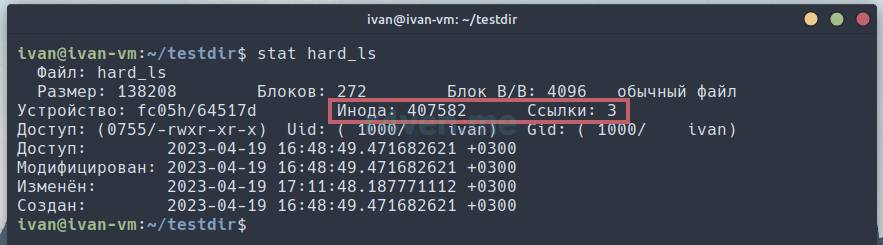
We see the number, the link count and other useful info.
Afterword
Today we looked at an important and interesting mechanism of file links in Linux. We learned how hard links differ from symbolic links and learned how to create and use them with the ln command. In the next post we’ll look at another very useful and powerful mechanism: input, output and error output redirection in the Linux console.
Thanks for reading. Good luck becoming a “linuxoid.”
Useful sources
- Symbolic link — Wikipedia
- Hard link — Wikipedia
- Manual for the ln command — OpenNET
👨💻And…
Don’t forget about our Telegram channel 📱 and chat
Or maybe you want to become a co-author? Then click here🔗
💬 All the best ✌️
That should be it. If not, check the logs 🙂

Comments