
Today we will break down one of the key “features” of the Linux command line: the mechanism for redirecting input, output, and error output of console commands.
Previous posts in the series
If you’re just starting to learn Linux, I strongly recommend checking out the previous posts:
- Linux command line, introduction: command types, plain text, file system, shell prompt
- Linux command line, navigating the system and viewing directories: pwd, ls, cd commands
- Linux command line, output and reading content: echo, cat, less commands
- Linux command line, working with files: touch, mkdir, cp, mv, rm commands
- Linux command line, file links: the ln command
🖐️Hey!
Subscribe to our Telegram channel @r4ven_me📱, so you don’t miss new posts on the website 😉. If you have questions or just want to chat about the topic, feel free to join the Raven chat at @r4ven_me_chat🧐.
Introduction
The redirection mechanism works with standard data streams in Linux. Let’s recall what that is.
Standard input, output, and error output streams in Linux (and other Unix operating systems) are the primary mechanisms for interaction between programs and the operating system. They are represented as follows:
- Standard input (stdin) – this is a data stream intended for input into a program. Usually this is the keyboard, but it can also be redirected to read from a file or another data source.
- Standard output (stdout) – this is a data stream intended for outputting the results of a program’s work. Usually this is the terminal screen, but it can also be redirected to write to a file or passed to another program as arguments.
- Standard error output (stderr) – this is a data stream intended for outputting errors and diagnostic messages from a program. It differs from standard output. This stream is also usually output to the terminal screen, but can be redirected to write to a file or another data destination.
Linux and other Unix operating systems use special redirection characters, such as >, >>, <, << and |, to redirect data between streams and files.
Practice
Let’s look at them in more detail.
The output (stdout) redirection operator “>”
The > operator is used to redirect stdout to a specified file. If the file doesn’t exist, it will be created, and if it exists, its content will be replaced with the results of the command. For example, to save the output of the ls command into the file dirs_list.txt, you need to enter the following command:
# redirecting output to a file
ls > dirs_list.txtLet’s make sure the new file appeared in the current directory and look at its content:
ls -l

cat dirs_list.txt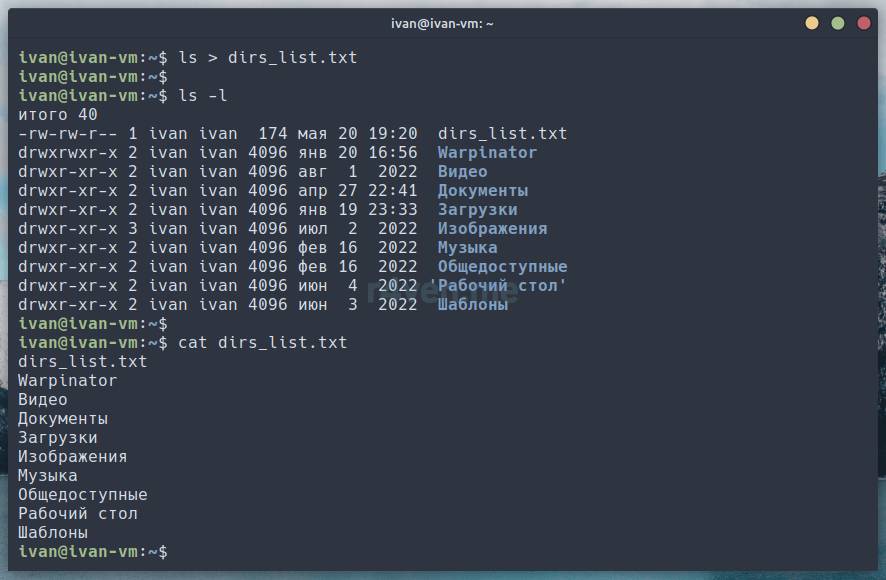
As we can see, after running the ls > dirs_list.txt command, nothing was displayed in the terminal, the command ran silently.
But checking the content of the created file, we confirm that the output of the ls command was redirected and written into it.
Note one thing: the file created as a result of our redirection command contains, in its listing, our new file dirs_list.txt as well. I.e. the file was created before the redirection itself was executed and therefore ended up in the listing.
It’s important to understand that the redirection command using the > operator overwrites the file if it exists! So you need to be careful with it. To illustrate, let’s redirect the output of another command into the same file and check its content. Let’s run the commands:
# redirecting the specified text to a file
echo "Hello R4ven" > dirs_list.txt

cat dirs_list.txt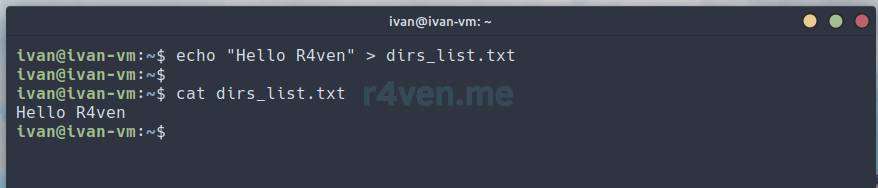
We see that the content of the dirs_list.txt file changed. But what if you don’t need to overwrite the file, but add new output to the end of the file? For this there’s the >> operator.
The append output to end of file operator “»”
The >> operator can be used to add a command’s output to the end of an existing file, instead of replacing it:
# appending the command's output to the file
ls /usr >> dirs_list.txt

cat dirs_list.txt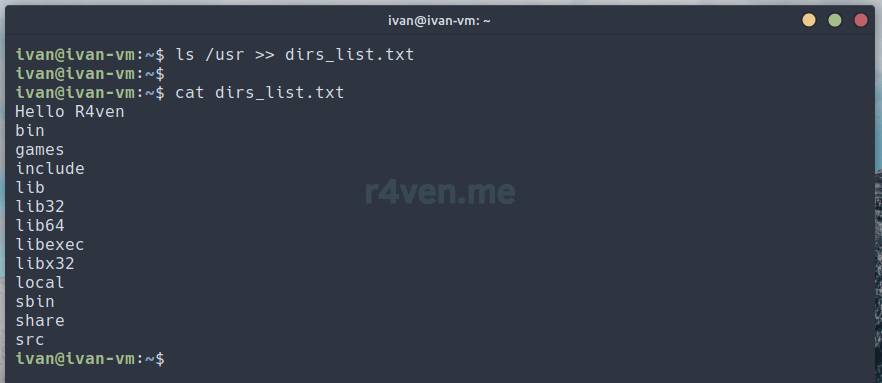
We can see that the file retained the previous redirection from the command echo "Hello R4ven" > dirs_list.txt and, on a new line, the output from ls /usr >> dirs_list.txt was added.
The error output (stderr) redirection operator “2>”
As we already know, error output is a separate stream, so there’s a dedicated operator for handling it: 2>. To better understand the logic of how output streams work, let’s try running any command with an error and redirect its standard output to a file, as we did before:
ls wrong_nameWe see an error message. Let’s try to perform the redirection and check the file’s content:
ls wrong_name > errors.log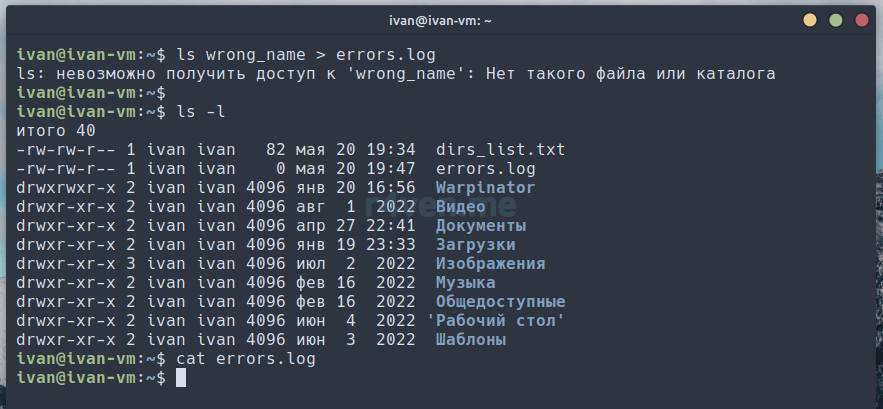
The error message is still output to the terminal, and the file is empty. Now let’s try with the 2> operator:
# outputting errors to a file
ls wrong_name 2> errors.log

cat errors.log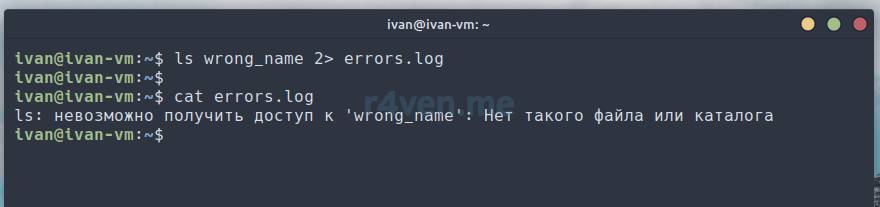
Now everything worked as it should: the error output from the command’s execution was redirected to the specified file.
It often happens that when running more complex commands, they produce both normal output and error output. An example of redirecting two streams into different files:
# outputting the streams into different files
ls /usr /wrong_dir > dirs_list.txt 2> erros.log

cat dirs_list.txt

cat erros.log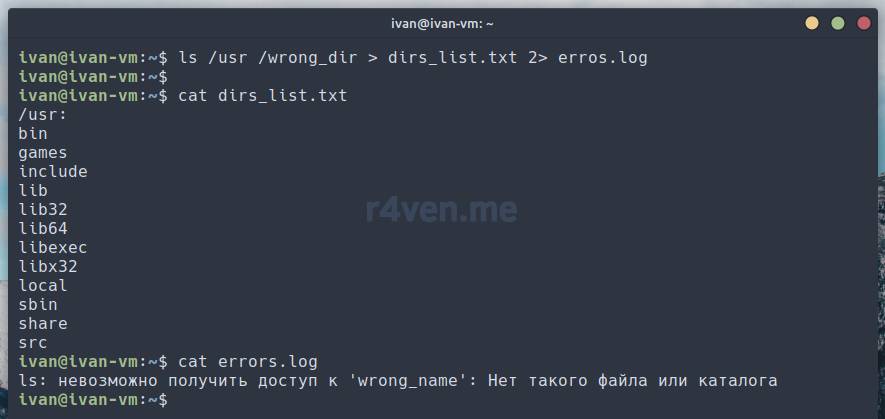
But what if you need to save both of these streams into a single file? This can be done in two ways:
команда > файл_вывода 2>&1

# или

команда &> файл_выводаWith the 2>&1 or &> operator, error output is redirected into the same file into which normal output is written. Obviously the &> construct is easier to remember, but the first variant is also often encountered, so you need to know both. Let’s run a few commands to illustrate how this mechanism works:
# the error is output to the terminal
ls /usr /wrong_dir > dirs_list.txt

cat dirs_list.txt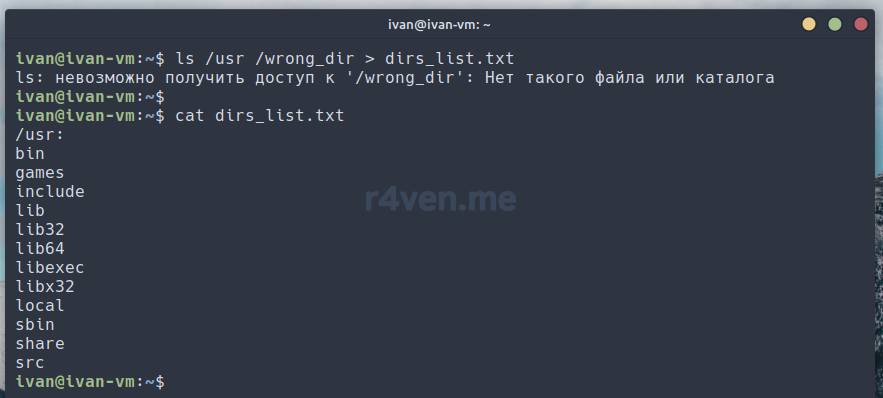
The error was output to the screen and wasn’t written to the file.
# outputting both streams into one file
ls /usr /wrong_dir > dirs_list.txt 2>&1

# appending other output to the same file
cat wrong_file.txt &>> dirs_list.txt

cat dirs_list.txt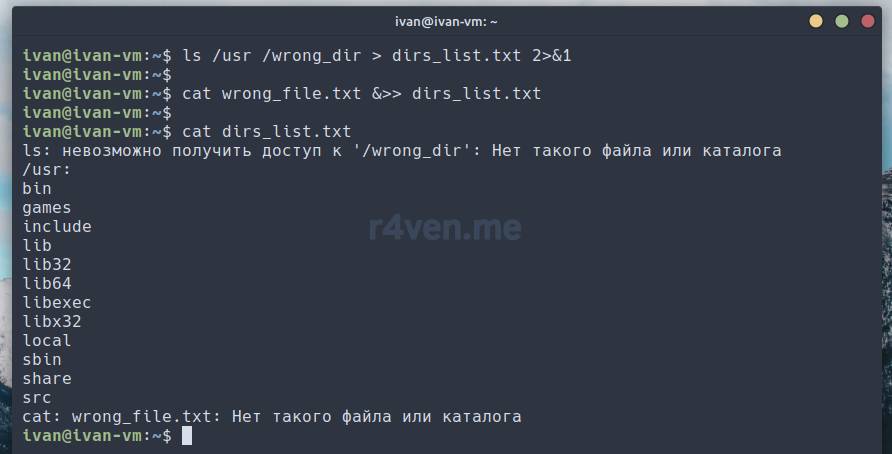
After adding the 2>&1 construct everything worked as it should. Both streams were redirected into a single file. Also, using the &>> construct we appended two streams from another command to the end of the file.
The input (stdin) redirection operator “<”
The < operator is used to redirect stdin from the specified file:
echo "First file" > test_file1.txt

# redirecting input from a file
cat < test_file1.txt
With the second command we told the cat command to take input data from a file. Of course, it would have been simpler to just use cat test_file1.txt, but this was just a demonstration of how the input redirection mechanism works.
In Linux there’s a sort command, which sorts output by various parameters. Let’s try passing it the content of a file for input, into which we’ll first write the content of our directory:
ls > test_stdin.txt

# redirecting input from a file
sort < test_stdin.txt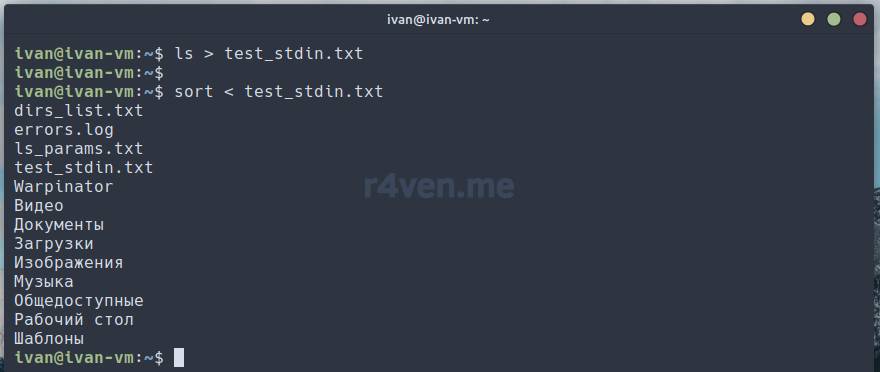
Here the < operator passed the content of the file test_stdin.txt as input to the sort command.
There’s also the << operator, which can be used to input several lines into stdin from the command line interactively using the cat command:
cat << EOF > file.txt
This is line 1
This is line 2
EOF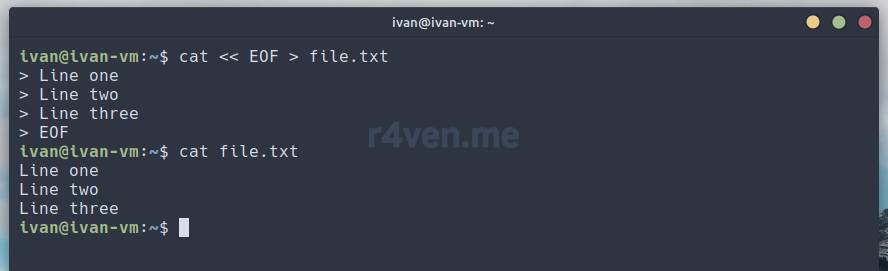
With the cat << EOF construct we perform interactive console input, and then redirect all of it into the specified file.
EOF — here denotes the beginning and end of the block of input data.
EOF (End of File) — is a symbol used in Linux and other operating systems to denote the end of a file or the end of an input stream. It serves to indicate to a program that there’s no more data to read. In Linux and many command interpreters, such as Bash, the EOF symbol can be entered from the keyboard to indicate the end of input. The key combination Ctrl+D is often used to generate the EOF symbol.
The pipeline operator “|”
Probably the most interesting redirection mechanism in Linux for me is the pipeline mechanism, which is implemented using the vertical bar operator/symbol |.
The | operator can be used to pass the output of one program to the input of another program (pipeline). For example, to determine the number of files in the current directory, you can use the ls and wc (word count) commands:
# counting the number of files in a directory
ls | wc -l
The -l (line) key of the wc command counts the number of lines. We used | to pass the output of the ls command to the wc command, which determined and output to the screen the sum of the elements (lines) output by the ls command.
Another example: using cat let’s pass to the less command the long content of a file that doesn’t fit in the terminal window. Such a construct is often used for the convenience of reading long output:
# passing output to another command
cat /etc/passwd | less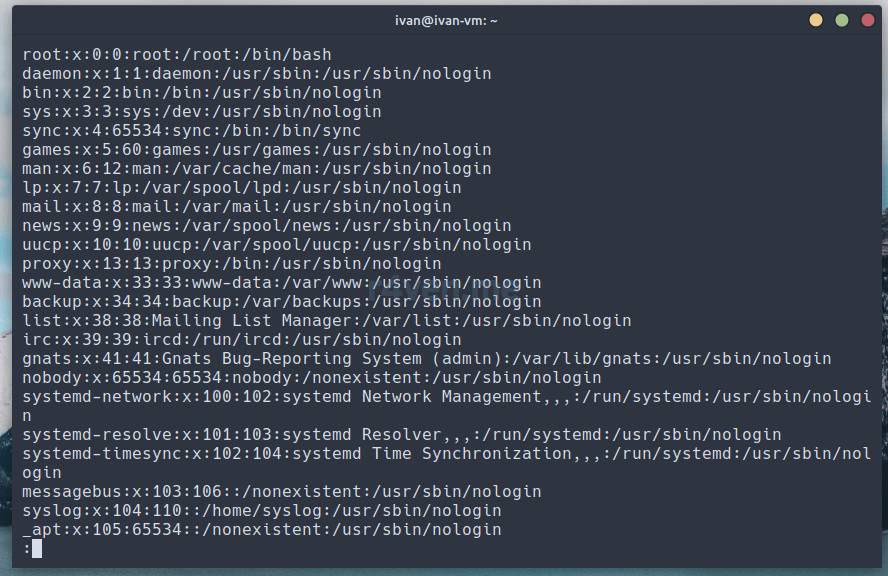
We covered the less command in this post. By the way, nothing stops you from using the less command directly, passing it the name/path to a file as an argument: less /etc/passwd.
You can also redirect stdout, for example, to the grep utility to filter the output of any command. Let’s take ls as an example:
# filtering output by a pattern
ls | grep 'txt'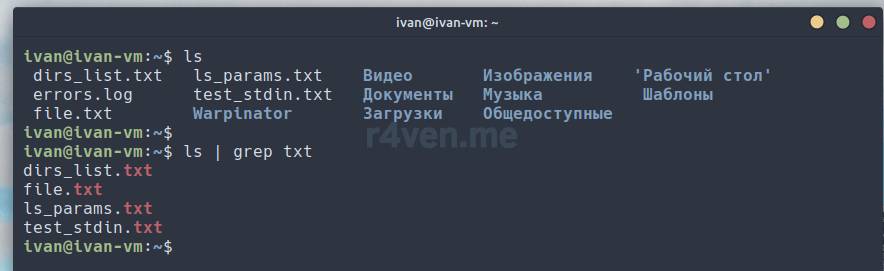
The grep utility is used to search for text strings matching a given pattern, in files or data streams. It provides powerful capabilities for working with text, including the use of regular expressions, recursive search, file exclusion, and inverted output. There will be a separate post on data filtering in the future.
Let’s look at an example with the sort command we already know:
# sorting the directory content
ls | sort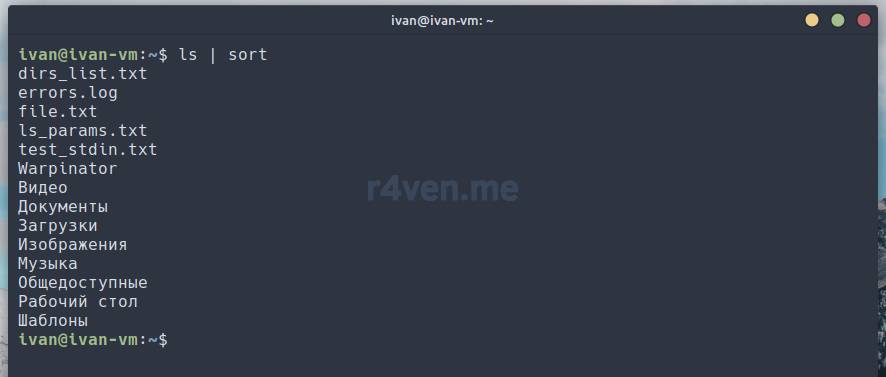
Here we sorted the content of the current directory alphabetically (the default for sort without parameters).
There can be a large number of redirections. For example:
# multi-level pipeline
ls /etc/ | grep -E 'conf$' | head -n 5 | sort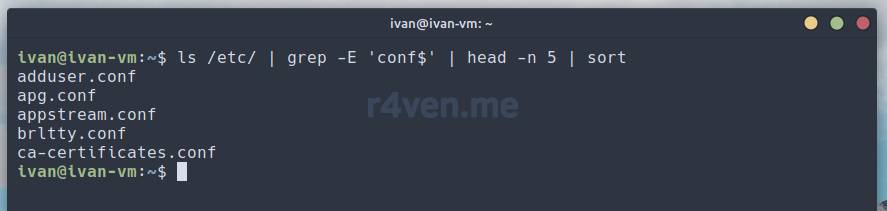
Here we output the content of the /etc directory with the ls command, then filter files whose names end in “conf”, then from all the output we reduce it to the first 5 lines with the head command, and after that sort them alphabetically with the sort command.
Another example:
cat /etc/passwd | grep ivan

# filtering the data stream and writing the result to a file
cat /etc/passwd | grep ivan | cut -d : -f 7 > user_info.txt

cat user_info.txt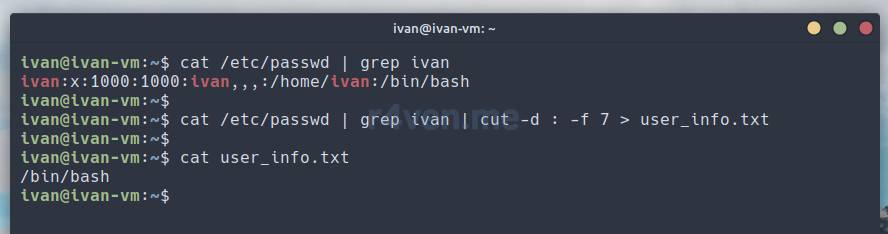
Here we used the cat command to output the content of the system user data file /etc/passwd, then filtered the output by username with the grep command, after which we trimmed the output to the 7th column with the cut command and redirected the needed output into the file user_info.txt.
Using pipelines you can process data streams very flexibly.
All redirection operators can be combined with each other. The ways of using this mechanism in Linux are limited only by your imagination)
Useful tricks with redirection operators
**1.**The simplest text editor in the console.
Run the command:
cat > my_text.txtThen type any text (Enter — new line):
Hello
this is
plain text
finish with Ctrl+DLet’s output the content of our file:
cat my_text.txt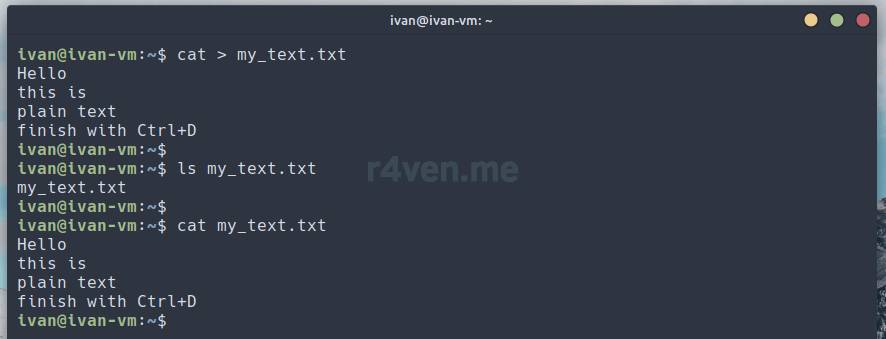
**2.**Redirecting output to a “black hole” — the pseudo-device /dev/null.
There are cases when the output of some program’s work simply isn’t needed: neither on the screen, nor in a file. In such a case, the output can be redirected to a special pseudo-device that is usually present in every Linux distribution — /dev/null.
/dev/null in Linux is a special device (file) that is a “black hole” or null output device. When data is written to /dev/null, it is effectively ignored and destroyed. In simple terms, any output sent to /dev/null simply disappears, without taking up disk space and without affecting other processes.
We simply use the rules for working with redirection operators that we covered above, and confidently send any needed stream into this device:
# outputting the content of the current directory
ls ./

# sending output to the "black hole"
ls ./ > /dev/null

# output with an error
ls ./1 > /dev/null

# redirecting output including errors
ls ./1 &> /dev/null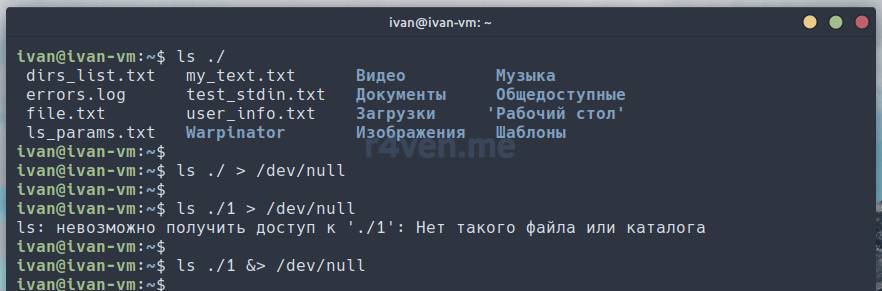
**3.**Clearing a file’s content using empty redirection.
A command of this form:
> file_nameFor example, we have a file dirs_list.txt with content. Let’s run:
# outputting the content for clarity
cat dirs_list.txt

# redirecting empty output
> dirs_list.txt

# checking the content again - empty
cat dirs_list.txt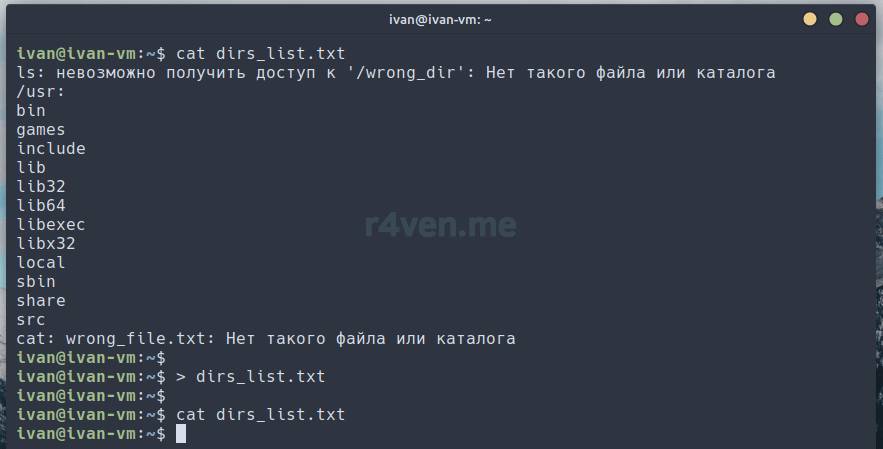
Afterword
In this post we covered the main aspects of input-output redirection in Linux, including the concepts of stdin, stdout and stderr, as well as the command line operators >, >>, <, << and |. We looked at several detailed examples and nuances of using each operator, and also learned some interesting tricks with these operators. Overall, understanding input-output redirection in Linux is an important skill for working in the command line, which can be useful in various situations of its use.
Good luck learning/redirecting. Thanks for reading)
Useful sources
- Input output redirection — Wikipedia
- Bash scripts, part 4: input and output — Habr
- Standard output redirection — Book section: The Linux Command Line. William Shotts
- Manual for the grep command — OpenNET
- Manual for the sort command — OpenNET
- Manual for the cut command — OpenNET
👨💻And…
Don’t forget about our Telegram channel 📱 and chat
Or maybe you want to become a co-author? Then click here🔗
💬 All the best ✌️
That should be it. If not, check the logs 🙂

Comments