
This is the second post in the series devoted to working in the Linux command line. Today we’ll look at basic navigation through the file system and viewing directory contents.
Be sure to read the first post:
The practical examples in the posts of this series were performed in a Linux Mint 21 distribution environment.
Getting help on commands
You can get comprehensive help on commands right in the Linux terminal.
🖐️Hey!
Subscribe to our Telegram channel @r4ven_me📱, so you don’t miss new posts on the website 😉. If you have questions or just want to chat about the topic, feel free to join the Raven chat at @r4ven_me_chat🧐.
To get brief help on a command and find out the list of its keys, often with descriptions, you can use the –help key, which exists for many commands.
For example:
ls --helpMore detailed help on any command can always be obtained with a separate utility, man. Just run man <program_name>
For example:
man lsTo navigate while viewing man pages, use the up and down arrow keys on the keyboard for line-by-line viewing.
Note that in command syntax descriptions, square brackets denote optional command parameters.
List of commands
So, today our toolkit will be expanded with the following commands:
| Command | Description |
|---|---|
pwd | prints the address of the current working directory in the file system |
ls | lists the contents of a directory |
cd | lets you move into some directory |
These commands are among the most frequently used in Linux. They are used to print the address of the working directory, view its contents, and move to another directory.
Each command has a certain number of parameters (keys) that determine the command’s mode of operation and its functionality. Keys come in two types: short and long. They look like this, for example:
- Short:
-h - Long:
--help
In many commands, both such keys will have the same meaning, but this isn’t always the case.
Now let’s move on to practice. Let’s look at a few examples for each of the commands from the table above.
Let’s start in order.
The pwd (print working directory) command — printing the current working directory
Syntax:
pwd [keys]The command has only two keys:
| Key | Meaning |
|---|---|
-L or --logical | print the address of the current working directory taking symbolic links into account |
-P or --physical | print the actual (physical) address without taking symbolic links into account |
Open a terminal and run this command without keys:
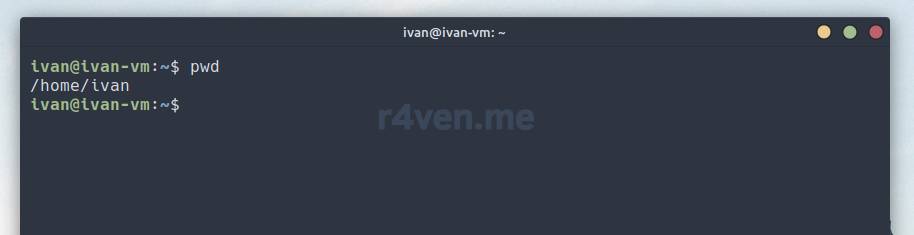
By default, when we log into the system we end up in our home directory. In my example this is /home/ivan, which is what the pwd command showed us.
Note that the path starts with the slash / which denotes the “root” of our file system. The rest of the slashes are just separators between nested directories and files.
In the graphical file manager, the home directory address looks like this:
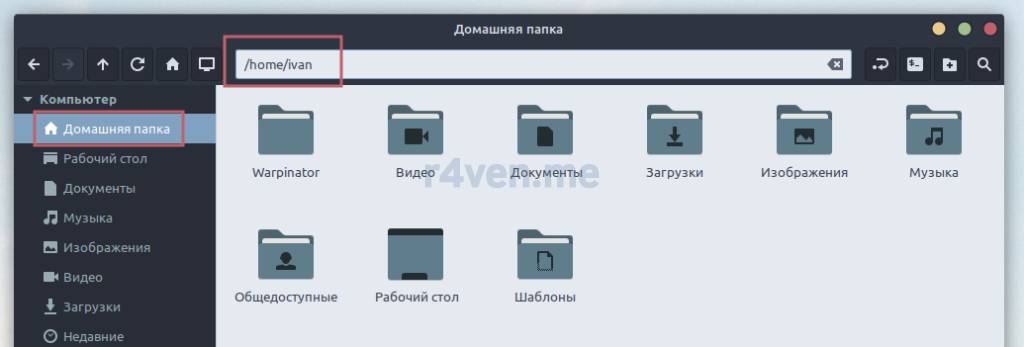
Also, the value of pwd is rewritten each time into the environment variable $PWD. You can view the variable’s value in the terminal like this:
echo $PWD*We’ll look at the echo utility in the next post. *There will be a separate post about variables in the future.
The ls (list) command — viewing directory contents
Syntax:
ls [keys] [directory]Frequently used keys:
| Key | Meaning |
|---|---|
-a | show hidden files, the names of such files in Linux start with a dot . |
-l | print the contents as a list with details (modification date, file size, etc.) |
-h | combined with the -l key, prints file sizes in a human-readable format |
-t | sort output by modification time |
-r | sort output content in reverse alphabetical order |
-i | shows the disk inode index |
-R | prints directory contents recursively |
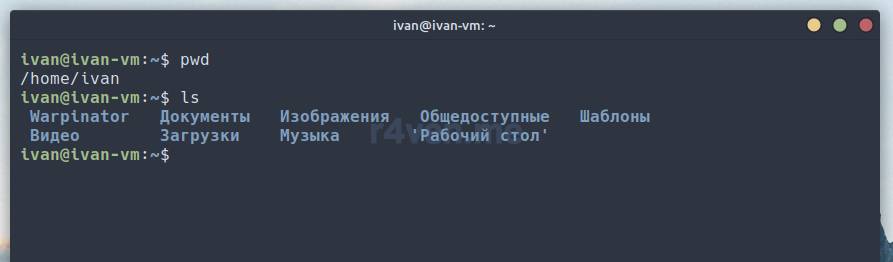
If you run this command without keys and arguments, the program will print the contents of the current working directory, which we found out with pwd:
Let’s see what happens if we print the contents as a list:
ls -l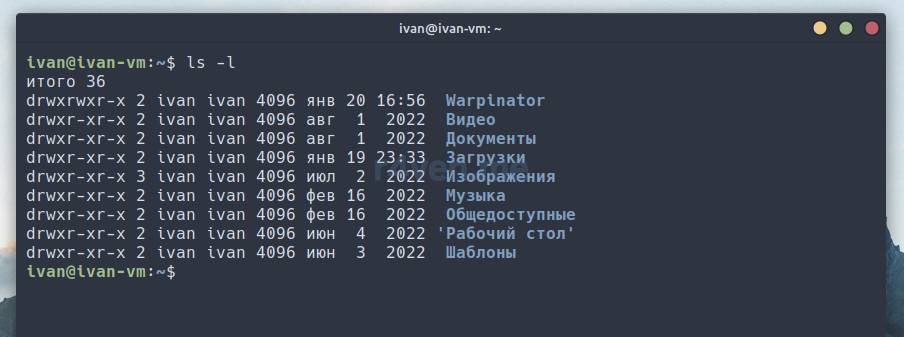
Let’s add the -a key to see hidden files:
ls -la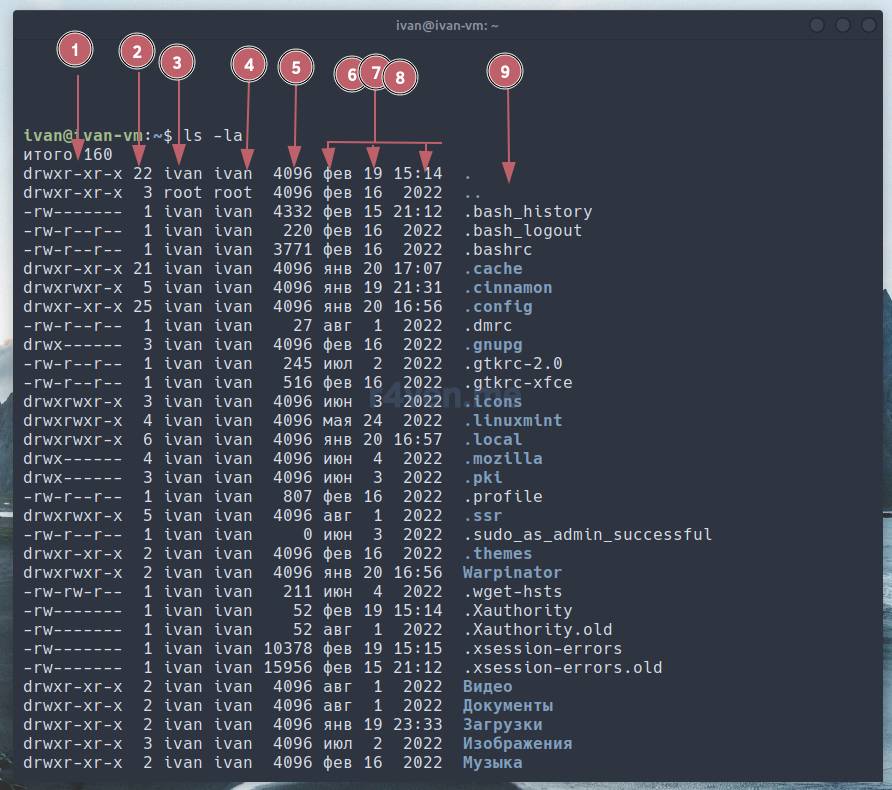
We see that there are many hidden files in our home directory. Let’s take a closer look at the output of the previous command:
| Column № | Description |
|---|---|
| 1 | The first character in this column is the file type (— regular file, d — directory, l — link). Next come the permissions (rwx — read, write, execute) — read, write, execute for the user, group, and others (ugo — user, group, others). |
| 2 | Number of hard links (links — more on this some other time). |
| 3 | File owner. |
| 4 | Owner’s group; by default, when creating files, the group name matches the owner’s name unless special parameters (mask) are set. |
| 5 | File size (in bytes by default). Directory size can’t be assessed this way. In the ls command output they’ll have a size of 4 kilobytes. To view the size of files in the current directory (including directory sizes), you can use the command: du -sh ./* |
| 6,7,8 | Date and time of last modification. |
| 9 | File name. |
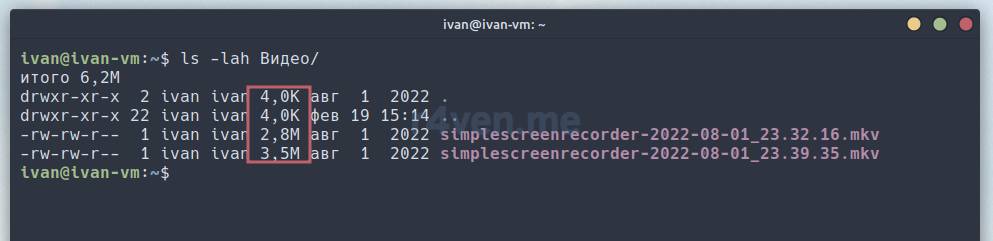
Adding the -h key to the ls command displays file sizes in a more human-friendly format:
The cd (change directory) command — moving into a directory
Syntax:
cd [directory]This command changes the current working directory to another one. Running the cd command without arguments takes us to our home directory.
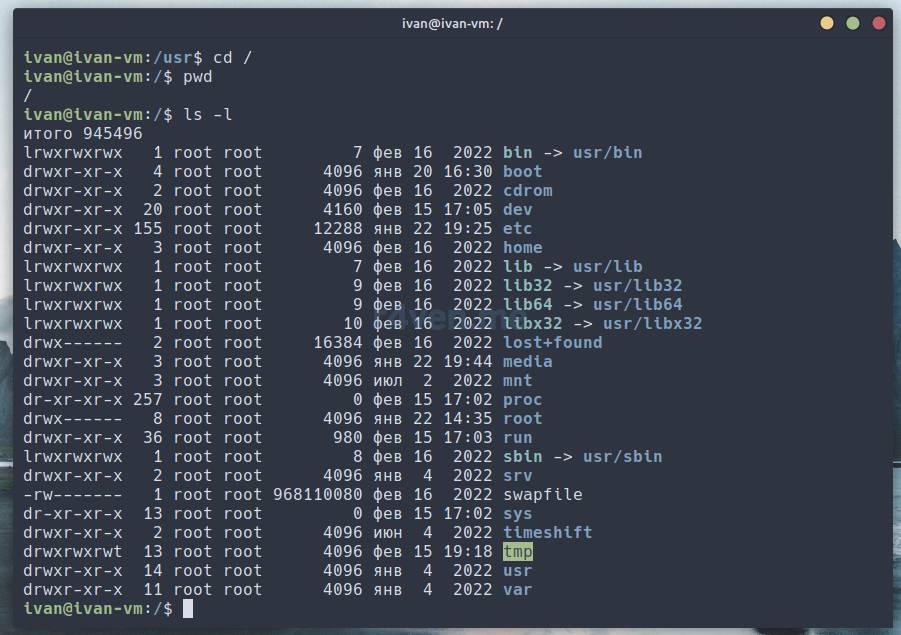
Let’s, for example, move into the “root” of our Linux Mint system, then check our current working directory and print its contents:
cd /

pwd

ls -lThe command output will be roughly like this:
Let’s move into the /usr directory and find out its contents:
cd /usr

# or

cd ./usr

ls -la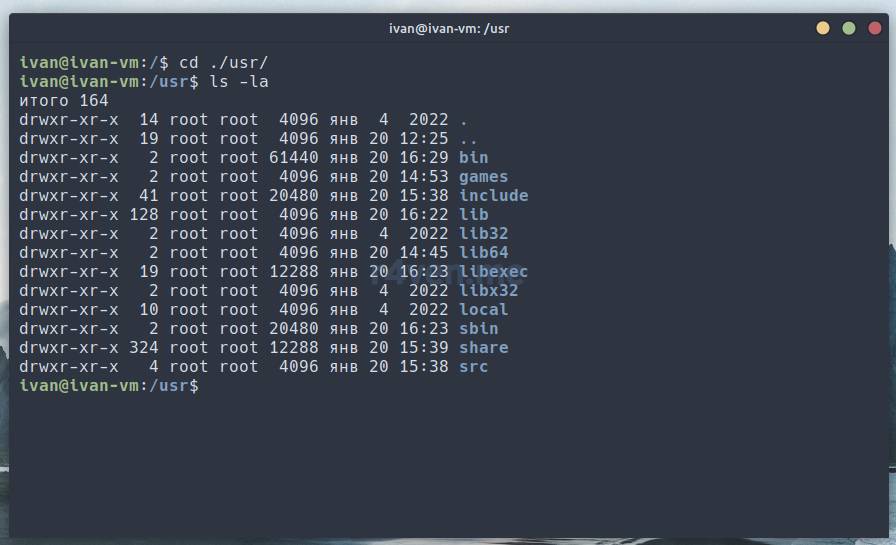
It’s worth mentioning here that in Linux there are concepts such as absolute and relative paths.
Absolute paths always start with the “root”, i.e. the slash character /
Relative paths imply specifying the path relative to the current or parent directory, which are denoted as:
. or ./ | denotes the current directory |
|---|---|
.. or ../ | denotes the parent directory |
We’re currently in /usr. Let’s try to move up one level by running:
cd ..

pwd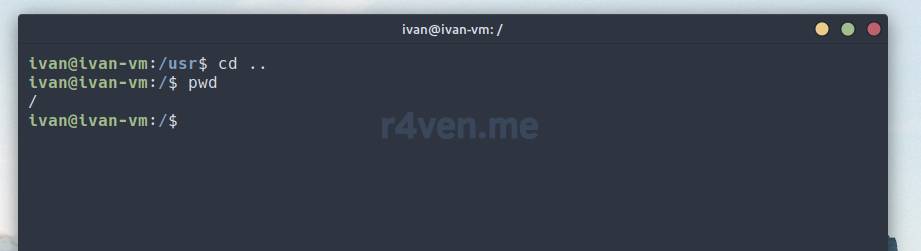
And we see that we’ve returned to the “root” of our system.
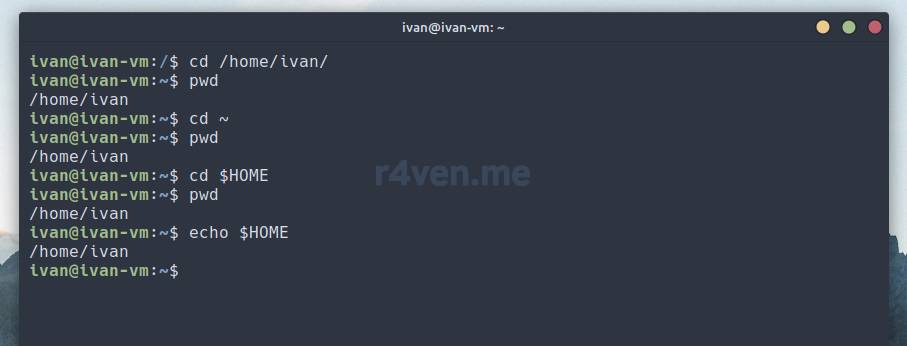
You can get back to the home directory with the cd command in four ways:
- run the command without arguments
- specify the full path
- pass the tilde character
~as an argument, which denotes the user’s home directory in Linux - pass the environment variable with the home directory address as an argument —
$HOME
cd

cd /home/ivan/

cd ~

cd $HOMEA trailing slash in the path indicates that the type of the last element in the path (for example /home/ivan/) is a directory. In many cases it can be omitted.
All these commands will have the same effect:
One more trick. If you pass a minus - as an argument to the cd command, it will take us back to the previous directory and print its address:
cd -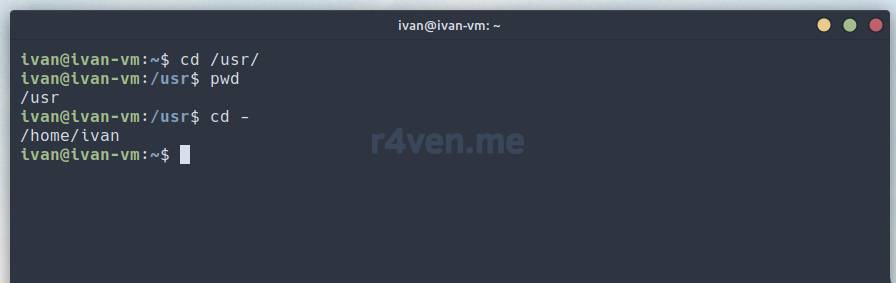
Afterword
Today we learned how to navigate the file system in the command line, print our working directory, and view the contents of directories.
In the next post, taking into account the knowledge gained today, we’ll take a detailed look at the utilities: echo, cat, less, with which we can print arbitrary text and view file contents in the terminal.
Thanks for reading. Good luck studying Linux
Useful sources
- The book “The Linux Command Line. Complete guide. William Shotts” – itsecforu.ru
- Manual for the pwd command — OpenNET
- Manual for the ls command — OpenNET
- Manual for the cd command — OpenNET
- Environment variables (Russian) — ArchWiki
Previous posts in the series
👨💻And…
Don’t forget about our Telegram channel 📱 and chat
Or maybe you want to become a co-author? Then click here🔗
💬 All the best ✌️
That should be it. If not, check the logs 🙂

Comments