
Today we’re breaking down such powerful Linux command line tools as command execution control operators.
Previous posts in the series
If you’re just starting to learn Linux, I strongly recommend getting familiar with the previous materials:
- Linux command line, introduction: command types, plain text, file system, shell prompt
- Linux command line, navigating the system and viewing directories: pwd, ls, cd commands
- Linux command line, output and reading content: echo, cat, less commands
- Linux command line, working with files: touch, mkdir, cp, mv, rm commands
- Linux command line, file links: the ln command
- Linux command line, input and output redirection: the “>”, “<”, “|” operators
🖐️Hey!
Subscribe to our Telegram channel @r4ven_me📱, so you don’t miss new posts on the website 😉. If you have questions or just want to chat about the topic, feel free to join the Raven chat at @r4ven_me_chat🧐.
Introduction
Command line operators in Linux provide the ability to control the execution of commands and programs. The operators &&, ||, ; and & allow you to control the order of command execution and run them sequentially or in parallel.
- The
&&operator (logical AND) runs the next command only if the previous command completed successfully. - The
||operator (logical OR) runs the next command only if the previous command completed unsuccessfully. - The
;operator (semicolon) allows the next command to run regardless of the result of the previous command. - The
&operator (ampersand) launches a command in the background, allowing you to continue working in the command line without waiting for the command to finish.
Usage examples
The && operator (logical AND)
Example 1:
mkdir mydir && touch mydir/myfile.txt && ls mydir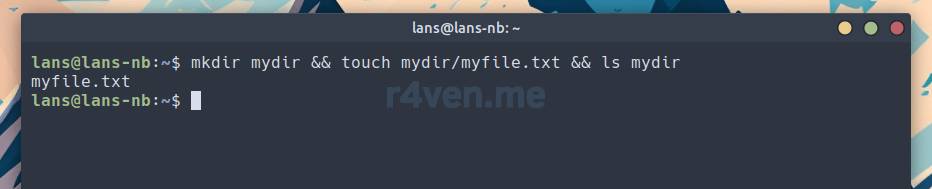
In this example, using the && operator, the directory “mydir” is created, then the touch command creates an empty file “myfile.txt” inside the “mydir” directory. Then the ls command outputs the content of the “mydir” directory.
Example 2:
ls mydir/

cd mydir/ && touch file1.txt && cp file1.txt file2.txt && rm file1.txt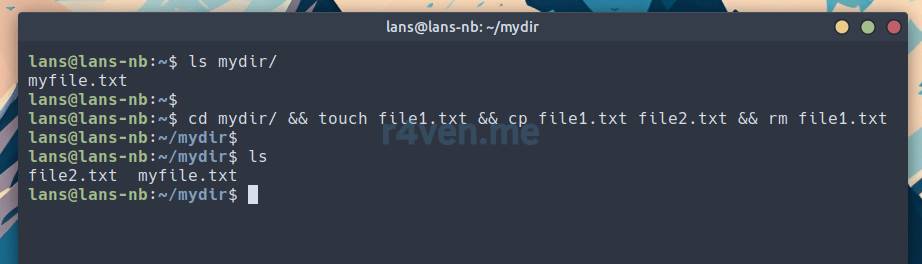
In this example, using the && operator, we change into the previously created “mydir” directory, then the file “file1.txt” is copied to the file “file2.txt”. If the copy operation is successful, the rm command deletes the file “file1.txt”.
The || operator (logical OR):
Example 1:
cat file.txt || echo "Файл не найден"

touch file.txt && echo "Hello R4ven" > file.txt

cat file.txt || echo "Файл не найден"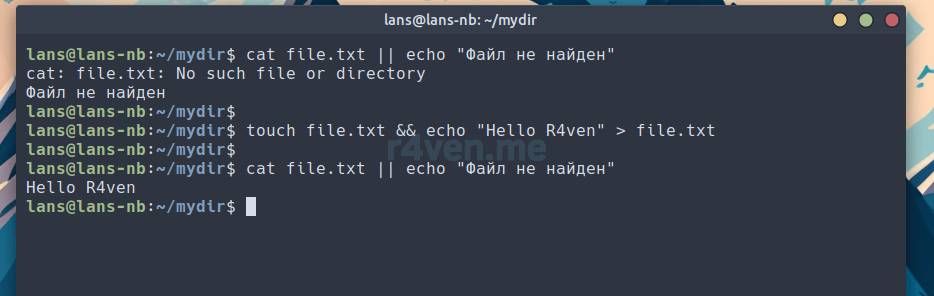
In this example, the cat command tries to output the content of the file “file.txt”. If the file doesn’t exist, the || operator outputs the message “Файл не найден” (File not found). Then a file “file.txt” is created with the content “Hello R4ven” and the previous command is run again — the result of execution changed, and the block after || didn’t run.
Example 2:
ls images/ || mkdir images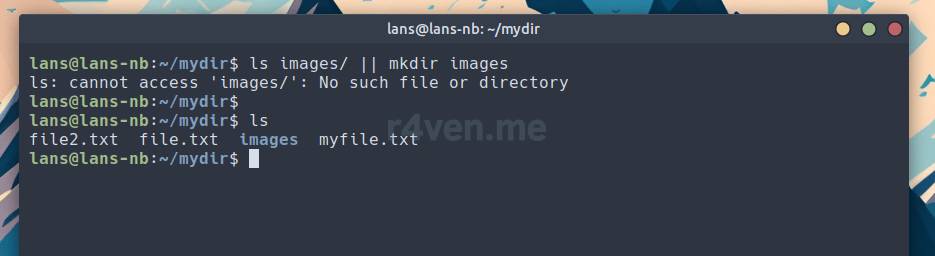
In this example, the || operator checks for the presence of the “images” directory. If the directory doesn’t exist, the mkdir command creates the “images” directory.
The ; operator (semicolon):
Example:
touch file1.txt ; cp -v file1.txt directory/ ; rm -v file1.txt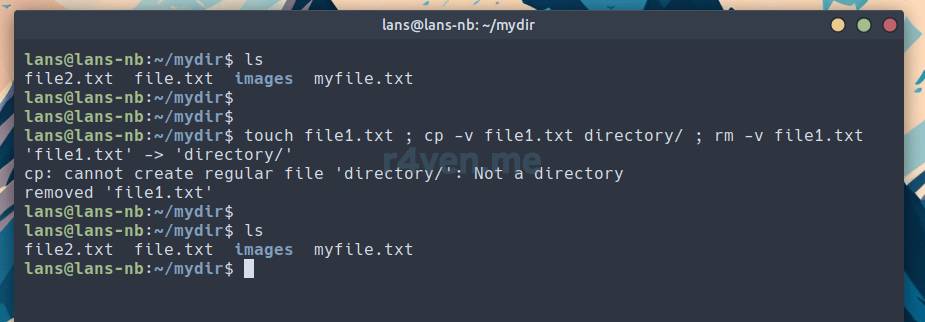
📝 Note
The -v (verbose) key of the cp and rm commands outputs information about the actions being performed to standard output.
In this example, using the ; operator, three commands are run sequentially. First, the touch command creates an empty file “file1.txt”. Then, using the cp command, the file “file1.txt” is copied to the “directory” folder, which doesn’t exist, resulting in an error. But despite this, the last command still runs: the rm command deletes the file “file1.txt”.
The & operator (ampersand):
Example:
sleep 1000 & echo "Процесс запущен в фоновом режиме"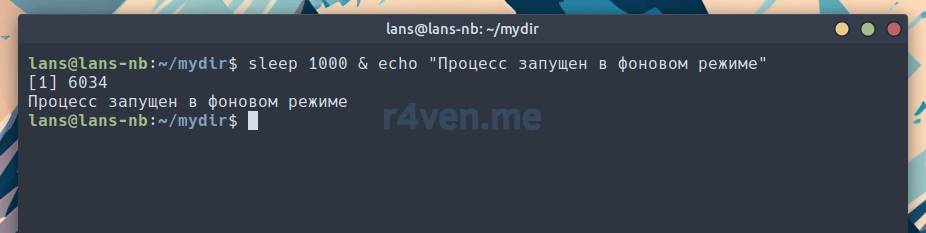
In this example, the sleep 1000 command is launched in the background using the & operator. The sleep 1000 command suspends execution for 1000 seconds. At the same time, after launching the command, the message “Процесс запущен в фоновом режиме” (Process launched in background mode) is output, allowing you to continue working in the command line.
After sending the process to background execution, the terminal outputs the process number in the local shell jobs id — [1] and the number (PID — process id) in the overall system list — 6034.
You can view the list of background processes for the current shell session with the jobs command, and the list of system processes with the ps command:
jobs

ps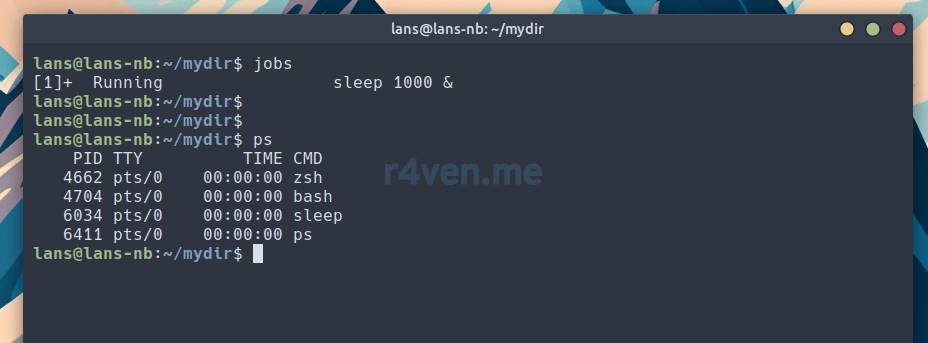
To bring a process from background mode to active mode, the fg (foreground) command is used, specifying the jobs id:
fg 1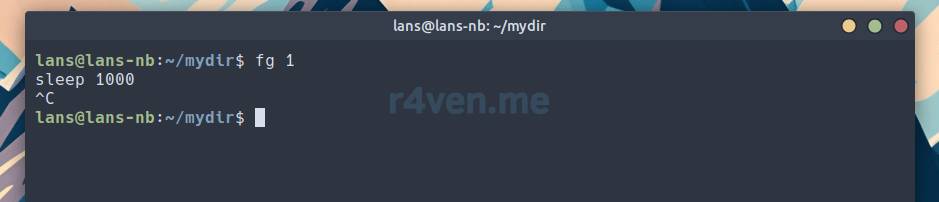
To terminate the sleep process, send the interrupt command with Ctrl+C.
I’ll cover working with processes in Linux in more detail in a separate post in the future.
When can command execution control operators come in handy?
Command line operators are widely used in task automation and scripting:
- Using the
&&operator allows you to run the next command only if the previous one completed successfully, which is useful, for example, when building programs or performing sequential actions. - The
||operator can be used to run a command only if the previous command completed unsuccessfully, which allows you to handle errors or make decisions based on command results. - The
;operator is useful when you need to run several commands sequentially, regardless of the result of the previous commands. This can be useful when creating scripts or performing a series of operations. - The
&operator allows you to launch a command in the background, freeing up the command line for performing other tasks.
Afterword
Today we got familiar with the command line operators &&, ||, ; and &, which provide flexible capabilities for controlling the order of execution of commands and programs in Linux. Proper use of these operators allows you to automate tasks, handle errors, and improve efficiency when working with the command line.
Thank you for your attention. Good luck)
Useful sources
👨💻And…
Don’t forget about our Telegram channel 📱 and chat
Or maybe you want to become a co-author? Then click here🔗
💬 All the best ✌️
That should be it. If not, check the logs 🙂

Comments