
In this article, we will study ways to archive and compress files in Linux systems. I will explain how to use the utilities from the article title. There will be many examples, so please continue reading.
🖐️Hey!
Subscribe to our Telegram channel @r4ven_me📱, so you don’t miss new posts on the website 😉. If you have questions or just want to chat about the topic, feel free to join the Raven chat at @r4ven_me_chat🧐.
If you are new to the Linux world, I recommend studying my previous command-line articles:
- Introduction: command types, plain text, file system, shell prompt
- System navigation and viewing directories: pwd, ls, cd commands
- Output and reading content: echo, cat, less commands
- Working with files: touch, mkdir, cp, mv, rm commands
- Links to files: the ln command
- Input and output redirection: “>”, “<“, “|” operators
- Command execution control: “&&”, “||”, “;”, and “&” operators
- Processes: jobs, fg, bg, ps, pgrep, kill, pkill, htop commands
- File permissions: id, chmod, chown commands
- Privilege escalation: su, sudo commands
Introduction
I separate these two procedures for a reason. Archiving is the process of combining several files into one, and it may not include compression at all. However, in practice, the resulting archive is almost always compressed to save disk space.
At some point while studying Linux, it was a revelation to me that tar is specifically an archiver. For compression, it uses external utilities usually named after the compression format: gzip, bzip2, xz, or zstd. Of course, there are many more formats, but in my experience these are used most often.
The zip and 7z utilities are worth mentioning separately: they can both archive and immediately compress data into their own eponymous format.
For Linux users who regularly deal with Windows, there is the rar utility (available in standard non-free repositories). It is proprietary software, but the open source utility unrar is used to extract archives.
All examples in the article were performed in the Linux Mint 22 (Ubuntu 24.04) distribution environment.
This concludes the introduction. Let’s move on to the list of commands we will examine.
Command list
So, today our tool arsenal will be expanded with the following archiver commands:
| Utility | Full name | What it does | Extension | Features |
|---|---|---|---|---|
tar | Tape ARchive | Archiving | .tar | Open source. An archiver that only combines files and uses external utilities (gzip, bzip2, xz, zstd) for compression. |
7z | 7 — zip | Archiving + compression | .7z | Open source. A universal format that archives and compresses very well at the same time. |
zip | English zip (“compress”) | Archiving + compression | .zip | Open source. A universal format that archives and compresses simultaneously; a Windows standard. |
rar | Roshal ARchiver | Archiving + compression | .rar | Proprietary software. Also popular in Windows, with good compression but license restrictions; unrar is more often used for extraction in Linux. |
And compression utility commands:
| Utility | Full name | What it does | Extension | Features |
|---|---|---|---|---|
gzip | GNU Zip | Compression | .gz | Open source. Fast compression and extraction, widely used with tar for .tar.gz. |
bzip2 | Burrows–Wheeler zip 2 | Compression | .bz2 | Open source. Provides better compression than gzip but works more slowly. |
xz | simply xz (based on LZMA2) | Compression | .xz | Open source. Provides maximum compression but is very slow during archiving and extraction. |
zstd | Zstandard | Compression | .zst | Open source. A modern algorithm with an excellent balance of speed and compression quality. |
For a rough understanding of the differences between formats, a subjective comparison of their operation and compression speed is shown below:
📝 Note
Real testing of each format deserves a separate article.
| Format/command | Compression algorithm(s) | Compression speed | Extraction speed | Compression ratio |
|---|---|---|---|---|
gzip | Deflate | high | high | medium |
bzip2 | Burrows-Wheeler transform (BWT) | low | medium | high |
xz | LZMA2 | low | low | very high |
zstd | LZ77 and ANS | very high | very high | very high |
zip | Deflate and others | medium | very high | medium |
7z | LZMA and others | medium | high | very high |
rar | PPMd | medium | high | high |
The article focuses on the tar archiver plus compression utilities, because this combination is most often used for working with archives in Linux, including in Shell scripts. But I will also show basic commands for working with zip, 7z, and rar at the end of the article.
Preparation
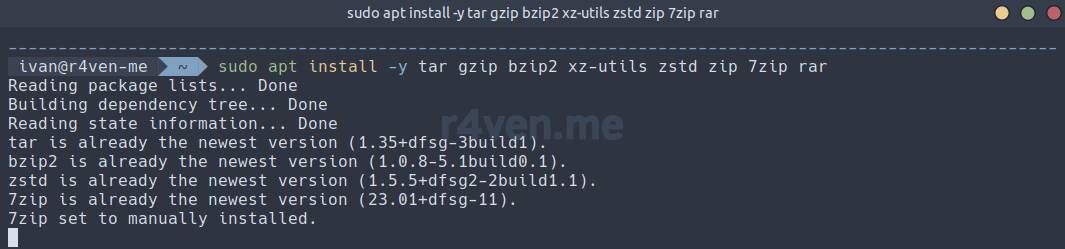
tar and the gzip compression utility are almost always preinstalled in the system, unlike other archivers/utilities. If something required is missing from your system, you can always install it:
sudo apt update

sudo apt install -y tar gzip bzip2 xz-utils zstd zip 7z rar⚠️ Warning
Let me emphasize once again that the rar utility is proprietary software and is available in the non-free repository.
Before starting, create several files in the current directory to make the command examples more visual:
dd if=/dev/urandom of=./file1 bs=50K count=10

dd if=/dev/urandom of=./file2 bs=50K count=10

mkdir -v ./dir/

cp -v ./file1 ./file2 ./dir/📝 Note
The dd command in the example above uses the special urandom pseudo-device to generate 500 KB of pseudorandom data and saves it to the specified file.
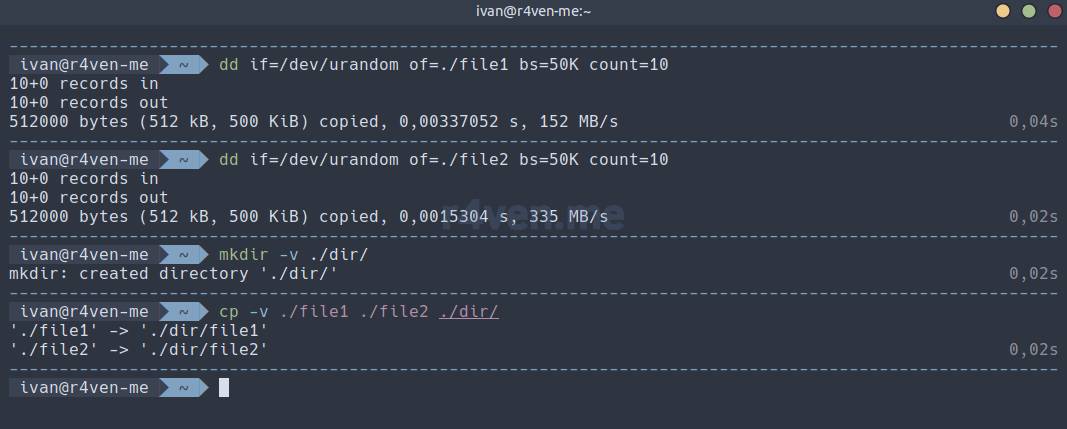
Done, move on to creating archives.
Archiving with tar

Since tar is a fairly old program, it supports options in the classic Unix style, that is, without a hyphen before the option. To avoid confusing the reader, I will use the hyphenated options typical today😌.
So, the main tar commands.
Syntax:
tar [options] <archive_name> <files_or_directories>To avoid syntax errors, which beginners often encounter, you need to understand that the Linux command line operates with three types of parameters: flags: -f1 --flag2, named parameters: --arg value, and positional arguments: arg1 arg2 arg3. Confusion arises when parameters are combined, for example flags with named parameters; in that case, their order matters.
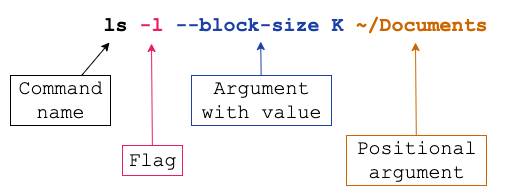
Source: betterdev.blog
Keeping this information in mind, proceed to studying tar commands.
Create an archive:
tar -c -f ./archive.tar ./file1 ./file2 ./dir/The command creates the arhcive.tar archive with the files/directory listed at the end in the current directory.
📝 Note
-c (--create) is a flag that tells the archiver to create an archive; then the named parameter -f (--file) specifies the location and name of the archive file. At the very end, positional arguments are listed: files/folders to add to the archive (space as the separator).
The typical extension for tar archives is .tar.
With the -v (--verbose) flag added, tar will print the files added to the archive line by line:
tar -v -c -f ./archive.tar ./file1 ./file2 ./dir/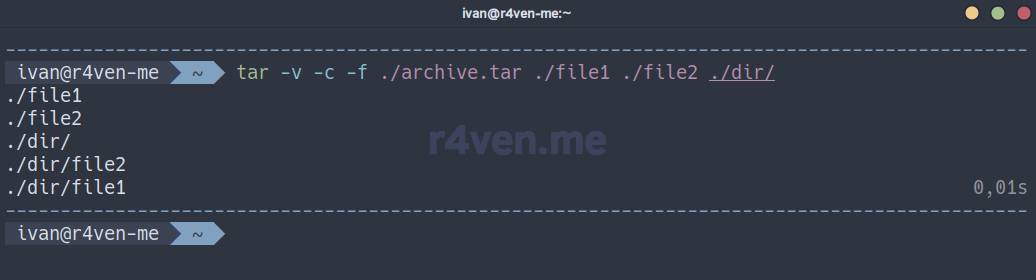
To change the path from which files should be taken for adding to the archive, use the -C or --directory option.
📝 Note
The -C option tells tar to change the working directory. For a better understanding, imagine that tar runs cd /path/to/dir before packing the archive and performs the specified operation there.
For example, the following command will add all files from the /tmp/dir/ directory to the archive:
cp -r ./dir/ /tmp/

tar -C /tmp/dir/ -c -f ./archive.tar ./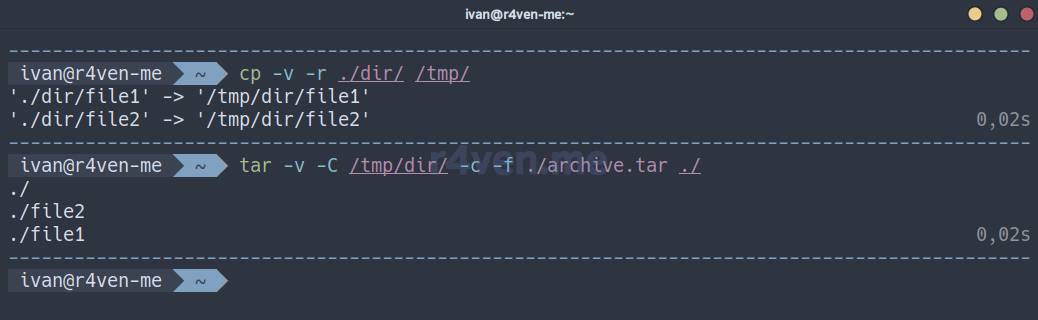
The relative path ./ specified at the end tells tar to add all files from the current directory, which we changed with -C (/tmp/dir/ in the example above), to the archive.
It is important to understand that tar writes the file path to the archive exactly as it was passed: relative paths are preserved, and absolute ones only if explicitly allowed (--absolute-names). By default, / at the beginning of the path is removed. The same directories and files are created during extraction.
Extract an archive:
tar -x -f ./archive.tar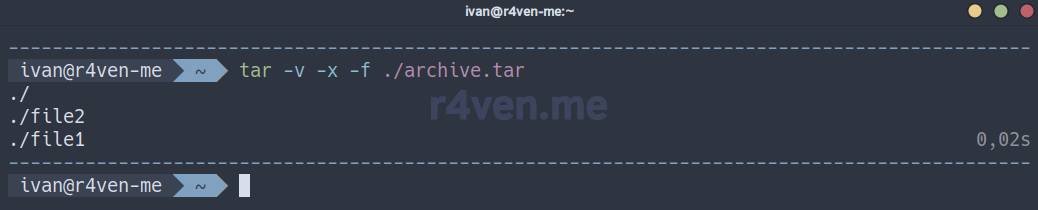
-x (--extract) means extract, -f is the archive name.
This command extracts archive.tar into the current directory.
❗️ Caution
Keep in mind that if the directory into which you extract files from the archive contains files with identical names/paths, tar will overwrite them.
To change the directory into which the archive should be extracted, also use the -C or --directory option:
tar -C /tmp/dir/ -x -f ./archive.tar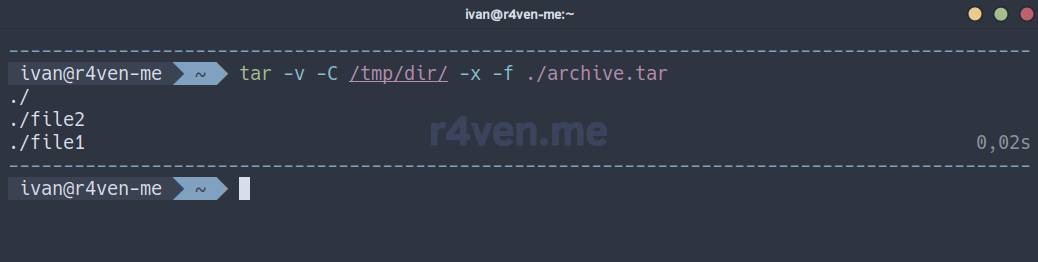
View contents:
tar -t -f ./archive.tar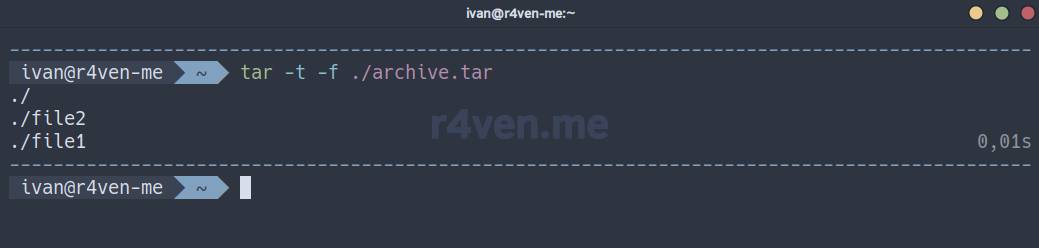
-t (--list) prints contents as a list, -f is the archive name.
By the way, the -t option is usually used to check an archive for damage to the file structure. Example:
tar -t -f ./archive.tar &> /dev/nullIf the archive is damaged, the command will exit with an error.
Add a file to an existing archive:
tar -r -f ./archive.tar /etc/passwd📝 Note
-r (--append) adds to an existing UNCOMPRESSED archive, -f is the archive name. If the archive is compressed (.tar.gz, .tar.xz, .tar.zst, etc.), the command will not work; first you need to decompress the archive, add the file, and compress it again.
Check:
tar -t -f ./archive.tar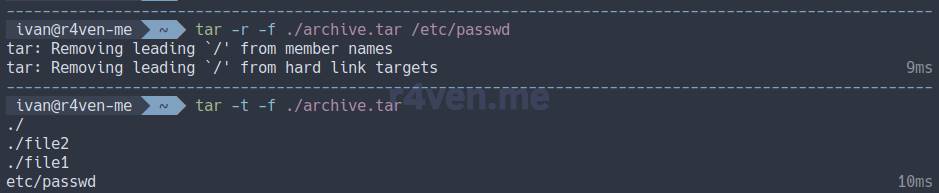
As we can see, tar removed / from the path to the added file whose path starts from the root.
Deleting a file from an archive:
tar --delete -f archive.tar etc/passwd--delete deletes the file specified at the end from the archive, -f is the archive name. For compressed archives, the situation is similar to adding files: decompress, delete, compress.
Check that the file was deleted from the archive:
tar -t -f ./archive.tar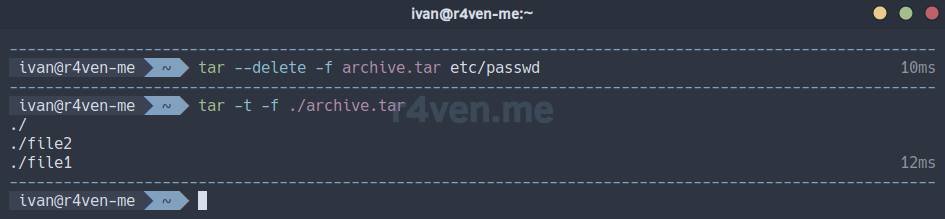
Compressing a tar archive
All this is good, but an archive without compression is like a sausage sandwich without cheese😋.
Options without a hyphen🙄
It is important to note that the tar command has special options for compressing an archive using different formats/algorithms. Thanks to this, everything looks transparent to the user. But if the corresponding utility is missing from the system (for example, xz), the tar command will exit with an error.
Compression during archiving
- Gzip:
tar -c -z -f ./archive.tar.gz ./file1 ./file2-z means use gzip.
Note that the generally accepted extension for compressed gzip files is .gz. Since tar only creates the archive (tarball), while an external utility compresses it, the double extension .tar.gz is specified. Some people do not like this form very much (including me), so there is another generally accepted extension for such files: .tgz.
For comparison, create a similar archive without compression and find out the archive sizes using the du (disk usage) utility:
tar -c -f ./archive.tar ./file1 ./file2

du -sh ./archive.t*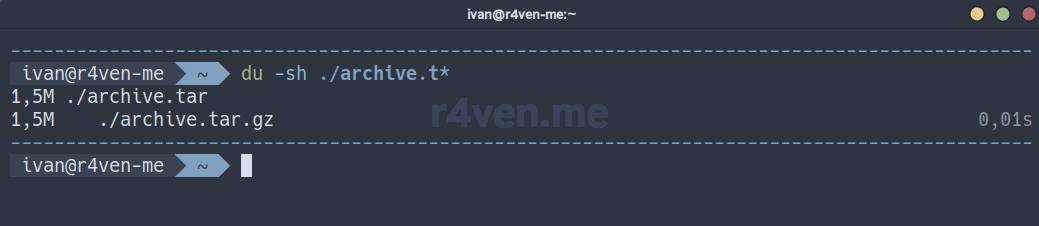
But where is the compression? The thing is that we archived and compressed files created with the dd command and a stream of pseudorandom binary data, which may not be compressible at all.
For clarity, create a 50 MB file and fill it with zeros. Then create a regular archive and a compressed one to see the difference in size:
dd if=/dev/zero of=./file50m bs=5M count=10

tar -c -f ./archive50m.tar file50m

tar -c -z -f ./archive50m.tgz file50m

du -sh ./archive50m.t*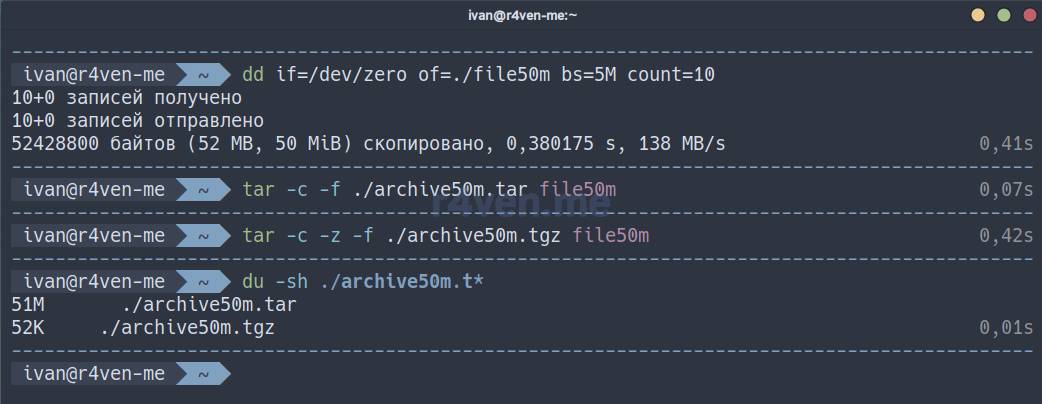
The difference is obvious! But that is because the files are filled with zeros, which compress well. The same applies to any text. With this example, I wanted to show you that compression may not be justified in terms of server resource utilization, especially when working with large files.
To clearly see the difference between formats, create a couple of text files:
yes "The quick brown fox jumps over the lazy dog" | head -n 1000000 > ./file1.txt

yes "Eat some more of these soft French buns and have some tea" | head -n 1000000 > ./file2.txt📝 Note
yes prints the same string endlessly; head -n 1000000 limits it to one million lines. The result is a ~45 MB file with repeating text.
Create a tar archive and compress it with gzip:
tar -c -z -f ./archive.tar.gz ./file1.txt ./file2.txtAnd other formats:
- Bzip2:
tar -c -j -f archive.tar.bz2 ./file1.txt ./file2.txt-j means compress with bzip2.
- Xz:
tar -c -J -f archive.tar.xz ./file1.txt ./file2.txt-J means compress with xz.
- Zstd
tar -c --zstd -f archive.tar.zst ./file1.txt ./file2.txt--zstd means compress with zstd.
Let’s look at the result:
du -sh ./archive.tar.*40K ./archive.tar.bz2
468K ./archive.tar.gz
24K ./archive.tar.xz
16K ./archive.tar.zstzstd not only compressed better than the others, but also did it lightning-fast, especially compared to bzip2.
Extraction works similarly; tar determines the compression method itself:
tar -x -f ./archive.tar.gz
tar -x -f ./archive.tar.bz2
tar -x -f ./archive.tar.xz
tar -x -f ./archive.tar.zstIt is also worth noting the ability to explicitly specify the archive compression command for tar using the -I option. Example:
tar -v -I "zstd -19" -c -f ./archive.tzst ./file1.txt ./dirHere we also specified the compression level immediately 😏.
Compressing individual files
Sometimes there is no need to create a separate archive, and you only need to compress one file.

The gzip utility
Syntax:
gzip [options] <file_to_compress>Examples:
- Compress a file:
gzip ./file1.txtCreates file.txt.gz and deletes the original.
- Decompress a file:
gunzip ./file1.txt.gz
# or
gzip -d ./file1.txt.gz-d — decompress.
- Compress a file without deleting the original:
gzip -k ./file1.txtYou can specify the compression level: the default level is 6 (a balance between speed and size), and the maximum is 9:
gzip -9 ./file1.txtThe higher the level, the better the compression, but the slower the speed.
The bzip2 utility
It works like gzip, but usually compresses better, although more slowly.
Syntax:
bzip2 [options] <file_to_compress>Examples:
- Compress:
bzip2 ./file1.txtCreates file.txt.bz2 and deletes the original.
- Decompress:
bunzip2 ./file1.txt.bz2
# or
bzip2 -d ./file1.txt.bz2- Compress without deleting the original:
bzip2 -k ./file1.txt- Compression levels: default =
6, maximum =9:
bzip2 -9 ./file1.txtThe xz utility
A modern compression algorithm, usually more efficient than gzip and bzip2, but slower 🐌.
Syntax:
xz [options] <file_to_compress>Examples:
- Compress:
xz ./file1.txtCreates file1.txt.xz and deletes the original.
- Decompress:
unxz ./file1.txt.xz
# or
xz -d ./file1.txt.xz- Compress without deleting the original:
xz -k ./file1.txt- Compression levels: default =
6, maximum =9:
xz -9 ./file1.txtThe zstd utility
zstd is a modern compression algorithm from one banned organization🙈.
It is faster than gzip / bzip2 / xz while providing excellent compression👍. It is suitable for both archives and streaming compression (for example, in systemd, tar, rsync).
Syntax:
zstd [options] [file_to_compress]Examples:
- Compress a file:
zstd ./file1.txtCreates file1.txt.zst and deletes the original.
- Compress a file without deleting the original:
zstd -k ./file1.txt- Decompress:
unzstd ./file1.txt.zst
# or
zstd -d ./file1.txt.zst- Compression level control: the default level is
3, the maximum is19:
zstd -19 ./file1.txtArchiving and compressing data streams
If you do not know or poorly understand what this is, I highly recommend my introductory article on this topic:
🔗 Linux command line, input and output redirection: “>”, “<“, “|” operators

P.S. I did not find a meme about stdin/stdout, so a neural network generated the image. A bit over the top, but it made me laugh😂😂
Creating an archive (basic operations)
- Creating an archive with output to
stdoutand redirecting it to a file:
tar -c -f - ./file1 ./file2 ./dir/ > ./archive.tar📝 Note
Note that in the named parameter that defines the output “file” (-f), the hyphen character - is specified as the value. In Linux, a hyphen is a generally accepted identifier for using standard streams.
- The same, but with
gzipcompression (-z):
tar -c -z -f - ./file1 ./file2 ./dir/ > ./archive.tgz- Archiving to
stdoutand piping to an external compression utility (usinggzipas an example), followed by redirection to a file:
tar -c -f - ./file1 ./file2 ./dir/ | gzip -9 > ./archive.tgzCreating an archive through file search
- Searching for files by pattern with
findand then passing the list of found files throughstdouttotarto create an archive:
find ./ -name 'file[1-2]' | tar -c -z -f ./archive.tgz -T -📝 Note
Note that here the hyphen is used as a positional argument that defines the list of files to archive. The -T (or --files-from) option tells tar to take the file list from stdin.
find in the command above searches for all files named file1 and file2 in the current directory and its subdirectories.
Working with a remote server (🔗 SSH)
- Sending an archive to
stdoutusing localtar, then piping the stream to thesshutility, which in turn passes the stream totaron the remote host; it readsstdinas an archive and extracts it into/tmp:
tar -c -z -f - ./dir/ | ssh ivan@test.r4ven.me "tar -C /tmp -x -z -f -"- Creating an archive on a remote server with
sshand outputting it to localstdout, which is redirected to a local file:
ssh ivan@test.r4ven.me "tar -c -z -f - ./file1 ./file2" > ./archive.tgz- Passing an archive with
catfrom a remote host to localstdin, followed by extracting it with localtaron the local machine into/tmp:
ssh ivan@test.r4ven.me "cat ./archive.tgz" | tar -C /tmp -x -z -f -Encryption
- Creating a compressed archive in
stdout, piping it to thegpgencryption utility, and redirecting it to the specified file:
tar -c -z -f - ./file1 ./file2 ./dir/ | gpg --batch --symmetric --passphrase "MyPassword" > ./archive.tgz.gpg- Decrypting a file (
gpgwill request a password for decryption) tostdout, piping it totarfor subsequent extraction:
gpg -d ./archive.tgz.gpg | tar -x -z -f -Splitting into parts
- Creating an archive in
stdoutand passing the stream to thesplitutility, which splits the archive into parts of the specified size:
tar -c -z -f - ./dir/ | split -b 200K - ./archive.tgz.part-- Combining archive parts with
cat, followed by extraction withtar:
cat ./archive.tgz.part-* | tar -x -z -f -Alternative archivers: zip, 7z, rar
The zip archiver
zip is a universal archiver (it both compresses and archives), popular in Windows.
Syntax:
zip [options] <archive_name> <files_or_directories>Examples:
- Creating an archive:
zip ./archive.zip ./file1 ./dir/- Extraction:
unzip ./archive.zip- Contents list:
unzip -l ./archive.zip-l = list (show the list of files).
- Add a file to the archive:
zip ./archive.zip ./file2- When creating an archive, you can specify the compression level:
zip -0 ./archive.zip ./file1.txt # no compression (packing only)

zip -9 ./archive.zip ./file1.txt # maximum compressionThe 7z archiver (7-Zip)
An archiver with an excellent compression ratio. Utilities: 7z or 7za (from the p7zip package).
Syntax:
7z <operation> <archive_name> <files_or_directories>Examples:
- Creating an archive:
7z a ./archive.7z ./file1 ./dir/a = add (add to the archive).
- Extracting an archive:
7z x ./archive.7zx = extract while preserving the directory structure.
- Viewing contents:
7z l ./archive.7zl = list (show the list of files).
- Adding files to the archive:
7z a ./archive.7z ./file2a = add.
- Specify the compression level:
7z a -mx=0 archive.7z ./file1.txt # no compression

7z a -mx=9 archive.7z ./file1.txt # maximum compressionThe rar archiver
Another popular archiver. It is known for bringing its developer a fabulous amount of… money verbal gratitude👏. The eponymous proprietary rar utility is used. unrar (open source) is usually used for extraction.

Syntax:
rar <operation> <archive_name> <files_or_directories>Examples:💡 a = add.
- Creating an archive:
rar a ./archive.rar ./file1 ./dir/a = add.
- Extracting an archive:
unrar x ./archive.rarx = extract while preserving the directory structure.
- Viewing contents:
unrar l ./archive.rarl = list (show the list of files).
- Adding files to the archive:
rar a ./archive.rar ./file2a = add.
The rar utility also allows you to choose the compression level:
rar a -m0 ./archive.rar file1.txt # no compression

rar a -m5 archive.rar file1.txt # maximum compressionA simple comparison test
Compress:
zip -9 ./archive.zip ./file* ./dir

7z a -mx=9 archive.7z ./file* ./dir

rar a -m5 ./archive.rar ./file* ./dir

tar -I "zstd -19" -cvf ./archive.tzst ./file* ./dirView the size:
du -s ./archive.*Result:
1008  ./archive.7z
2004  ./archive.rar
2008  ./archive.tzst
1128 ./archive.zipzstd worked faster than all the others, but it did not provide the best compression🤔. Different formats probably work more efficiently for different file sets🤷♂️. It is recommended to determine this experimentally👨💻.
Next time, we will write a backup script in Bash that will archive files on a schedule📋. Do not miss it😉.
Useful materials
- https://ru.wikipedia.org/wiki/Tar
- https://ru.wikipedia.org/wiki/ZIP
- https://ru.wikipedia.org/wiki/7-Zip
- https://ru.wikipedia.org/wiki/RAR
- https://ru.wikipedia.org/wiki/Gzip
- https://ru.wikipedia.org/wiki/Bzip2
- https://ru.wikipedia.org/wiki/XZ
- https://ru.wikipedia.org/wiki/Zstandard
👨💻And…
Don’t forget about our Telegram channel 📱 and chat
Or maybe you want to become a co-author? Then click here🔗
💬 All the best ✌️
That should be it. If not, check the logs 🙂
