
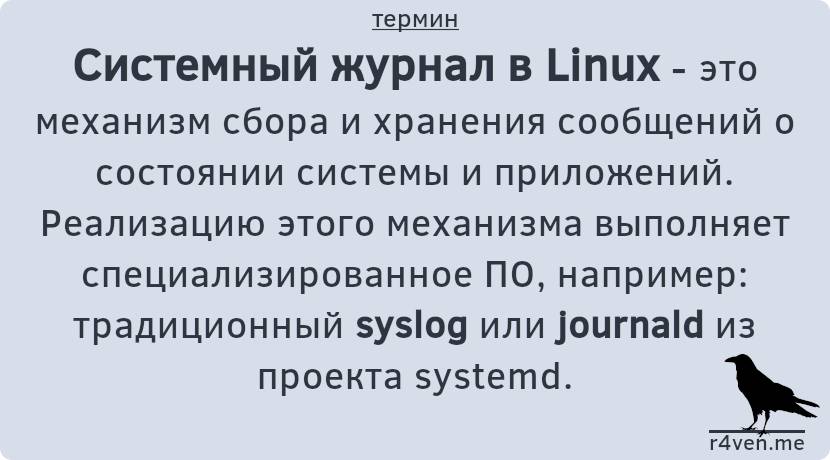
Today, a theoretical note🗒️. Let’s talk about the system log in Linux, find out who syslog and journald are, and how they differ + briefly about their advantages and disadvantages. It’ll be informative😉.
🖐️Hey!
Subscribe to our Telegram channel @r4ven_me📱, so you don’t miss new posts on the website 😉. If you have questions or just want to chat about the topic, feel free to join the Raven chat at @r4ven_me_chat🧐.
Introduction
Any complex system has in its arsenal tools for logging events related to the operation of internal services⚙️. This also includes recording the output (stdout, stderr) of user applications🧑💻.
Below are the main types of events that are written to the system log📑:
- System events (OS startup/shutdown, kernel errors);
- Service events (daemon operation and failures);
- Network events (connections, errors);
- Authentication (logins, logouts, access attempts);
- Applications (messages from programs and scripts);
- Hardware events (disk errors, device problems);
- and others
In the vast majority of modern Linux distributions, the logging task is handled by two popular services (also known as daemons): Syslog (rsyslog, syslog-ng) and Journald from the Systemd project. Let’s look at them in order✍️.
Syslog
Syslog is a standard protocol and system for collecting, processing, and storing logs in Linux and other Unix-like operating systems. It’s used for centralized collection and management of logs.
Syslog Daemon is a background service that actually does all the work. Previously, syslogd was most often used as such a daemon, but in modern Linux distributions you’ll more likely see its modern counterparts: rsyslog or syslog-ng. In the community, they’re often referred to by the common term — Syslog.
Syslog logs are located in the /var/log/ directory. For example, the system log on DEB-based systems may be called /var/log/syslog, and on RPM-based systems /var/log/messages.
By default, logs in Syslog have the following format: <Date and time> <Hostname> <Process/application>: <Message>. Example log entry:
Oct 5 12:34:56 myhost sshd[1234]: Failed password for root from 192.168.1.1 port 22 ssh2Syslog classifies its logs by severity level:
0|emerg(Emergency)1|alert(Alert)2|crit(Critical)3|error(Error)4|warn(Warning)5|notice(Notice)6|info(Informational)7|debug(Debug)
It also separates them by categories (facilities):
authcrondaemonkernmailuser- and others.
See the full list here.
Like many services in Linux, Syslog is configured using configuration files. In the case of rsyslog, this is /etc/rsyslog.conf or files in the /etc/rsyslog.d/ directory. They define rules for where and how to write logs.
An obvious consequence of the logging system’s operation is the creation of a large number of bulky files. To solve this problem, the Syslog service is often used together with a log rotation utility (compressing and deleting old entries): logrotate. logrotate is configured using the files /etc/logrotate.conf and /etc/logrotate.d/*.
To this day, Syslog hasn’t lost its relevance in the Linux world, but it has definitely been pushed aside by a logging system called Journald☝️.
Journald
Journald is a log management system that is part of the do-it-all init system Systemd. Unlike traditional Syslog, Journald offers a more modern and integrated approach to collecting, storing, and managing logs.
The daemon is a program called systemd-journald. While Syslog collects and stores logs in text format, Journald stores them in binary format. Since Journald is tightly integrated into Systemd, it’s the default logging system in many modern Linux distributions: Debian, Ubuntu, Arch Linux, Fedora, RHEL, CentOS.
The entry format is similar to Syslog:
feb 08 18:22:52 myhost sshd[1777]: Server listening on 0.0.0.0 port 39178.Journald log files are located in /var/log/journal/.
The daemon’s behavior settings are specified in the /etc/systemd/journald.conf file.
Since Journald logs are stored in a structured form and, in addition to service output, contain metadata, the size of log files can be larger compared to regular text files.
What else is worth noting about Journald:
- it can classify logs, just like Syslog;
- it’s tightly integrated with Systemd, which allows it to collect logs from all services and processes managed through this init system;
- it allows managing logs and flexibly filtering them using the
journalctlutility; - it automatically manages log size, deleting old entries when set limits are reached;
- it can forward logs to traditional Syslog or other systems if needed.
Briefly About Advantages and Disadvantages
Syslog’s advantages include its universality (support by all Unix systems and various network devices), a text log format for convenient reading and processing, and independence from Systemd. Disadvantages: lack of structured data, lower performance with large volumes, and complex configuration.
Journald, in turn, is faster thanks to its binary format, more flexible due to structured data, has excellent search and filtering capabilities, and of course tight integration with Systemd. Disadvantages: dependency on Systemd, limited compatibility with older tools.
How Logging Works: An Example with Linux Mint
I mentioned earlier that in modern Linux systems, the Journald daemon is most often responsible for the logging process.
To find out which system is used on your machine, run:
pgrep -af 'syslog|journald'The
pgrepcommand searches for running processes by the specified pattern in the process command name.
On a regular Debian system, Journald is used, as expected:

On Linux Mint 22 or LMDE6, the following is used:

Both rsyslog and systemd-journald?

By the way, Journald and Syslog can work together, interacting, for example, via systemd sockets. I’d guess that the Linux Mint developers had a need for such a configuration🤷♂️.
Let’s dig a little deeper. Rsyslogd traditionally uses the /dev/log socket to receive log messages from applications. But on systems with Systemd, this address is a symbolic link to the Systemd socket: /run/systemd/journal/dev-log, which allows systemd-journald to intercept messages sent to /dev/log and save them in its own journal:
ls -l /dev/log
If we look inside the systemd-journald.service unit file:
systemctl cat systemd-journald.serviceThen in the Sockets list we’ll see that very same /run/systemd/journal/dev-log:
[Unit]
Requires=systemd-journald.socket

[Service]
Sockets=systemd-journald.socket systemd-journald-dev-log.socket systemd-journald-audit.socketYou’d think that would be all, but no. Let’s look inside the rsyslog.service unit file:
systemctl cat rsyslog.serviceWe see that it requires the syslog.socket unit to be running and has the alias syslog.service:
[Unit]
Requires=syslog.socket

[Install]
Alias=syslog.serviceNext let’s look at syslog.socket:
systemctl cat syslog.socketHere we see that the Syslog service uses a special Systemd socket /run/systemd/journal/syslog:
[Socket]
ListenDatagram=/run/systemd/journal/syslogsystemd-journald provides this socket for passing collected logs to other logging systems, such as rsyslogd. In the case of Linux Mint, rsyslogd is configured to read messages from this socket.
A rather confusing scheme, which also duplicates logs.
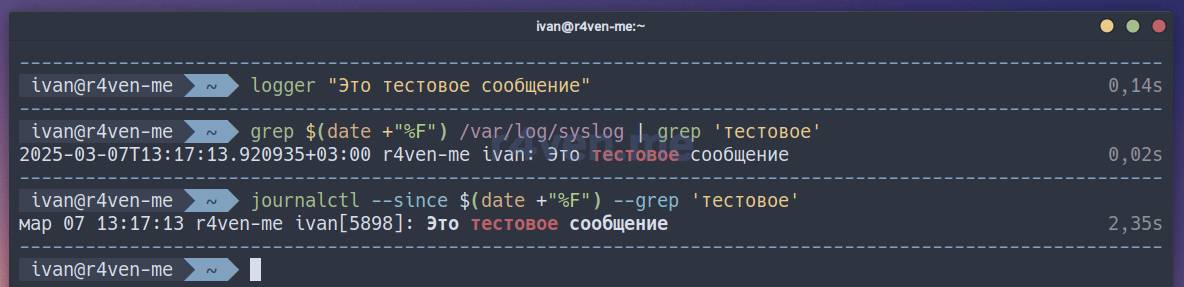
Now a few words about how to send data to the system log. The logger utility is most often used for this, which writes to the traditional /dev/log socket, which is normally listened to by Syslog. But in the case of Linux Mint, the data is redirected to the Systemd socket. As a result, when running the command:
logger "Это тестовое сообщение"For more details on how to send the output of commands/scripts to the system log or a file, see this note.
The data will end up in both Syslog and Journald. Let’s check:
grep $(date +"%F") /var/log/syslog | grep 'тестовое'

journalctl --since $(date +"%F") --grep 'тестовое'In the command above, the construct
$(date +"%F")substitutes the current date in the format2025-03-07.
If you prefer a native way of sending data to Journald, use the systemd-cat command:
echo "Это второе тестовое сообщение" | systemd-cat

journalctl --since $(date +"%F") --grep 'второе тестовое'
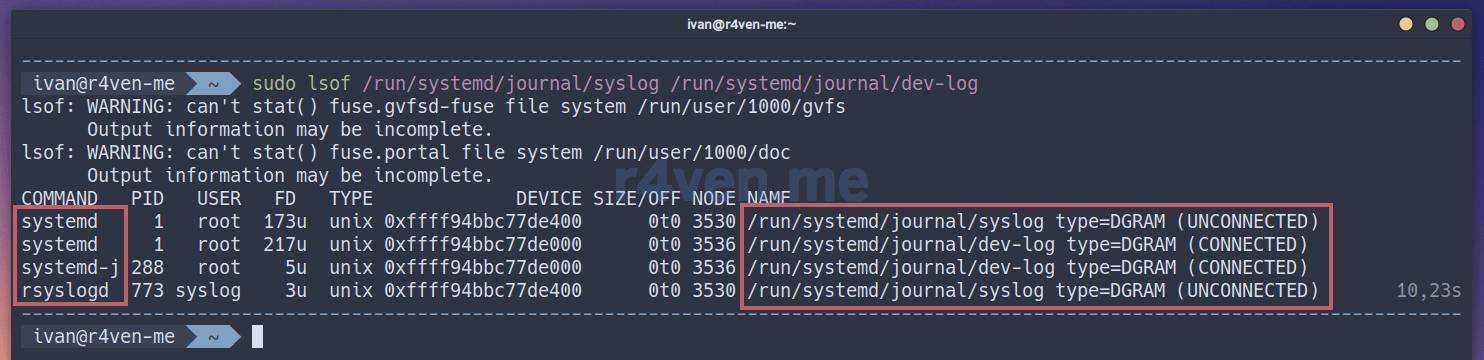
Finally, let’s see which services use the sockets discussed above, using the lsof command (list open files):
sudo lsof /run/systemd/journal/syslog /run/systemd/journal/dev-logNote that privileged sudo rights are required to run the command above.
Useful materials
- Systemd/Journal | ArchWiki
- journald instead of syslog | Habr
- Syslog | Wikipedia
- Collecting logs with rsyslog | Habr
👨💻And…
Don’t forget about our Telegram channel 📱 and chat
Or maybe you want to become a co-author? Then click here🔗
💬 All the best ✌️
That should be it. If not, check the logs 🙂

Comments