
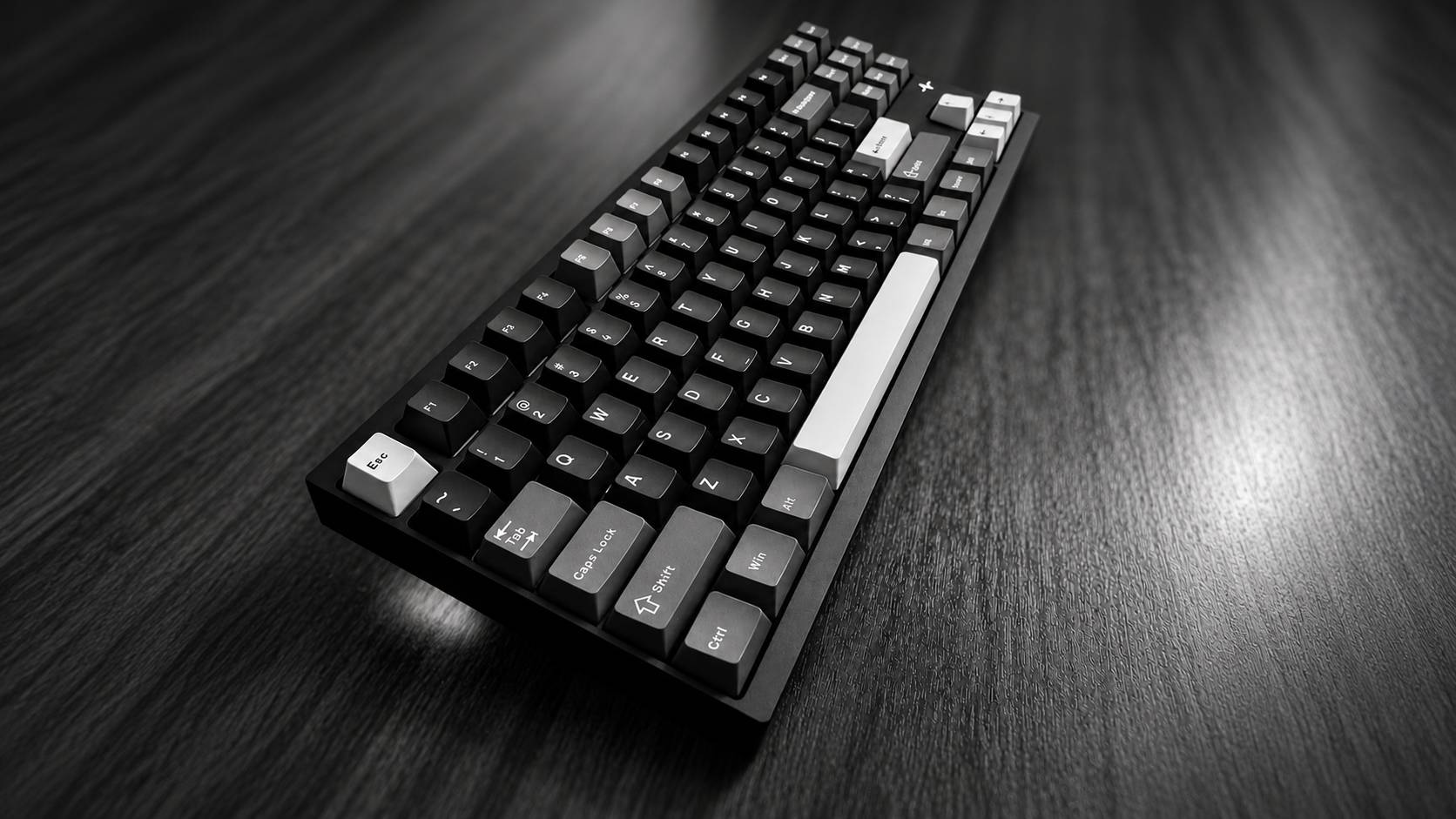
Some time ago I got myself a cool mechanical keyboard - Wobkey Crush 80 Reboot Pro Navy ⌨️, but I never got around to writing a short review. But today I’ll tell you what kind of keyboard it is, what it looks like out of the box, and what didn’t work for me.
🖐️Hey!
Subscribe to our Telegram channel @r4ven_me📱, so you don’t miss new posts on the website 😉. If you have questions or just want to chat about the topic, feel free to join the Raven chat at @r4ven_me_chat🧐.
This is personal experience, not a universal buying recommendation. The sound of switches and the shape of keys are subjective things. What didn’t work for me may well appeal to you.
A bit of background
Before the Wobkey I had a Gembird KBW-G540L - also a mechanical keyboard. Unfortunately, no good photos are left, but it looked cool. I especially liked it because of the white backlight:
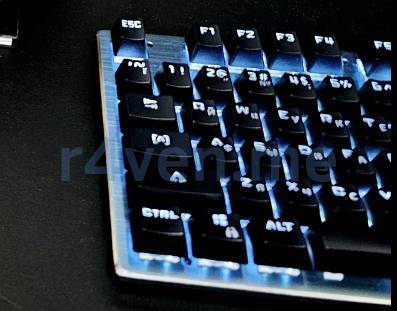
But since it’s a fairly budget option, it had non-replaceable switches. And I really wanted to replace them, because it clacked like a typewriter. So the desire to try something different and then tailor the purchase to myself didn’t take long to appear.
📝 By the way, I already mentioned the new keyboard in the JBL Tune 670NC review. Now it’s its turn too 📝.
This is how it looked on my desk out of the box:
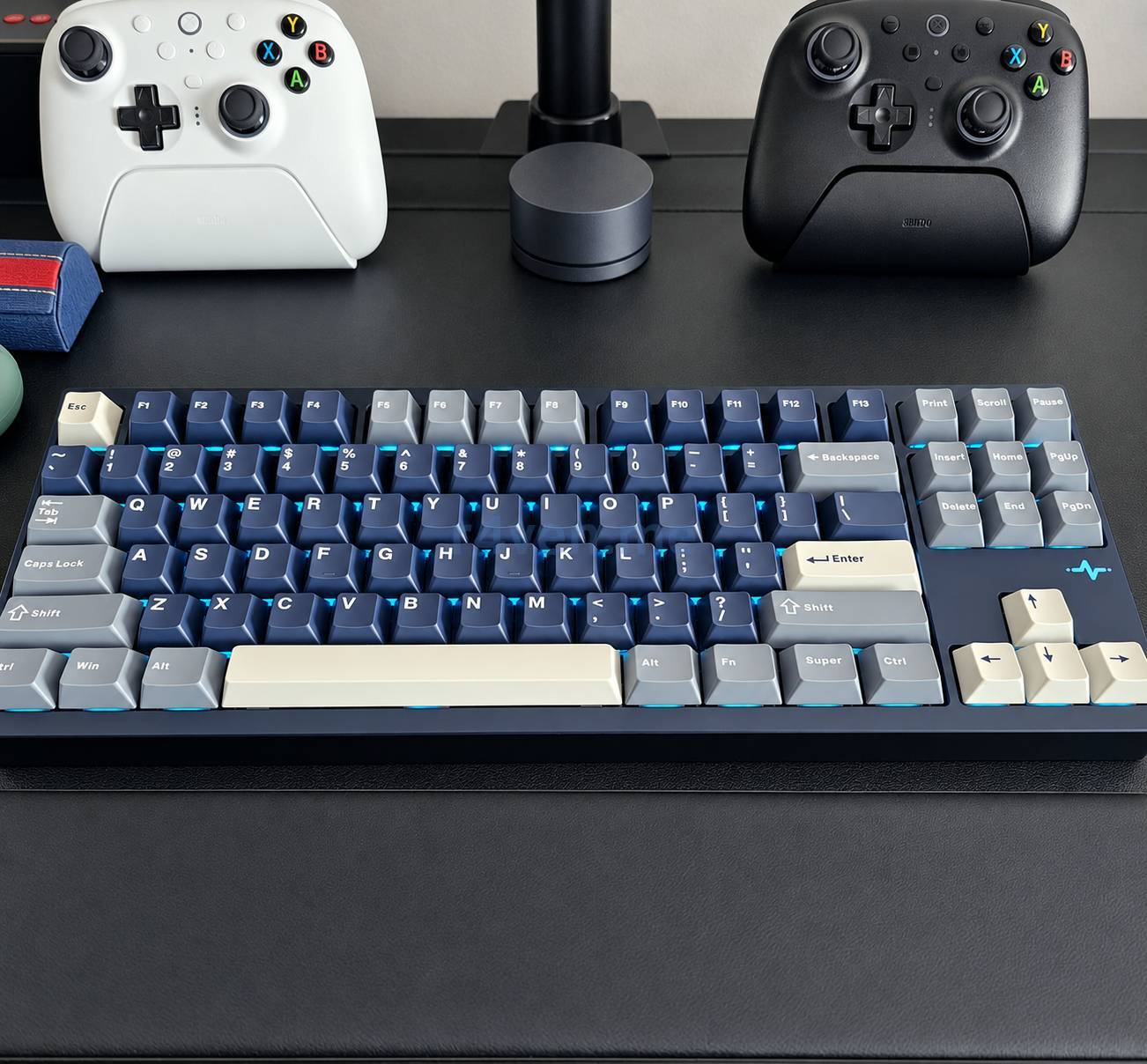
In the photo, in front of the keyboard you can see a wrist rest - and it’s not just for looks. The keyboard is fairly tall, so without the rest I have to bend my wrists back more during long typing sessions, and my hands get tired faster. With a support of a suitable height it’s noticeably more comfortable to use. Keep this in mind when choosing: comfort depends not only on the switches, but also on the height of the keyboard, the desk, and your posture.
Carrying case and what’s in the box
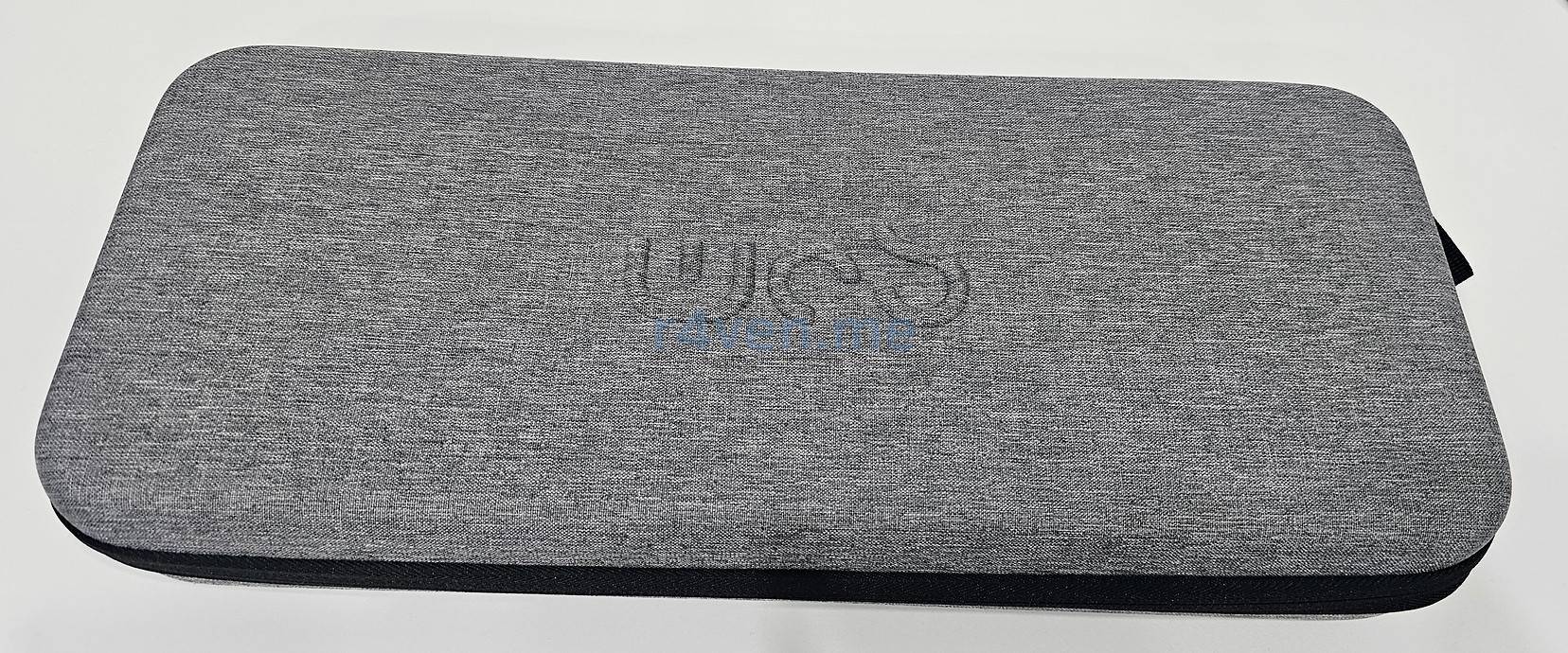
The keyboard didn’t just arrive in a box, but in a zippered case like this. It’s gray on the outside with a WOB logo, and inside there’s a molded compartment and straps for fixing the keyboard. You can keep the case for storing and transporting the keyboard:
And inside, besides the keyboard itself, there were bags with accessories and spare switches, and a leaflet with the layout and additional functions:
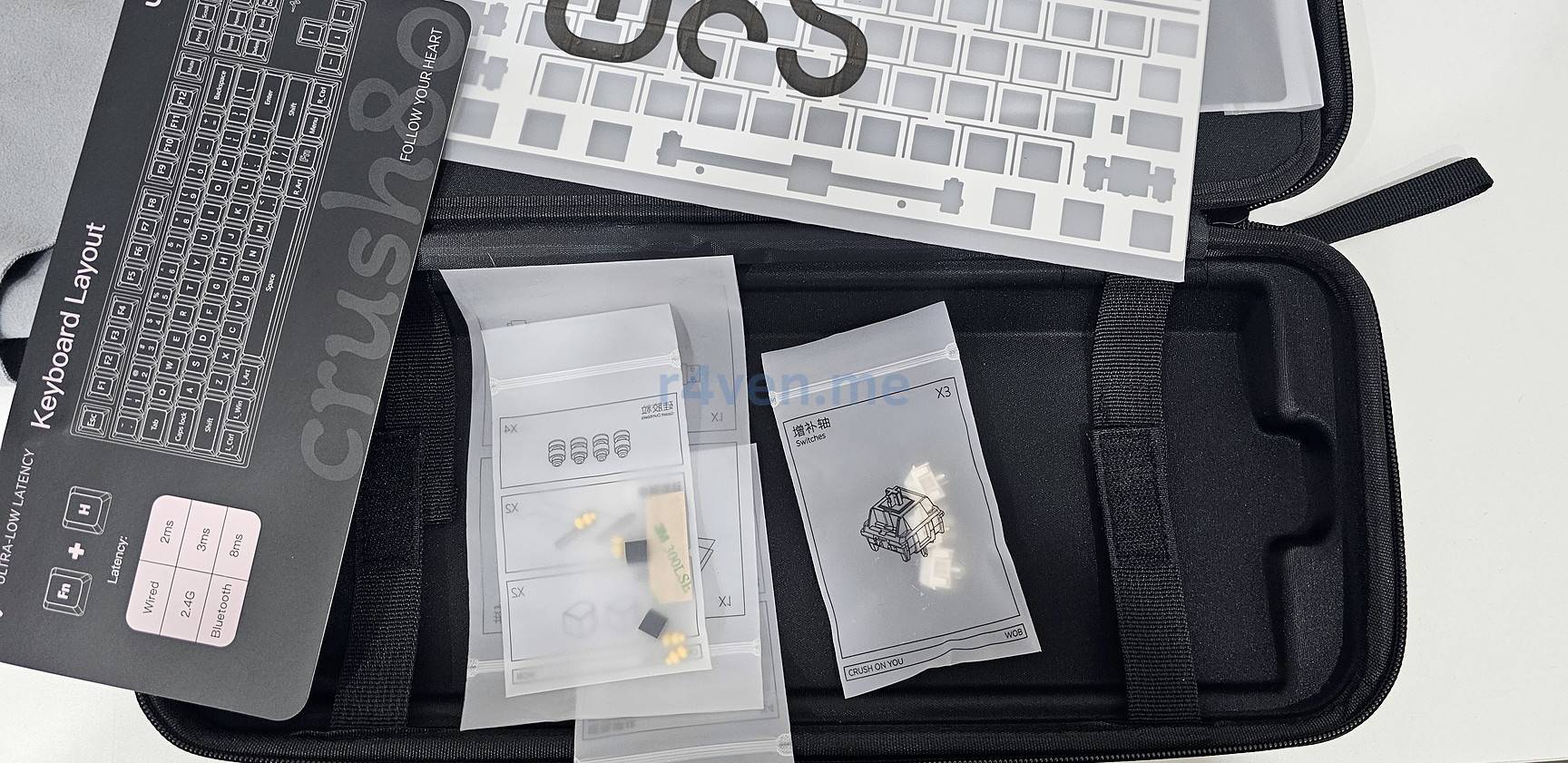
It also came with a combined “two-in-one” puller: a keycap puller on one side and a switch puller on the other. So you don’t need to buy two separate tools to replace keycaps and switches - you already have both at hand.
Appearance and layout
Navy is the dark blue color of the case. The stock keycaps match it: dark alphanumeric keys, gray modifiers, and a few light accents. Everything looks fairly restrained until the backlight is turned on 😎.
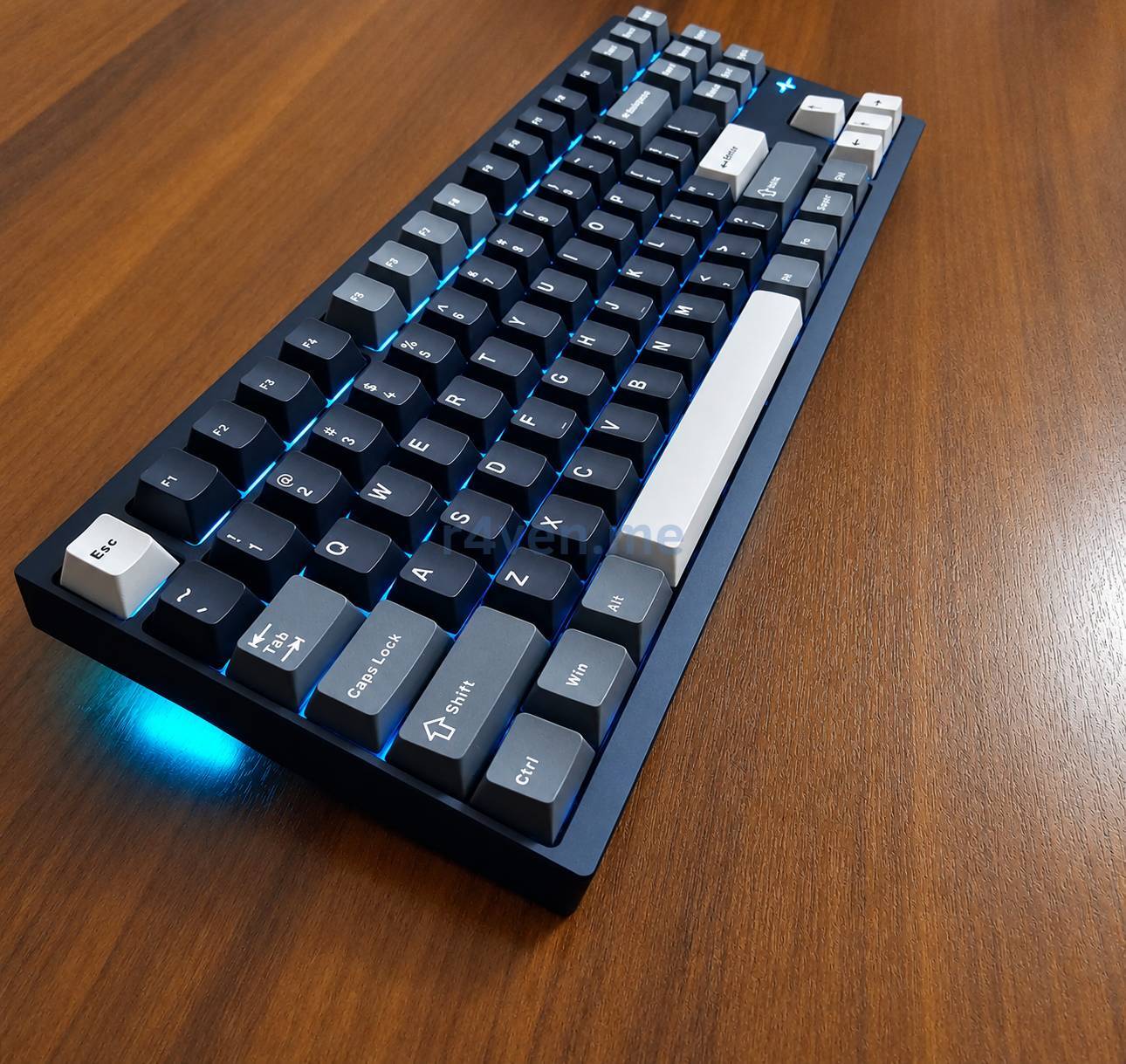
The format is TKL, or 80%: no numpad on the right (I almost never used it), but with a separate arrow cluster, function row, and navigation block. All in all, the ideal form factor for me. This model has 88 keys - the top row also has F13 (in Linux Mint it’s recognized as the “Audio Mute” key):
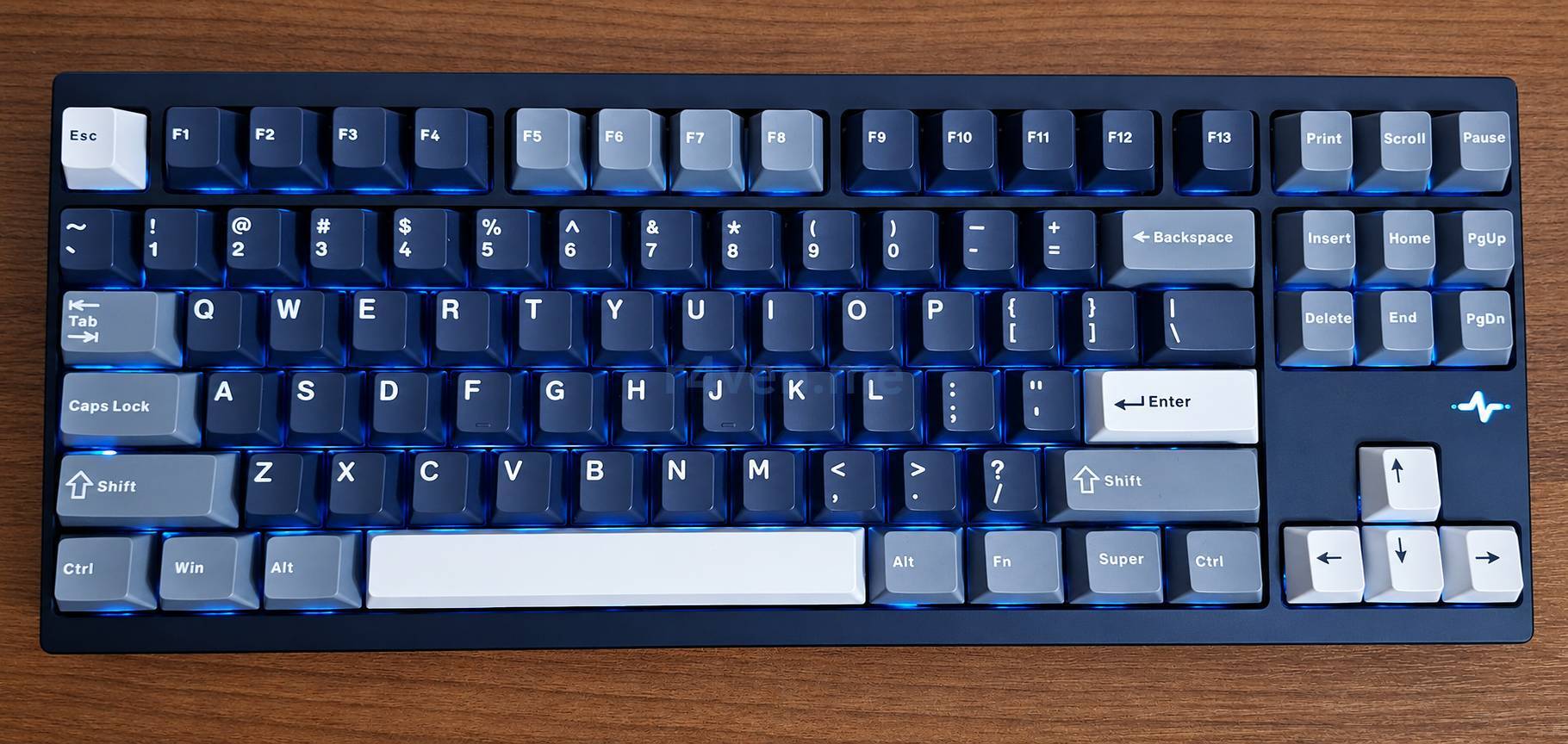
The stock set has Latin letters, but no Cyrillic. Keep this in mind when buying if you need Russian letters on the keys. At first I was worried about the lack of the Russian layout, but, as practice showed, I don’t need it. I’ve been touch typing for ages and I know the Russian layout intuitively.
Main specifications
I checked the model’s specifications against the official WOBKEY page and the spec sheet posted there. This is specifically about the Pro: some parameters differ on the Lite.
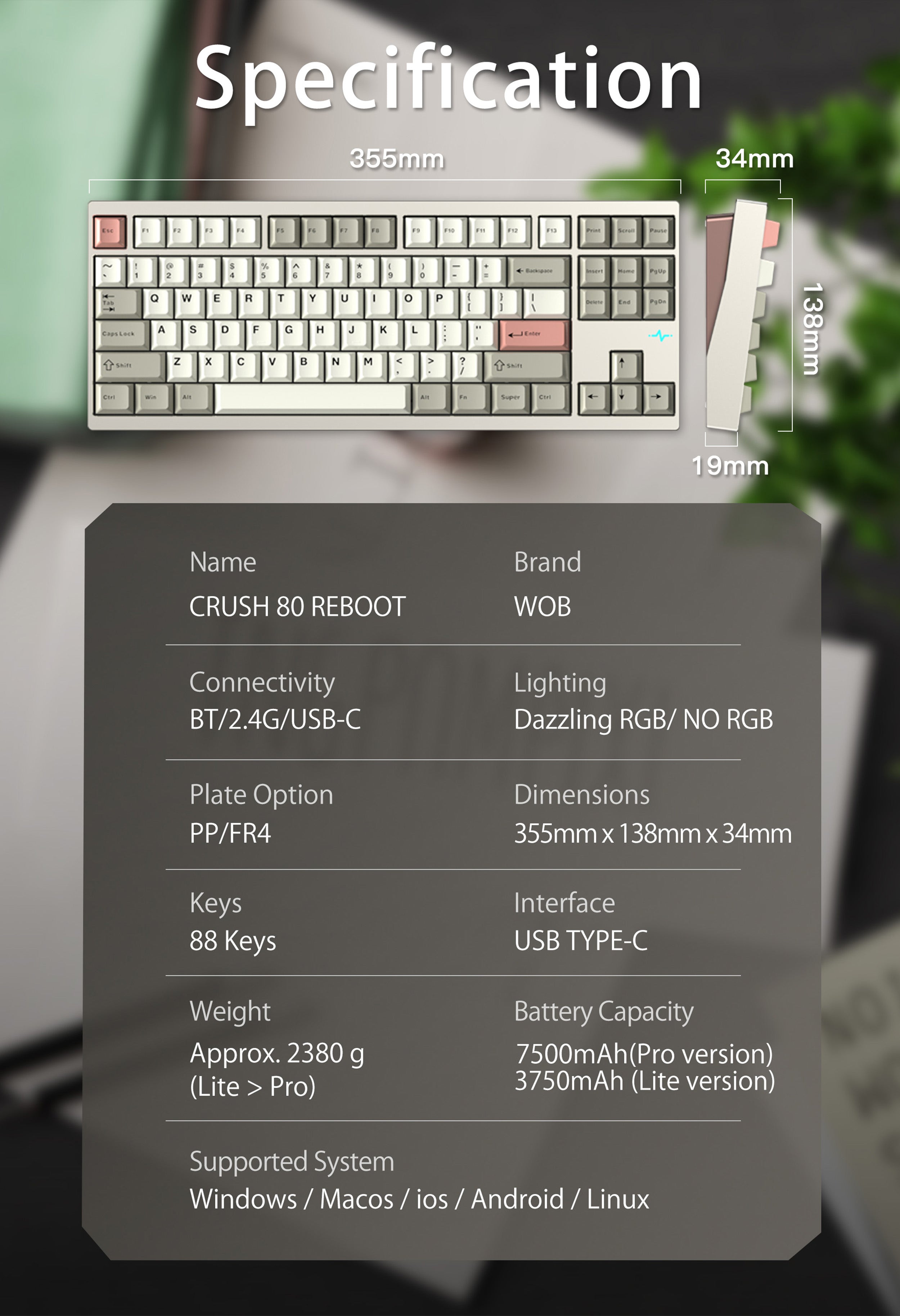
| Specification | Value |
|---|---|
| Model | Wobkey Crush 80 Reboot Pro |
| Color of my unit | Navy |
| Format | TKL / 80%, 88 keys |
| Case | Fully metal, CNC aluminum; separate weight at the bottom |
| Connectivity | Wired USB-C, Bluetooth, 2.4 GHz wireless |
| Pro battery | 7500 mAh according to the manufacturer |
| Dimensions per spec | 355 × 138 × 34 mm |
| Switch replacement | Hot-swap, no soldering |
| Backlight | Per-key RGB and side lighting |
| Design features | Quick-release top frame, board connection via pogo pins, magnetic receiver storage |
The manufacturer also states Linux support, and my experience confirms it 👨💻🐧.
Metal case and stability
This is where the “Hardware” section lives up to its name 😁. The case is fully metal, not plastic with a metal plate. There’s also a separate weight at the bottom of the keyboard.
In the hands it feels very hefty. For a permanent spot on the desk that’s more of a plus: while typing, the keyboard doesn’t wobble and doesn’t slide around the desk, and it’s quite hard to move it accidentally. You put it down - and it stands like a rock.
The flip side is obvious: if you carry the keyboard around all the time, this weight is no longer an advantage. The travel case will come in handy, but the keyboard itself won’t get any lighter because of it 🤷♂️.
Disassembly without a screwdriver
Another nice feature is the quick-release case. To remove the top frame and get access to the internals, you don’t need to unscrew anything: the frame comes off by hand, and when assembling it securely locks back in place.
By feel it’s similar to a strong magnetic connection. The manufacturer calls the design magnetic ball-catch - a quick-release fastening with ball latches and magnetic elements. So describing it simply as two halves held together purely by magnets would not be quite accurate.
The board connects to the bottom part via spring-loaded pogo pins, rather than a regular ribbon cable that you’d have to fiddle with when removing the module.
At the same time, you don’t need to open the case at all for regular switch replacement: just remove the keycaps and use the other side of the included puller. The hot-swap board lets you replace switches from the top, without soldering.
Backlight and key profile
Besides the glow between the keys, there’s also a side light that illuminates the desk surface. This is clearly visible in the side photo:
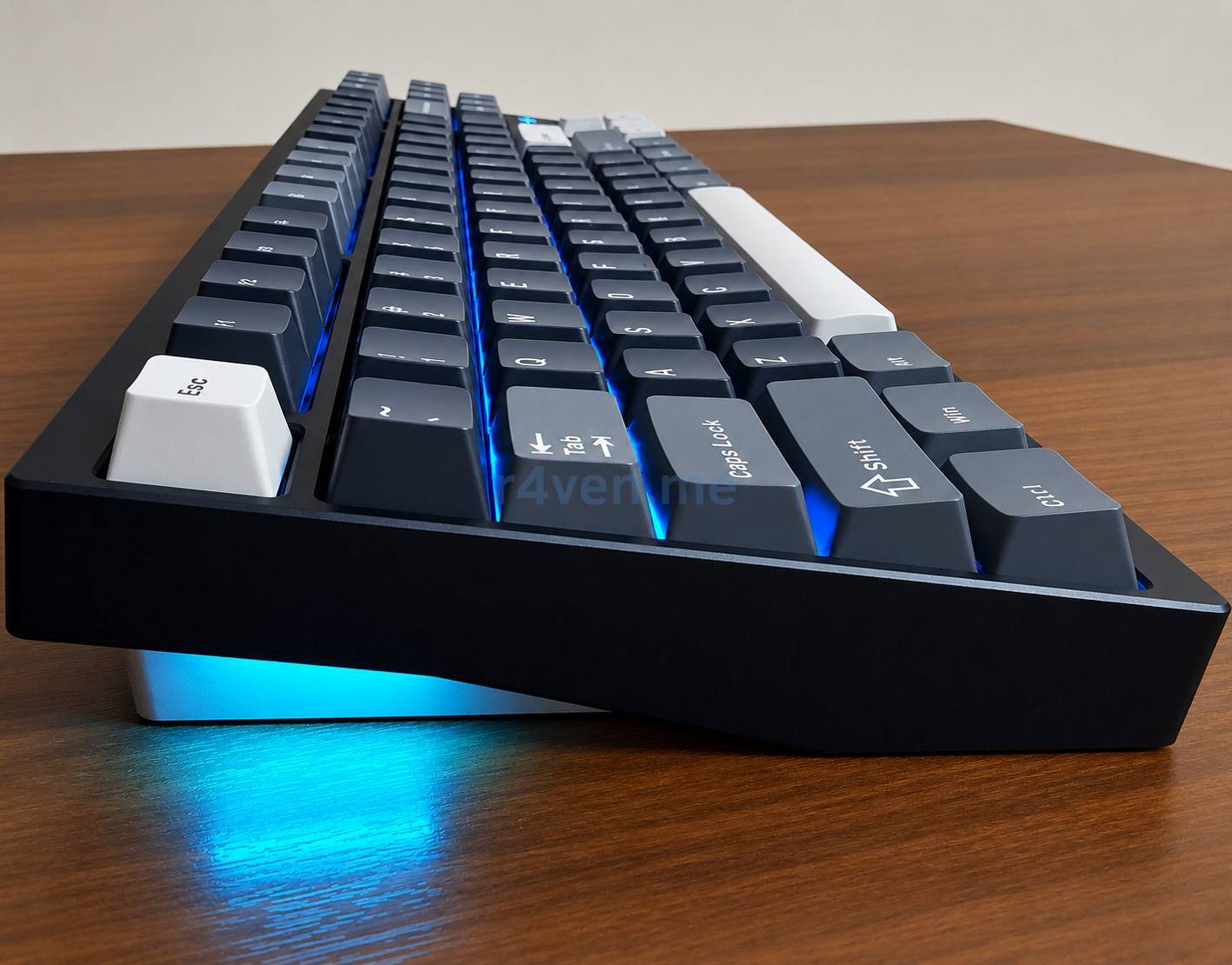
You can also see the shape of the stock keycaps. Again, as practice showed, I don’t really enjoy working with such “angular” keys.
What didn’t work in the stock configuration
The main complaint is the sound. The stock switches are “brown”, but in practice the keyboard is quite loud for me.
Here’s an important nuance: brown doesn’t mean silent. In the usual color classification, Brown generally denotes a tactile switch without a separate clicking mechanism. But the bottom-out and the stem return impacts don’t go anywhere. And the sound is also affected by the keycaps, stabilizers, case, and the desk surface.
Also, the stem color itself doesn’t guarantee specific characteristics across different manufacturers. So I won’t try to determine the exact model of the stock switches from this feature alone.
The second complaint is the keycap shape already mentioned. These remarks don’t apply to the keyboard’s foundation: thanks to hot-swap, the switches can be replaced without soldering, and you can also pick a different set of keycaps.
What does it cost?
At the time of purchase, the Wobkey Crush 80 Reboot Pro Navy cost me 11,411 ₽. This is the price of the keyboard as is, without extra switches and keycaps. I bought it on one of the popular marketplaces, and the keyboard was shipped to me from China.
Conclusion
Overall I liked the Wobkey: aluminum case, separate arrows and function row, three connection options, the ability to replace switches without soldering, and good battery capacity. But the stock sound turned out louder than I wanted, and the keycap shape is too angular.
Not a “dream keyboard out of the box”, but a good base that you can tailor to yourself 🤷♂️ (that was the plan). If you prefer a more ringing mechanical feel and the classic key shape, my complaints may not be drawbacks at all.
In the end I did replace the switches and keycaps. But that’s a separate story and article (I’ll publish it a bit later). It covers the choice of components, the replacement process, before and after photos, a video, and the full budget of the rework.
Links and specifications

Thank you for reading. Happy typing 😉.
👨💻And…
Don’t forget about our Telegram channel 📱 and chat
Or maybe you want to become a co-author? Then click here🔗
💬 All the best ✌️
That should be it. If not, check the logs 🙂
