

In the previous article I wrote about the Wobkey Crush 80 Reboot Pro Navy in its stock form. I liked the keyboard, but the stock switches turned out to be too loud for my taste, and I wanted to replace the angular keycaps with something rounder.
I decided to order silent switches and new keycaps along with them. The result is practically two different keyboards, even though the case stayed the same 😁. Here - what I bought for the upgrade, how it all gets replaced, and what I ended up with.
🖐️Hey!
Subscribe to our Telegram channel @r4ven_me📱, so you don’t miss new posts on the website 😉. If you have questions or just want to chat about the topic, feel free to join the Raven chat at @r4ven_me_chat🧐.
☝️ This is personal experience, not a universal buying recommendation. Before replacing anything, check that the parts are compatible with your keyboard, unplug the USB cable, and turn off the wireless power.
Why I needed an upgrade
I wanted to change two things: the sound of keystrokes and the shape of the keys. For the first, I chose silent tactile switches, for the second - rounded KOA keycaps. As a bonus, the keys now have Cyrillic legends.
Here is the starting point:
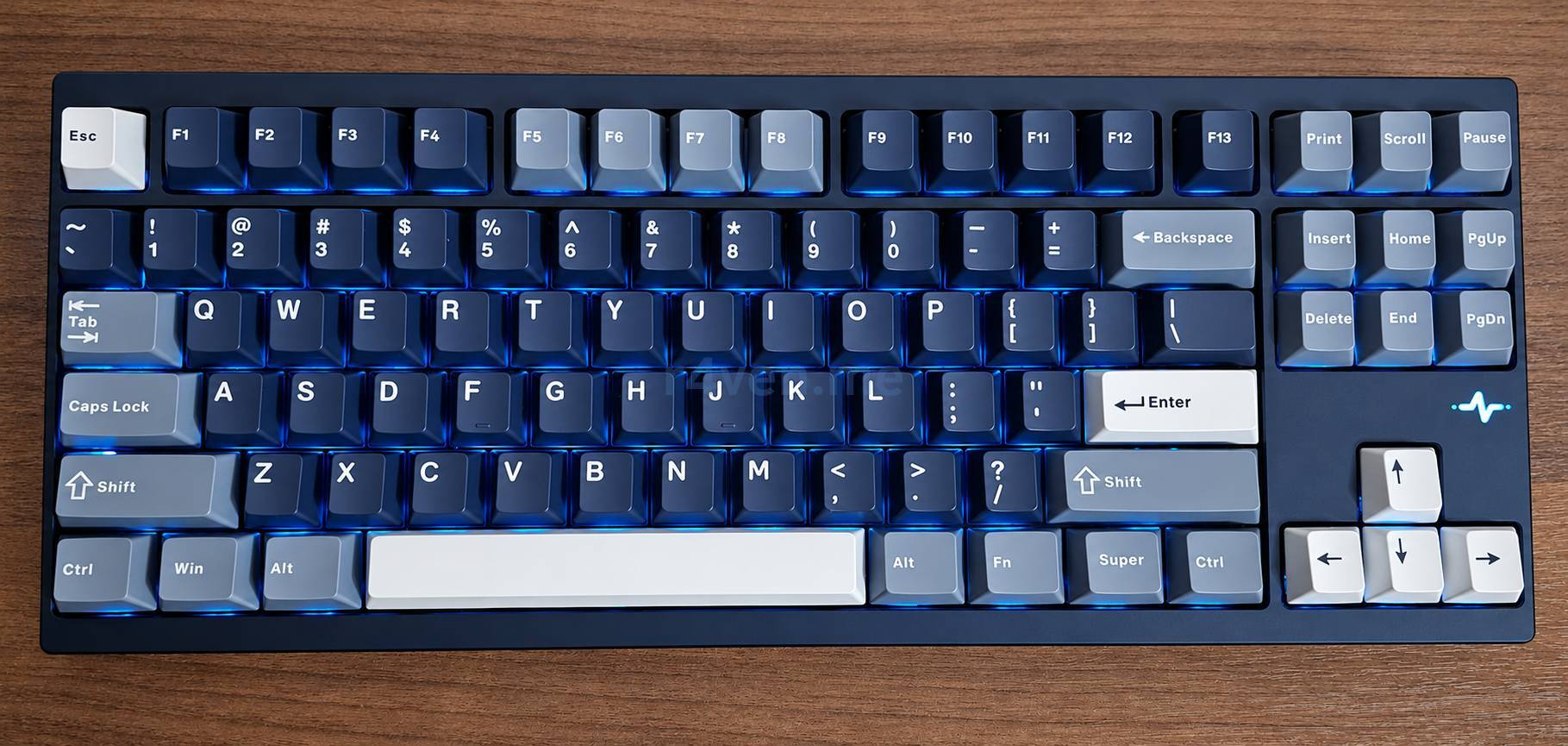
This model has 88 keys and a hot-swap board, so the switches can be replaced without soldering. There is no need to disassemble the case for this mod - the switches become accessible once the keycaps are removed.
What I bought for the mod
Outemu Cream Yellow Pro switches
I took Outemu Cream Yellow Pro, a pack of 110 pieces. These are silent tactile switches: I wanted to keep a noticeable tactile feedback but get rid of the extra clatter.
Link to the switches I bought on Ozon.
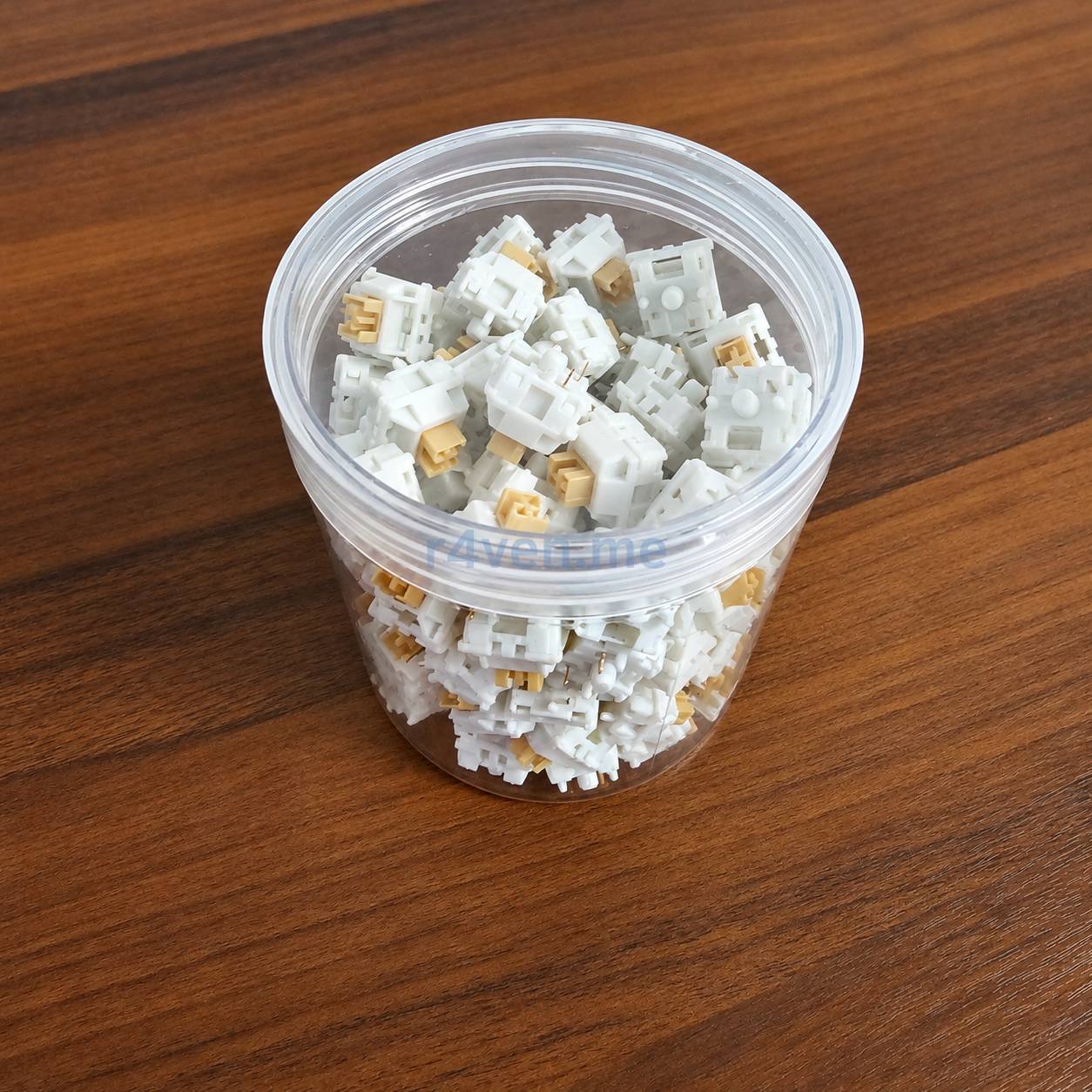
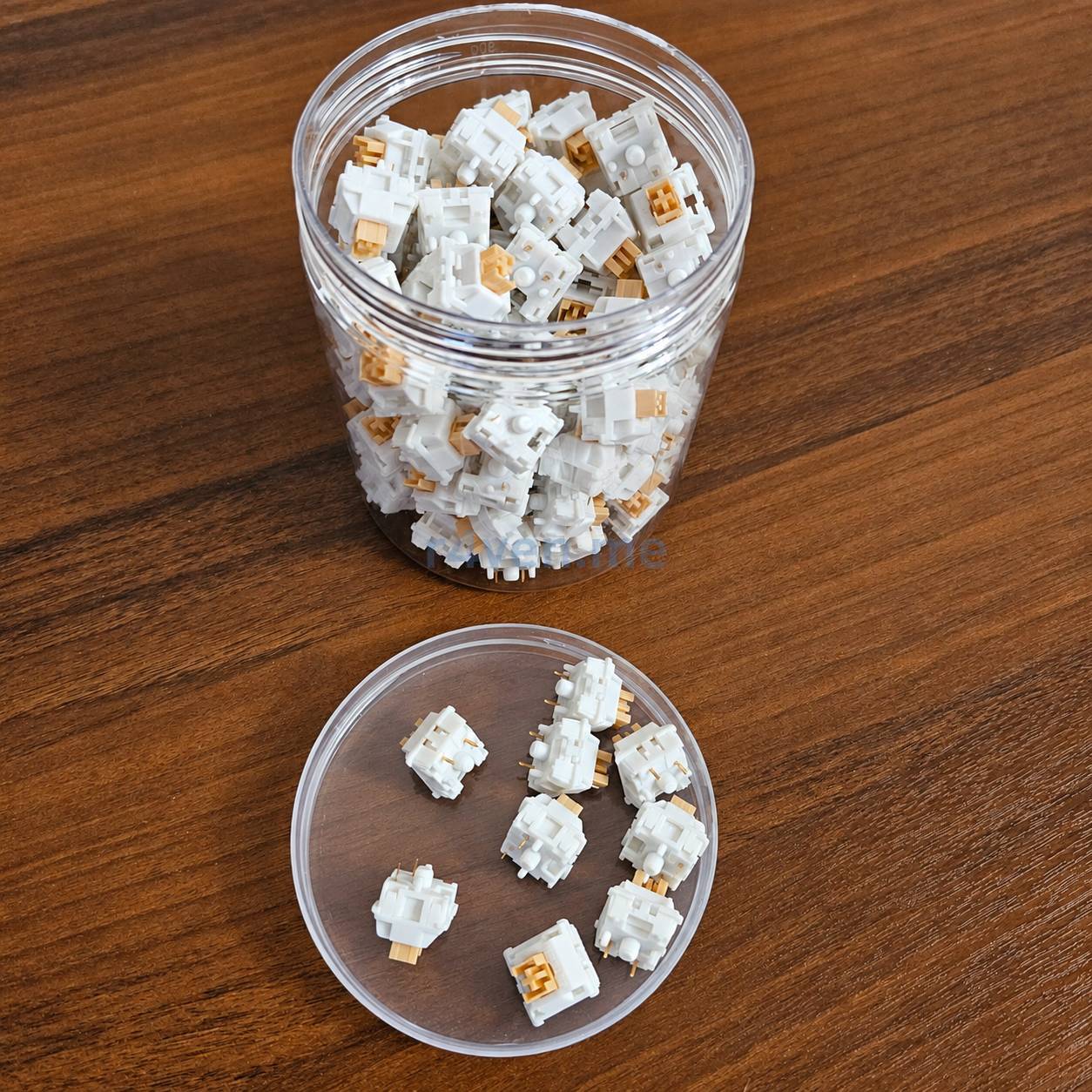
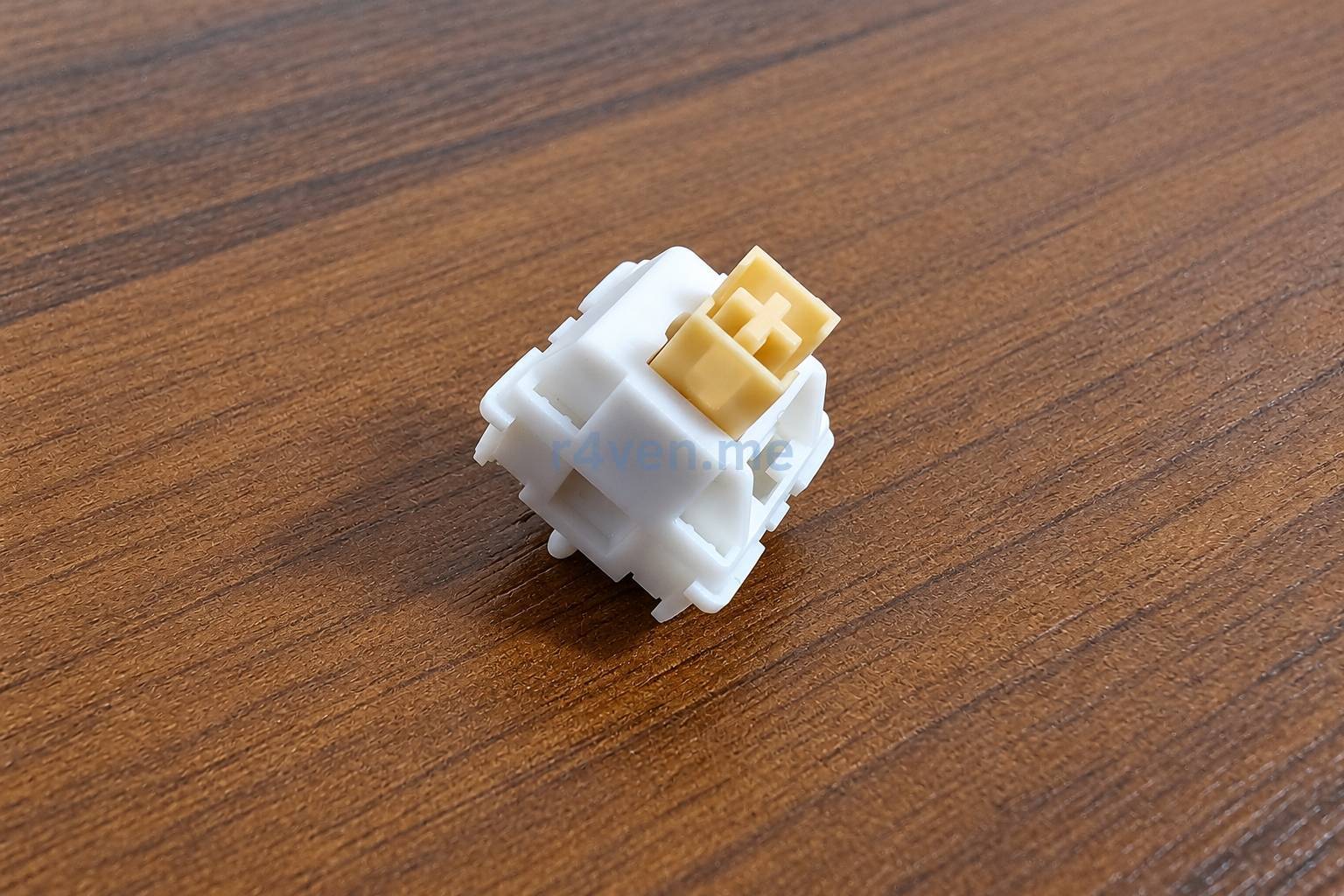
Main specifications from the description of my set:
- Type: silent tactile.
- Mounting: 5-pin, for compatible boards with mechanical MX switches.
- Operating force: 45 gf claimed.
- Pre-travel: 2 mm claimed.
- Total travel: 3.3 mm claimed.
- Housing: nylon.
- Lubrication: factory.
For the Cream Yellow family, third-party catalogs also list a silent tactile design, a nylon housing, and 3.3 mm of travel. However, the names Cream Yellow, Cream Yellow Pro, and similar versions are easy to mix up in stores. So the numbers above are exactly the claimed specifications of the set I bought, not my own measurements.
For example, the force at the bottom of the travel differs between descriptions. I won’t carry the disputed “50 gf MAX” into the article as a reliable result.
5-pin does not mean five electrical contacts. Such a mechanical switch has two metal pins, a central plastic post, and two more plastic guide pins. Compatibility must be checked against the board and sockets: the “MX” label does not make a switch suitable for every keyboard, especially optical, magnetic, or low-profile ones.
A pack of 110 switches is more than enough for 88 keys: after a full replacement, 22 pieces are left over.
White and blue KOA keycaps
The second purchase was a set of white and blue PBT keycaps, KOA profile, with Cyrillic. These are the ones in the photos - not the red Japanese “Yakiniku” set whose description ended up in the product listing 🙃.
Link to the keycaps I bought on Wildberries.
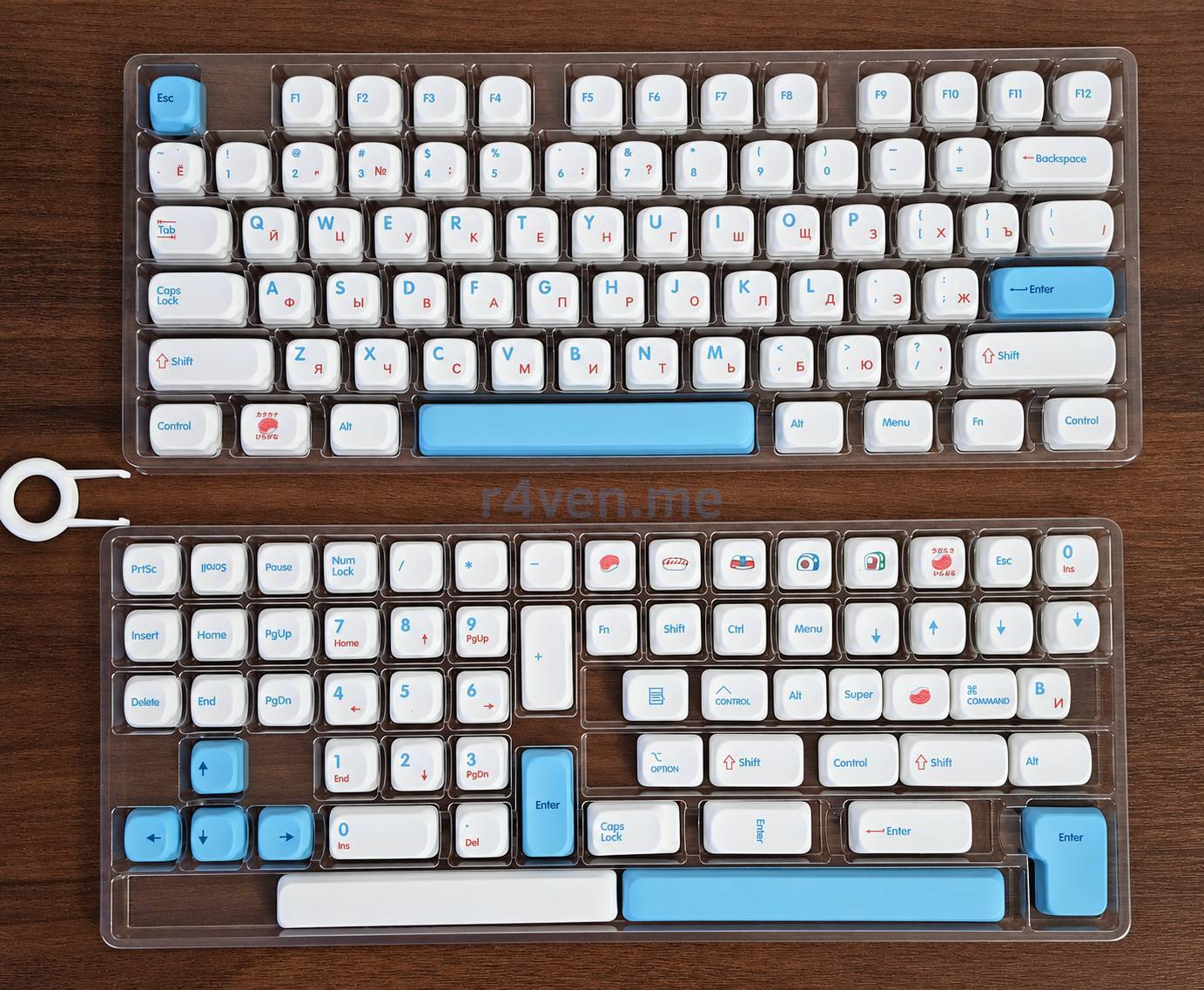
What matters here:
- KOA profile: a rounded shape and noticeably softened edges instead of the angular stock keys.
- PBT material: a common keycap plastic that usually resists finger shine well. But even a keycap isn’t eternal 😁.
- Legends: Latin and Cyrillic, highlighted in different colors.
- Mounting: for an MX-compatible cross-shaped stem.
- Spare keys: modifier and long key variants for different layouts.
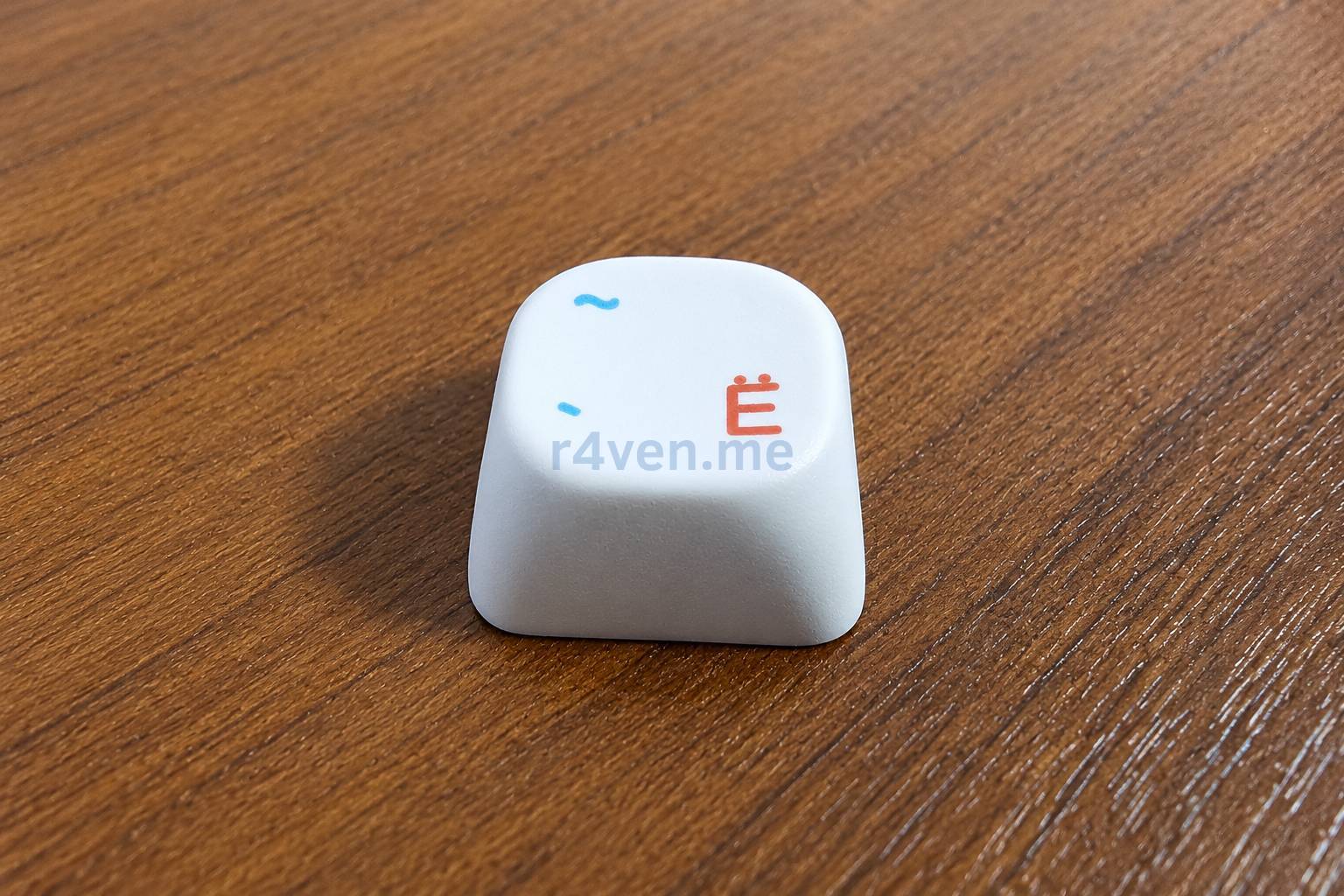
The set description mentioned both 137 and 138 keys. I don’t see the point in counting them for the sake of a nice number: what matters is that the set fit my layout. The seller claims the printing method is dye-sublimation, I didn’t verify it separately.
When choosing such a set, it’s better to look not only at the total number of keycaps but also at the sizes of the spacebar, Shift, Enter, and the bottom row. A cross-shaped stem alone doesn’t guarantee that all keys will have the right width.
Replacing the switches and keycaps
In practice it’s a single job: to get to a switch, you have to remove the keycap first anyway. So it’s convenient to replace both components at once.
Below is the sequence of work and the points worth paying attention to if you want to repeat this.
Preparation
You need pullers for two different tasks, but that doesn’t have to mean two separate tools. My Wobkey came with a combined puller: one side removes keycaps, and the other - switches.
- The keycap side grips the keycap from two sides. A wire type is usually more convenient and less likely to scratch the sides.
- The switch side lets you squeeze the switch latches and pull it out of its seat.
So I didn’t need to buy a separate tool for my mod. But a regular plastic puller from a keycap set shouldn’t be considered a replacement for a switch puller.
Before starting, unplug the USB cable and turn off the keyboard’s wireless power. Hot-swap here means the ability to replace switches without soldering, not a suggestion to pull switches out of a powered-on device.
It’s also useful to photograph the layout beforehand and lay out the new keys in their places. Especially the top row with F13: it’s better to sort it out before the table fills up with a pile of identical keycaps 🙂.
Removing the stock keycaps
Place the puller under two opposite sides of the keycap and pull up carefully, trying not to tilt it. Prying keys with a screwdriver while resting on the aluminum case is a bad idea: the scratch will stay for a long time.
With the spacebar, Enter, Backspace, and Shift we are especially careful: besides the switch, they are held by stabilizers. Lift the long key evenly from both sides, without sharp jerks or twisting.
Here is the start of the process: a few new keys are in place, the removed switches lie nearby, and most of the keyboard is still the old one.
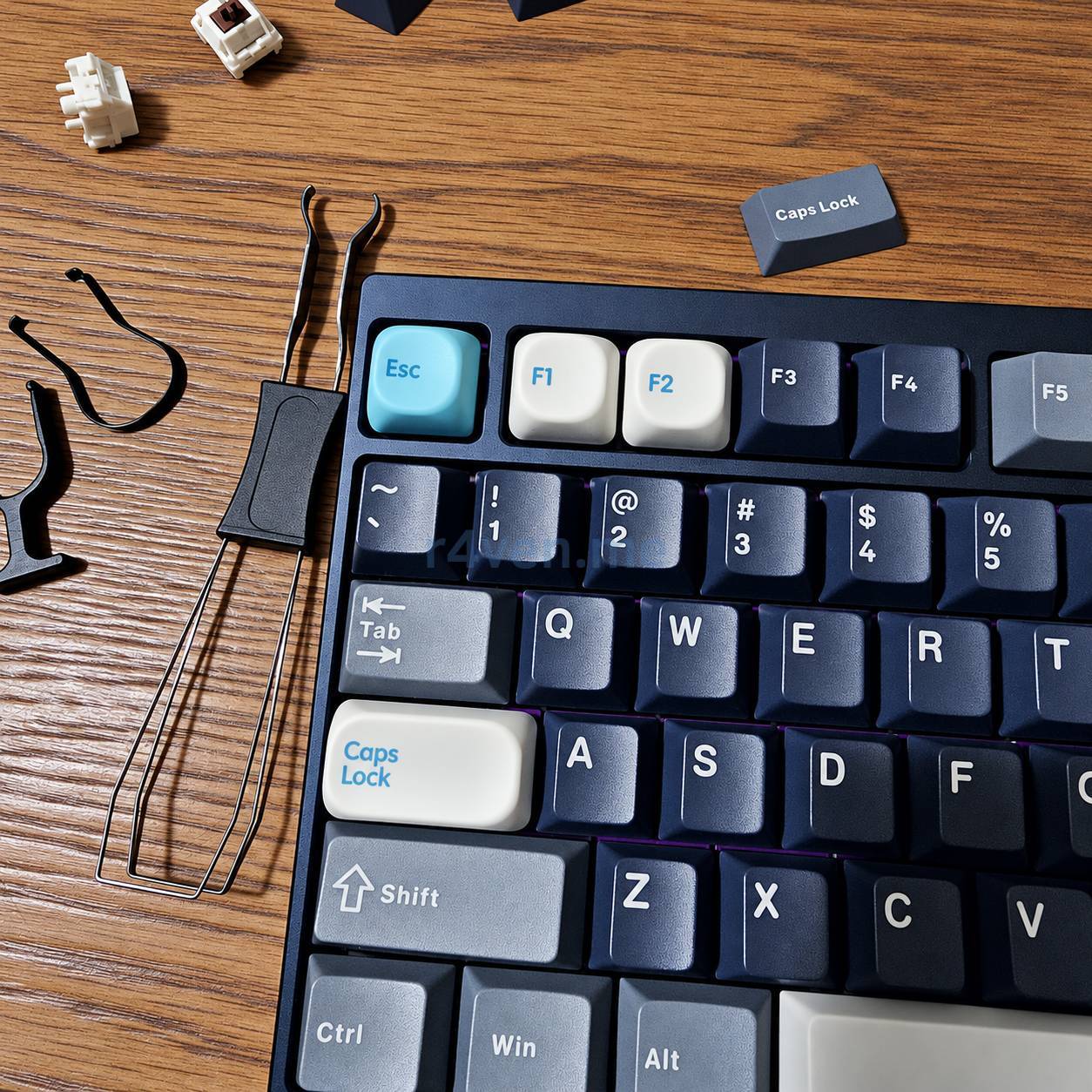
A short clip of the intermediate state:
Replacing the switches
Once the keycap is removed, the switch becomes accessible. Squeeze its two latches with the puller and pull the switch up. If it doesn’t come out, it’s better to adjust the grip rather than pull harder: you can damage both the switch itself and the socket on the board.
Before installing a new switch:
- Inspect the two metal pins. If they are bent, carefully straighten them before installation.
- Check the orientation: the pins must line up with the holes in the board.
- Insert the switch evenly, without tilting, pressing on the switch housing and not on the stem.
- Make sure it is fully seated and snapped into the plate.
If a switch resists, don’t force it in. Most often it’s better to pull it out and check the pins and orientation again. A bent pin is easily crumpled under the housing, and excessive force can tear off the hot-swap socket.
For this replacement you don’t need to disassemble the switch itself or get to the keyboard’s battery.
Installing the new keycaps
Once the switches are in place, it remains to put the keycaps back - the new ones this time. Align the keycap’s cross with the stem and press down gently from above.
For long keys you need to hit both the switch and the stabilizer stems at the same time. After installation, check that the key presses down freely and returns, including when pressed at the edge.
It’s convenient to place the letter block first, then the modifiers, arrows, and the top row. For keys of different widths, pick the matching keycaps from the set instead of trying to fit an “almost suitable” one.
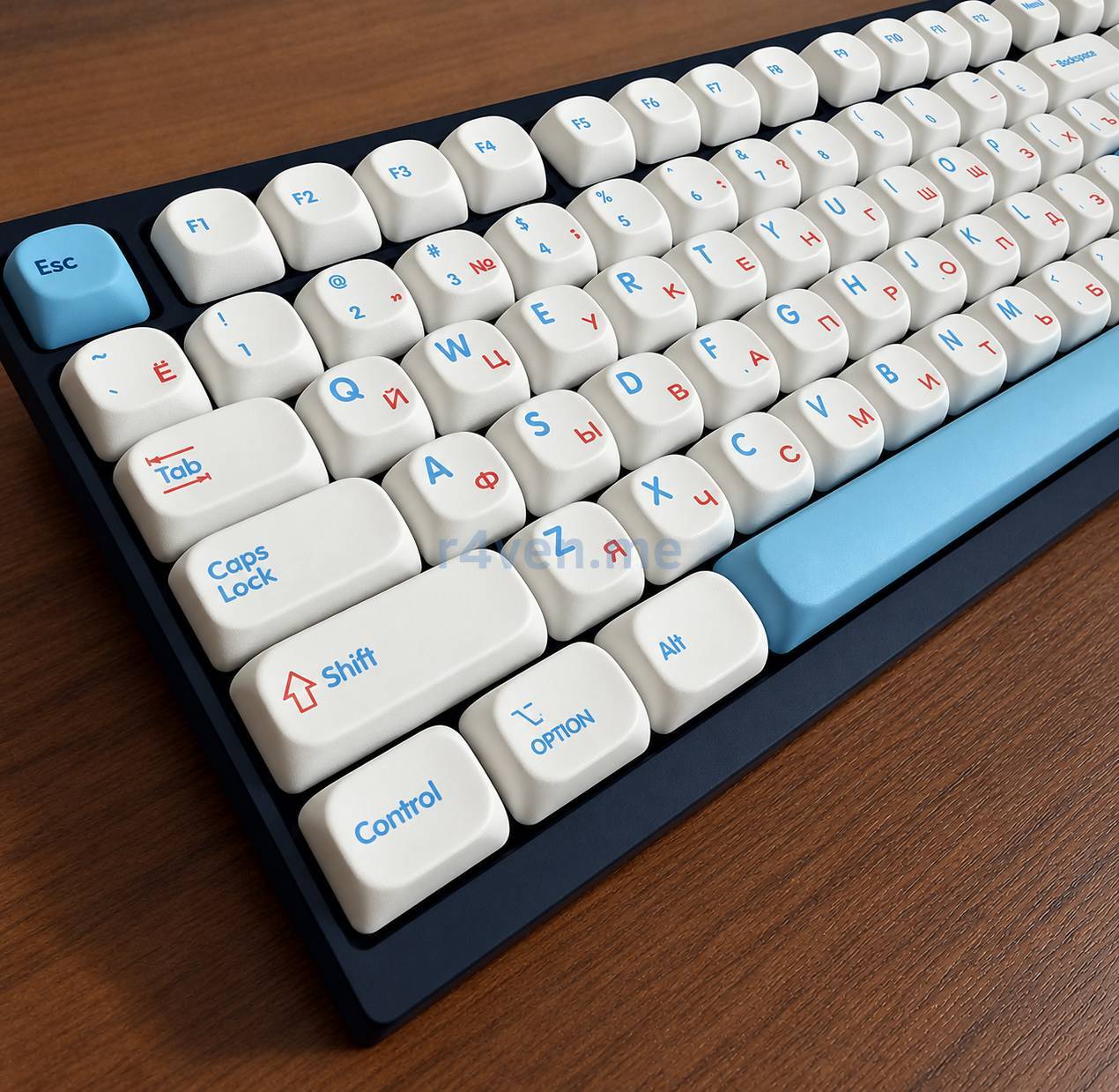
Important: replacing keycaps changes the legends and the shape of the keys, but does not remap their functions. A key with a new picture still sends the same code until you separately change the layout or keyboard settings.
Checking the result
After assembly, turn on the keyboard and check all the keys in a tester: single presses, modifiers, the function row, arrows, and long keys with stabilizers.
If some key doesn’t work, first turn the power off again, remove the keycap, and check the switch seating and its pins. For diagnostics, you can temporarily put a known-good switch in that spot.
And the visual acceptance, of course, is performed by a specialist 🐈:
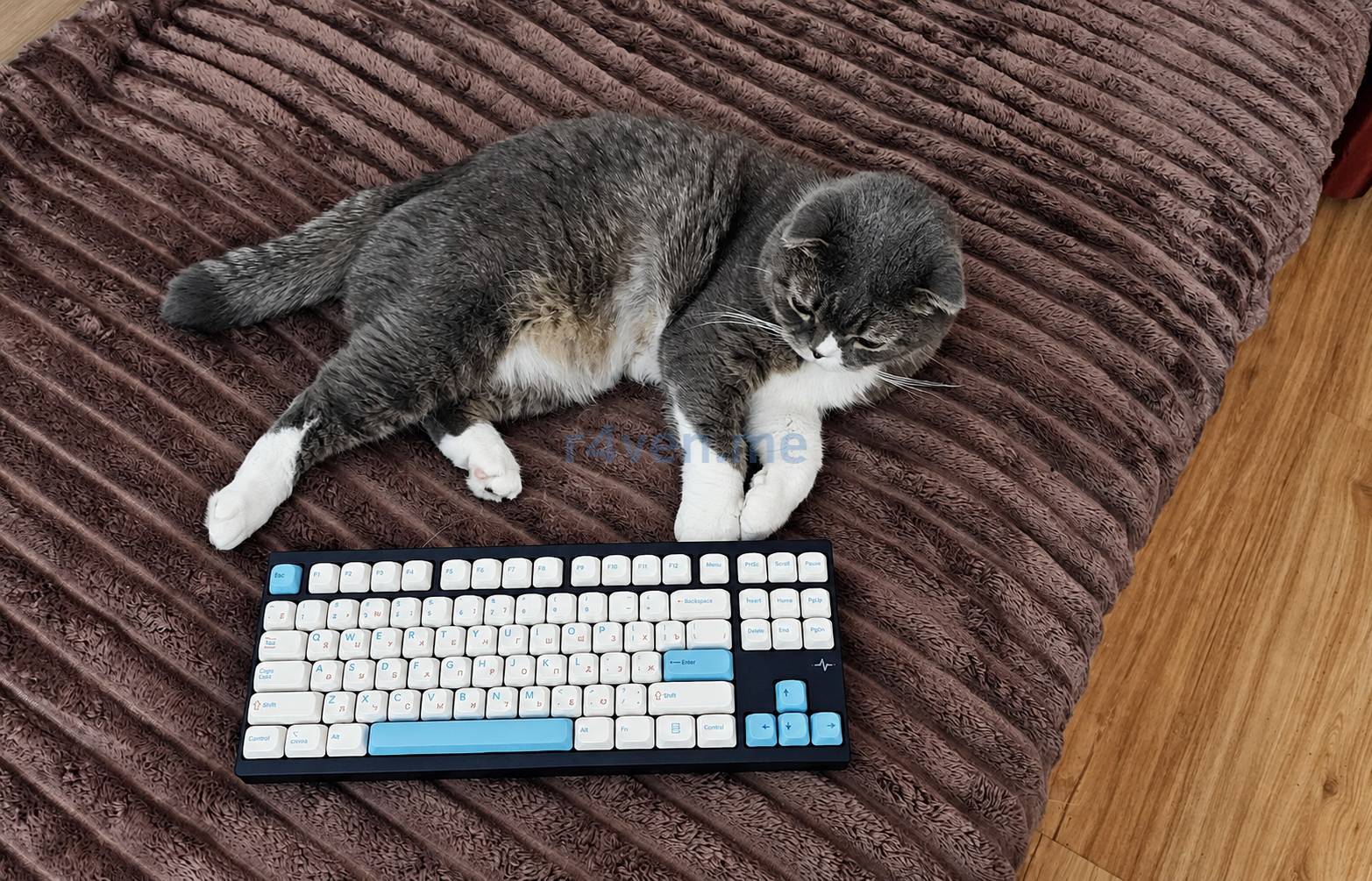
💡 The key test can be performed on any keyboard trainer. For example in this: https://codewar.ru/speed_test.
The result
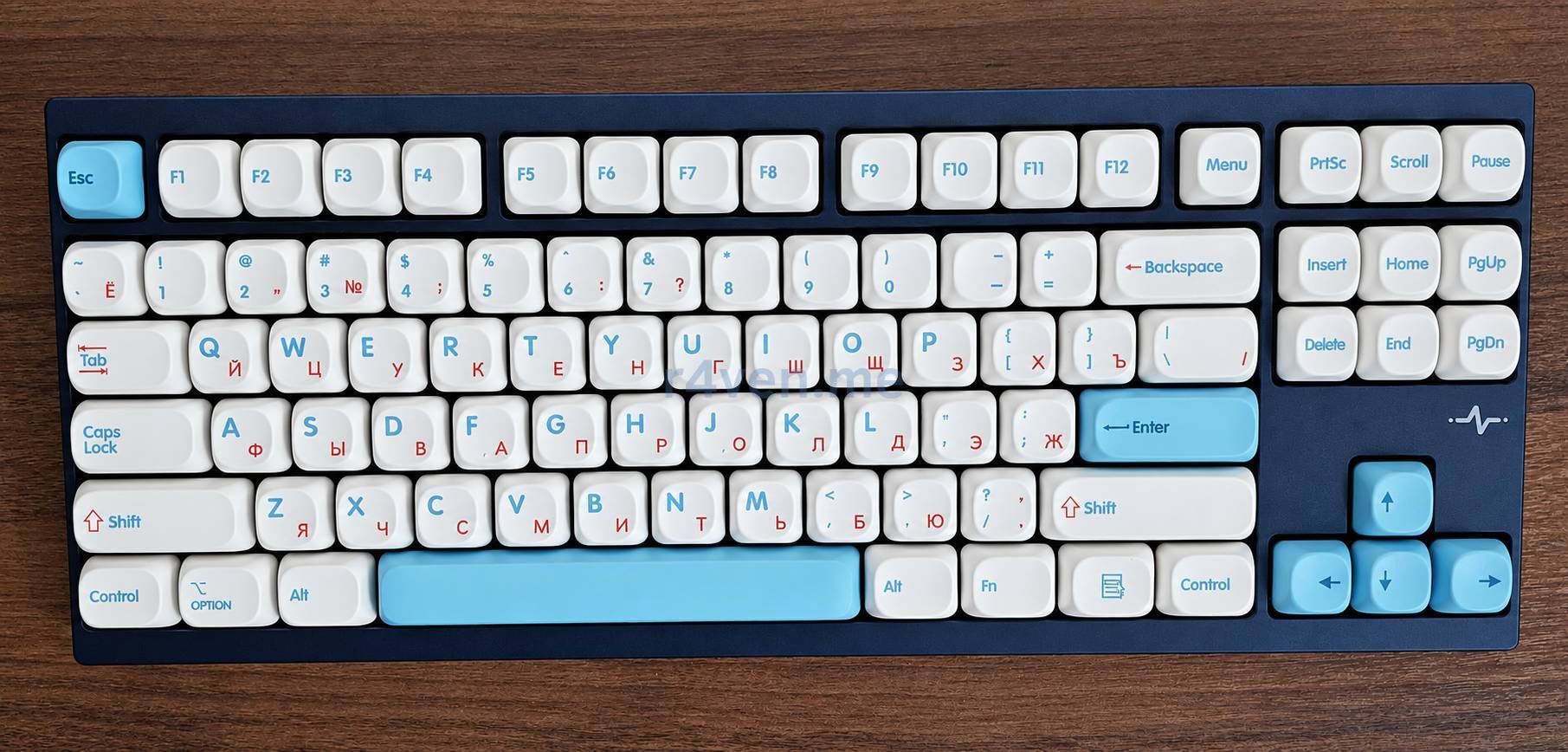
Here is the final view from above:
And here from the side - you can clearly see how different the keys look now:
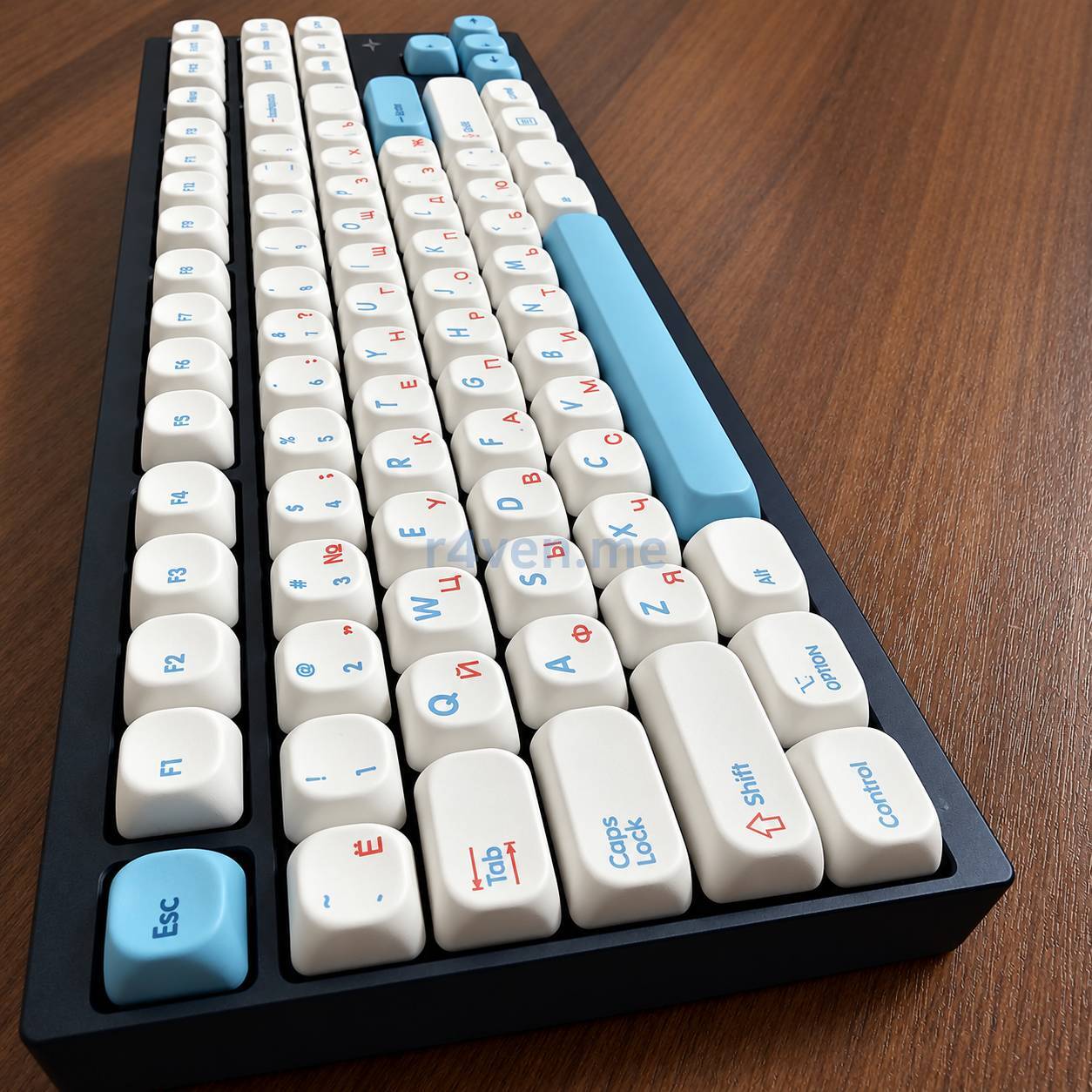
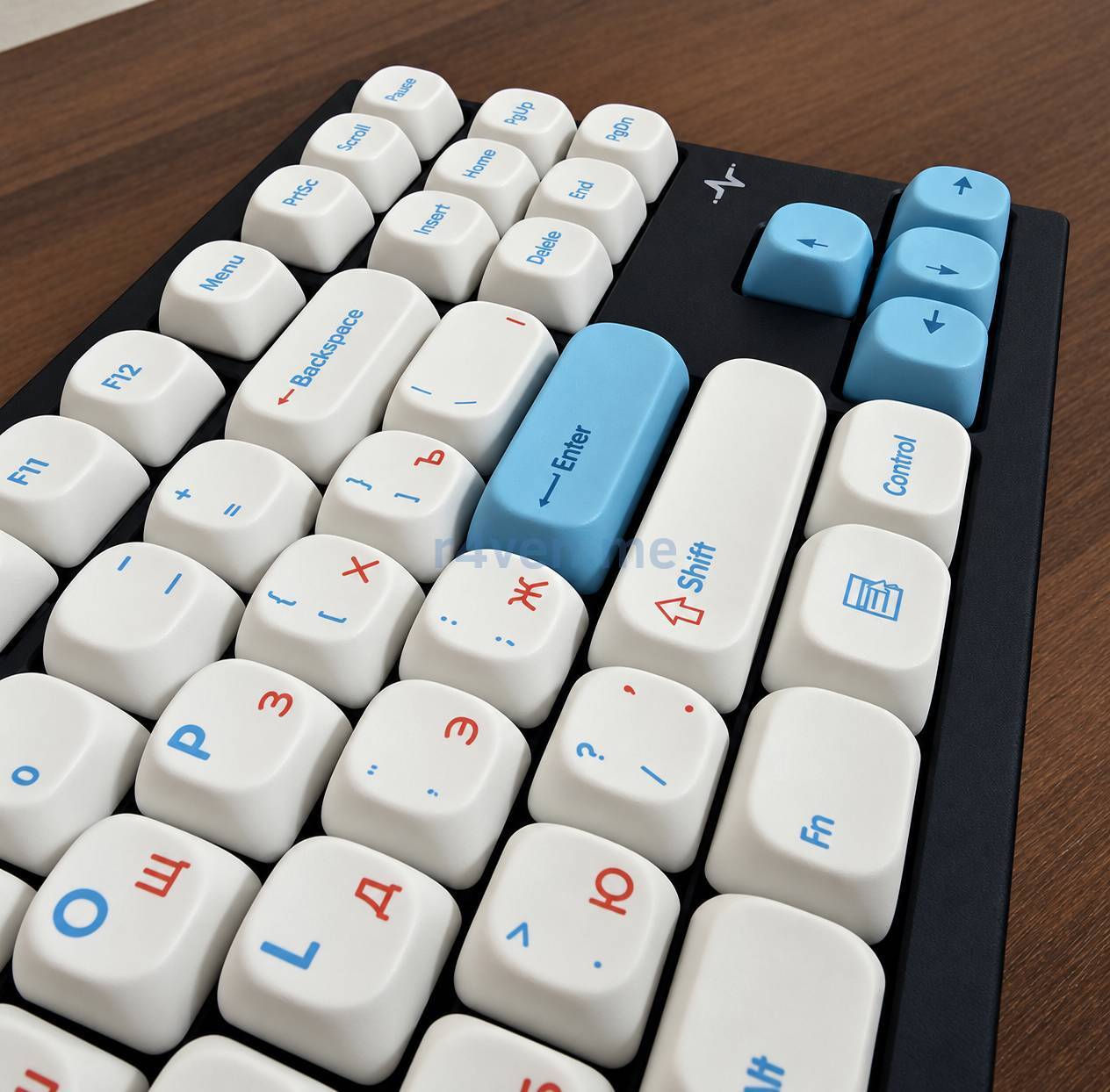
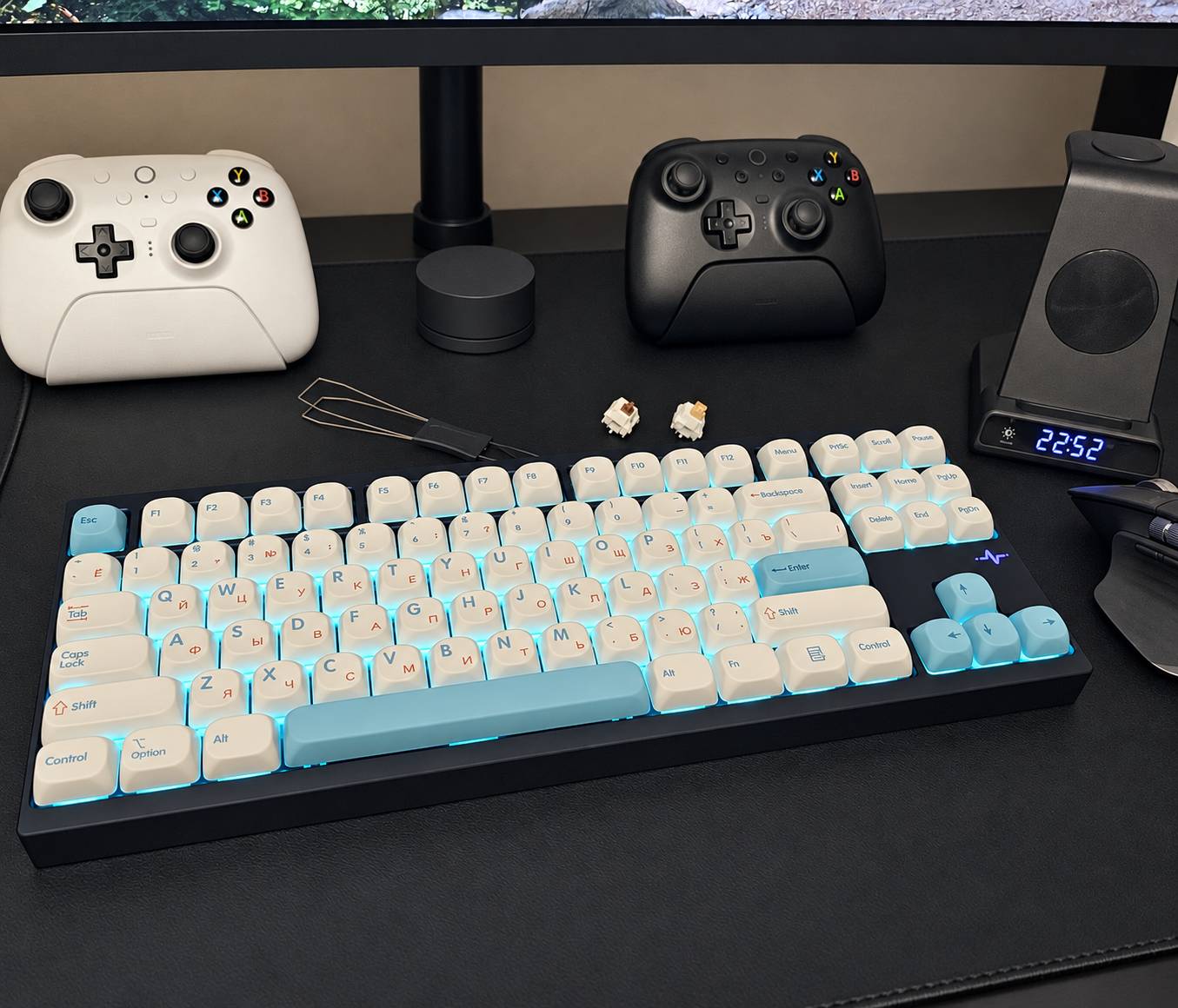
Instead of a dark, strict keyboard, I got a light one with blue accents and rounded keys. The dark blue case stayed the same. A completely different look without buying a second keyboard 🔥.
As for the sound, the goal was also achieved: with silent switches the keyboard became noticeably quieter for me. At the same time, silent does not mean absolute silence - the sounds of the keycaps, stabilizers, and the keystrokes themselves remain. I didn’t measure the noise level in decibels.
And a short clip with the result:
A phone recording is good for a general impression, but not for a precise acoustic comparison: the distance to the microphone and automatic gain control affect the result.
And the final photo, already at the workplace:
What about the price?
Prices at the time of my purchases, not the current store price list:
| Purchase | Price |
|---|---|
| Wobkey Crush 80 Reboot Pro Navy | 11 411 ₽ |
| KOA PBT keycap set | 1 379 ₽ |
| Outemu Cream Yellow Pro, 110 pcs. | 1 817 ₽ |
| Mod: switches + keycaps | 3 196 ₽ |
| Keyboard together with the mod | 14 607 ₽ |
Note that the cost included whole sets: the spare switches and unused keycaps also stayed with me.
Conclusion
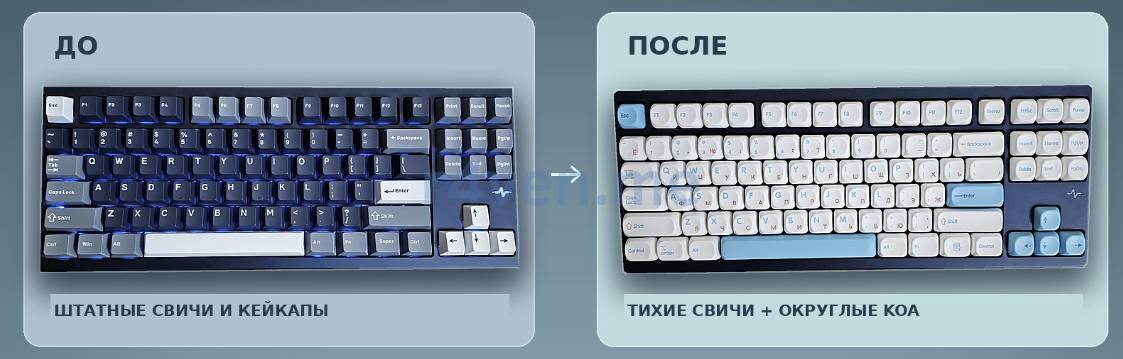
I liked the Wobkey itself, but the stock switches and the shape of the keycaps turned out not to be quite mine. And this is where the ability to replace parts without soldering really came in handy: instead of looking for another keyboard, I changed what I wasn’t happy with.
Outemu Cream Yellow Pro solved the problem of excess noise, and rounded KOA keycaps solved the appearance and shape of the keys. Overall I’m happy: the same base, but the impression is as if I bought another keyboard 😁.
If you want a quiet mechanical keyboard, it’s better to look right away at silent switches rather than count on the word “brown” (like the stock ones). And choose keycaps not only by a pretty picture but also by profile and compatibility with your specific layout.
If you are interested in the keyboard itself, its specifications and impressions before the mod - they remain in the separate review of the Wobkey Crush 80 Reboot Pro Navy.
Thanks for reading. I wish you pleasant typing and only the sounds you like 😉.
👨💻And…
Don’t forget about our Telegram channel 📱 and chat
Or maybe you want to become a co-author? Then click here🔗
💬 All the best ✌️
That should be it. If not, check the logs 🙂

Comments