
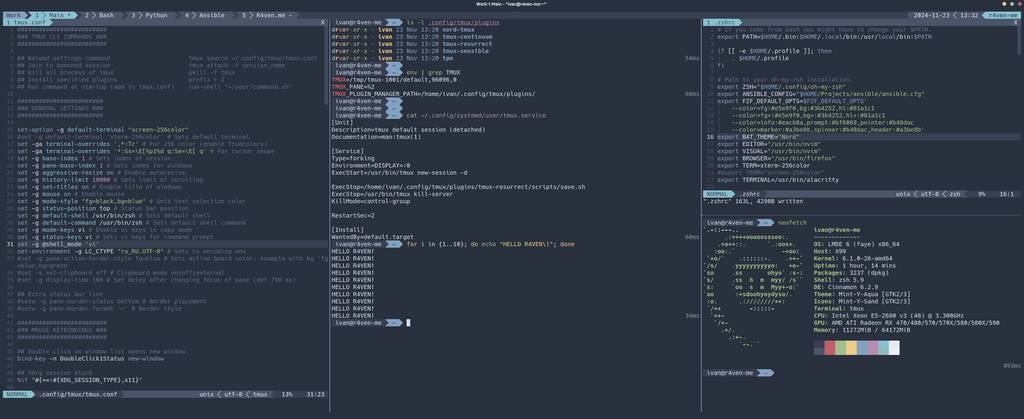
In the previous note 📝 we talked about terminal multiplexers and what tasks they perform. In today’s article I’ll demonstrate the installation and customization of the most popular tool in this category — Tmux 🪟. As usual, everything is already suffered through configured, and to replicate it yourself, you’ll just need to run a few commands🧑💻.
🖐️Hey!
Subscribe to our Telegram channel @r4ven_me📱, so you don’t miss new posts on the website 😉. If you have questions or just want to chat about the topic, feel free to join the Raven chat at @r4ven_me_chat🧐.
The demonstration given in this article was performed in the Linux Mint 22 distribution environment with Tmux version 3.4 ✍️.
Preface
I really love the ❄️ theme from the developers at Arcticicestudio⛄️ and prefer to style my system and apps with this palette😌. Tmux is no exception, so for correct and harmonious display of the configuration like mine, you’ll need:
- Any monospaced icon Powerline font ⚡️.
- For example, from the Nerd fonts project. I prefer the Hack Nerd Font Mono font. The font needs to be placed at
/usr/share/fonts/or separately for the user at~/.local/share/fonts/and applied to the terminal.
- For example, from the Nerd fonts project. I prefer the Hack Nerd Font Mono font. The font needs to be placed at
- Any terminal emulator 🧑💻 with support for TrueColor and the Nord theme.
- For example Gnome-terminal or the drop-down terminal — Guake. In my experience, this theme is available for any popular terminal emulator;
- (Optional) A console editor 📝 with the Nord theme.
- For example Vim/Neovim.
- (Optional) An interactive command shell 💻.
- For example Zsh + Oh-My-Zsh with the agnoster theme.
For those who are just getting acquainted with Tmux, let me briefly list its entities🧐:
- Session — the main unit of work, containing windows and panes;
- Window — a separate terminal within a session;
- Pane — dividing a window into several terminals (panes);
- Commands — instructions for controlling
tmux; - Prefix key — a key for activating commands (
Ctrl-bby default); - State — active and inactive windows and panes;
- Config — tmux settings, e.g. in the file
~/.tmux.confor~/.config/tmux/tmux.conf.
We can proceed with the installation.
Installing Tmux

Tmux is almost always in the standard repositories, and in many Linux distributions it’s even pre-installed👌.
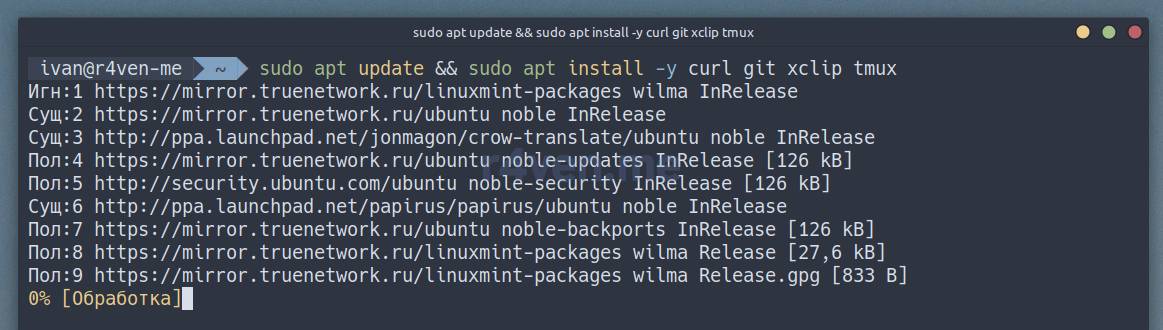
Open a terminal and run:
sudo apt update && sudo apt install -y curl git xclip tmuxcurl— a utility for interacting with the web (needed to download the config);git— a version control system and the utility of the same name for working with git repositories (needed to install third-party plugins);xclip— a clipboard management utility on desktop Xorg systems, usually pre-installed (if you’re installing tmux on a system without a GUI, you can skip it);tmux— the terminal multiplexer itself;
Downloading the Config and Launching
Now let’s use the curl utility to download the Tmux config file from my GitHub 😇 repository:
curl --create-dirs -fLo \
    ~/.config/tmux/tmux.conf \
    https://raw.githubusercontent.com/r4ven-me/dots/main/.config/tmux/tmux.conf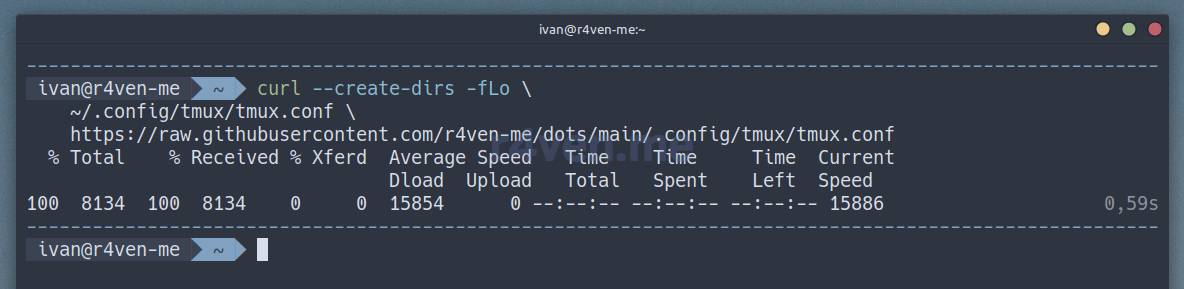
All that’s left is to launch Tmux😳. The first launch will take some time⏳, since the plugin manager and then the plugins themselves will be downloaded via this manager.
The config is set up so that when new plugins are added, they’ll be installed automatically😌 during Tmux startup/restart. To install plugins manually, use
prefix+I.
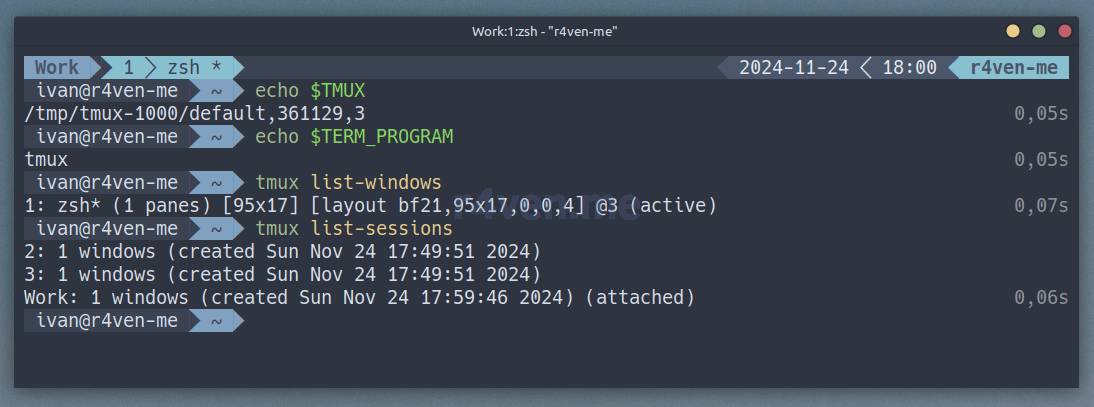
To create a new named session, use the command:
tmux new -s WorkWhere:
new— the command to create a new session;-s— the flag for specifying the session name;Work— an arbitrary session name.

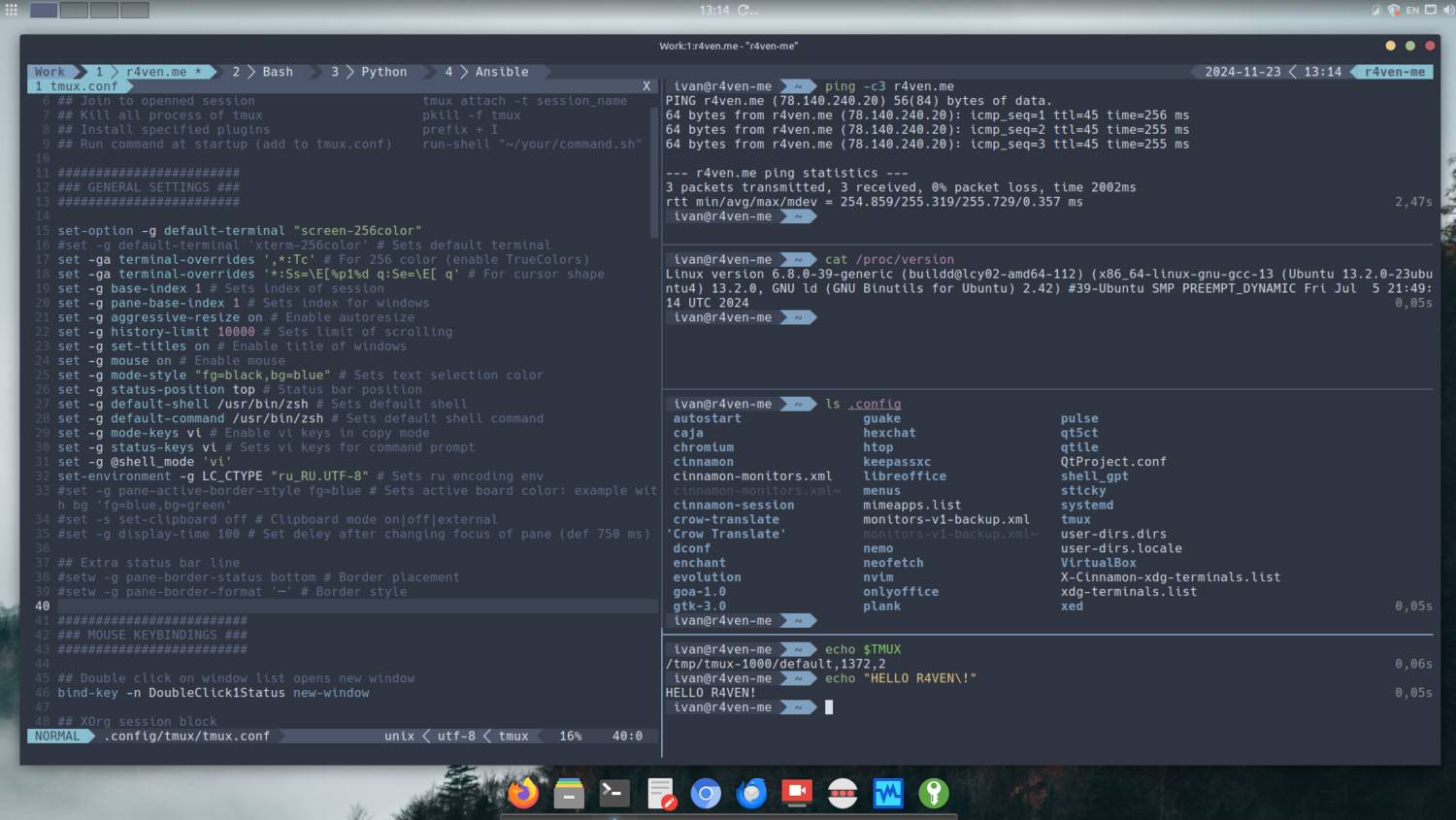
You should get something like this:
That’s it😃, the setup is done! Now you can actively use it:
Liked my Neovim config?
You can easily create a similar one by following the article: Neovim — Installing and configuring a code editor with IDE features in just a few commands.
And if you have a wide monitor, it’s just amazing 🔥🔥🔥!
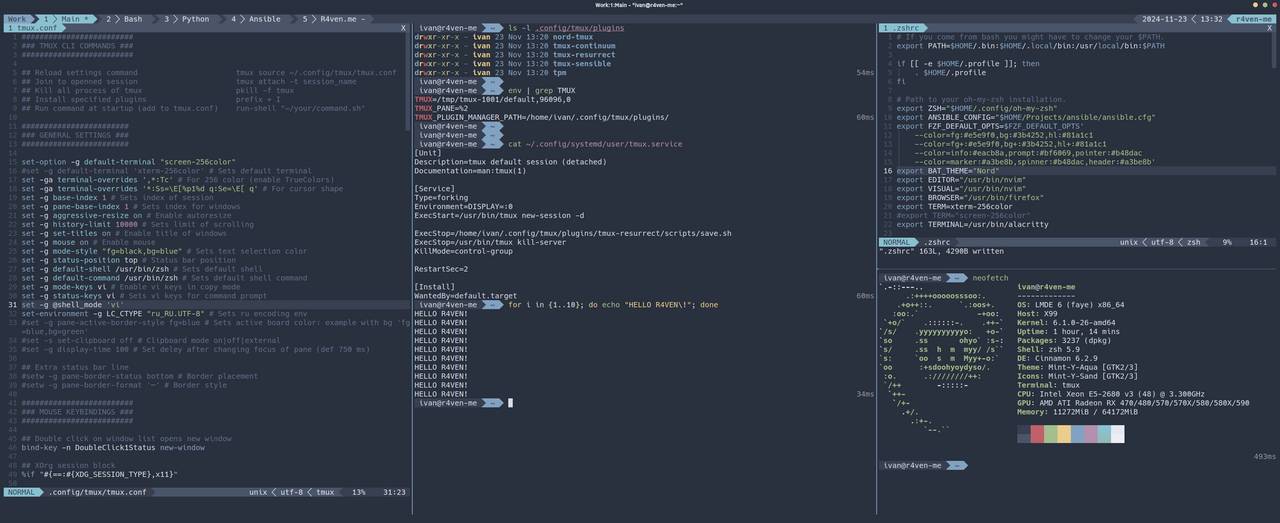
You could live in a terminal like this😎
To exit tmux without closing the sessions, send the detach command with a special hotkey: first press the so-called prefix key combination, Ctrl+b by default, and then immediately press the d key, shortened as: prefix+d.
Yes, that’s the hotkey style of Tmux🤷♂️. First you press the prefix key, then the action/command key. You need to get used to this approach. The prefix key can be changed in the config. But it’s not recommended, in order to preserve universality🫠.
To return to a running session, use the command:
tmux attach -t Work || tmux new -s WorkWhere:
attach— the command to connect to a running session;-t— the flag for specifying the tag/name of an existing session;Work— the name of the session we started earlier;||— the logical “or” in the shell context, in other words, a flow control parameter that will run the command following it in case the previous one fails.
I recommend creating a convenient alias for your shell right away:
echo 'alias T="tmux attach -t Work || tmux new -s Work"' >> ~/.profile

source ~/.profileReplace ~/.profile with the file containing your shell environment setup parameters if needed☝️.
Now you can connect to the existing session named Work simply with the single-letter command T.
Description of the Configuration and Overview of the tmux.conf File
What This Config Adds/Changes
General settings📖:
- 256-color support enabled:
screen-256color; - TrueColor support enabled for more accurate color rendering;
- windows are numbered starting from 1, not 0 (
base-index 1); - panes within windows are also numbered starting from 1 (
pane-base-index 1); - the history buffer limit is increased to 10,000 lines for terminal scrollback;
- the mouse is enabled! you can click to select windows, scroll output, resize panes, swap them, and a context menu is also available via right-click;
- automatic updating of terminal window titles is enabled;
- vi-style keys are used for copy mode (
mode-keys vi) and for interacting with tmux commands (status-keys vi, invoked withprefix+:); - Zsh is set as the default shell (replace it with your own if you use a different one);
- the
ru_RU.UTF-8locale is set, to correctly display Russian characters.
Mouse control🐁:
- General actions:
- double-clicking on the status line creates a new window (
bind-key -n DoubleClick1Status new-window);
- double-clicking on the status line creates a new window (
- If an X11 server is used with tmux:
- the middle mouse button pastes text from the system clipboard (uses
xclip); - after selecting text with the mouse, it copies the text to the clipboard without clearing the selection;
- in copy mode(!), word/line selection via double/triple click is supported:
- double left-click: selects a word, copies it to the clipboard;
- triple left-click: selects a line, copies it to the clipboard;
- a left-click in copy mode cancels the current selection;
- the middle mouse button pastes text from the system clipboard (uses
- In other environments (if X11 is not used):
- the behavior is similar, but the text is stored only in the internal tmux buffer, not the system one.
Keyboard shortcuts🎹:
Some key combinations have been slightly extended. See more details below: Item 6. Custom Tmux Hotkeys.
Plugin list📋:
tmux-plugins/tpm— plugin manager for tmux:- provides installation and management of other plugins;
tmux-plugins/tmux-sensible— sets sensible default tmux settings;arcticicestudio/nord-tmux— installs the Nord theme for tmux;tmux-plugins/tmux-resurrect— saves session state (windows, panes, running processes) and allows restoring sessions after a tmux restart;tmux-plugins/tmux-continuum— an extension fortmux-resurrect:- automatically saves sessions at set intervals (60 minutes);
- automatically restores sessions when tmux starts;
- activation via a systemd unit:
- see
systemctl status --user tmux
- see
Additionally📦:
- automatic installation of tpm on first launch and checking/installing new plugins on every launch/restart;
- cleanup of old session files older than 3 days (in
~/.local/share/tmux/resurrect/); - the recovery mechanism for Neovim is used via the session mechanism.
Contents of the tmux.conf File
For better understanding, all parameters are commented in Russian😌:
#########################
### TMUX CLI COMMANDS ###
#########################

# Reload the tmux config                      tmux source ~/.config/tmux/tmux.conf
# Attach to an existing session               tmux attach -t session_name
# Kill all tmux processes                     pkill -f tmux
# Install specified plugins via TPM           prefix + I
# Run an arbitrary command on startup         run-shell "~/your/command.sh"
# is set in tmux.conf

##########################
### MAIN SETTINGS ###
##########################

set-option -g default-terminal "screen-256color" # Enable 256 colors in the terminal
#set -g default-terminal 'tmux-256color'
#set -g default-terminal 'xterm-256color'
set -ga terminal-overrides ',*:Tc'   # Enable TrueColors
set -ga terminal-overrides '*:Ss=\E[%p1%d q:Se=\E[ q' # Support for changing cursor shape
set -g base-index 1                  # Start window numbering from 1
set -g pane-base-index 1             # Start pane numbering from 1
set -g aggressive-resize on          # Automatically resize panes when the window is resized
set -g history-limit 10000           # Keep 10,000 lines in the scrollback buffer
set -g set-titles on                 # Enable automatic title updates
set -g mouse on                      # Enable mouse support
set -g mode-style "fg=black,bg=blue" # Set text selection colors in copy mode
set -g status-position top           # Place the status bar at the top
set -g default-shell /usr/bin/zsh    # Set the default shell
set -g default-command /usr/bin/zsh  # Set the default shell command
set -g mode-keys vi                  # Use vi key bindings in copy mode
set -g status-keys vi                # Use vi key bindings for tmux prompts
set -g @shell_mode 'vi'              # Explicitly set the shell mode to vi
set-environment -g LC_CTYPE "ru_RU.UTF-8" # Set the environment encoding for Russian
#set -g pane-active-border-style fg=blue # Set the active border color: example with bg 'fg=blue,bg=green'
#set -s set-clipboard off             # Clipboard mode on|off|external
#set -g display-time 100              # Set the delay after pane focus change (default 750 ms)

## Additional status bar
#setw -g pane-border-status bottom    # Border placement
#setw -g pane-border-format '─'       # Border style

########################
### MOUSE CONTROL ###
########################

# Open a new window with a double-click on the status line
bind-key -n DoubleClick1Status new-window

# X11-specific bindings
%if "#{==:#{XDG_SESSION_TYPE},x11}"
    # Middle click pastes from the clipboard
    unbind-key MouseDown2Pane
    bind-key -n MouseDown2Pane \
        run 'tmux set-buffer "$(xclip -out -sel clipboard)"; tmux paste-buffer'

    # Middle click cancels copy mode and pastes from the clipboard
    bind-key -T copy-mode-vi MouseDown2Pane \
        select-pane \; \
        send -X cancel \; \
        run 'tmux set-buffer "$(xclip -out -sel clipboard)"; tmux paste-buffer'

    # Copy selection to the clipboard without clearing it
    bind -T copy-mode-vi MouseDragEnd1Pane \
        select-pane \; \
        send-keys -X copy-pipe-no-clear "xclip -in -sel clipboard"

    # Clear selection on left-click
    bind -T copy-mode-vi MouseDown1Pane \
        select-pane \; \
        send-keys -X clear-selection

    # Double and triple left-click to select a word/line in copy mode
    bind-key -T copy-mode-vi DoubleClick1Pane \
        select-pane \; \
        send-keys -X select-word \; \
        send-keys -X copy-pipe-no-clear "xclip -in -sel clipboard"

    bind-key -T copy-mode-vi TripleClick1Pane \
        select-pane \; \
        send-keys -X select-line \; \
        send-keys -X copy-pipe-no-clear "xclip -in -sel clipboard"
%else # Bindings for sessions not using X11
    # Middle click pastes from the buffer
    unbind-key MouseDown2Pane
    bind-key -n MouseDown2Pane paste-buffer

    # Middle click cancels copy mode and pastes from the buffer
    bind-key -T copy-mode-vi MouseDown2Pane \
        select-pane \; \
        send -X cancel \; \
        paste-buffer

    # Copy selection without clearing it
    bind -T copy-mode-vi MouseDragEnd1Pane \
        select-pane \; \
        send-keys -X copy-selection-no-clear

    # Clear selection on left-click
    bind -T copy-mode-vi MouseDown1Pane \
        select-pane \; \
        send-keys -X clear-selection

    # Double and triple left-click to select a word/line in copy mode
    bind-key -T copy-mode-vi DoubleClick1Pane \
        select-pane \; \
        send-keys -X select-word \; \
        send-keys -X copy-selection-no-clear

    bind-key -T copy-mode-vi TripleClick1Pane \
        select-pane \; \
        send-keys -X select-line \; \
        send-keys -X copy-selection-no-clear
%endif

#########################
### KEY COMBINATIONS ###
#########################

bind-key 'v' copy-mode # 'prefix+v' to enter copy mode
bind-key -T copy-mode-vi 'v' send -X begin-selection # 'v' to start selection in copy mode

# X11-specific bindings
%if "#{==:#{XDG_SESSION_TYPE},x11}"
    # 'Enter' and 'y' in copy mode, copies the selection to the clipboard via xclip and cancels copy mode
    bind-key -T copy-mode-vi 'Enter' \
        select-pane \; \
        send -X copy-pipe-and-cancel "xclip -in -sel clipboard"

    bind-key -T copy-mode-vi 'y' \
        select-pane \; \
        send -X copy-pipe-and-cancel "xclip -in -sel clipboard"

    # ']' and 'P' (capital) in normal mode, pastes from the clipboard via xclip
    bind-key ']' \
        run 'tmux set-buffer "$(xclip -out -sel clipboard)"; tmux paste-buffer'

    bind-key 'P' \
        run 'tmux set-buffer "$(xclip -out -sel clipboard)"; tmux paste-buffer'

    # ']' and 'p' in copy mode, cancels copy mode and pastes from the clipboard via xclip
    bind-key -T copy-mode-vi ']' \
        select-pane \; \
        send -X cancel \; \
        run 'tmux set-buffer "$(xclip -out -sel clipboard)"; tmux paste-buffer'

    bind-key -T copy-mode-vi 'p' \
        select-pane \; \
        send -X cancel \; \
        run 'tmux set-buffer "$(xclip -out -sel clipboard)"; tmux paste-buffer'
%else # If not on X11
    # 'y' in copy mode, copies the selection to the tmux buffer and cancels copy mode
    bind-key -T copy-mode-vi 'y' \
        select-pane \; \
        send -X copy-selection-and-cancel

    # Pressing 'P' (capital) in normal mode pastes from the tmux buffer
    bind-key 'P' paste-buffer

    # Pressing 'p' in copy mode cancels copy mode and pastes from the tmux buffer
    bind-key -T copy-mode-vi 'p' \
        select-pane \; \
        send -X cancel \; \
        paste-buffer
%endif

# Vi-style pane navigation
bind-key -r -T prefix h select-pane -L
bind-key -r -T prefix j select-pane -D
bind-key -r -T prefix k select-pane -U
bind-key -r -T prefix l select-pane -R

# Resizing panes with vi-style keys
bind-key -r -T prefix H resize-pane -L 2
bind-key -r -T prefix J resize-pane -D 2
bind-key -r -T prefix K resize-pane -U 2
bind-key -r -T prefix L resize-pane -R 2

# Manual bindings for saving/restoring tmux-resurrect
# 'prefix+F5' to save
bind-key -T prefix F5 run-shell \
    '~/.config/tmux/plugins/tmux-resurrect/scripts/save.sh && mv -f $(find ~/.local/share/tmux/resurrect -type f -name "tmux_resurrect_*.txt" -size +0c | sort | tail -1) ~/.local/share/tmux/resurrect/main.txt && tmux display-message "Environment saved manually!"'

# 'prefix+F6' to load
bind-key -T prefix F6 run-shell \
    'ln -sf ~/.local/share/tmux/resurrect/main.txt ~/.local/share/tmux/resurrect/last && ~/.config/tmux/plugins/tmux-resurrect/scripts/restore.sh'

#######################
### PLUGIN LIST ###
#######################

# Plugins
set -g @plugin 'tmux-plugins/tpm'            # Plugin manager
set -g @plugin 'tmux-plugins/tmux-sensible'  # Sensible defaults for tmux
set -g @plugin 'arcticicestudio/nord-tmux'   # Nord theme for tmux
set -g @plugin 'tmux-plugins/tmux-resurrect' # Save and restore the tmux environment
set -g @plugin 'tmux-plugins/tmux-continuum' # Automates tmux-resurrect save and restore actions

##########################
### PLUGIN SETTINGS ###
##########################

# tmux-resurrect settings
# Clean up old session files
run-shell \
    'find ~/.local/share/tmux/resurrect/ -type f -name "*.txt" ! -name "main.txt" -mtime +3 -delete'
#set -g @resurrect-capture-pane-contents 'on' # Restore the contents of previous sessions
set -g @resurrect-strategy-nvim 'session' # Use sessions to restore Neovim
set -g @resurrect-processes 'ssh ranger mc tmux cmatrix ipython' # Processes to restore

# tmux-continuum settings
set -g @continuum-boot 'on'          # Auto-start tmux via systemd
set -g @continuum-restore 'on'       # Auto-restore tmux sessions
set -g @continuum-save-interval '60' # Auto-save every 60 minutes

# Make sure the TPM plugin is installed
if "test ! -d ~/.config/tmux/plugins/tpm" \
    "run 'git clone https://github.com/tmux-plugins/tpm ~/.config/tmux/plugins/tpm'"

# Auto-install other plugins on a new computer
run '~/.config/tmux/plugins/tpm/tpm'
run '~/.config/tmux/plugins/tpm/bin/install_plugins'

# Initialize TPM (keep this line at the very bottom of tmux.conf)
run '~/.config/tmux/plugins/tpm/tpm'Reminder: the latest version of tmux.conf is also available on my GitHub.
Basic Tmux Hotkeys
Below are the frequently used basic tmux commands/key combinations. If you plan to work regularly in a tmux environment, I strongly recommend memorizing them🤯.
Prefix❗️:
Ctrl-b — prefix;
Window management 🪟:
prefix+c— create a new window (looks like a tab on the status bar);prefix+w— show the window list;prefix+n— switch to the next window;prefix+p— switch to the previous window;prefix+<number>— go to the window with the specified number (e.g.,ptefix+1— to the first window);prefix+,— rename the current window.
Pane management 🎛:
prefix+%— split the window into panes vertically;prefix+"— split the window into panes horizontally;prefix+o— switch to the next pane;prefix+q— show pane numbers (useful for selection);prefix+x— close the current pane;prefix+z— expand the current pane to full screen (and back);prefix+{— move the pane left;prefix+}— move the pane right;prefix+!— move the current pane into a separate window.
Session management 📚:
tmux new -s <name>— create a new session with a name;tmux ls— show the list of sessions;tmux attach -t <name>— connect to a session;prefix+d— detach from the current session.
Copy and paste 📋:
prefix+[— enter copy mode;- Arrow keys or PgUp/PgDn — navigate through history;
- Space — start text selection;
- Enter — copy the selected text;
- Esc — cancel selection;
- q — exit copy mode;
prefix+]— paste the copied text.
Additionally 📦:
prefix+t— show the clock;prefix+?— show help for all key combinations;prefix+s— show the session list.
Custom Tmux Hotkeys
Added/changed commands/keys from my config.
Copy mode and clipboard interaction 📝:
prefix+v— enters copy mode (equivalent toprefix+[);v(in copy mode) — starts text selection;Enterandy(in copy mode, X11):- copies the selected text to the system clipboard via
xclip; - exits copy mode;
- copies the selected text to the system clipboard via
y(in copy mode, non-X11):- copies the selection to the
tmuxbuffer; - exits copy mode;
- copies the selection to the
p(in copy mode, X11):- exits copy mode;
- pastes the contents of the system clipboard via
xclip.
p(in copy mode, non-X11):- exits copy mode;
- pastes the contents of the
tmuxbuffer;
prefix+]andprefix+P(in normal mode, X11):- pastes the contents of the system clipboard via
xclip;
- pastes the contents of the system clipboard via
prefix+]andprefix+P(in normal mode, non-X11):- pastes the contents of the
tmuxbuffer.
- pastes the contents of the
Navigation between panes (vi-style) 🎛:
prefix+h— switch to the pane on the left;prefix+j— switch to the pane below;prefix+k— switch to the pane above;prefix+l— switch to the pane on the right.
Resizing panes (vi-style)🎛, the command key can be pressed repeatedly:
prefix+H— grow the pane to the left by 2 pixels;prefix+J— grow the pane downward by 2 pixels;prefix+K— grow the pane upward by 2 pixels;prefix+L— grow the pane to the right by 2 pixels.
Saving and restoring the environment via tmux-resurrect 💾:
prefix+F5:- saves the current tmux state via
tmux-resurrect; - moves the last saved session to the file
~/.local/share/tmux/resurrect/main.txtfor easy restoration; - shows a manual-save message;
- saves the current tmux state via
prefix+F6:- loads the saved state from the
main.txtfile.
- loads the saved state from the
Afterword
Phew😮💨. Today our Linux administrator’s arsenal has gained another useful tool🧑💻. It’s extremely convenient for maintaining systems📺 that have no GUI, for example on servers running 24/7. You launch all the necessary utilities once, and afterward you just connect to the running session with a short alias😌.
Thanks for reading😇. I wish you success in mastering new tools that simplify routine tasks and boost efficiency💪.
Useful Materials
- My Tmux config | GitHub
- Linux user’s glossary: Terminal multiplexer | Raven’s blog
- Tmux | ArchWiki
- ‘Getting started’ from the official documentation | GitHub
- tpm plugin | GitHub
- tmux-sensible plugin | GitHub
- nord-tmux plugin | GitHub
- tmux-resurrect plugin | GitHub
- tmux-continuum plugin | GitHub
👨💻And…
Don’t forget about our Telegram channel 📱 and chat
Or maybe you want to become a co-author? Then click here🔗
💬 All the best ✌️
That should be it. If not, check the logs 🙂

Comments