
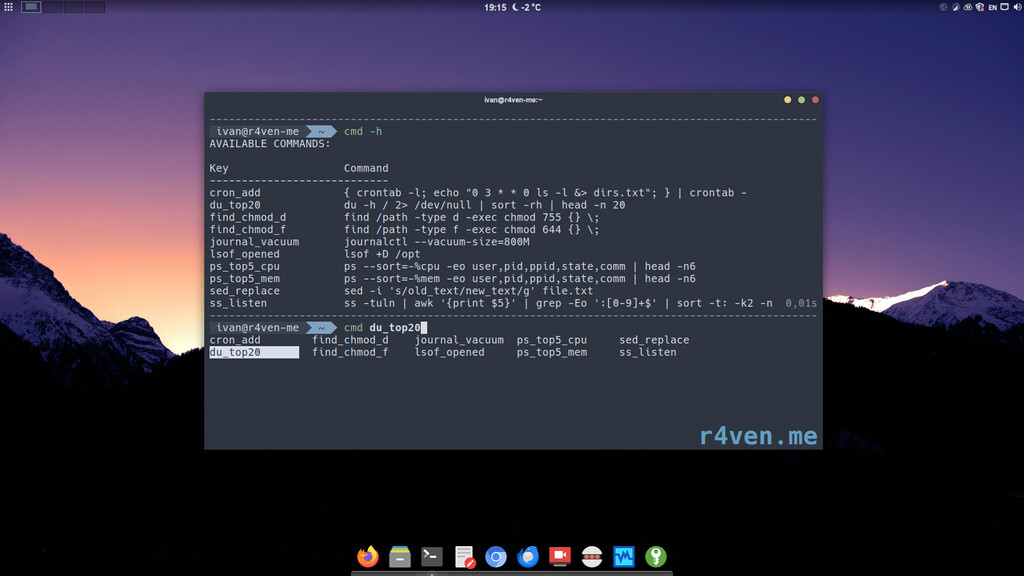
In this article we will create a function for the Zsh and Bash shells that allows quick and convenient access to a prepared list of complex, long, and hard-to-remember commands🤯. And we’ll add a bit of interactivity with the Tab key 😉.
🖐️Hey!
Subscribe to our Telegram channel @r4ven_me📱, so you don’t miss new posts on the website 😉. If you have questions or just want to chat about the topic, feel free to join the Raven chat at @r4ven_me_chat🧐.
What’s the Point?
I think many Linux🐧 users use shell aliases (aliases) in their daily routine for quick access to complex commands🤯. I’m one of them😌
But at some point the list of such aliases becomes too large and it gets harder and harder to remember them. Yes, you can list them with the command of the same name, alias, followed by filtering, but personally I don’t find that convenient🤷♂️.
After getting bored thinking a bit about how to make my life easier, I decided to create a simple but convenient shell function that’s enough to place in a conditional .zshrc or .bashrc.
Something like quick commands/buttons in graphical SSH clients like Xshell or Asbru, only in the console🖥️.
Here’s what this function does:
- it contains an array of short and clear key-names, whose values hold, often mind-bending, commands;
- it outputs the full list of available commands with the
-hflag; - it can be interactive by “scrolling” through options with the Tab key (Zsh only);
- after pressing
Enter, the command isn’t executed, but is entered as the next command without execution, so it can be edited if needed.
The name of the command function is
cmd.
Below are code examples for the Zsh and Bash shells, which need to be added to your .*rc file, filling the cmd_list array with your own commands in Zsh format:
short_name "long_command"or in Bash format:
[short_name]="long_command"I’ll warn you right away that special characters sensitive to the shell, used in tricky commands, need to be escaped. In some cases with quotes, in others with a backslash. Example: \$
Now let’s move on to the code🧑💻
Adding the Function to the .zshrc/.bashrc File
Depending on the command interpreter you use, add the code from the corresponding block below👇 to your .*rc config file 🗒️.
Code for the .zshrc File
Open the Zsh config file for editing:
nvim ~/.zshrcAnd add the following code to it:
# The cmd function for running custom commands
# Takes one argument - the command name
cmd() {
    # Local variable to store the command name
    local cmd_name="${1}"
    # Associative array to store the list of commands
    typeset -A cmd_list

    # Keys are command names, values are the commands themselves
    cmd_list=(
        ps_top5_cpu "ps --sort=-%cpu -eo user,pid,ppid,state,comm | head -n6"
        ps_top5_mem "ps --sort=-%mem -eo user,pid,ppid,state,comm | head -n6"
        cron_add '{ crontab -l; echo "0 3 * * 0 ls -l &> dirs.txt"; } | crontab -'
        du_top20 'du -h / 2> /dev/null | sort -rh | head -n 20'
        journal_vacuum 'journalctl --vacuum-size=800M'
        lsof_opened 'lsof +D /opt'
        ss_listen "ss -tuln | awk '{print \$5}' | grep -Eo ':[0-9]+$' | sort -t: -k2 -n -u"
        sed_replace "sed -i 's/old_text/new_text/g' file.txt"
        find_chmod_f "find /path -type f -exec chmod 644 {} \\;"
        find_chmod_d "find /path -type d -exec chmod 755 {} \\;"
        ossl_encrypt_tar 'tar -czf - /var/log/apt | openssl enc -aes-256-cbc -pbkdf2 -e -out ./logs.tar.gz.enc'
        ossl_decrypt_file 'openssl enc -aes-256-cbc -pbkdf2 -d -in ./logs.tar.gz.enc -out ./logs.tar.gz'
        urandom_str "cat /dev/urandom | tr -dc 'a-zA-Z0-9' | fold -w 8 | head -n 1"
        dig "dig r4ven.me +short +answer +identify"
        icmp_ignore "echo 1 | sudo tee /proc/sys/net/ipv4/icmp_echo_ignore_all"
        docker_network "docker network create --opt com.docker.network.bridge.name=br-mynetwork --opt com.docker.network.enable_ipv6=false --driver bridge --subnet 172.22.23.0/24 --gateway 172.22.23.1 my_network"
        tcpdump_dhost_dport "sudo tcpdump -i any -nn -q dst host 10.11.12.13 and dst port 443"
        tcpdump_wrtie_pacp "sudo tcpdump -nn -i any host 10.11.12.13 -w ./tcpdump.pcap"
        tcpdump_read_pcap "sudo -u tcpdump tcpdump -qns 0 -X -r ./tcpdump.pcap | less"
    )

    # Check if the command exists in the array, or if help was requested
    if [[ -z ${cmd_list[$cmd_name]} || -z "$cmd_name" || "$cmd_name" == "-h" ]]; then
        # Output the list of available commands
        echo "AVAILABLE COMMANDS:\n"
        printf "%-20s %s\n" "Key" "Command"
        echo "----------------------------"
        # Iterate over all keys in the array and print them
        for key in "${(@k)cmd_list}"; do
            printf "%-20s %s\n" "$key" "${cmd_list[$key]}"
            # echo "------------------"
        done | sort
        return 0
    else
        # If the command is found, insert it into the command line (without executing it)
        print -zr "${cmd_list[$cmd_name]}"
        return 0
    fi
}

# Function for command autocompletion
_cmd_completion() {
    # Run the cmd function, but only to get the keys
    local -a keys
    keys=($(cmd -h | awk 'NR>4 {print $1}'))  # Extract keys from the help output
    compadd "$@" -- "${keys[@]}"
}

# Register the autocompletion function for the cmd command/function
compdef _cmd_completion cmdSave and close the file. Now, on every new session, the new cmd command will be available. To make the shell changes available in the current session, run:
exec zshNow try running the command:
cmd -hIt should print a list of available commands:

Now try “tabbing” cmd to display the list of available short key-names for commands and select the one you need:

Personally, I find it very convenient👍.
Code for the .bashrc File
For Bash the code is a bit different, but the principle is the same. Similarly, open the shell config:
nvim ~/.bashrcAnd add the code:
# The cmd function for running custom commands
# Takes one argument - the command name
cmd() {
    # Local variable to store the command name
    local cmd_name="${1}"
    # Associative array to store the list of commands
    declare -A cmd_list

    # Keys are command names, values are the commands themselves
    cmd_list=(
        [ps_top5_cpu]="ps --sort=-%cpu -eo user,pid,ppid,state,comm | head -n6"
        [ps_top5_mem]="ps --sort=-%mem -eo user,pid,ppid,state,comm | head -n6"
        [cron_add]='{ crontab -l; echo "0 3 * * 0 ls -l"; } | crontab -'
        [du_top20]='du -h / 2> /dev/null | sort -rh | head -n 20'
        [journal_vacuum]='journalctl --vacuum-size=800M'
        [lsof_opened]='lsof +D /opt'
        [ss_listen]="ss -tuln | awk '{print \$5}' | grep -Eo ':[0-9]+$' | sort -t: -k2 -n -u"
        [sed_replace]="sed -i 's/old_text/new_text/g' file.txt"
        [find_chmod_d]="find /path -type f -exec chmod 644 {} \\;"
        [find_chmod_f]="find /path -type f -exec chmod 755 {} \\;"
        [ossl_encrypt_tar]='tar -czf - /var/log/apt | openssl enc -aes-256-cbc -pbkdf2 -e -out ./logs.tar.gz.enc'
        [ossl_decrypt_file]='openssl enc -aes-256-cbc -pbkdf2 -d -in ./logs.tar.gz.enc -out ./logs.tar.gz'
        [urandom_str]="cat /dev/urandom | tr -dc 'a-zA-Z0-9' | fold -w 8 | head -n 1"
        [dig]="dig r4ven.me +short +answer +identify"
        [icmp_ignore]="echo 1 | sudo tee /proc/sys/net/ipv4/icmp_echo_ignore_all"
        [docker_network]="docker network create --opt com.docker.network.bridge.name=br-mynetwork --opt com.docker.network.enable_ipv6=false --driver bridge --subnet 172.22.23.0/24 --gateway 172.22.23.1 my_network"
        [tcpdump_dhost_dport]="sudo tcpdump -i any -nn -q dst host 10.11.12.13 and dst port 443"
        [tcpdump_wrtie_pacp]="sudo tcpdump -nn -i any host 10.11.12.13 -w ./tcpdump.pcap"
        [tcpdump_read_pcap]="sudo -u tcpdump tcpdump -qns 0 -X -r ./tcpdump.pcap | less"
    )

    # Check if the command exists in the array, or if help was requested
    if [[ -z ${cmd_list[$cmd_name]} || -z "$cmd_name" || "$cmd_name" == "-h" ]]; then
        # Output the list of available commands
        echo "AVAILABLE COMMANDS:"
        printf "%-20s %s\n" "Key" "Command"
        echo "----------------------------"
        # Iterate over all keys in the array and print them
        for key in "${!cmd_list[@]}"; do
            printf "%-20s %s\n" "$key" "${cmd_list[$key]}"
        done | sort
        return 0
    else
        # Check whether we're running in an interactive Bash shell with a connected terminal
        if [[ -n "$BASH" && -t 0 ]]; then
            # Get the command from the list by the given name and output it
            local command_to_insert="${cmd_list[$cmd_name]}"
            bind '"\e[0n": "'"${command_to_insert}"'"'
            printf '\e[5n'
        else
            echo "${cmd_list[$cmd_name]}"
        fi
        return 0
    fi
}

# Function for command autocompletion
_cmd_completion() {
    # Run the cmd function, but only to get the keys
    local cur prev opts
    COMPREPLY=()
    cur="${COMP_WORDS[COMP_CWORD]}"
    prev="${COMP_WORDS[COMP_CWORD-1]}"
    opts=$(cmd -h | awk 'NR>4 {print $1}')

    # If the current word (cur) isn't empty, look for matching autocompletion options
    if [[ ${cur} == * ]] ; then
        COMPREPLY=( $(compgen -W "${opts}" -- ${cur}) )
        return 0
    fi
}

# Register the autocompletion function for the cmd command/function
complete -F _cmd_completion cmdApply the changes to the current shell session:
exec bashPrint the help:
cmd -hAnd try “tabbing” the cmd command. Unfortunately Bash can only print the list of available commands, but can’t cycle through them interactively the way Zsh can🤷♂️.

Afterword
Today our Linux power user arsenal has gained yet another useful tool in the form of a shell function, which is essentially a small program☝️.
I think this turned out to be a good illustration of shell programming, in the sense of: how to teach it to perform a needed action, tied to the Tab 🎹 hotkey as well. And here the difference in syntax between the Zsh and Bash shells is well illustrated when performing the same task.
Don’t forget to subscribe to our telegram channel @r4ven_me, so you don’t miss new notes on the site😇. And of course join the chat @r4ven_me_chat, where in our micro-community we discuss all things IT💬.
Thanks for reading Raven’s blog 🐦⬛. All the best!
👨💻And…
Don’t forget about our Telegram channel 📱 and chat
Or maybe you want to become a co-author? Then click here🔗
💬 All the best ✌️
That should be it. If not, check the logs 🙂

Comments