
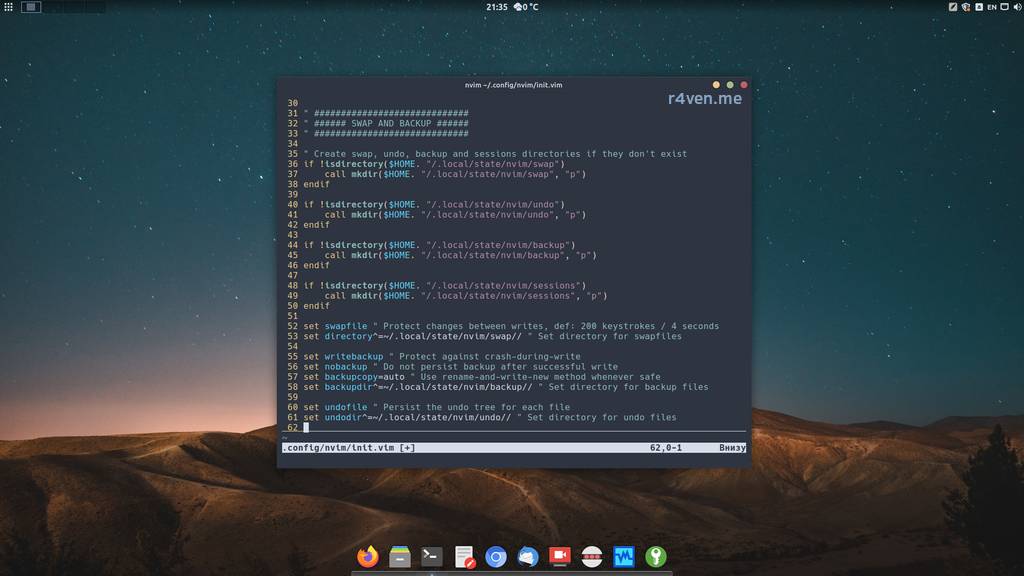
Today’s the second note about configuring the cool console editor Neovim. We’ll talk about preserving file contents in case of emergencies.
🖐️Hey!
Subscribe to our Telegram channel @r4ven_me📱, so you don’t miss new posts on the website 😉. If you have questions or just want to chat about the topic, feel free to join the Raven chat at @r4ven_me_chat🧐.
Last time we performed the initial editor setup. If you missed it, please read it: Neovim — editor configuration: basic setup.
Today we’ll configure working with swap, backup, and undo files in Neovim. We’ll learn what they are, and how they can save our fifth points files from losing precious content)
How SWAP, BACKUP and UNDO files work
The editor settings shown in this article, I picked up from an article on Habr about Vim: The history of Vim and a guide to its effective use. I won’t be able to explain the working principle better than the article’s author, so I’ll just quote some passages. So, what protection can Vim/Neovim offer us?
Depending on user settings, Vim can protect you from four possible causes of data loss:
- Failure during editing (between saves). Vim can protect against this by periodically saving changes made to a swap file.
- Protection against editing the same file with two instances of Vim, protection against overwriting changes made through one or more instances. This is also done via the swap file.
- Failure during the save process itself, after the final file has been changed but before the new content has been fully written. Vim can protect you from this with the “writebackup” feature. To do this, it creates a new file during the save process, which subsequently replaces the original if everything goes smoothly. The replacement method is determined by the “backupcopy” setting.
- Saving new file content while retaining the ability to restore the original. Vim allows you to save a backup copy of the file after making changes. Habr.com
Let’s move on directly to configuring the above.
Neovim configuration
Open the config for editing:
nvim ~/.config/nvim/init.vim
And add the following to the end of the file:
" #############################
" ###### SWAP AND BACKUP ######
" #############################

" Create swap, undo, backup and sessions directories if they don't exist
if !isdirectory($HOME. "/.local/state/nvim/swap")
    call mkdir($HOME. "/.local/state/nvim/swap", "p")
endif

if !isdirectory($HOME. "/.local/state/nvim/undo")
    call mkdir($HOME. "/.local/state/nvim/undo", "p")
endif

if !isdirectory($HOME. "/.local/state/nvim/backup")
    call mkdir($HOME. "/.local/state/nvim/backup", "p")
endif

if !isdirectory($HOME. "/.local/state/nvim/sessions")
    call mkdir($HOME. "/.local/state/nvim/sessions", "p")
endif

set swapfile " Protect changes between writes, def values: 200 keystrokes / 4 seconds
set directory^=~/.local/state/nvim/swap// " Set directory for swap files

set writebackup " Protect against crash-during-write
set nobackup " Do not persist backup after successful write
set backupcopy=auto " Use rename-and-write-new method whenever safe
set backupdir^=~/.local/state/nvim/backup// " Set directory for backup files

set undofile " Persist the undo tree for each file
set undodir^=~/.local/state/nvim/undo// " Set directory for undo tree filesBy the way, my continuously updated config is on GitHub.
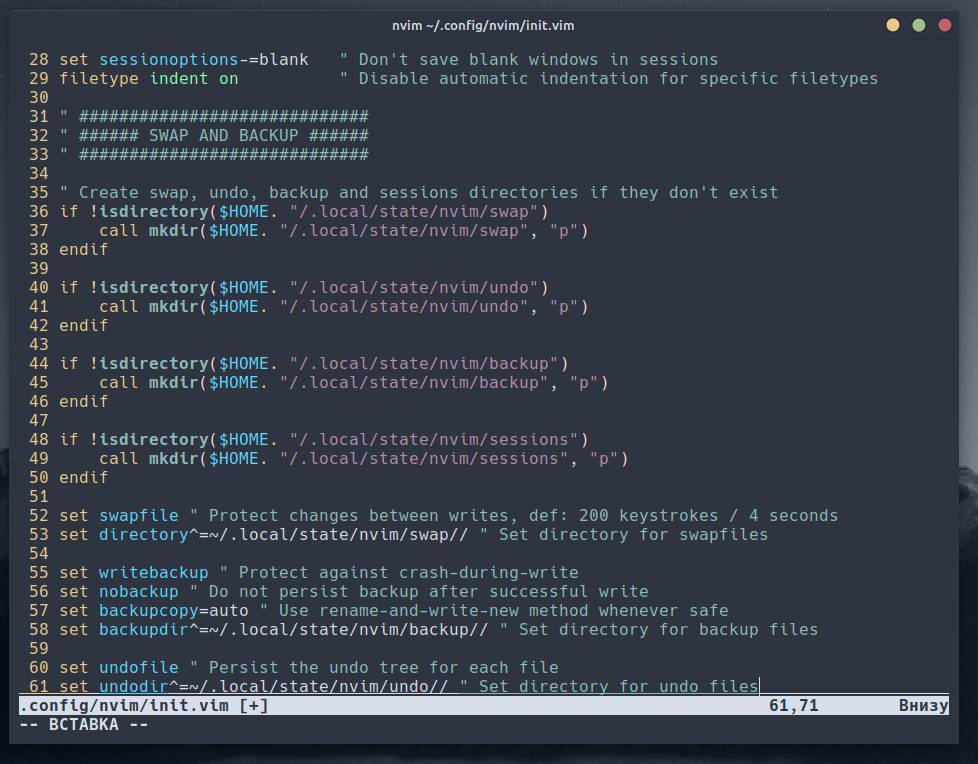
Save the changes. For them to take effect, you need to re-enter Neovim:
:wq

nvim ~/.config/nvim/init.vimNow let’s give a bit more detailed description of the parameters, in English as well)
| Parameter | Description |
|---|---|
if !isdirectory($HOME. "/.local/state/nvim/swap") call mkdir($HOME. "/.local/state/nvim/swap", "p") endif | Creates the directory for Swap files if it doesn’t exist, using the “p” flag to create the necessary parent directories. |
if !isdirectory($HOME. "/.local/state/nvim/undo") call mkdir($HOME. "/.local/state/nvim/undo", "p") endif | A similar check and creation of the directory for Undo files. |
if !isdirectory($HOME. "/.local/state/nvim/backup") call mkdir($HOME. "/.local/state/nvim/backup", "p") endif | A similar check and creation of the directory for backup files. |
if !isdirectory($HOME. "/.local/state/nvim/sessions") call mkdir($HOME. "/.local/state/nvim/sessions", "p") endif | A similar check and creation of the directory for session files. We talked about sessions in the introductory article; we create the directory so that all system files are located in one place. |
set swapfile | Enables the use of temporary files — swap. Periodic saving of state by input: every 200 keystrokes and by time: every 4 seconds. |
set directory^=~/.local/state/nvim/swap// | Sets a custom directory in the list of system directories for storing swap files. The ^= syntax for :set adds the specified directory name to the beginning of the list, so Neovim will check this directory first. The // at the end of the directory name tells Neovim to use the absolute path to the file when creating the swap, so there are no conflicts between files with the same name from different directories. |
set writebackup | Enables backup for an incomplete write. |
set nobackup | Instructs Neovim not to keep the backup file (created by the parameter above) after a successful completion of the operation (see more details in the quote from the article above the config). If this parameter is not set, Neovim will make a backup copy of every file you edit, in the directory specified above. For me this is excessive) |
set backupcopy=auto | Automatically chooses the strategy for creating backup copies (copying or renaming). Other options: yes, no, or breakhardlink. auto is preferred. |
set backupdir^=~/.local/state/nvim/backup// | Sets the directory for backup files. |
set undofile | Enables the use of files to store the change history (undo, redo) of edited files, allowing rollback even after they are closed. |
set undodir^=~/.local/state/nvim/undo// | Sets the directory for change history (undo, redo) files. |
So as not to distort the reader’s understanding of how swap and backup files work with my own subjectivity (or laziness (: ), I’ll give a few more comments from the author of the aforementioned article:
Our Vim also saves the rollback history for each file, so you can restore the desired version even after exiting edit mode. Although this feature may seem redundant given the swap file we already have, the rollback history is an additional layer of protection during file writing.
When we talk about rollbacks, it’s worth remembering that Vim maintains a full tree of the file’s editing history. This means you can make a change, roll it back, and then repeat the same changes again, and all of this will be three different restore points. The time and volume of changes made can be checked with the :undolist command, but pulling the actual tree out of it is problematic. With this command you can navigate between specific changes or different versions depending on time: jump in 5-minute steps, or rely on the number of saved files. That said, in my opinion, navigating the rollback directory with a plugin is a good option, but undotree is a rock-solid one.
Enabling the listed backup and file recovery settings can bring you some peace of mind. I used to methodically save all files manually after making a block of changes or if I stepped away from the computer. Then I retrained myself: I tried to leave documents unsaved for several hours at a time. In the end, this forced me to thoroughly study how the swap file works.
And a few final caveats: keep an eye on all backup recovery files, they can accumulate in the .vim folder and over time will start eating up a solid amount of disk space. You may also need to use the nowritebackup setting if you’re working with a huge file and your disk space is limited. It’s worth remembering this, because Vim will try to make a full copy of your file, which will have obvious consequences. By default, the backupskip parameter disables backing up a file in the temporary system directory.
A small demonstration
Let’s try to provoke Neovim into exercising its competence in the area of protecting our files)
Swap files
For example, let’s open our config file in one Neovim window, and also try to open this file in another window.
nvim ~/.config/nvim/init.vimIn the second window we get a warning:
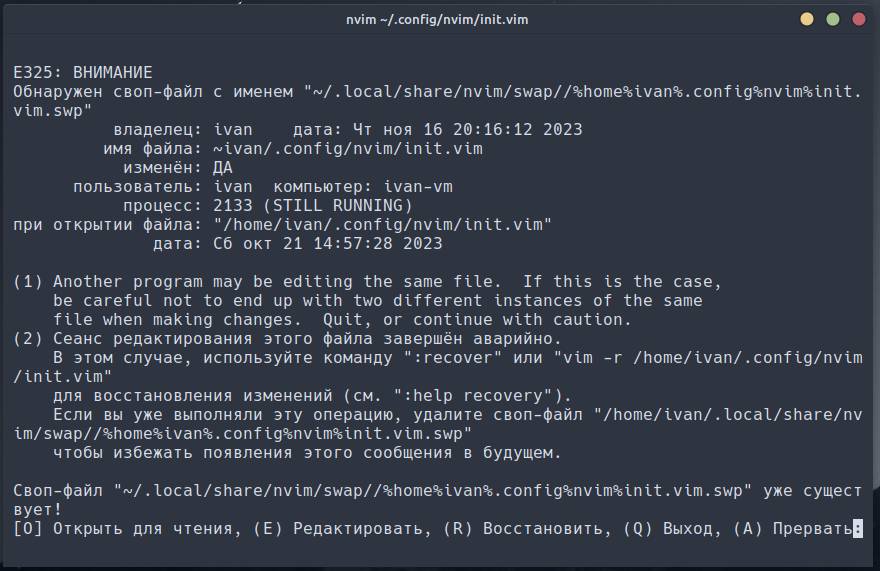
Neovim has detected the presence of a swap for the file being opened, which indicates two situations: this file was closed abnormally, or it’s currently being used in another session. We’re offered several options to choose from:
- Open read-only — press
O; - Edit anyway — press
E; - Restore the last saved state — press
R; - Quit the editor — press
Q; - Abort the operation — press
A.
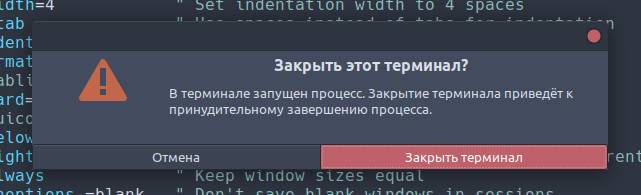
Let’s go back to the neighboring window with the open file. At the end of the file, let’s add a comment line (starting with double quote ") and, without saving the file, terminate the editor abnormally, for example by simply closing the terminal window:

Let’s open it again:
nvim ~/.config/nvim/init.vimAnd after the swap file warning appears, press R to restore, then Enter:
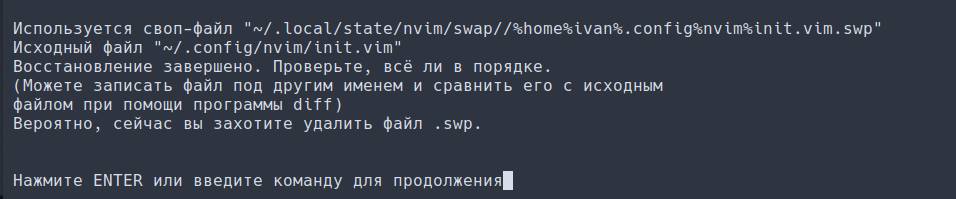
The file content has been restored, even though we didn’t save the file:

Note that at this point our editor will display the content of the swap file, not the actual content of the file itself. To correctly complete the recovery, the file must be saved. Let’s save and exit the editor with the command:
:wqNow let’s open the file for editing again
nvim ~/.config/nvim/init.vimand… we see the same message again. The thing is, swap files aren’t deleted automatically, even after recovery. Honestly, I still haven’t found a correct way (not counting workarounds) to perform this operation)
To delete the swap file, you can press D when the warning appears, after which we’ll go into file editing mode. Or you can not delete it and press E, and in command mode run:
:eThen, in the menu that appears again, press D. Yes, I agree, you need to get used to this, but the benefit of the swap file is great, so I’ve made peace with it and I recommend you do too)
To manually invoke recovery from a swap file during editing, enter:
:recover
" or
:rIf several swap files were created, the editor will offer you a choice of the appropriate one.
Backup files
With this configuration, it’s difficult to demonstrate how backup files work. After all, they’re only saved when the disk write didn’t complete successfully. So just know that you’re safe)
But if you enable permanent creation of backup files with the set backup parameter, backup files with the ~ suffix will appear in the directory specified in the configuration for each file you’ve opened. This isn’t always practical, especially if you frequently work with large files.
Undo tree
With the change history saving parameter enabled in the editor, it’s possible to perform the notorious “Ctrl+z” and “Ctrl+y” by pressing the u (undo) and Ctrl+r (redo) keys even after it’s closed. This is, as mentioned above, another layer of content protection)
Conclusions
so there you have it

Few people read this far into the article, but good on you)
Related materials
- My Neovim config on GitHub
- The history of Vim and a guide to its effective use — Habr
- Neovim — editor configuration: basic setup — Raven blog
- VIM — Console editor: an introduction — Raven blog
👨💻And…
Don’t forget about our Telegram channel 📱 and chat
Or maybe you want to become a co-author? Then click here🔗
💬 All the best ✌️
That should be it. If not, check the logs 🙂

Comments