
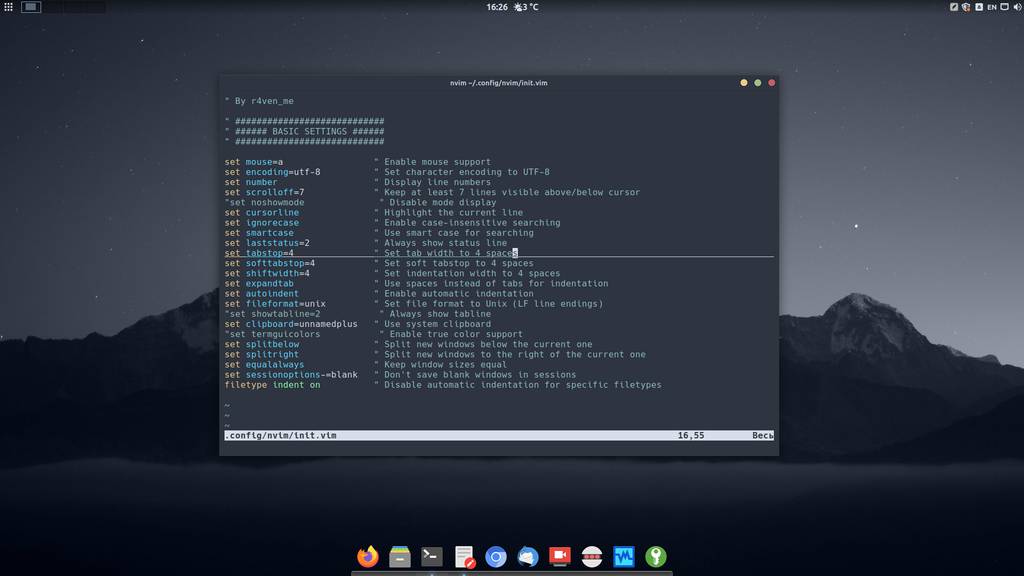
Today we’ll start configuring our console editor Neovim to our preferences. The note will be small)
🖐️Hey!
Subscribe to our Telegram channel @r4ven_me📱, so you don’t miss new posts on the website 😉. If you have questions or just want to chat about the topic, feel free to join the Raven chat at @r4ven_me_chat🧐.
Neovim is an evolutionary development of the classic Vim editor. To understand what this Vim thing is and why it’s needed — read my previous article: VIM — Console editor: an introduction. In that article I tried to bring readers up to speed: I briefly described the editor itself, its modes of operation, and gave frequently used hotkey commands.
Today we’ll perform the initial configuration of the Neovim editor. Note that the configuration from this article is also valid for Vim, with a few exceptions.
It won’t hurt too much, so please, hit the jump)
Preface
You can configure Neovim in two ways:
- classic — using the built-in vimscript language;
- extended — using the Lua programming language via the API mechanism.
For better compatibility with classic Vim, I’ll be doing the configuration using the first option. But I might switch to Lua in the future)
As usual, all actions in the article will be performed in a Linux Mint environment, specifically version 21. All articles related to this distribution can be found by tag.
If Neovim isn’t installed yet, let’s fix that)
Installing Neovim on Linux Mint
Open the terminal and run the command:
sudo apt update && sudo apt install -y neovim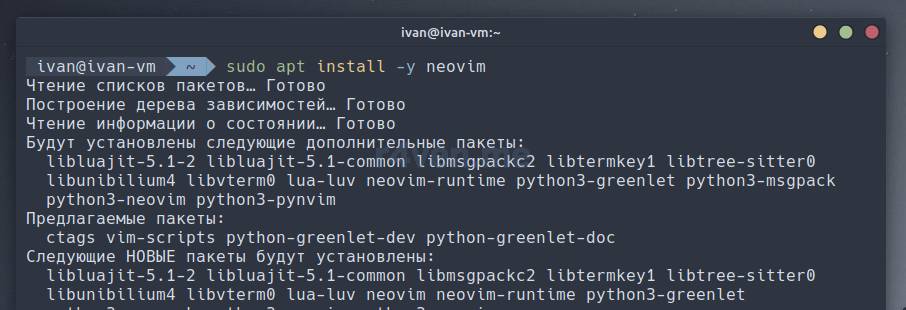
If anyone’s interested in the terminal appearance — the Nord color scheme is used. I talked about the setup in the article: Customizing Linux Mint 20/21 + Nord theme.
The terminal uses a configured Zsh shell — there’s a separate article about setting it up: ZSH — Interactive command shell for Linux + Oh-My-Zsh.
Basic Vim/Neovim configuration
For Neovim, create a config folder and open the file for editing:
mkdir ~/.config/nvim

nvim ~/.config/nvim/init.vimFor classic Vim, the command is:
vim ~/.vimrcIn vimscript, comments are denoted by an open double quote character
". This is hyper inconvenient, and apparently in recent Neovim versions you can use the hash#, but for compatibility we’ll leave the default.
And add the following content:
" By r4ven_me

" ############################
" ###### BASIC SETTINGS ######
" ############################

set mouse=a                 " Enable mouse support
set encoding=utf-8          " Set character encoding to UTF-8
set number                  " Display line numbers
set scrolloff=7             " Keep at least 7 lines visible above/below cursor
"set noshowmode              " Disable mode display
set cursorline              " Highlight the current line
set ignorecase              " Enable case-insensitive searching
set smartcase               " Use smart case for searching
set laststatus=2            " Always show status line
set tabstop=4               " Set tab width to 4 spaces
set softtabstop=4           " Set soft tabstop to 4 spaces
set shiftwidth=4            " Set indentation width to 4 spaces
set expandtab               " Use spaces instead of tabs for indentation
set autoindent              " Enable automatic indentation
set fileformat=unix         " Set file format to Unix (LF line endings)
"set showtabline=2           " Always show tabline
set clipboard=unnamedplus   " Use system clipboard
"set termguicolors           " Enable true color support
set splitbelow              " Split new windows below the current one
set splitright              " Split new windows to the right of the current one
set equalalways             " Keep window sizes equal
set sessionoptions-=blank   " Don't save blank windows in sessions
filetype indent on          " Disable automatic indentation for specific filetypes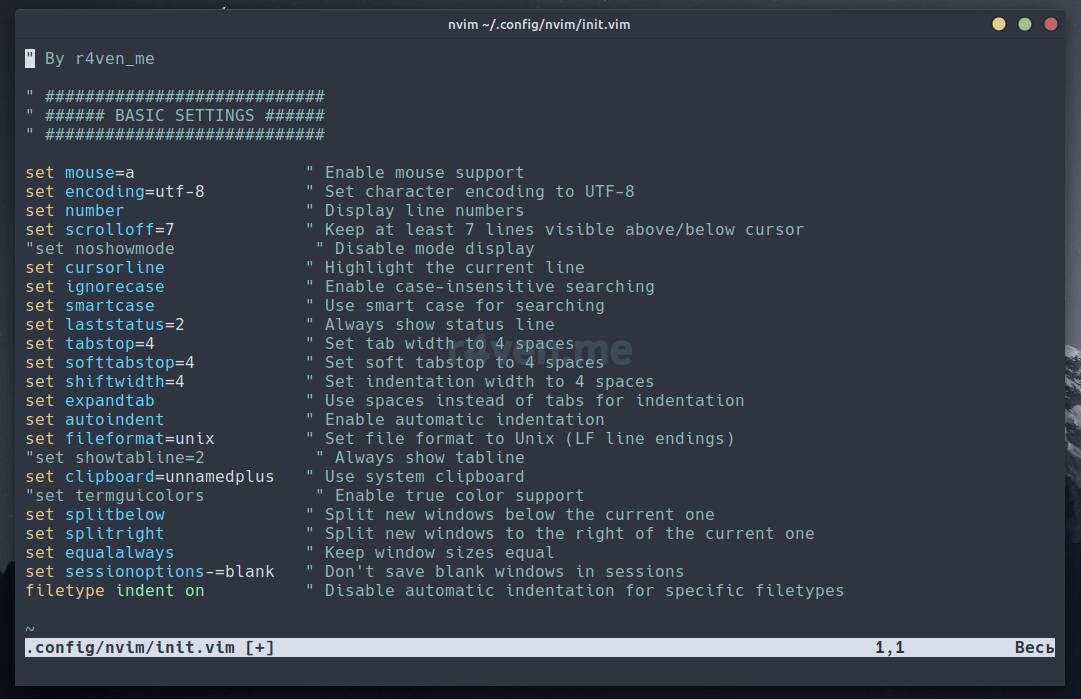
Neovim configuration file
As you can see, I left comments in English next to each item (for universality).
For the changes to take effect, just save the file and re-enter the editor:
:wq

nvim ~/.config/nvim/init.vimLet’s give a description of each parameter in English)
So:
| Parameter | Description |
|---|---|
set mouse=a | Enables the use of the mouse in the editor. |
set encoding=utf-8 | Sets the encoding for new files to UTF-8. |
set number | Enables display of line numbers. |
set scrolloff=7 | Sets the number of lines displayed after the cursor when scrolling through the file. |
"set noshowmode | Disables display of the current editor mode status (leave this parameter commented out, we’ll need it in the future when configuring the statusline plugin). |
set cursorline | Enables highlighting of the current line. |
set ignorecase | Disables case sensitivity when searching via / and ?. |
set smartcase | With this parameter, the search will be case-insensitive if the query contains only lowercase characters. However, if the query contains at least one uppercase letter, the search will be case-sensitive. |
set laststatus=2 | Enables display of the status line at the bottom of the window. |
set tabstop=4 | Sets the indent width when pressing Tab to 4 spaces. |
set softtabstop=4 | Determines the number of spaces to be inserted when Tab is pressed, or when automatic indentation occurs. It’s called “soft” because it doesn’t change the actual text, but only visually sets indentation. |
set shiftwidth=4 | Determines the number of spaces inserted when adding auto-indents. |
set expandtab | Replaces the tab character (set by default) with spaces. |
set autoindent | Enables auto-indentation when moving to a new line. |
set fileformat=unix | Sets the format for new files. These formats mainly differ in how the line break character is handled. You can read more about formats, for example, here. |
«set showtabline=2 | Enables permanent display of the tab line, even if only one window is open (this parameter will also be useful for us when configuring plugins in the future). |
set clipboard=unnamedplus | Activates the use of the external clipboard (with this parameter, classic vim may behave incorrectly, but in neovim everything works fine). |
"set termguicolors | Enables true color support for the terminal. This parameter can also be left commented out. It will be needed in the future when configuring the color theme for Neovim. |
set splitbelow | Instructs the editor, when horizontally splitting a window with the :split command, to open the new window below (by default, above). |
set splitright | Instructs the editor, when vertically splitting a window with the :vsplit command, to open the new window to the right (by default, to the left). |
set equalalways | When this parameter is enabled, the editor will try to automatically maintain equal width of vertical windows when they are opened. |
set sessionoptions-=blank | Removes the “blank” option from session parameters. Disables saving/restoring blank windows when working with session files. |
filetype indent on | Enables automatic indentation depending on the file type. |
Description of basic parameters
All the parameters listed above can also be temporarily activated/deactivated manually while working in the editor. To activate, simply enter the parameters listed above in command-line mode (invoked with the colon key :, i.e. Shift + ;). For example, to enable line number display:
:set numberAnd to deactivate:
:set nonumber

# or

:set number!This syntax applies to many parameters. To disable, you need to add the no prefix or the ! suffix before/after the desired parameter.
Afterword
This was the first part of the basic Neovim configuration. As you can see, even when configuring such a small list, you can understand how flexible the settings the editor offers are.
In the next article we’ll talk about setting up swap and backup files to ensure safety when working with files in case of power outages or disk write problems, etc. Don’t miss it.
Thanks for reading. Good luck learning Vim/Neovim.
Useful sources
Other articles of mine:
👨💻And…
Don’t forget about our Telegram channel 📱 and chat
Or maybe you want to become a co-author? Then click here🔗
💬 All the best ✌️
That should be it. If not, check the logs 🙂

Comments