
They say that if you read white text on a black background for too long, you start to hear the terminal whisper 🙃. In this note we’ll talk about how to improve the perception of text from the “black window” by adding syntax highlighting with the command-line utilities bat and exa.
🖐️Hey!
Subscribe to our Telegram channel @r4ven_me📱, so you don’t miss new posts on the website 😉. If you have questions or just want to chat about the topic, feel free to join the Raven chat at @r4ven_me_chat🧐.
Let’s get started😎.
Who Are bat and exa
bat — an enhanced version of the cat command ☝️. It’s used to output the contents of files, but with additional features📋:
- syntax highlighting for more than 50 languages;
- line numbering;
- style support, e.g. underlining git changes;
- intuitive output with a pager (e.g.
less) if the file is too large for the screen; - with the help of command constructs, it can act as an alternative to less, tail, man, etc.
exa — a modern alternative to the ls command ☝️, which offers an improved and more readable listing of files and directories. In short, what it can do📋:
- color highlighting of files, types, and permissions;
- a convenient format for displaying a tree structure of directories (
--tree); - support for git info, showing file status;
- more detailed display of modification time, permissions, and file owners.
Demonstrating the Utilities
Next I’ll simply demonstrate what everything looks like with already configured aliases (alias, pseudonym) and shell functions, and afterward I’ll explain how to set this up for yourself🧑💻.
All actions in the article were performed in the Linux Mint 22 Cinnamon distribution 🍃(Ubuntu 24) environment. But everything will work similarly in other popular Linux distributions👌.
The bat Utility as a Replacement for man, cat, less, tail -f and git diff
Let’s start by reading man pages:
man bash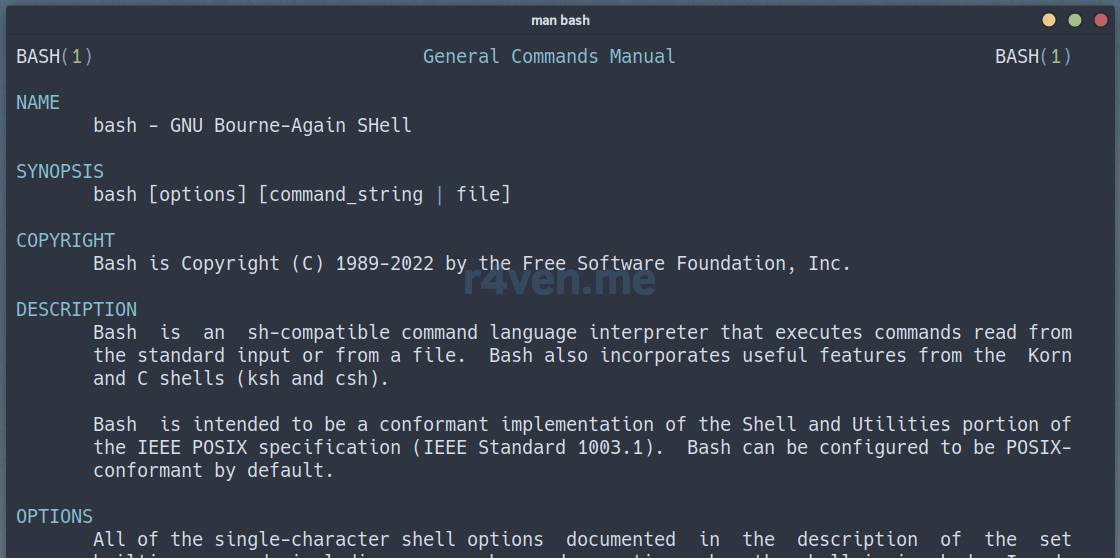
with bat
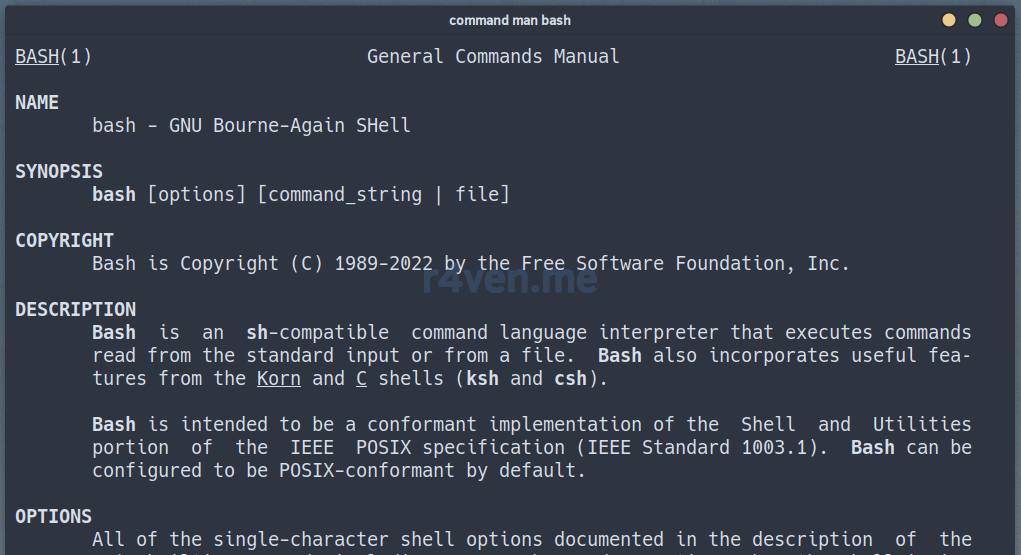
without bat
A global alias for the ZSH shell: --help, which highlights the help output for the selected command:
tar --help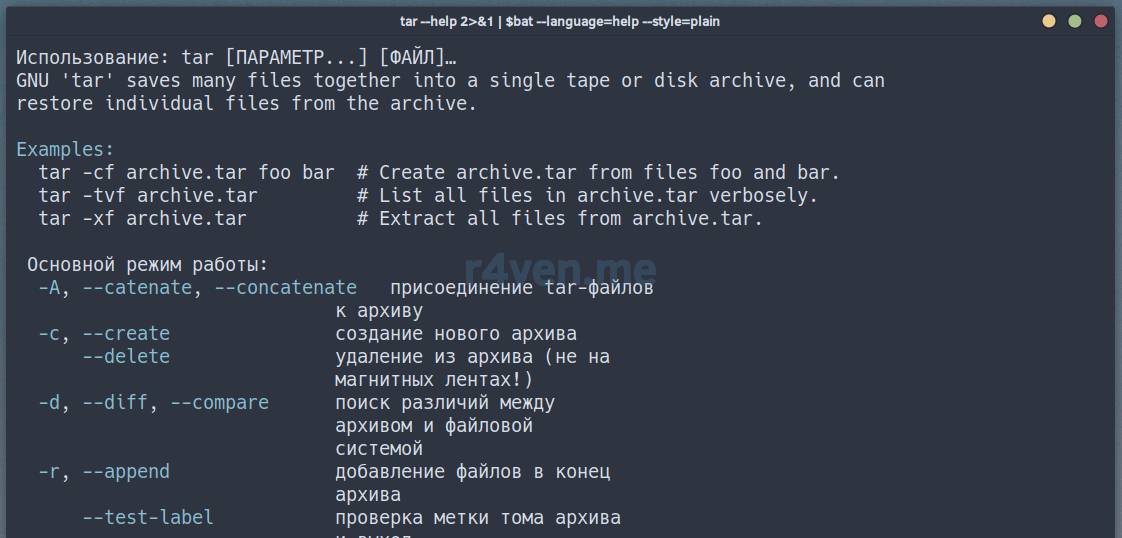
with bat
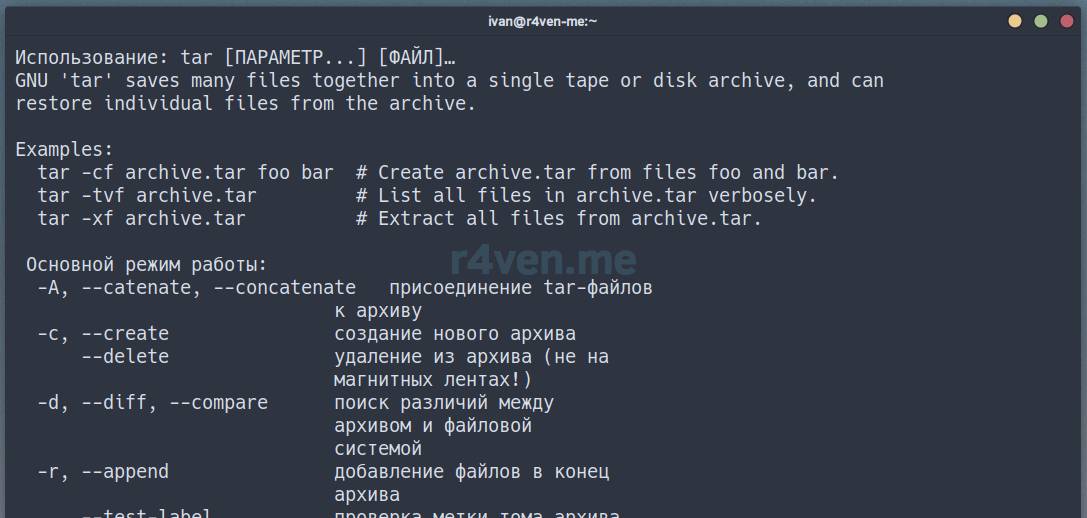
without bat
Similarly, but as a separate function, which also works for other shells, including BASH:
help gzip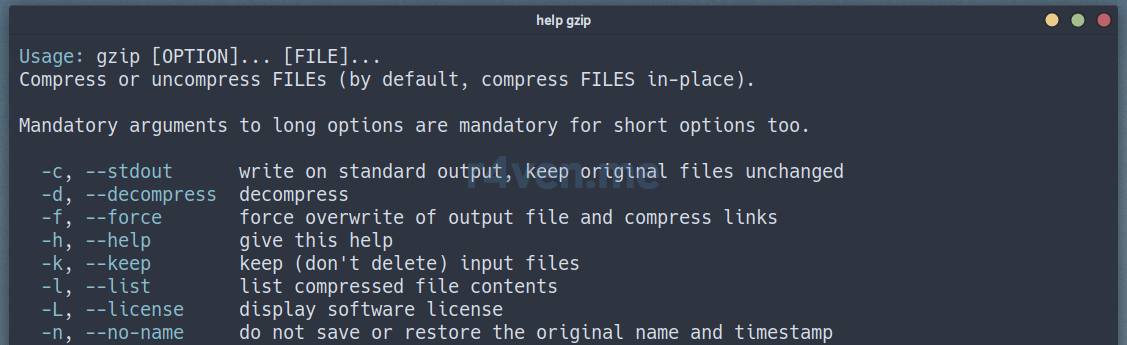
with bat
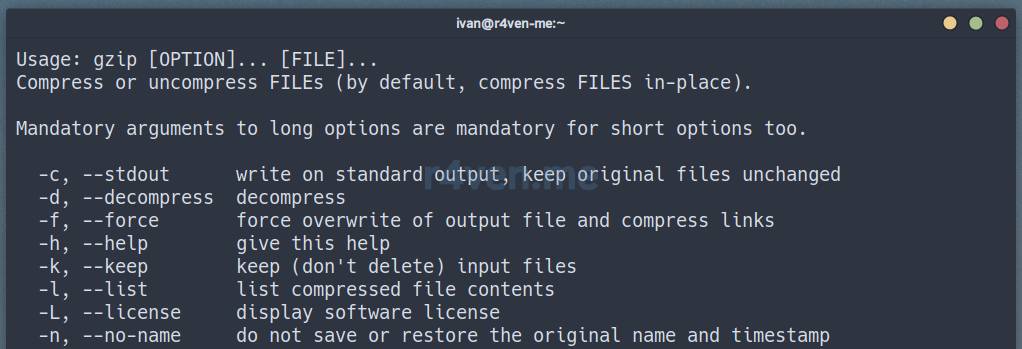
without bat
Still a bit boring so far.

Let’s move on, an alternative to less:
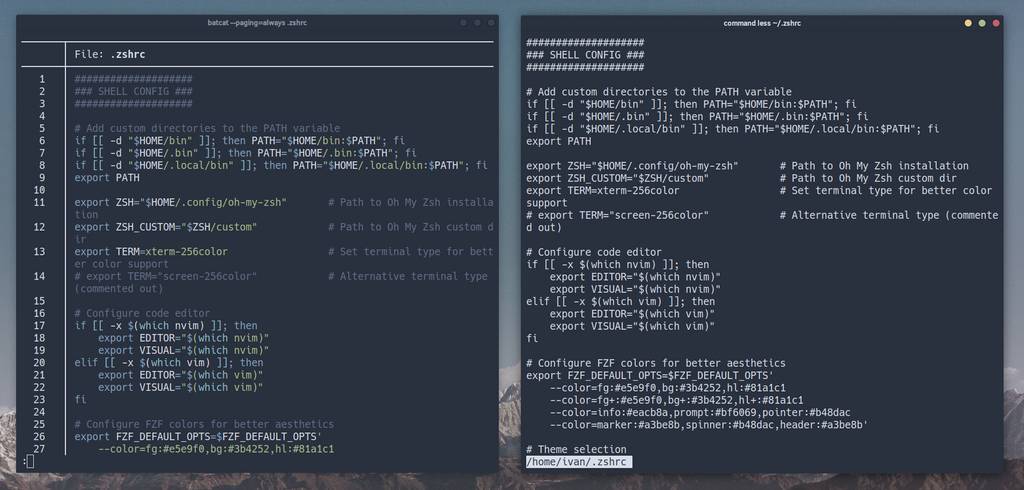
less ~/.zshrc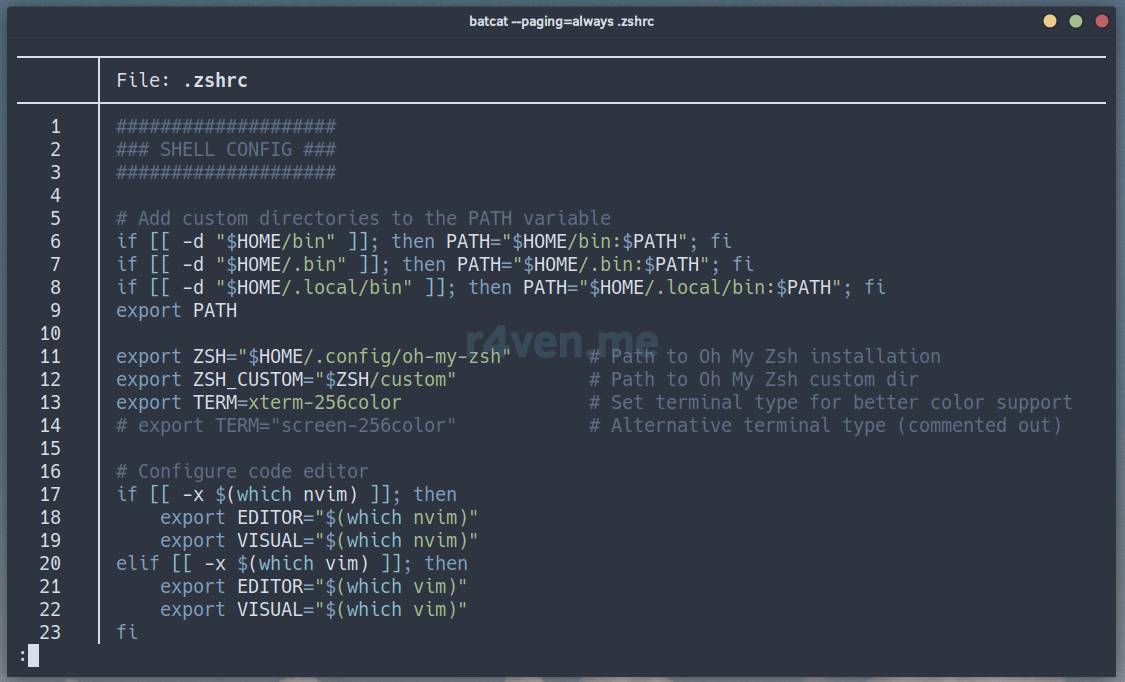
with bat
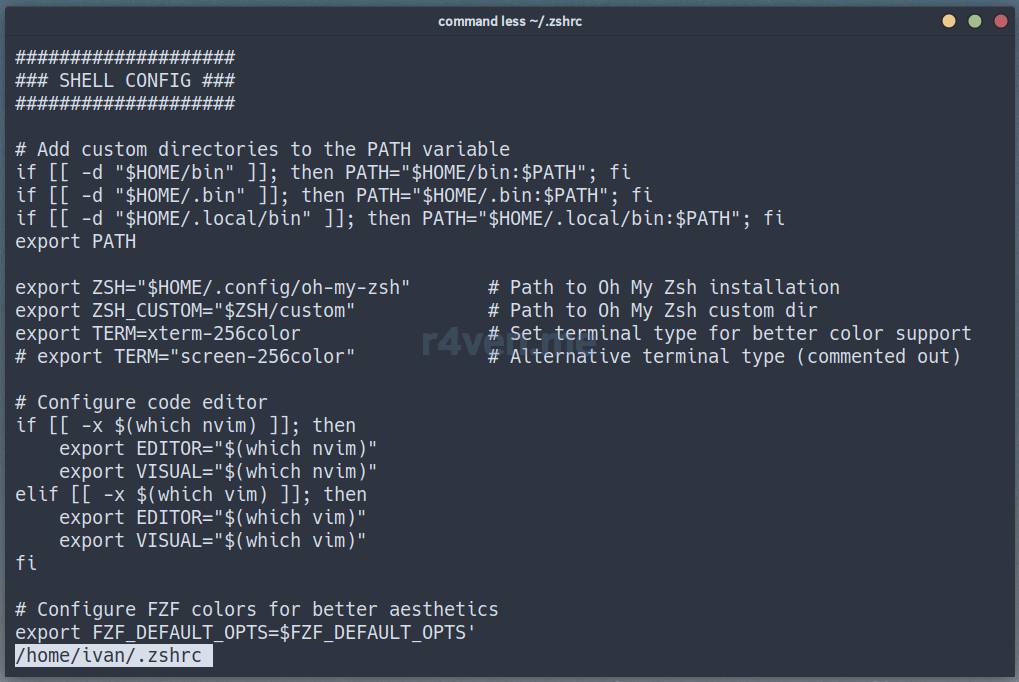
without bat
Already more interesting!

Getting closer to bat’s main goal — as an alternative to cat:
cat ~/.bashrc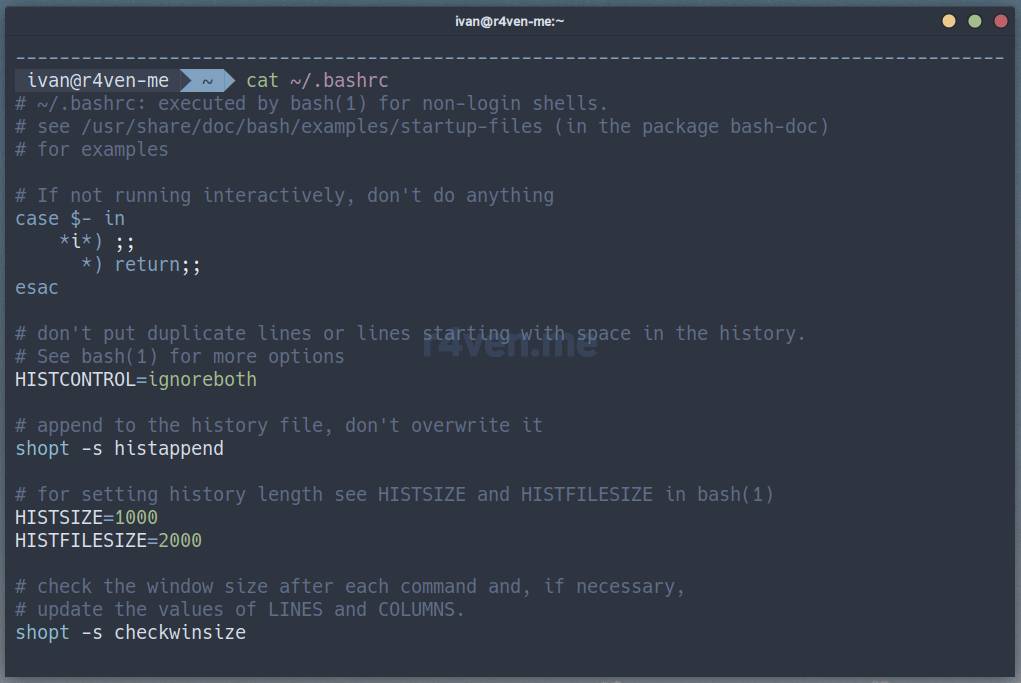
with bat
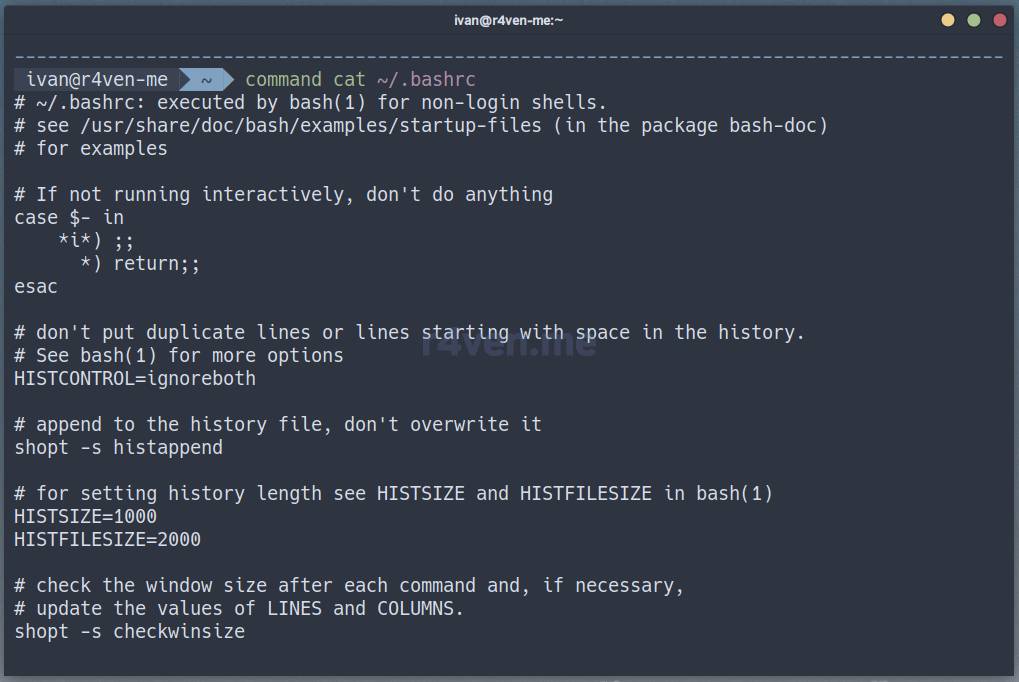
without bat
We can see that this is essentially syntax highlighting, like in a code editor, e.g. Vim 📝.
With the special tailf function, you can read log files in real time, similar to the tail -f command, only with much better readability:
tailf /var/log/apt/history.log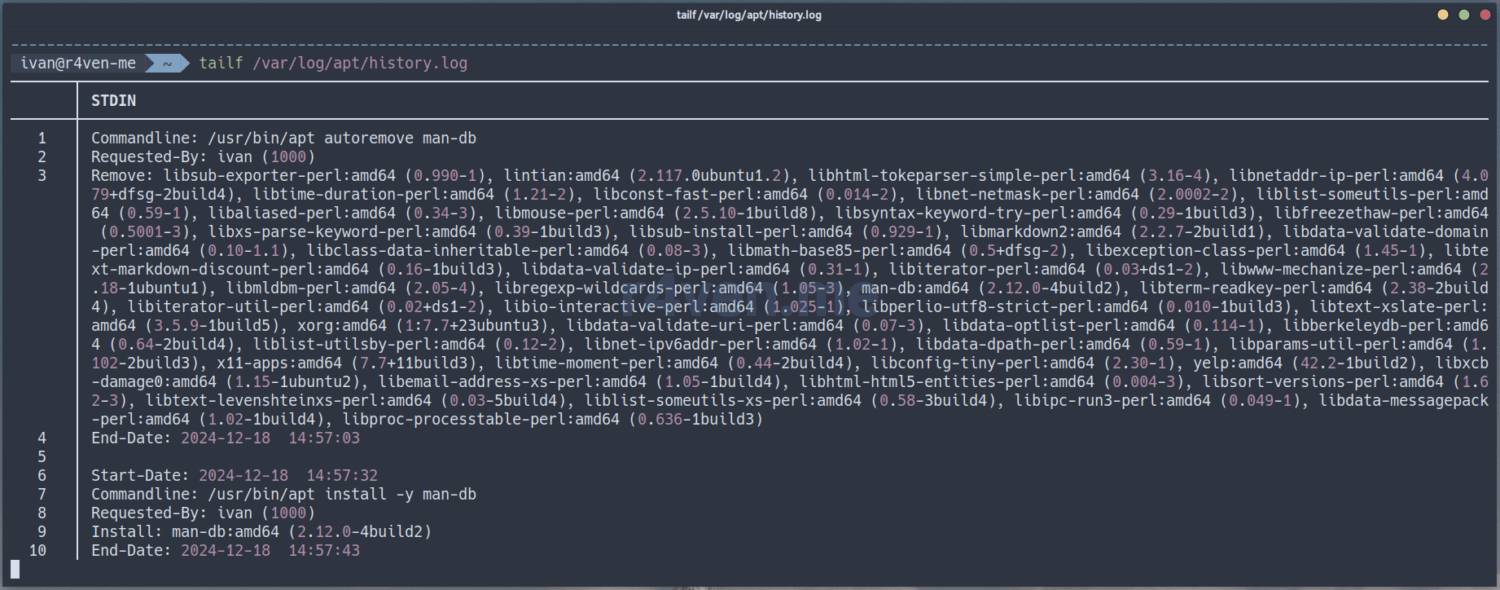
with bat
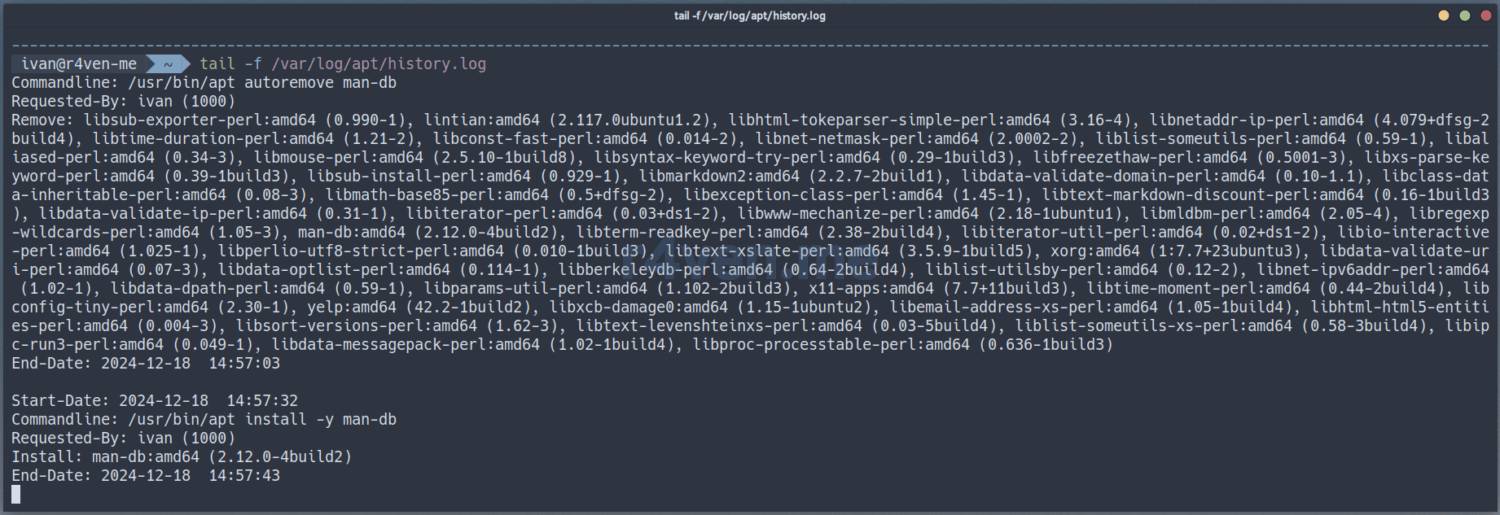
without bat
Cool, isn’t it? I really like it👍!

In the same way, you can set up viewing git diff. Here’s an example of the batdiff function:
batdiff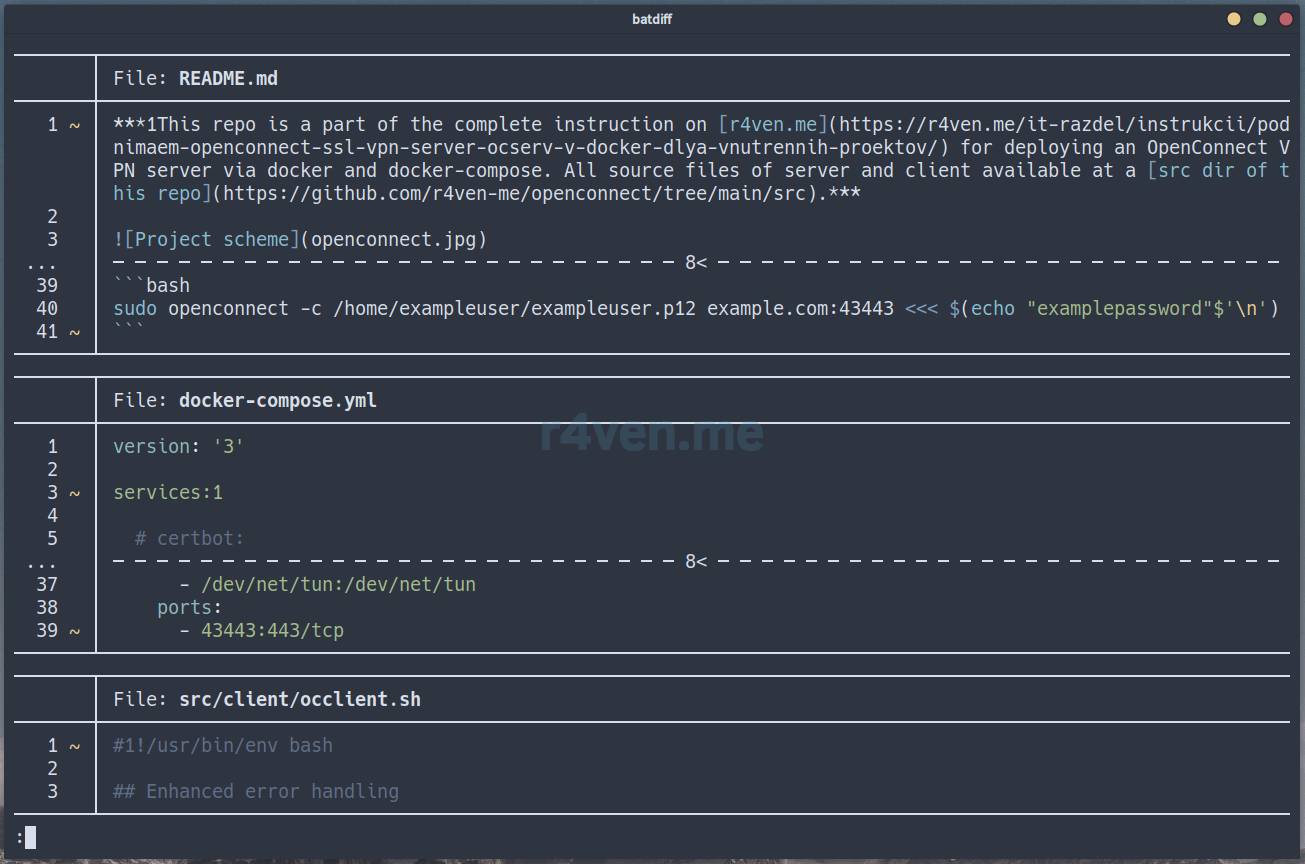
Something like this🙂.
The exa Utility as a Replacement for ls
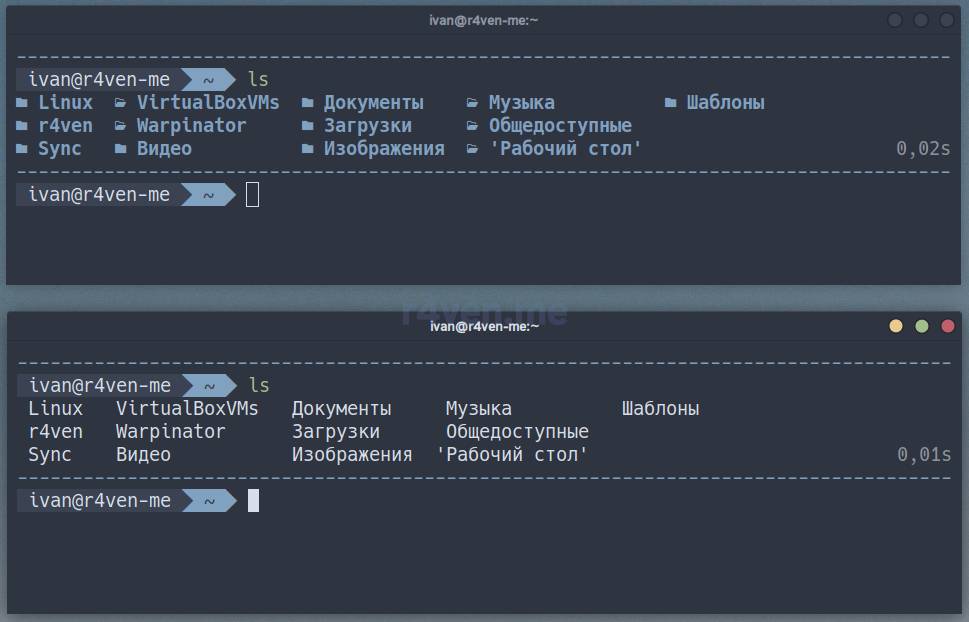
One of the most popular utilities when working with the Linux command line is ls. Even though it has color support out of the box, the exa command takes viewing directory contents to another level🆙. Here are some examples:
ls📝 exa at the top, ls at the bottom
ls -l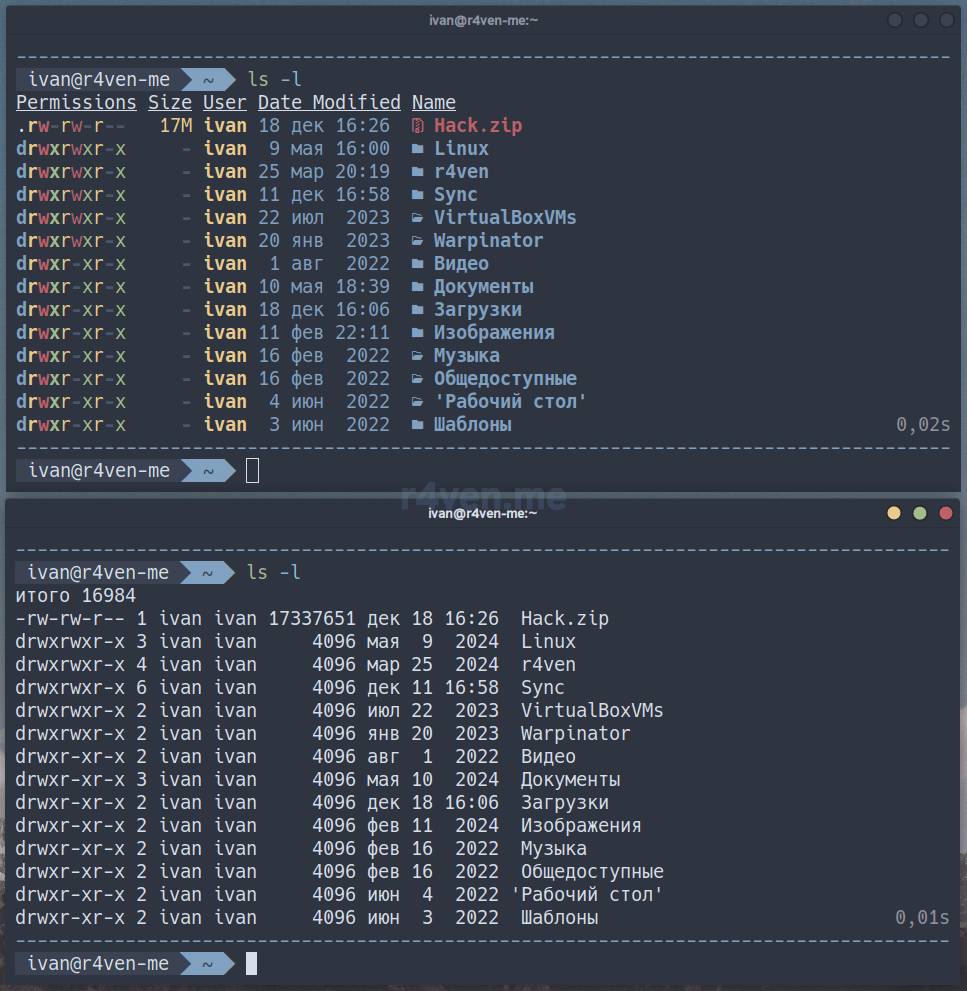
exa at the top, ls at the bottom
As you can see, exa even supports rendering icons according to the file format😱:
ls -la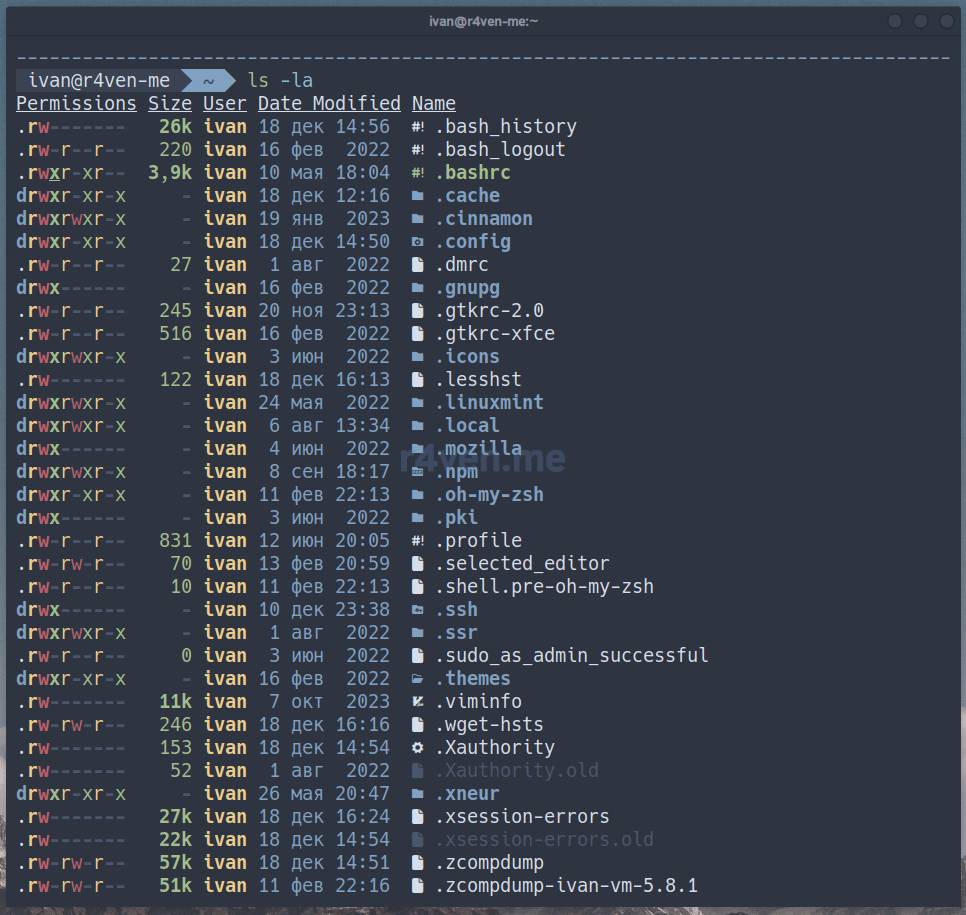
with exa
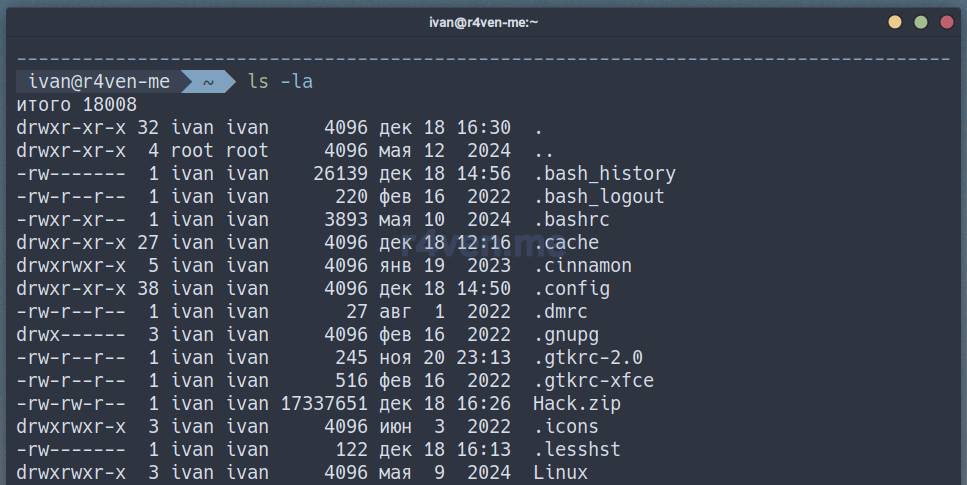
without exa
In my opinion, this is also great. It’s easier to read, and easier on the eyes👀.
In addition to the standard ls flags, exa supports extended ones. Here’s an example of a magical incantation🧙♂️:
ls -lbHigUmuSa --sort=modified --time-style=long-iso
# or the short alias
lmm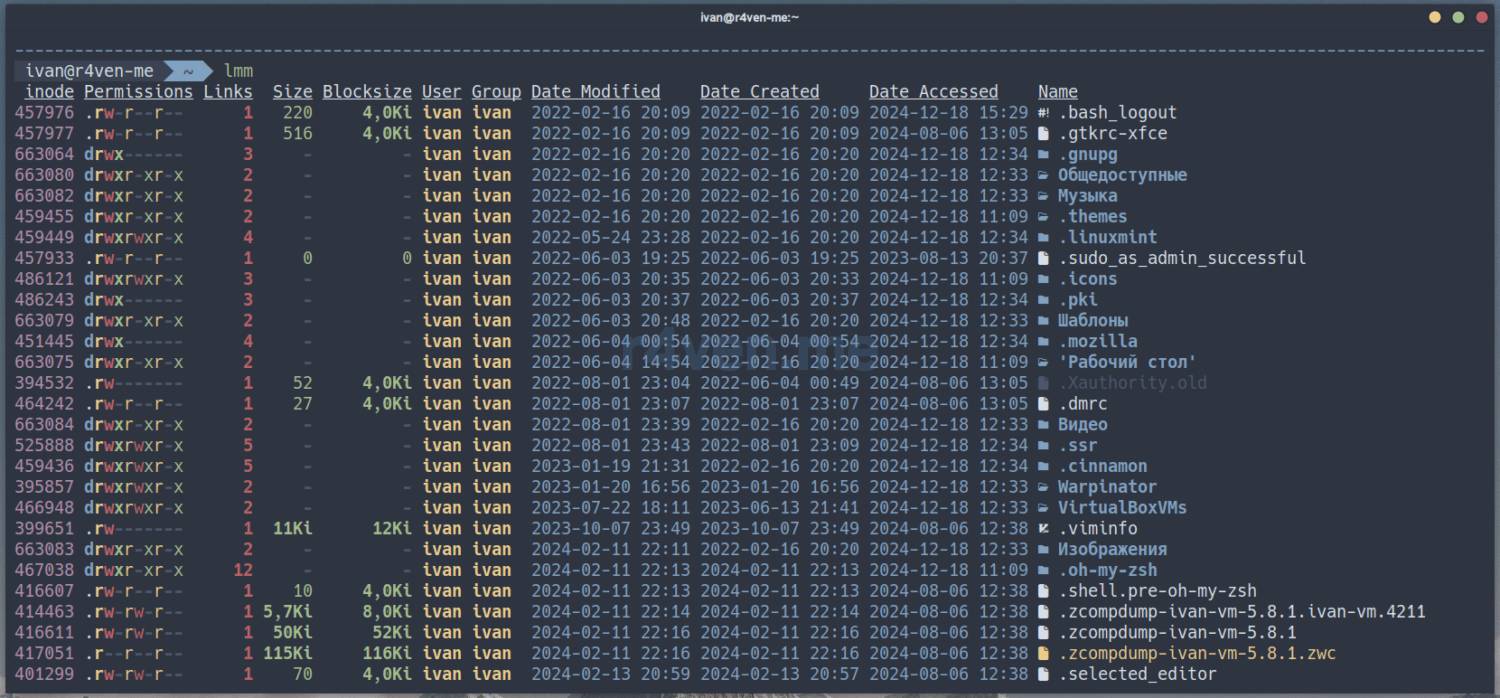

Of course, there’s support for git flags 🫡!
ls -l --git --sort=modified
# or the short alias
lg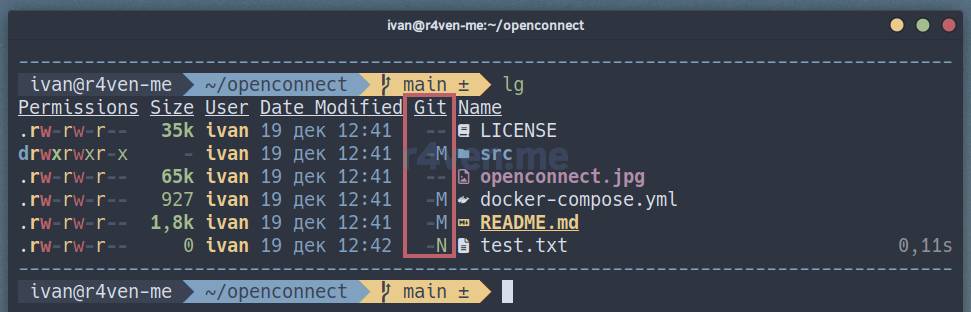
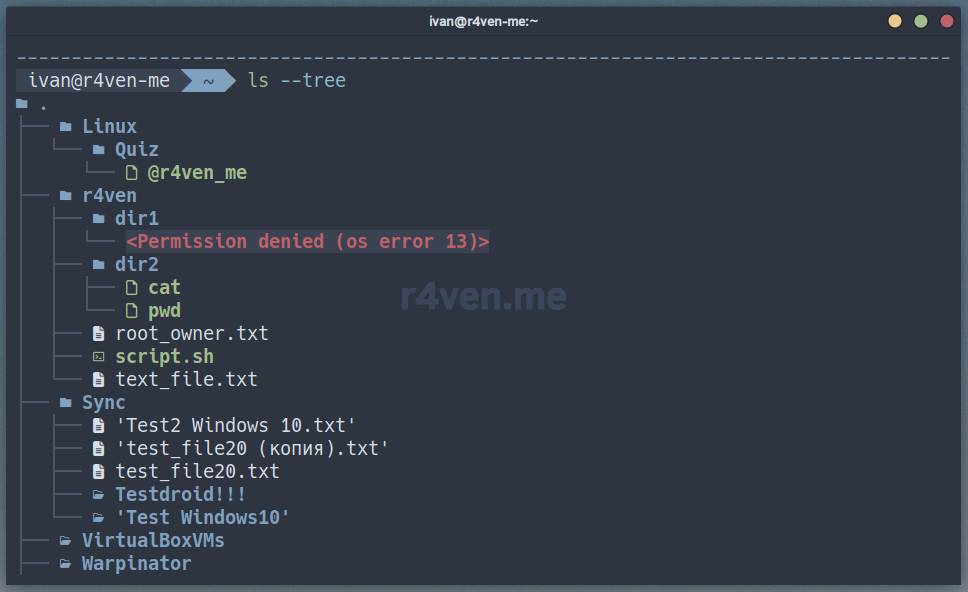
And finally the killer feature🤯 — displaying contents as a tree structure:
ls --tree
# or the short alias
ltThe depth of the output can be adjusted☝️.
Another example:
lt .config/nvim

lt .config/tmux/plugins/nord-tmux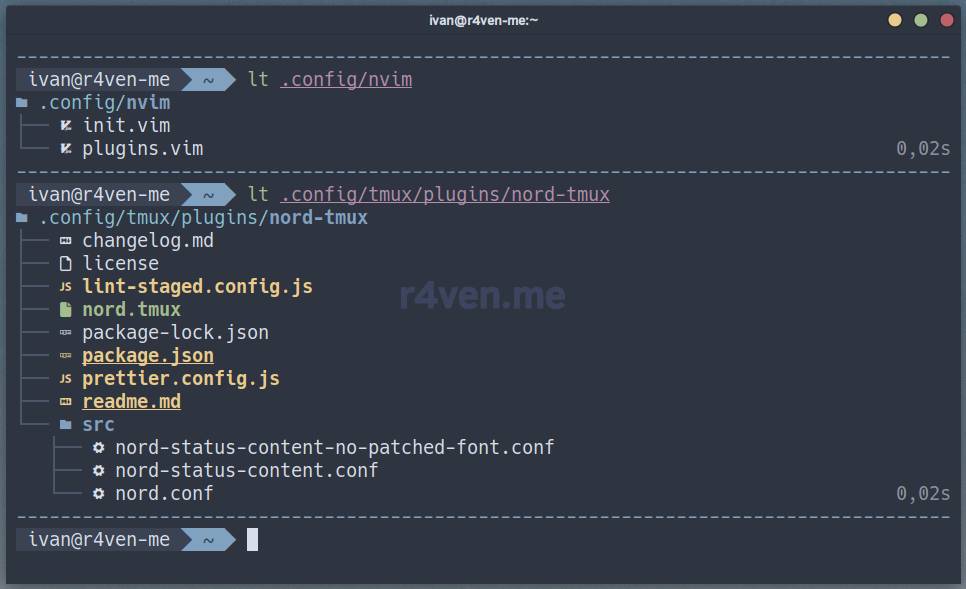
Neat😌.
Installing bat and exa
So, if you’re interested in this functionality, setting it up for yourself is very simple🤷♂️. It all comes down to installing two utilities from standard repositories and adding a few blocks of code to your shell environment startup file, e.g. .bashrc or .zshrc (I’ve tested both👌).
Of course, there’s no escaping the nuances, and there are two of them: one with exa, the other with bat.
First: in newer distributions, the exa utility package is called eza (a fork of exa🤔). To determine which of these packages is in your distribution’s repositories, run (for deb systems):
sudo apt update

apt list bat exa eza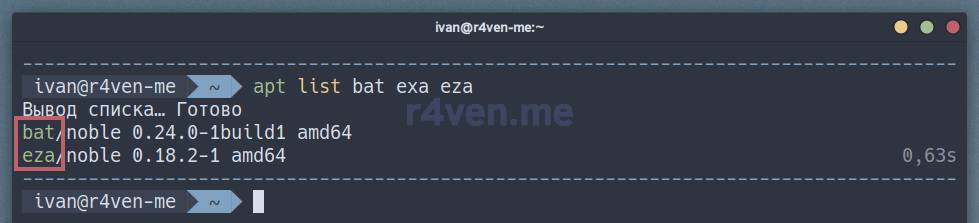
In Linux Mint 22 (Ubuntu 24) this package is called eza. But in Debian 12 — it’s still exa. Depending on the output of the command above, run the installation:
sudo apt install -y bat eza
#or
sudo apt install -y bat exa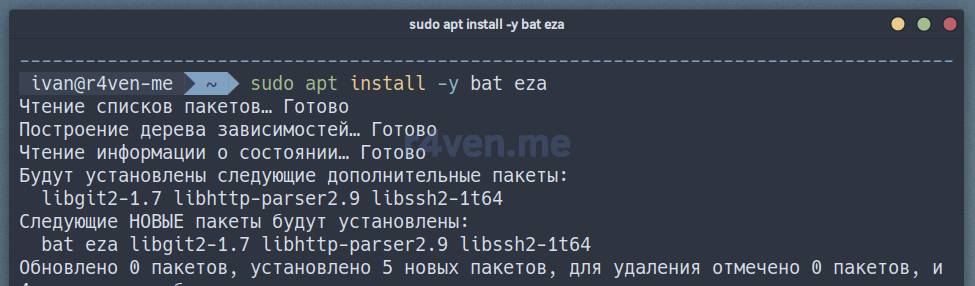
For better compatibility, we’ll use the name
exa.
Let’s check exa:
file /usr/bin/exa

ls -l /usr/bin/exa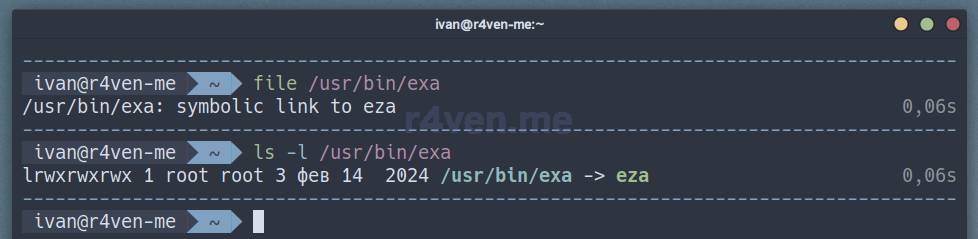
We can see that exa is a symlink to eza. Linux and Open Source in their typical form, what can you say…🫠
Now for the second nuance with the bat utility. The thing is, in Debian/Ubuntu there’s another executable with that same name, so in these distributions the executable is called batcat, whereas in others it’s just bat 🗿.
Let’s check bat:
command -v bat || command -v batcat
commandis a shell built-in command for running programs without using the variables and aliases of the current session, the-vflag outputs details about the invoked command.
Here we can see that in Linux Mint the executable is called batcat.
Here are the utility versions available in the repositories at the time of writing:
exa --version

bat --version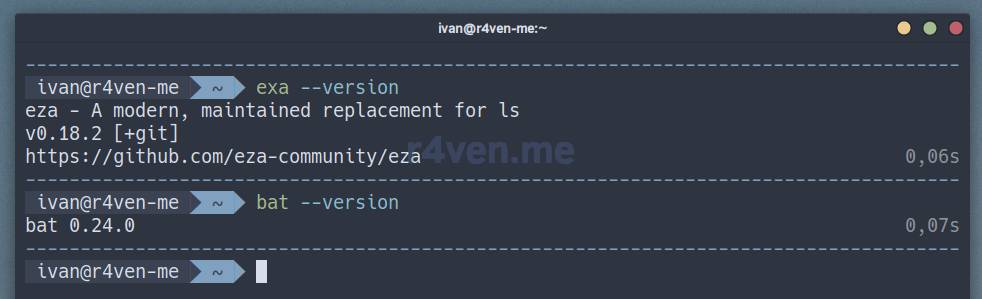
Installing a Powerline Font
If you want to use icon rendering in your terminal, as in the screenshots with exa, you’ll need to use a special monospaced icon powerline font 🤯, e.g. from the Nerd fonts project. Otherwise, just skip this step, and remove the --icons parameter from the exa commands in the config below.
My readers know that I prefer the Hack font ☝️. Here’s a simple example of how to install it:
📝 Note
Please note that sudo rights are required to execute these commands. Alternatively, install fonts only for the current user in the ~/.local/share/fonts directory.
# create font directory
sudo mkdir /usr/share/fonts/Hack

# download font archive
curl -fsSLO \
    $(curl -s https://api.github.com/repos/ryanoasis/nerd-fonts/releases/latest \
    | grep browser_download_url \
    | grep 'Hack.zip' \
    | cut -d  '"' -f 4)

# unpack archive, copy fonts to system
sudo unzip ./Hack.zip -d /usr/share/fonts/Hack/ && rm -f ./Hack.zip📝 Note
The curl command uses a command-line substitution mechanism. That is, the main download command: curl -fsSLO is passed an argument, which is the result of executing another command within the $(command) construct, performed beforehand. As a result, the main command will receive a direct URL to the zip file of the latest Hack font release from GitHub. The command is universal.
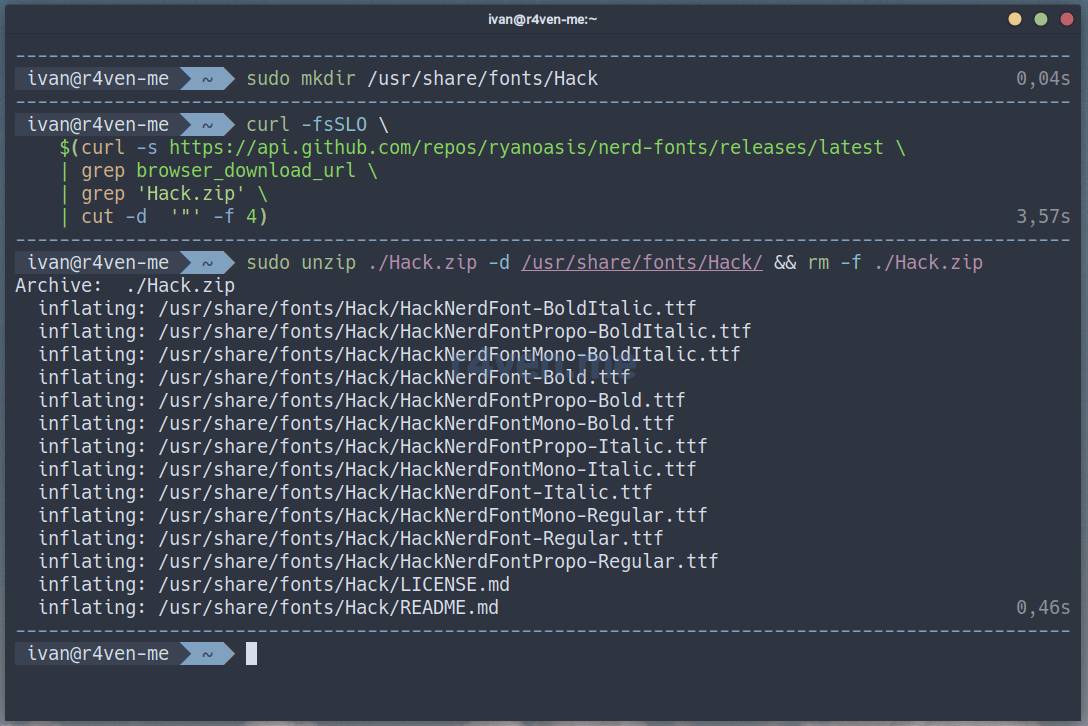
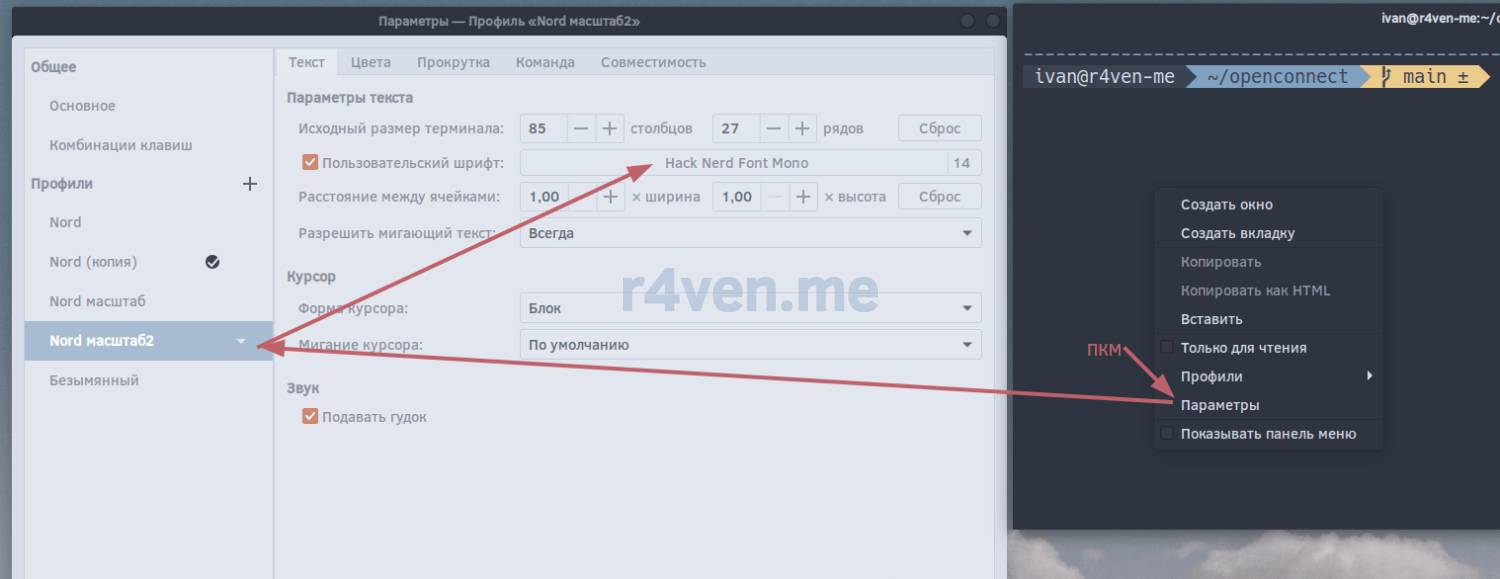
After installing the font, activate it in your terminal settings🛠.
In Gnome-terminal, this is done as follows:
Creating Aliases and Functions for .bashrc and .zshrc
Now we need to add the necessary functionality to the shell environment file🐚. In my example, ZSH is used:
nvim ~/.zshrcAnd add the following code somewhere at the end:
# Determine the utility name variable: bat or batcat
if [[ -e $(which batcat) ]]; then
    export bat="batcat"
    alias bat="batcat"
elif [[ -e $(which bat) ]]; then
    export bat="bat"
fi

# Configure the bat utility
if [[ -n $bat ]]; then
    export COLORTERM="truecolor"
    export BAT_THEME="Nord"  # Color theme
    export MANPAGER="sh -c 'col -bx | $bat --language=man --style=plain'"  # Command for viewing man pages
    export MANROFFOPT="-c"  # Disable line wrapping in man
    alias cat="$bat --style=plain --paging=never"
    alias less="$bat --paging=always"
    if [[ $SHELL == *zsh ]]; then # global --help alias if the shell is zsh
        alias -g -- --help='--help 2>&1 | $bat --language=help --style=plain'
    fi
    # The help function mimics the --help flag but with bat, example: help ls
    help() { "$@" --help 2>&1 | $bat --language=help --style=plain; }
    # The tailf function - an analog of tail -f but with bat
    tailf() { tail -f "$@" | $bat --paging=never --language=log; }
    # Function for viewing git diff changes with bat
    batdiff() { git diff --name-only --relative --diff-filter=d | xargs $bat --diff; }
fi

# Configure exa as a replacement for ls
if [[ -e $(which exa) ]]; then
    if [[ -n "$DISPLAY" || $(tty) == /dev/pts* ]]; then # show icons if it's a pseudo-terminal
        alias ls="exa --group --header --icons"
    else
        alias ls="exa --group --header"
    fi
    alias ll="ls --long"
    alias l="ls --long --all --header"
    alias lm="ls --long --all --sort=modified"
    alias lmm="ls -lbHigUmuSa --sort=modified --time-style=long-iso"
    alias lt="ls --tree"
    alias lr="ls --recurse"
    alias lg="ls --long --git --sort=modified"
fi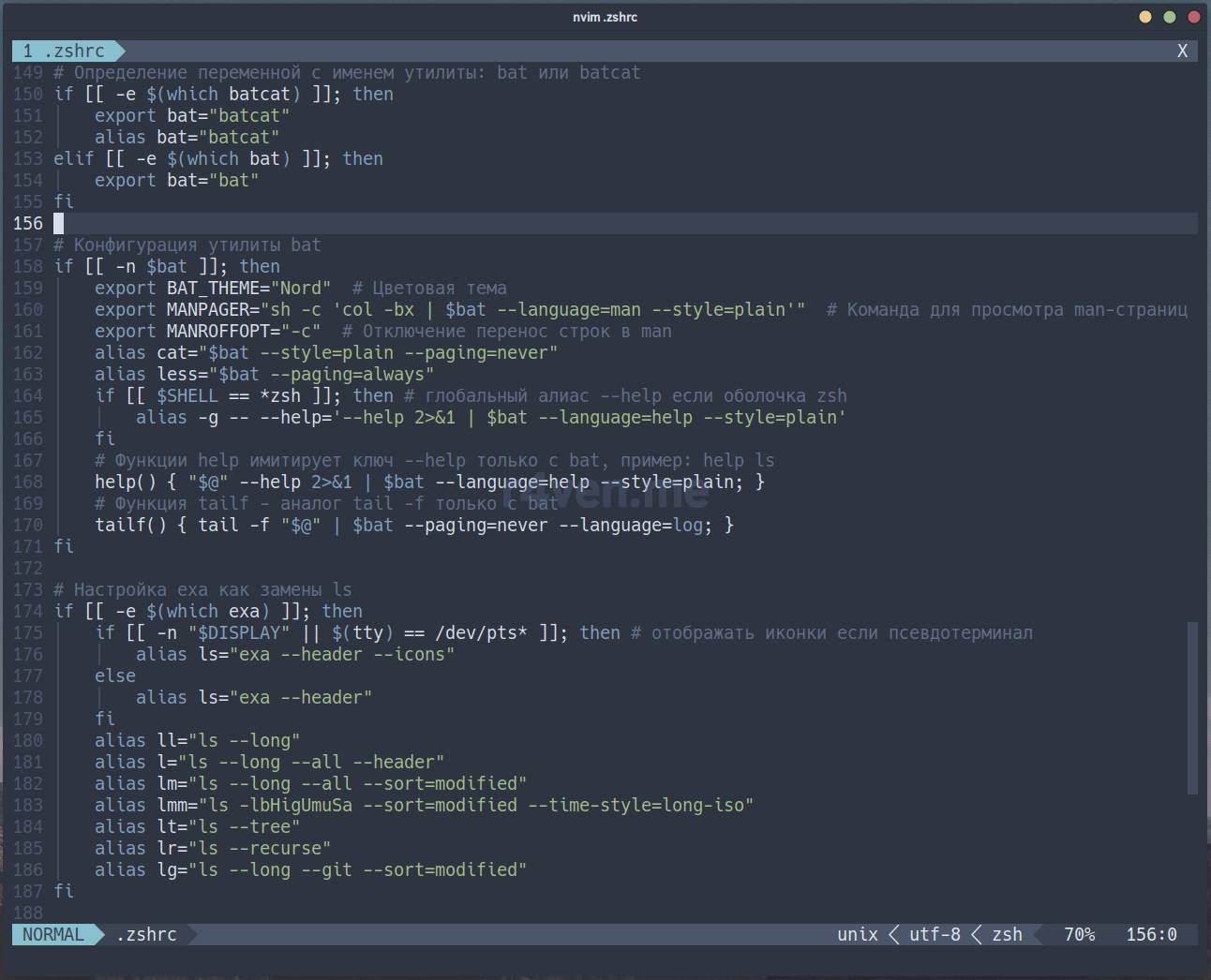
Liked my Neovim config?
You can easily create a similar one by following the article: Neovim — Installing and configuring a code editor with IDE features in just a few commands.
Save the file and close the editor.
The code above only runs if the required utilities are installed on the system. In the case of exa, the current shell session is also checked: whether it’s graphical or a pseudo-terminal. This is done so as not to render icons in a console session (tty). Comments in Russian have also been added.
bat supports a large number of color themes out of the box. My config uses ❄️. To view the available themes, run:
batcat --list-themes
# or
bat --list-themes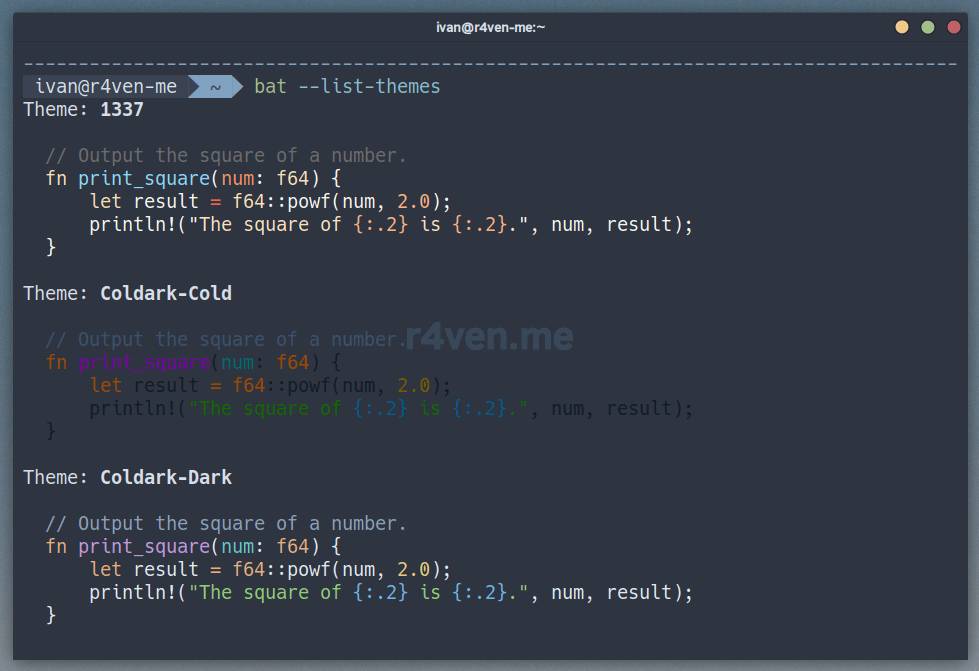
If needed, replace:
export BAT_THEME="Nord"With your chosen theme in your ~/.zshrc file.
To apply the changes made, run:
source ~/.zshrc
Well, that’s it😌.
Conclusion
Today our collection of Linux administrator tools has grown by two wonderful tools: bat and exa, which are easy to set up and are available in the standard repositories of almost all popular Linux distributions🔥.
These utilities, combined with other useful tools, such as:
- ZSH – Interactive Command Shell for Linux + Oh-My-Zsh
- Neovim – Installing and Configuring a Code Editor with IDE Features in Just a Few Commands
- Tmux – Installation and Customization + Nord theme
turn working with the Linux command line into quite a pleasant process😌.
Thanks for reading 😊. Be sure to subscribe to our telegram channel: @r4ven_me, so you don’t miss new publications on the site. And if you still have questions – I invite you to the Raven chat. We have a friendly micro-community there 🚶♀️🐧🚶🐧🚶♂️🐧.
All the best!
Materials Used
👨💻And…
Don’t forget about our Telegram channel 📱 and chat
Or maybe you want to become a co-author? Then click here🔗
💬 All the best ✌️
That should be it. If not, check the logs 🙂

Comments