

Today we’ll write and try out a simple but well-thought-out bash script that performs a client connection to an OpenConnect VPN server, which we covered setting up and running in one of the previous articles. As they say, “We need more bash!”. It’ll be interesting (or painful) 😉
🖐️Hey!
Subscribe to our Telegram channel @r4ven_me📱, so you don’t miss new posts on the website 😉. If you have questions or just want to chat about the topic, feel free to join the Raven chat at @r4ven_me_chat🧐.
Preface
Let me remind you once again that earlier we deployed our own VPN server based on the OpenConnect SSL based server (ocserv): Setting up an OpenConnect SSL VPN server (ocserv) in docker for internal projects.
And today I’ll demonstrate a client connection script that I wrote taking into account a useful article on Habr, the notorious ChatGPT, and a bit of trial and error.

This connection method is preferable on servers without a GUI, but it also works perfectly well on the desktop.
So, let’s start with a description of how it works.
Description of the script’s logic
It’s simple here. The script checks for the presence of the openconnect executable, then connects to the ocserv VPN server in the background and enters a mode of permanently waiting for/checking the availability of the internal VPN gateway. After 3 failed attempts to check the gateway’s availability via ping, the script terminates.
But since in our case the script will be started/autostarted using systemd, after an “emergency” termination of the script, systemd will restart it after 5 seconds. This way, uninterrupted operation of the connection script is assumed (but not guaranteed).
The script itself + systemd unit
Here is the content of the occlient.sh script:
#!/usr/bin/env bash

## Enhanced error handling
set -Eeuo pipefail

## Var that defines working directory of script
script_dir=$(cd "$(dirname "${BASH_SOURCE[0]}")" &>/dev/null && pwd -P)

## Custom vars
CERT_FILE="/path/to/exampleuser.p12"
CERT_PASS="examplepassword"
VPN_ADDRESS="vpn.example.com"
VPN_PORT="43443"
VPN_GATEWAY="10.10.10.1"
SSL_FLAG="1"

## System vars
OC_BIN="$(which openconnect)"
VPN_COMMAND="$OC_BIN -c $CERT_FILE $VPN_ADDRESS:$VPN_PORT"
CHECK_INTERVAL=10
TIMEOUT=30
RETRY_COUNT=3

## Function to print message
msg() {
    echo -e "[$(date '+%F %T')] ${1-}" >&2
}

## Function to terminate VPN command process
terminate_vpn() {
    msg "Terminating VPN connection"
    pkill -SIGINT -f "${VPN_COMMAND}"
    exit 1
}

## Function to check availability of VPN gateway
check_gateway() {
    if ping -c 1 -W $TIMEOUT $VPN_GATEWAY &> /dev/null; then
        # msg "Gateway $VPN_GATEWAY is reachable."
        return 0
    else
        msg "Gateway $VPN_GATEWAY is not reachable."
        return 1
    fi
}

## Connecting to VPN
msg "Connecting to VPN..."
if [[ "$SSL_FLAG" == "1" ]]; then
    "$OC_BIN" -c "$CERT_FILE" "${VPN_ADDRESS}":"${VPN_PORT}" <<< "$(echo ${CERT_PASS}$'\n')" &
else
    "$OC_BIN" -c "$CERT_FILE" "${VPN_ADDRESS}":"${VPN_PORT}" <<< "$(echo ${CERT_PASS}$'\n'yes$'\n')" &
fi
# VPN_PID=$!

## Checking availability of gateway and exiting if there is no connection
while true; do
    FAILED_COUNT=0
    for (( i=0; i<RETRY_COUNT; i++ )); do
        if check_gateway; then
            break
        else
            FAILED_COUNT=$((FAILED_COUNT+1))
        fi
        if [[ $FAILED_COUNT -ge $RETRY_COUNT ]]; then
            msg "Gateway $VPN_GATEWAY unreachable after $RETRY_COUNT attempts."
            msg "Terminating VPN connection..."
            terminate_vpn
        fi
        sleep $CHECK_INTERVAL
    done
    sleep $CHECK_INTERVAL
doneAnd the systemd service unit occlient.service:
[Unit]
Description=OpenConnect VPN Client
After=network-online.target
Wants=network-online.target

[Service]
Type=simple
ExecStart=/path/to/occlient.sh
KillSignal=SIGINT
Restart=on-failure
RestartSec=5

[Install]
WantedBy=multi-user.targetThe current version of the script is available in my repo on GitHub.
Next comes a breakdown of the script, but if you’re not interested in that, jump straight to the section « Installation and test run ».
Script breakdown
Block #1
## Enhanced error handling
set -Eeuo pipefail

## Var that defines working directory of script
script_dir=$(cd "$(dirname "${BASH_SOURCE[0]}")" &>/dev/null && pwd -P)The first block sets special error-handling flags for the script’s execution. This is a recommendation. Also, a variable is defined here in a universal way that contains the path to the directory from which the script is run. Its presence is also optional, in case you need to extend the functionality.
Block #2
## Custom vars
CERT_FILE="/path/to/exampleuser.p12"
CERT_PASS="examplepassword"
VPN_ADDRESS="vpn.example.com"
VPN_PORT="43443"
VPN_GATEWAY="10.10.10.1"
SSL_FLAG="1"This block defines user variables. This is the only block that absolutely must be modified before use. As you can see, the following values are defined here:
CERT_FILE— the path to the user’sp12certificate file;CERT_PASS— the password for this file;VPN_ADDRESS— the address of the OpenConnect VPN server (ocserv);VPN_PORT— the port for connecting to the server;VPN_GATEWAY— the address of the internal VPN gateway (needed to check connectivity with the server);SSL_FLAG— a variable determining whether a valid SSL is used. 1 — yes, 0 — no.
Please note that storing sensitive information, such as passwords, inside scripts is considered unsafe. In this article I’m only demonstrating how it works.
How to properly use passwords inside scripts is a topic for a separate post. I’ll definitely write one in the future.
Block #3
## System vars
OC_BIN="$(which openconnect)"
VPN_COMMAND="$OC_BIN -c $CERT_FILE $VPN_ADDRESS:$VPN_PORT"
CHECK_INTERVAL=10
TIMEOUT=30
RETRY_COUNT=3This block defines service variables. There’s no need to change them.
Here we have:
- The
OC_BINvariable, whose value is determined by the result of thewhich openconnectcommand. If the openconnect utility isn’t installed on the system, the command will fail when the variable is being defined, which in turn will terminate the whole script; - The
VPN_COMMANDvariable — used by theterminate_vpnfunction (see below) to identify the client connection process in order to terminate it; - The
CHECK_INTERVALvariable, defining the wait period between attempts to check connectivity with the internal VPN gateway; - The
TIMEOUTvariable — defines the response wait time when checking connectivity using thepingutility in thecheck_gatewayfunction (see below); RETRY_COUNT— the number of checks.
Block #4
## Function to print message
msg() {
    echo -e "[$(date '+%F %T')] ${1-}" >&2
}This is a function for printing informational messages, with a prefix in the form of the current timestamp, and output redirection to the error stream >&2.
Block #5
## Function to terminate VPN command process
terminate_vpn() {
    msg "Terminating VPN connection"
    pkill -SIGINT -f "${VPN_COMMAND}"
    exit 1
}Here we have a function that terminates the client connection process. It’s implemented using the pkill command, which is passed the name of the connection command (VPN_COMMAND) as an argument.
On the topic of process management in Linux, the site also has a separate article: Linux command line, processes: jobs, fg, bg, ps, pgrep, kill, pkill, htop commands.
Block #6
## Function to check availability of VPN gateway
check_gateway() {
    if ping -c 1 -W $TIMEOUT $VPN_GATEWAY &> /dev/null; then
        # msg "Gateway $VPN_GATEWAY is reachable."
        return 0
    else
        msg "Gateway $VPN_GATEWAY is not reachable."
        return 1
    fi
}This is a function to check the availability of the VPN server’s internal gateway using the ping utility. On a successful check the function returns 0, otherwise 1. Makes sense)
Block #7
## Connecting to VPN
msg "Connecting to VPN..."
if [[ "$SSL_FLAG" == "1" ]]; then
    "$OC_BIN" -c "$CERT_FILE" "${VPN_ADDRESS}":"${VPN_PORT}" <<< "$(echo ${CERT_PASS}$'\n')" &
else
    "$OC_BIN" -c "$CERT_FILE" "${VPN_ADDRESS}":"${VPN_PORT}" <<< "$(echo ${CERT_PASS}$'\n'yes$'\n')" &
fi
# VPN_PID=$!This block prints a startup message, then checks the set SSL flag. Depending on its value, the corresponding branch is taken. In any case, the command to connect to the OpenConnect server is executed, after which, using the execution control & operator, it is sent to the background, passing control to the next part of the script’s code.
Note that there is a commented-out VPN_PID variable here, which (if uncommented) will contain the identifier (pid) of the last process sent to the background, i.e. our connection command. This pid can be used instead of VPN_COMMAND. It’s up to you.
Block #8
## Checking availability of gateway and exiting if there is no connection
while true; do
    FAILED_COUNT=0
    for (( i=0; i<RETRY_COUNT; i++ )); do
        if check_gateway; then
            break
        else
            FAILED_COUNT=$((FAILED_COUNT+1))
        fi
        if [[ $FAILED_COUNT -ge $RETRY_COUNT ]]; then
            msg "Gateway $VPN_GATEWAY unreachable after $RETRY_COUNT attempts."
            msg "Terminating VPN connection..."
            terminate_vpn
        fi
        sleep $CHECK_INTERVAL
    done
    sleep $CHECK_INTERVAL
doneThe last block is an infinite loop that checks the availability of the internal VPN gateway, and on a successful check, waits for a duration of CHECK_INTERVAL, after which it performs the check again.
If there’s no connectivity, the failed-attempts counter (FAILED_COUNT) will be incremented by one. If this counter’s value exceeds RETRY_COUNT, the script will call the connection termination function (terminate_vpn) and exit.
Installation and test run
For the connection, Ubuntu 22 will act as the client, and Debian 12 as the server.
Downloading the script
I want to point out right away that using the
openconnectutility to connect requires superuser privileges.
To install the script you can copy it manually from this article, or download it from my GitHub, for example with this command:
sudo curl -fLo /root/occlient.sh https://raw.githubusercontent.com/r4ven-me/docker/main/openconnect/openconnect-src/occlient.sh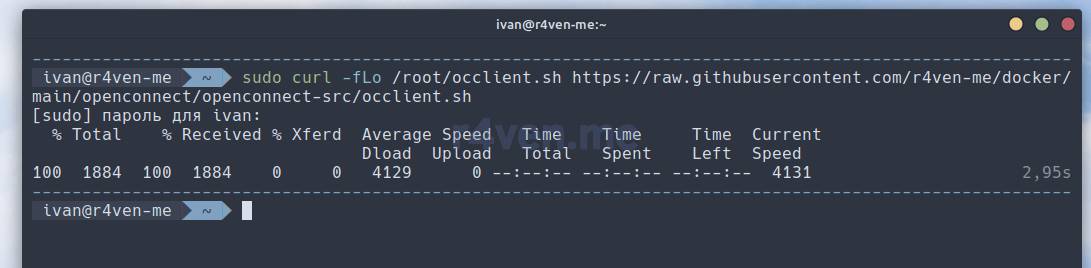
It will copy the file to the root user’s home directory.
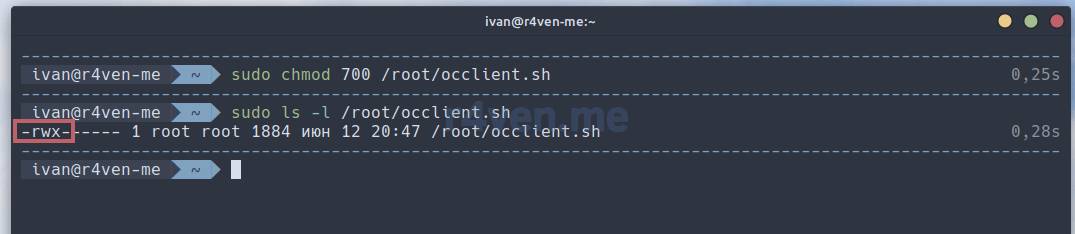
After downloading, the script needs to be given execute permissions:
sudo chmod 700 /root/occlient.shI discussed file permissions in detail in the article: Linux command line, file permissions: id, chmod, chown commands.
Now let’s open the script for editing in any editor. I prefer Vim/Neovim:
sudo vim /root/occlient.shMy site also has a series of articles about this console editor. You can view the list by the corresponding tag: .
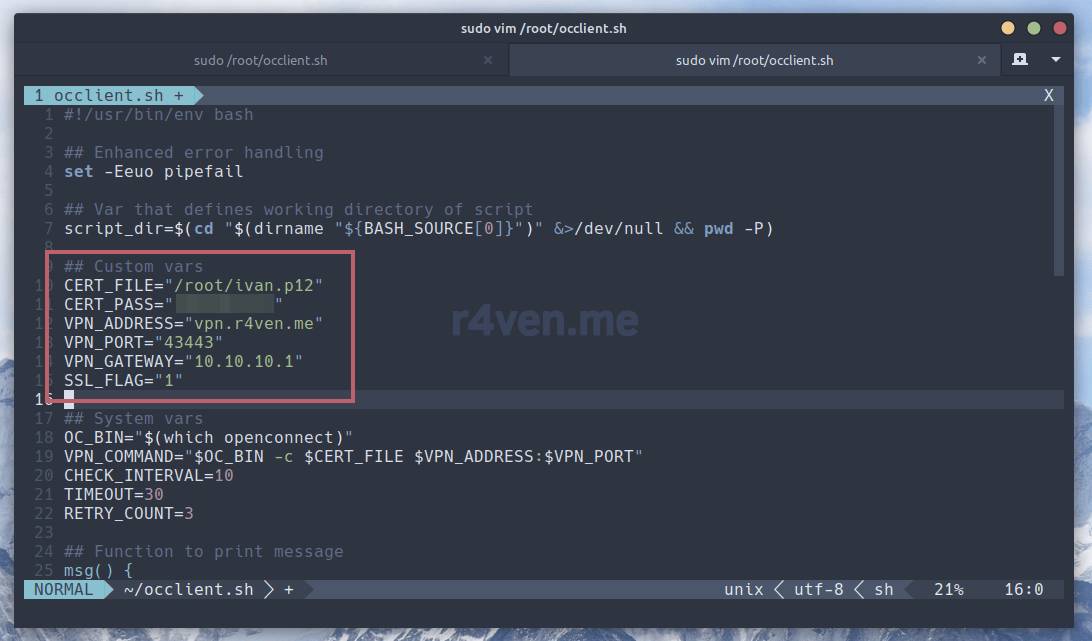
Let’s replace all the values in the Custom vars block with our own, save the file, and exit.
IMPORTANT!
Don’t forget to correctly set the SSL flag in the SSL_FLAG variable, so that no errors occur at startup. As a reminder, 1 — a valid SSL is used, 0 (or anything else) — it isn’t.
In my example a valid SSL certificate is used on the server, so the SSL_FLAG variable is set to 1.
Running the script
If you’re using a connection via the openconnect utility on a Linux server, and plan to tunnel all of its traffic, you need to add special routing rules, without which you’ll lose access to your server, including over SSH:
ip rule add table 128 from <public_ip>
ip route add table 128 to <public_ip_subnet> dev <ineteface_name>
ip route add table 128 default via <gateway>Where:
128— the name of the new routing table;<piblic_ip>— your server’s primary IP;<public_ip_subnet>— the subnet of the server’s primary IP;<interface_name>— the name of the physical interface the primary IP is attached to;<gateway>— the network gateway the primary IP routes through.
Let’s try to start it:
sudo /root/occlient.shIf you did all the steps correctly, you’ll see something like this:
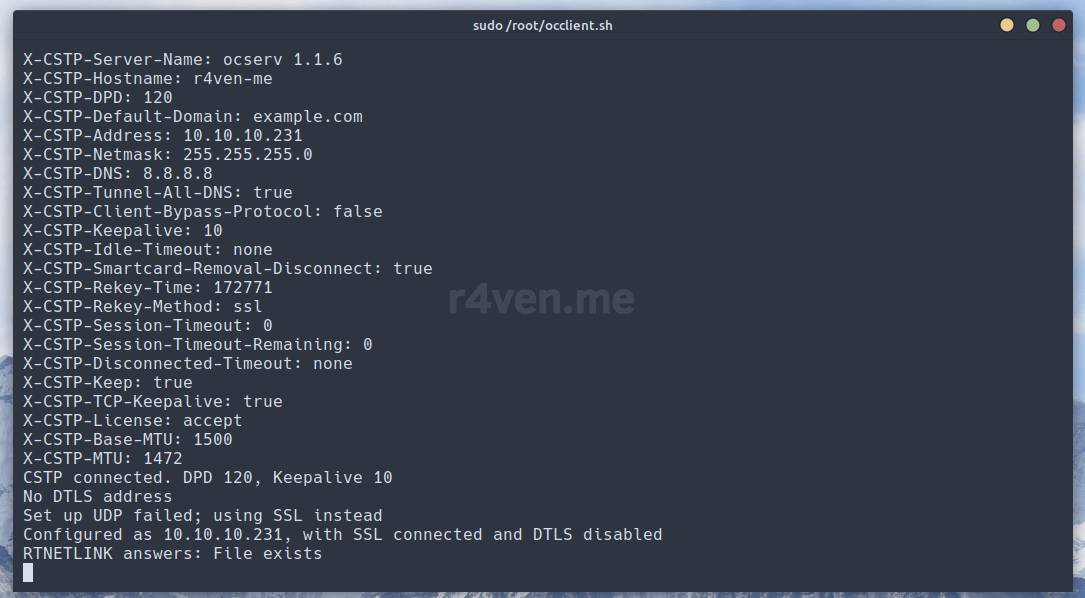
The connection succeeded.
Let’s open a neighboring tab and check internet access:
ping -c3 8.8.8.8

ip route get 8.8.8.8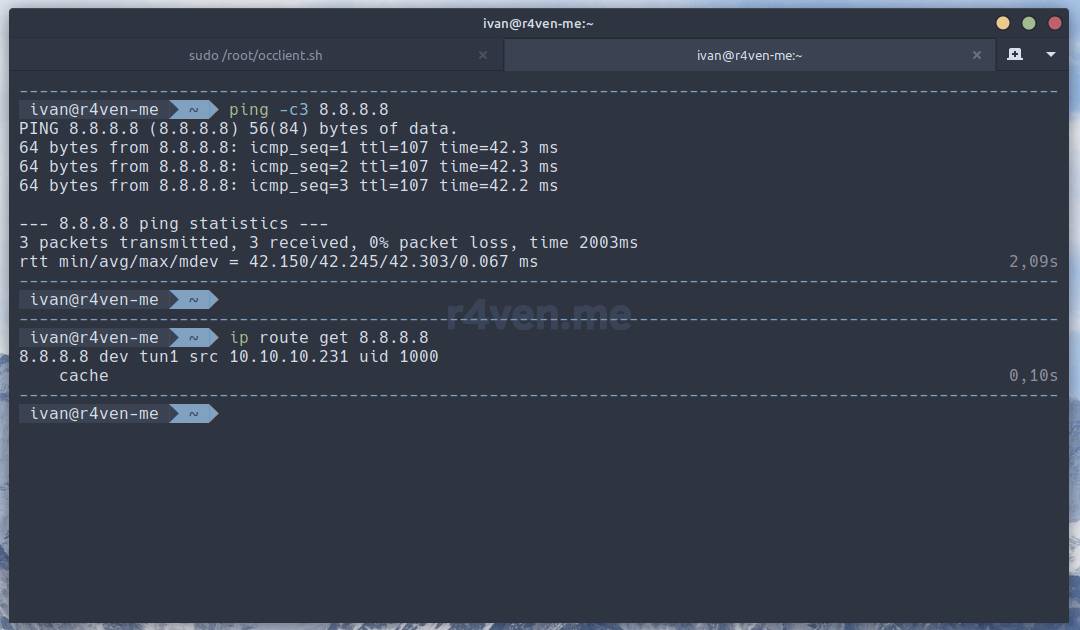
Traffic goes through the virtual interface, everything’s correct.
You can check your external IP in the terminal with this command:
curl ifconfig.meLet’s go back to the tab with the script and press Ctrl+c to exit.
Enabling autostart with systemd
Now let’s configure autostart/restart for our script. To do this, download the systemd unit:
sudo curl -fLo /etc/systemd/system/occlient.service https://raw.githubusercontent.com/r4ven-me/docker/main/openconnect/openconnect-src/occlient.service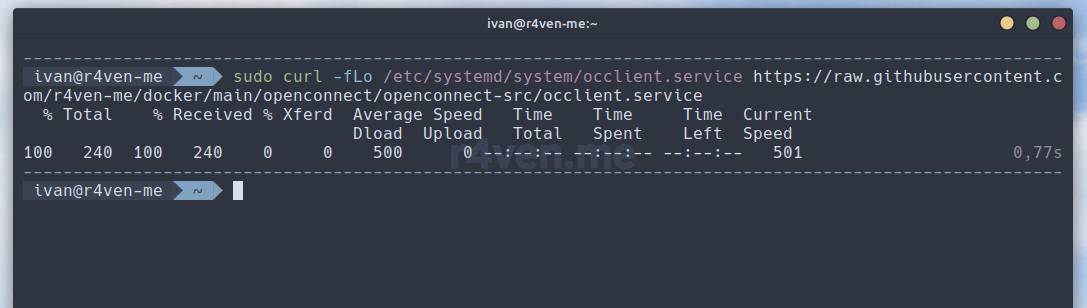
Then let’s open it for editing:
sudo vim /etc/systemd/system/occlient.serviceAnd change the path to the script file in it:
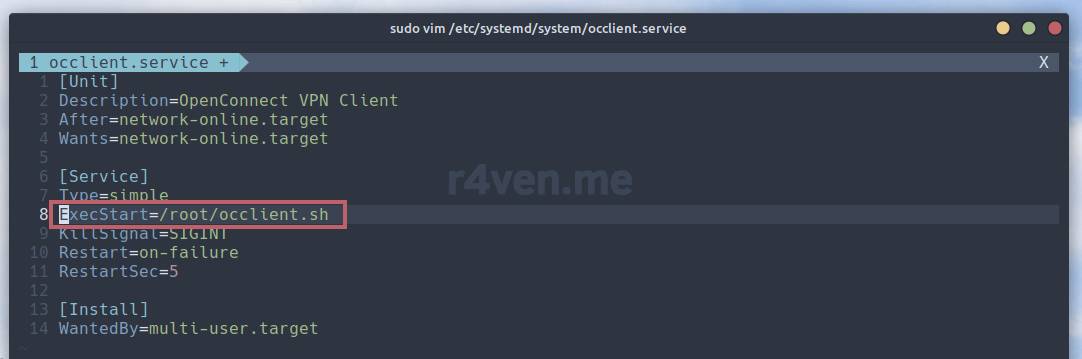
Save, exit.
Let’s reload the systemd configuration and enable autostart for our service on system boot, and also start it:
sudo systemctl daemon-reload

sudo systemctl enable --now occlient

sudo systemctl status occlient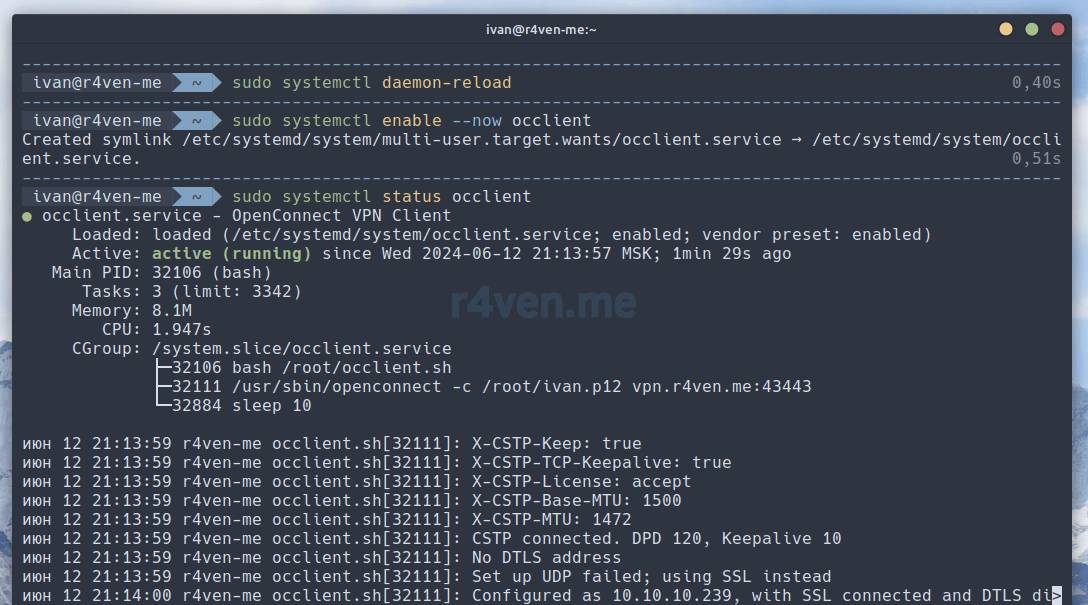
Done.
To view the occlient.service unit’s output in real time, run:
sudo journalctl -fu occlientAfterword
So we’ve set up automatic connection/reconnection to the OpenConnect server with availability checking.
Once again I’ll note that this connection method is preferable on servers without a GUI. Because when using clients on the desktop, it’s better to use the NetworkManager plugin (if, of course, it’s responsible for your network). The connection procedure for such a client is described in the corresponding section of the ocserv setup article: 5.1 Configuring the OpenConnect client for Linux.
Thanks for reading. Enjoy the connection 😉
Useful sources
- My repository — GitHub
- Article on installing and configuring an OpenConnect VPN server — Raven Blog
- A useful article with recommendations for writing bash scripts — Habr
👨💻And…
Don’t forget about our Telegram channel 📱 and chat
Or maybe you want to become a co-author? Then click here🔗
💬 All the best ✌️
That should be it. If not, check the logs 🙂

Comments