

Many users of Linux🐧 systems face the need to write the output of a particular command/script to a log file📑.
The goals here can vary: preserving a history of actions, troubleshooting errors, monitoring processes, etc🧑💻.
In this article we will look at several ways to configure journaling (aka logging) in Linux using the popular command shell — Bash — as an example.
🖐️Hey!
Subscribe to our Telegram channel @r4ven_me📱, so you don’t miss new posts on the website 😉. If you have questions or just want to chat about the topic, feel free to join the Raven chat at @r4ven_me_chat🧐.
Preface
While solving a task with a Bash script during a traditional logging setup, I remembered the possibility of specifying the log file directly inside the script itself🤔. Below I’ll go into more detail about these methods (and more)😉.
The examples in this article assume you understand the mechanism for managing the command shell’s standard streams. So if you don’t know what this mechanism is, I recommend reading my previous article: Redirecting input and output: the “>”, “<”, “|” operators, to better understand the context that follows🙂.
Preparation
Let’s say we have a Bash script named script.sh:
nvim ./script.sh#!/bin/bash
ls -l /
ls -l /wrong_path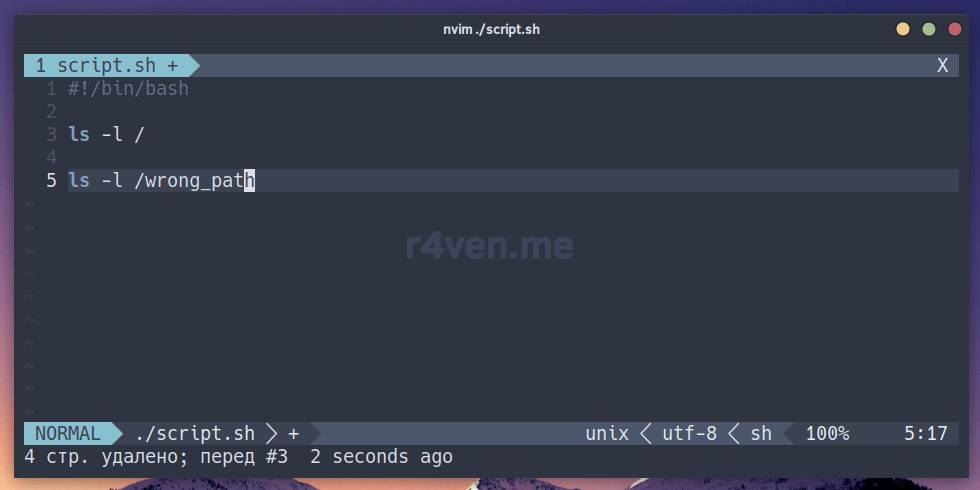
Let’s make it executable and try running it:
chmod +x script.sh

./script.shThe
chmod +x script.shcommand adds the execute flag to the file so it can be run as a program. See more about such flags here.
The script will print the contents of the root directory:
итого 945516
drwxr-xr-x   2 root root      4096 фев  3 19:54 backup
lrwxrwxrwx   1 root root         7 фев 16  2022 bin -> usr/bin
drwxr-xr-x   2 root root      4096 авг 13  2024 bin.usr-is-merged
drwxr-xr-x   4 root root      4096 дек 18 13:36 boot
drwxr-xr-x   2 root root      4096 фев 16  2022 cdrom
drwxr-xr-x  20 root root      4140 мар 10 15:08 dev
drwxr-xr-x 171 root root     12288 фев 15 00:13 etc
drwxr-xr-x   4 root root      4096 мая 12  2024 home
lrwxrwxrwx   1 root root         7 фев 16  2022 lib -> usr/lib
lrwxrwxrwx   1 root root         9 фев 16  2022 lib32 -> usr/lib32
lrwxrwxrwx   1 root root         9 фев 16  2022 lib64 -> usr/lib64
drwxr-xr-x   2 root root      4096 ноя  8 09:50 lib.usr-is-merged
lrwxrwxrwx   1 root root        10 фев 16  2022 libx32 -> usr/libx32
drwx------   2 root root     16384 фев 16  2022 lost+found
drwxr-xr-x   3 root root      4096 янв 22  2023 media
drwxr-xr-x   4 root root      4096 июн 13  2023 mnt
drwxr-xr-x   6 root root      4096 авг 12  2024 opt
dr-xr-xr-x 315 root root         0 мар 10 15:07 proc
drwx------  12 root root      4096 фев 25 22:32 root
drwxr-xr-x  40 root root      1080 мар 10 15:48 run
lrwxrwxrwx   1 root root         8 фев 16  2022 sbin -> usr/sbin
drwxr-xr-x   2 root root      4096 авг 22  2024 sbin.usr-is-merged
drwxr-xr-x   2 root root      4096 янв  4  2022 srv
-rw-------   1 root root 968110080 фев 16  2022 swapfile
dr-xr-xr-x  13 root root         0 мар 10 15:59 sys
drwxr-xr-x   2 root root      4096 июн  4  2022 timeshift
drwxrwxrwt  18 root root      4096 мар 10 15:58 tmp
drwxr-xr-x  14 root root      4096 янв  4  2022 usr
drwxr-xr-x 11 root root 4096 авг 6 2024 varAnd also an error:
ls: невозможно получить доступ к '/wrong_path': Нет такого файла или каталогаIn the first case, the command printed information to standard output (stdout), and the second to the standard error output (stderr). Now let’s configure logging for the output of these two streams.
Configuring logging when running a command
You can configure recording of the script’s output in the commonly accepted way: via redirection at launch. For example:
./script.sh > script.log 2>&1

# alternative variant (for bash)
./script.sh &> script.log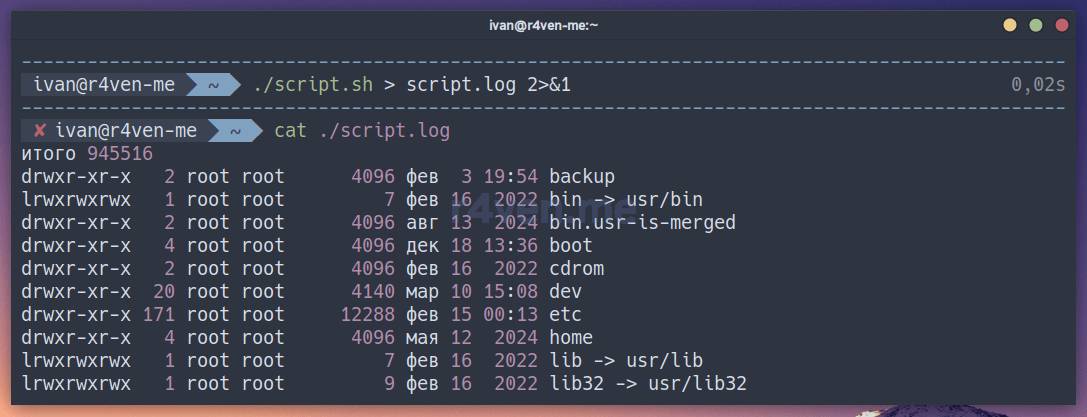
This time the script’s output is empty. That’s because the > script.log construct redirected the script’s standard output to the specified file (in our case script.log), and 2>&1 redirected the error output to the first descriptor, which is standard output, which in turn wrote everything to the file.
Let me remind you about descriptor numbers:0 — standard input (stdin)1 — standard output (stdout)2 — standard error output (stderr)
The alternative construct &> does the same thing as 2>&1, only it looks more concise. It’s also not supported in the vanilla Shell (sh). So, as a nod to that and for clarity, we’ll continue to use the 2>&1 construct going forward.
If you need to split the streams into different files, use this format:
./script.sh > script.log 2> script_error.logHere we explicitly specified where to direct the stream of the 2nd descriptor (stderr).
The
>operator will overwrite the target file each time the script runs. If you need to append to the log file, use the>>operator.
The first and most common method is more or less clear. But Linux wouldn’t be Linux if it didn’t have other ways to solve the same problem🐧.
Configuring logging within the script itself
You can configure logging of the script’s entire output directly inside it using constructs like these:
# record only stdout
exec > script.log

# record stderr to the same file
exec > script.log 2>&1

# record stderr to a separate file
exec > script.log 2> error.log
execis a shell built-in command that replaces the current process with another one, passed to it as an argument. But in this case there is no argument, so it replaces the current process with the script itself. However, since theexec > script.logcommand performs stream redirection, the output of the entire script is sent to the specified file🤯.
An example of our script using this construct might look like this:
⚠️It’s important to add the redirection construct before the commands whose output needs to be logged.
#!/bin/bash

exec > script.log 2>&1

ls -l /

ls -l /wrong_pathIn this case, when running:
./script.shIts behavior will be identical to the previous launch variant:
./script.sh > script.log 2>&1Seems clear and simple. But let’s go over a couple of obvious nuances and refine our construct.
Nuance #1: in the example above, the output will be written to the file, but won’t be printed to the console. For this case there’s a solution in the form of process substitution (works only in modern shells like Bash):
exec > >(tee script.log) 2>&1Since the redirection mechanism using the > operator implies writing to a file, the >(command) construct creates a virtual file (descriptor) with the contents of the script’s output, which is passed to the input of the command specified inside the construct. In our case, this is the command that duplicates stdout both to the console and to a file — tee (literally a “tee”, “T-shaped”).
When using
teewith the-a(append) flag, the output will be appended to the file rather than overwritten after each run of the script.
Visually, the way tee works with streams can be represented by the letter T:
stdout — T — file
         |
stdoutBy the way, there’s also a command substitution construct for input FROM a file/command, the principle is the same but the order is reversed: the substitution command’s output goes into a virtual file and then into the receiving command. It looks like this:
< <(command)
Nuance #2: the log file will be created in the directory the script was run from, which isn’t always convenient.
Let’s improve this by using the $0 variable instead of the log file name — it contains the name of the command being run. In our case this is the relative path and name of the executable file.
As a result, the script might look like this:
#!/bin/bash

exec > >(tee "${0}".log) 2>&1

ls /

ls wrong_pathThe
$0variable has its own quirks when a script using it is called from another script. In such cases it’s recommended to use the special${BASH_SOURCE[0]}instead of$0, of course provided the shell is Bash.
As a result of its execution, the script will write its output as usual to the console and, in parallel, to a file with the script’s name and a .log suffix, which will be created in the directory where the script itself is located, rather than where it was run from.
This construct also has a quirk: if the script is called script.sh, the log file will be named script.sh.log. That’s not really a big deal, but not everyone likes it (including me).
You can strip the extension (all characters after the dot) by modifying the variable using Bash syntax features:
#!/bin/bash

exec > >(tee "${0%.*}".log) 2>&1

ls -l /

ls -l /wrong_pathNow, if the script is run, for example like this:
/opt/bin/script.shIt will write its output to the console and to the file /opt/bin/script.log.
You’d think it’s just one short line, yet how many nuances possibilities it has🤯
Logging to the system journal
In addition to writing output to a file, it can also be redirected to the system journal (aka Syslog or Journald).
We talked about what this is in one of the previous theoretical notes. Assuming you understand this entity of Linux systems, let’s look at how the script’s output streams can be directed into this journal.
The traditional way to send data to the system log is the logger utility. In the following commands with this utility, we’ll use two flags:
-t(--tag) — specifies the entry’s tag for future filtering-p(--priority) — specifies the entry’s category (facility) and priority (severity)
If you prefer the native way of sending data to Journald, use the
systemd-catcommand:BASHecho "Тестовое сообщение" | systemd-cat
While running the command
So. Redirecting output using logger while running a command looks like this:
It’s assumed that the redirection command inside the script itself is absent or commented out.
./script.sh | logger -t test -p local0.infoWhere:
test— an arbitrary entry taglocal0— a user-defined category (fromlocal0tolocal7)info— severity
See the full list of categories and severity levels here.
In the example above, error output doesn’t end up in the system journal. Let’s fix that:
./script.sh 2>&1 | logger -t test -p local0.infoYou can view entries in the system journal using the journalctl utility in the case of Journald, and cat | less | grep etc. in the case of regular Syslog files:
# if journald is used
journalctl --no-pager -t "test"

journalctl --no-pager --facility=local0 --priority=info -t "test"

# if syslog is used (debian/ubuntu)
grep "test" /var/log/syslogThe
--no-pagerflag disables the paginated viewing mode, like inless.
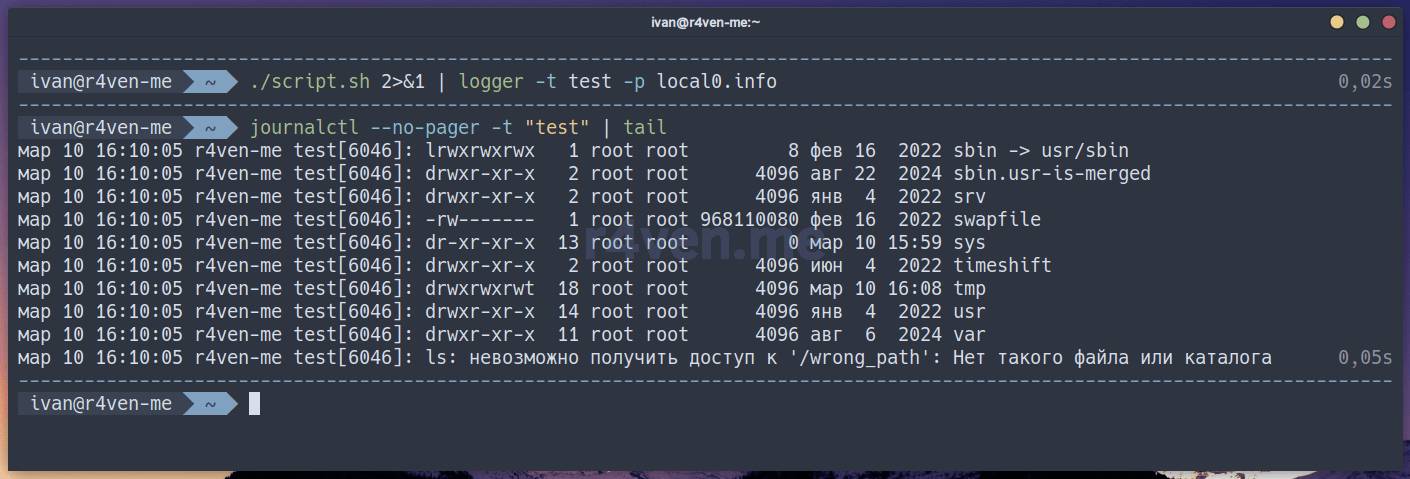
If you need to send output both to a file and to the system journal, let’s recall the process substitution mechanism:
./script.sh > >(tee -a ./script.log | logger -t test -p local0.info) 2>&1And if you need to separate standard output and error output by category and into different files, you can do it like this:
./script.sh > >(tee -a ./script.log | logger -t test -p local0.info) 2> >(tee -a ./script_error.log | logger -t test -p local0.err)Let’s look at the info category:
journalctl --no-pager --facility=local0 --priority=info -t "test"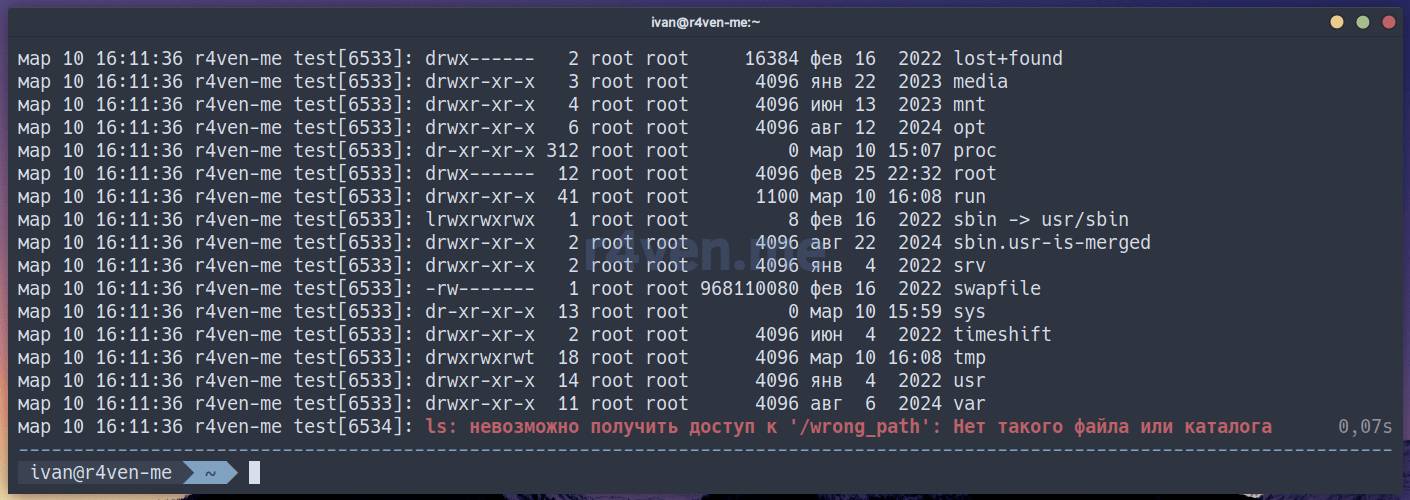
Or errors separately:
journalctl --no-pager --facility=local0 --priority=err -t "test"
As you can see, the err severity level is highlighted in red.
Inside the script itself
Similarly, you can configure sending the script’s output to the system journal from within the script itself:
# Redirect stdout to logger with the tag "test" and priority local0.info
exec > >(logger -t test -p local0.info)

# Redirect stdout and stderr to logger with the tag "test" and priority local0.info
exec > >(logger -t test -p local0.info) 2>&1

# Redirect stdout to a file and to logger, stderr is also redirected to stdout
exec > >(tee -a "${0%.*}".log | logger -t test -p local0.info) 2>&1

# Redirect stdout to a file and to logger, stderr to a separate file and to logger with a different priority
exec > >(tee -a "${0%.*}".log | logger -t test -p local0.info) 2> >(tee -a "${0%.*}"_error.log | logger -t test -p local0.err)The last variant is too long for one line. Let’s format it a bit more compactly:
exec \
    > >(tee -a "${0%.*}".log | logger -t test16 -p local3.info) \
2> >(tee -a "${0%.*}"_error.log | logger -t test16 -p local3.err)And finally, an interesting and probably more practically applicable logging variant. What it does:
- sends stdout+stderr to the system journal with a tag in the form of the script’s name, e.g.
script.sh - sends stdout+stderr to a file
<script_name>.login the directory the script was run from- adds a prefix to each logged line in the file in the format:
year-month-day hours:minutes:seconds.3millisec
- adds a prefix to each logged line in the file in the format:
- sends the entire script output to the console.
exec > >(
    tee >(logger -t "$(basename "${BASH_SOURCE[0]}")") |
    while IFS= read -r line; do
        echo "$(date +"[%Y-%m-%d %H:%M:%S.%3N]") - $line"
    done |
    tee -a "${BASH_SOURCE[0]%.*}.log"
) 2>&1⚠️Note that instead of
$0, a Bash-specific variable is used here:${BASH_SOURCE[0]}, which I mentioned earlier.
Afterword
Today we’ve covered such an important and basic part of the command line as output logging. It might be difficult to wrap your head around all these “redirections” and Bash’s tricky syntax the first time. But understanding, as with many other things, comes with practice. Try applying the constructs covered today in your own scripts.
👨💻And…
Don’t forget about our Telegram channel 📱 and chat
Or maybe you want to become a co-author? Then click here🔗
💬 All the best ✌️
That should be it. If not, check the logs 🙂

Comments