
In this short note, we will write a Bash script that moves the mouse pointer one pixel and back at a specified interval. This is useful if your desktop is regularly locked because there is no user activity😉.
🖐️Hey!
Subscribe to our Telegram channel @r4ven_me📱, so you don’t miss new posts on the website 😉. If you have questions or just want to chat about the topic, feel free to join the Raven chat at @r4ven_me_chat🧐.
This note is from the “bad advice from a manager’s point of view” category 😅.
Case: you work remotely, connect to work machines via RDP/VNC, and you have a short time interval after which the workstation screen locks and requires a password. That would be fine if this interval were 15-30 minutes. But what if it is 5, or even less?
I understand that in certain cases this behavior is dictated by security measures, and that is fair somewhere in an office. But for a remote worker👨💻 this can become an annoying factor.
You step away, excuse me, to the restroom, and the desktop is already locked🤷♂️. On the bright side, you memorize your domain password perfectly🔑😅.
Below I will provide a small Bash script that can be bound to a hotkey or assigned to the middle mouse button action on the desktop panel, for example in Linux Mint Cinnamon, as I have done😉 (see at the end).
I know that there are special little utilities for these purposes, but writing/configuring something yourself is always more interesting!
Let’s begin😎.
Writing the mouse.sh Script
The script needs a special control utility to work.
For X11:
sudo apt update && sudo apt install -y xdotoolFor Wayland, everything is a bit more complicated, because by default a regular user does not have access to functionality similar to xdotool in X11. Click the spoiler below.
Configuring ydotool
Install ydotool:
sudo apt update && sudo apt install -y ydotoolCreate a Systemd unit to start the ydotoold daemon:
systemctl edit --full --force ydotoold.serviceFill it with:
[Unit]
Description=ydotool daemon
After=graphical.target

[Service]
Type=simple
ExecStart=/usr/bin/ydotoold --socket-path="/run/user/1000/.ydotool_socket" --socket-own="1000:1000"
Restart=on-failure

[Install]
WantedBy=default.targetReplace the identifiers with yours if they differ from mine (1000). You can find them with the commands:
id -u
id -gEnable autostart and check:
systemctl enable --now ydotoold.service

systemctl status ydotoold.serviceNow create a file, for example in ~/.local/bin/:
nvim ~/.local/bin/mouse.shAnd fill it with:
 1#!/usr/bin/env bash
 2
 3# First run enables cursor movement (in the background)
 4# Second run kills the already running instance
 5
 6# Interval between movements (in seconds)
 7INTERVAL=5
 8# Current script name (needed to find other copies)
 9SCRIPT_NAME="$(basename "${BASH_SOURCE[0]}")"
10
11# Count how many copies of this script are already running
12PROC_COUNT="$(pgrep -fc "bash.*$SCRIPT_NAME")"
13
14# On termination, send the "Mouse OFF" notification and exit cleanly
15trap 'notify-send "Mouse OFF"; exit 0' SIGTERM SIGINT SIGHUP
16
17# Function: move the cursor 1 pixel forward and back
18move_mouse() {
19    case "$XDG_SESSION_TYPE" in
20        x11)
21            xdotool mousemove_relative --sync 1 1
22            sleep 0.1
23            xdotool mousemove_relative --sync -- -1 -1
24            ;;
25        wayland)
26            ydotool mousemove 10 10
27            sleep 0.1
28            ydotool mousemove -10 -10
29            ;;
30    esac
31}
32
33# If the script is already running, kill all instances
34if (( PROC_COUNT > 1 )); then
35    pkill -f "bash.*$SCRIPT_NAME"
36fi
37
38# Send a startup notification
39notify-send "Mouse ON"
40
41# Background loop: run the function at the specified interval
42(
43    while true; do
44        move_mouse
45        sleep "$INTERVAL"
46    done
47) &
48
49# Detach the background process from the terminal
50disown📝The script will also be available on my GitHub.
I think the script comments make its logic more or less clear: on the first run, it starts a background process that moves the mouse by one pixel and back every 5 seconds. On repeated launch, it “kills” the previously started instance and shows the corresponding desktop notification.
📝There is a separate article about desktop notifications: Making Functional Notifications on the Linux Desktop: Buttons, Icons, Links
Let’s move on to tests🧪.
Test Run
Make the script executable:
chmod +x ~/.local/bin/mouse.sh📝We talked about file permissions here.
And run it:
~/.local/bin/mouse.shA notification will appear, and the mouse will “twitch” every 5 seconds:

And on repeated launch:
~/.local/bin/mouse.shThe script will self-terminate and report it:

💡 Tip
When activating the script, do not forget to move the mouse over the required window so that its movements have the desired effect😉.
And now, as promised, I will tell you how to configure enabling/disabling the script by pressing the middle mouse button.
Running mouse.sh by Middle-Clicking the Cinnamon Panel
Go to Settings: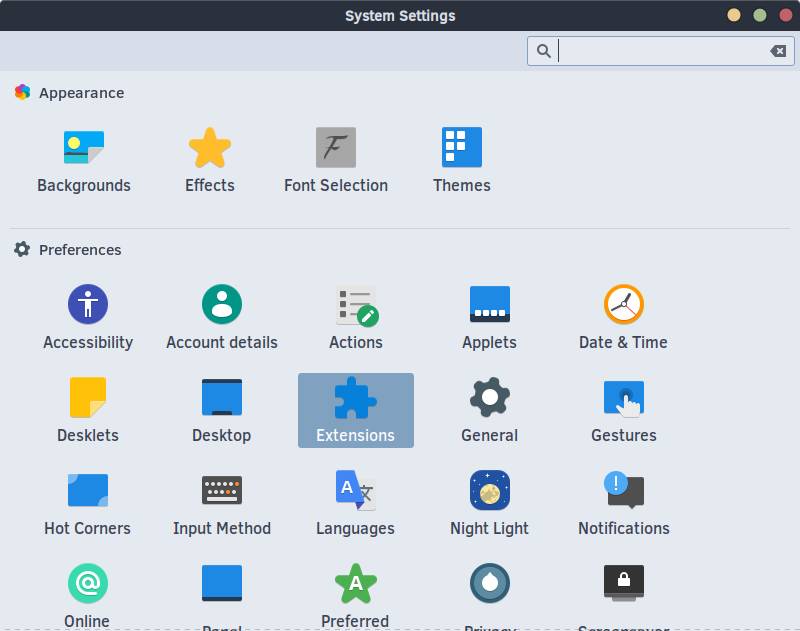
Then to Extensions: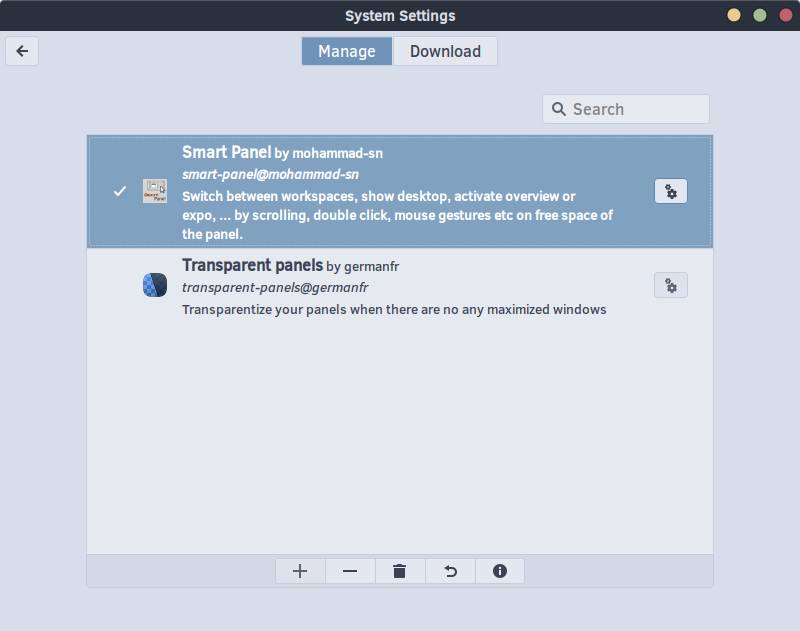
Next, go to Smart Panel (gear icon)
☝️If you do not yet have the Smart Panel extension installed, install it through the Download tab.
Here configure Mouse click options –> Action on panel middle click –> Run 2nd Custom Command. Then in Custom Commands –> 2nd Custom Command, specify the script name if the path to it is in your $PATH; otherwise, specify the absolute path to the script file:
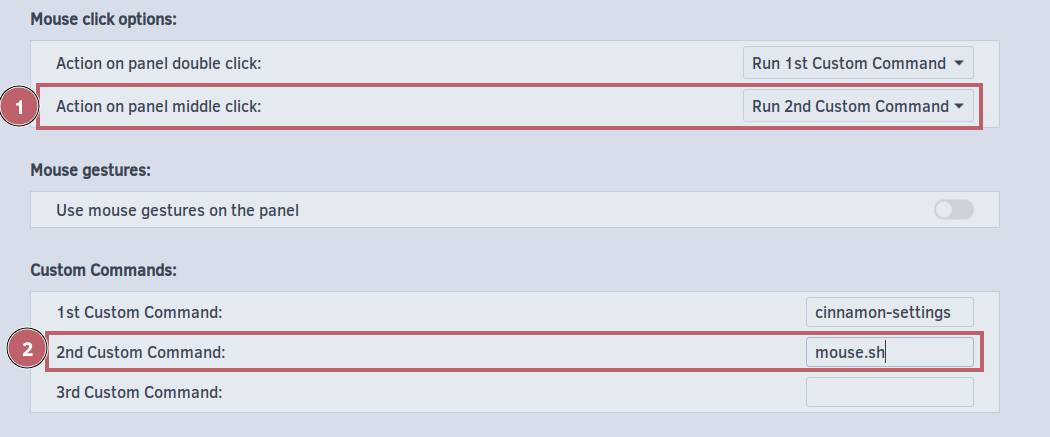
That’s it. Now when you click the mouse wheel on an empty area of the panel, the script will be called automatically. To stop it, just click the panel again😌.
Thank you for reading!
👨💻And…
Don’t forget about our Telegram channel 📱 and chat
Or maybe you want to become a co-author? Then click here🔗
💬 All the best ✌️
That should be it. If not, check the logs 🙂

Comments