
ansible-cmdb is a Python program that structures collected Ansible facts and visualizes them using beautifully formatted HTML.
Ansible facts are data about servers (Ansible hosts) collected using the setup module. They are “facts” about the system, for example data about the OS, network interfaces, block devices, and other system components.
🖐️Hey!
Subscribe to our Telegram channel @r4ven_me📱, so you don’t miss new posts on the website 😉. If you have questions or just want to chat about the topic, feel free to join the Raven chat at @r4ven_me_chat🧐.
With ansible-cmdb, you can also export structured data to files in the following formats: json, csv, sql, txt_table. Such files are convenient to use for analysis, storage, or further processing. But that is a topic for a separate article😉.
In this note, I will explain📋:
- How to install and use
ansible-cmdbto generateHTML; - How to add custom facts;
- How to use an
HTMLfile as a separate page at a sub-URL in Nginx; - How to automate fact database updates.
It is assumed that you know what Ansible is and know how to use it🙄. If not, I recommend reading my articles:
- Ansible - configuration management system: introduction
- Writing an ansible playbook for initial Linux server setup
All examples from the article were performed in the environment of the distribution Linux Mint Debian Edition 6 🍃 (Debian 12). In all other distributions, the process looks more or less similar.
Installing ansible-cmdb
First, go to the Ansible working directory where your inventory and configuration files are located (for me this is ~/ansible):
cd ~/ansible/As I said earlier, ansible-cmdb, like Ansible itself, is written in the Python programming language🐍. Therefore, it is recommended to create a venv virtual environment 📦 and install ansible-cmdb inside it:
Method #1 - venv, if your Python version is below 3.12
Run in the terminal:
mkdir -p ./cmdb/venv

python3 -m venv ./cmdb/venv/ansible-cmdb

./cmdb/venv/ansible-cmdb/bin/pip install ansible-cmdbMethod #2 - docker, if your Python version is 3.12 and higher
Unfortunately, ansible-cmdb has not been updated for quite a while, and in Python 3.12 the imp library became deprecated. In this case, to run ansible-cmdb, you need to install an earlier Python version.
A universal way to do this is Docker:
mkdir -p ./cmdb/venv

docker run -u $(id -u):$(id -g) -v ./cmdb:/cmdb python:3.11-alpine python -m venv /cmdb/venv/ansible-cmdb

docker run -u $(id -u):$(id -g) -v ./cmdb:/cmdb python:3.11-alpine /cmdb/venv/ansible-cmdb/bin/pip install ansible-cmdbAt the end of installation, there should be a message like this:
Installing collected packages: ushlex, jsonxs, pyyaml, MarkupSafe, mako, ansible-cmdb
Successfully installed MarkupSafe-3.0.2 ansible-cmdb-1.31 jsonxs-0.6 mako-1.3.10 pyyaml-6.0.2 ushlex-0.99.1To avoid activating venv every time in the future (or entering docker) to work with ansible-cmdb, create a small script.
If you installed through venv (Method #1):
cat << EOF > "${PWD}"/cmdb/ansible_cmdb.sh
#!/bin/bash
"${PWD}/cmdb/venv/ansible-cmdb/bin/python" "${PWD}/cmdb/venv/ansible-cmdb/lib/ansiblecmdb/ansible-cmdb.py" "\$@"
EOFIf you installed in Docker (Method #2):
cat << EOF > "${PWD}"/cmdb/ansible_cmdb.sh
#!/bin/bash
docker run -v "${PWD}/cmdb":"/cmdb" python:3.11-alpine /cmdb/venv/ansible-cmdb/bin/python /cmdb/venv/ansible-cmdb/lib/ansiblecmdb/ansible-cmdb.py "\$@"
EOFMake it executable and add a symbolic link to it in the ~/.local/bin directory for convenience:
chmod +x ./cmdb/ansible_cmdb.sh

ln -s "${PWD}"/cmdb/ansible_cmdb.sh ~/.local/bin/ansible-cmdb📝 Note
☝️For correct operation, the ~/.local/bin directory must be in the $PATH environment variable list.
Check:
ansible-cmdb --helpUsage: ansible-cmdb.py [option] <dir> > output.html
Options:
--version show program's version number and exit
-h, --help show this help message and exit
-t TEMPLATE, --template=TEMPLATE
Template to use. Default is 'html_fancy'
-i INVENTORY, --inventory=INVENTORY
Inventory to read extra info from
-f, --fact-cache <dir> contains fact-cache files
-p PARAMS, --params=PARAMS
Params to send to template
-d, --debug Show debug output
-q, --quiet Don't report warnings
-c COLUMNS, --columns=COLUMNS
Show only given columns
-C CUST_COLS, --cust-cols=CUST_COLS
Path to a custom columns definition file
-l LIMIT, --limit=LIMIT
Limit hosts to pattern
--exclude-cols=EXCLUDE_COLUMNS
Exclude cols from outputansible-cmdb Usage Example
Create a directory for basic facts and start collecting them using ansible and the setup module:
mkdir -p ./cmdb/facts/basic

ansible -m setup --tree ./cmdb/facts/basic all &> /dev/nullNow use ansible-cmdb to generate an HTML file based on the collected data:
ansible-cmdb -p collapsed=1 ./cmdb/facts/basic > ./cmdb/cmdb.html📝 Note
💡The (-p) collapsed=1 parameter will display host data in collapsed form.
Now simply open the resulting file in a browser:
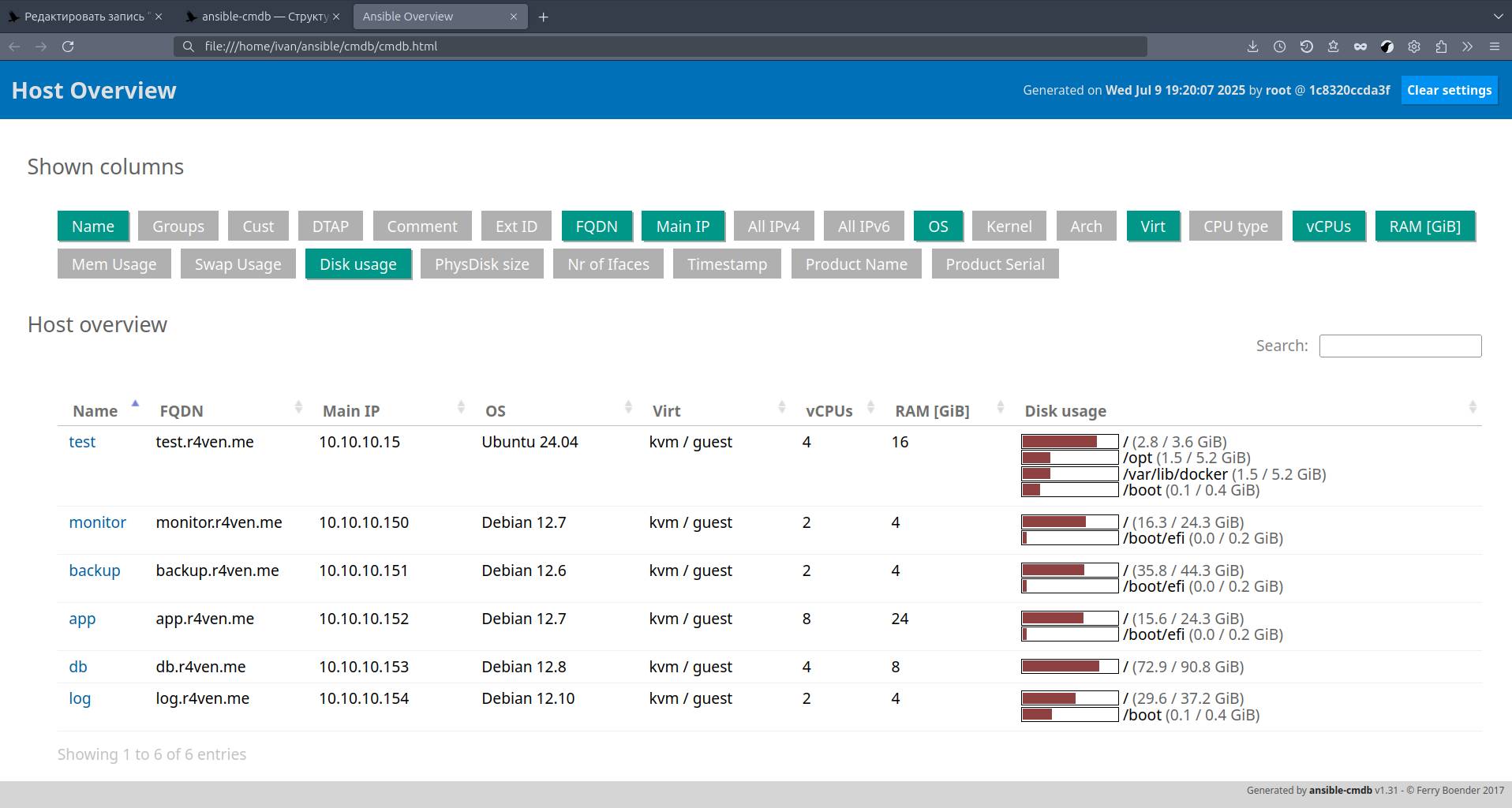
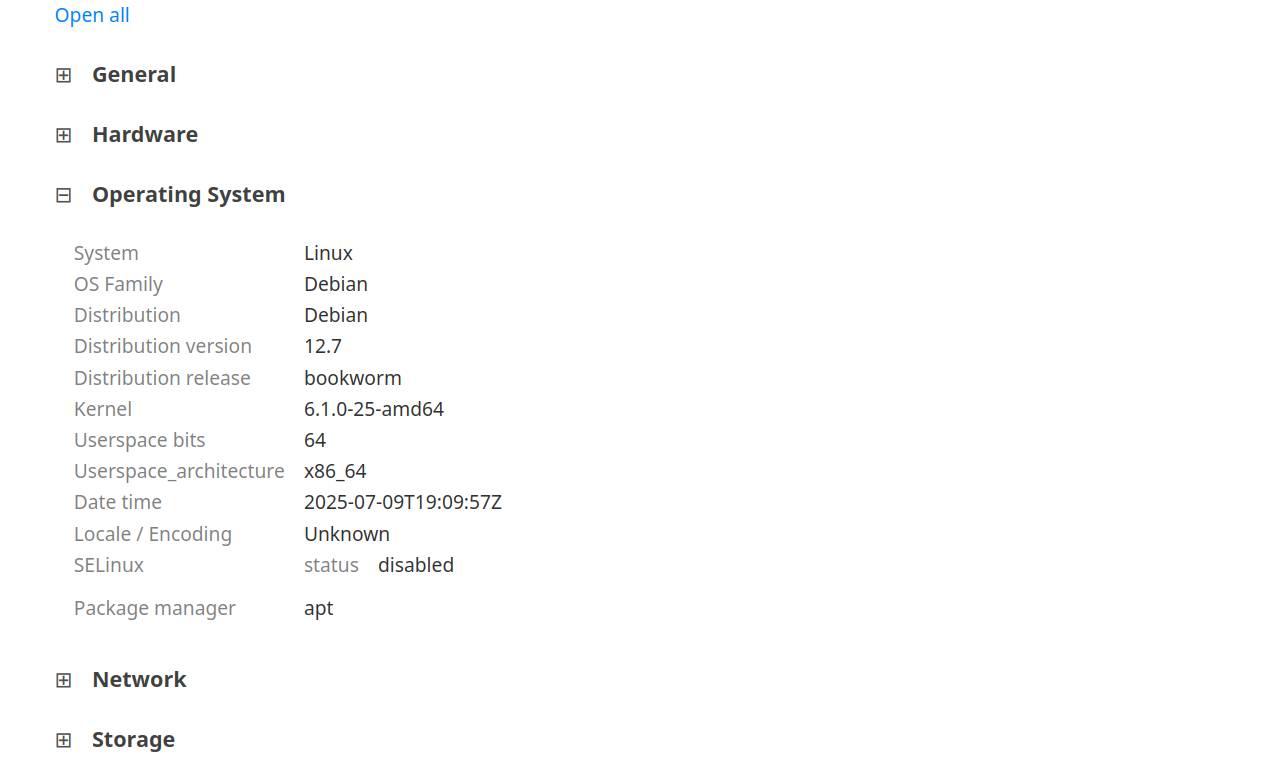
Neat and convenient. The page has interactive elements: search, filtering, and so on. Very convenient😏.
For generating json | csv | sql | txt_table | markdown, the command will be approximately like this:
ansible-cmdb -t csv ./cmdb/facts/basic > ./cmdb/cmdb.csv"Name","OS","IP","Arch","Mem","MemFree","MemUsed","CPUs","Virt","Disk avail"
"host1","Debian 12.7","10.1.1.10","x86_64/x86_64","8g","0g","1g","4","kvm/guest","8.3g, 0.2g"
"host2","Debian 12.10","0.1.1.11","x86_64/x86_64","8g","2g","2g",6","kvm/guest","7.8g, 0.3g"
"host3","Debian 12.8","0.1.1.12","x86_64/x86_64","8g","0g","3g","4","kvm/guest","1.9g"
"host4","Debian 12.6","0.1.1.13","x86_64/x86_64","8g","0g","1g","8","kvm/guest","8.7g, 0.2g"
"host5","Debian 12.7","0.1.1.14","x86_64/x86_64","8g","0g","1g","2","kvm/guest","9.0g, 0.2g"
"host6","Debian 12.6","0.1.1.15","x86_64/x86_64","8g","0g","1g","2","kvm/guest","0.8g, 3.7g, 3.7g, 0.4g"It is worth warning that the full list of facts is available only in the JSON template. Other formats have a limited number of fields defined in templates located at: ./cmdb/venv/ansible-cmdb/lib/ansiblecmdb/data/tpl. If necessary, they can be customized to your needs.
Adding Custom Facts
ansible-cmdb provides flexible customization capabilities for the final file👨🎨.
I will show this using the example of adding my own fact as a list of host routes, which Ansible does not collect by default🤷♂️.
⚠️ Warning
⚠️ Ansible facts must be represented in JSON format.
My implementation is done using a Bash script that outputs the host route list in JSON format📃.
Let’s begin👨🏭. Create the script file:
nvim ./cmdb/routes_to_json.shFill it with this content:
#!/bin/bash

# Get routes into an array
mapfile -t routes < <(ip r)

# JSON start
RESULT='{"custom_facts": {"IP Routes": ['

# Add routes
for i in "${!routes[@]}"; do
    # Escape special characters
    line="${routes[$i]//\\/\\\\}"
    line="${line//\"/\\\"}"

    # Add route as a separate object
    RESULT+="{\"#$((i+1))\": \"$line\"}"

    # Add a comma between elements (except the last one)
    [ $i -lt $((${#routes[@]} - 1)) ] && RESULT+=","
done

# Finish JSON
RESULT+=']}}'

# Print result
echo "$RESULT"Make it executable:
chmod +x ./cmdb/routes_to_json.shCheck:
./cmdb/routes_to_json.sh | python3 -m json.toolThe output should be approximately like this:
{
    "custom_facts": {
        "IP Routes": [
            {
                "#1": "default dev vpn0 proto static scope link metric 50 "
            },
            {
                "#2": "default via 10.10.10.1 dev eth0 proto dhcp src 10.10.10.30 metric 600 "
            },
            {
                "#3": "10.11.11.0/24 dev vpn0 proto kernel scope link src 10.11.11.15 metric 50 "
            }
        ]
    }
}Now create a new playbook that will collect our custom fact (running the script above on remote hosts and collecting the output into local files):
nvim ./cmdb/get_custom_facts.ymlFill it:
---

- name: Get custom facts
  hosts: all
  gather_facts: false

  tasks:

    - name: Run script to get info about ip routes
      script: "~/ansible/cmdb/routes_to_json.sh"
      register: script_output

    - name: Create local output files with ip routes info
local_action: copy content="{{ script_output.stdout }}" dest="~/ansible/cmdb/facts/custom/{{ inventory_hostname }}"📝 Note
☝️Do not forget to adjust paths to your Ansible working directory.
Now create a separate directory for custom facts, collect them with ansible-playbook, and generate the updated HTML using ansible-cmdb:
mkdir -p ./cmdb/facts/custom

ansible-playbook ./cmdb/get_custom_facts.yml

ansible-cmdb -p collapsed=1 ./cmdb/facts/{basic,custom} > ./cmdb/cmdb.htmlThe final HTML will have a new “Custom facts” section. In my opinion, it looks pretty good😌:
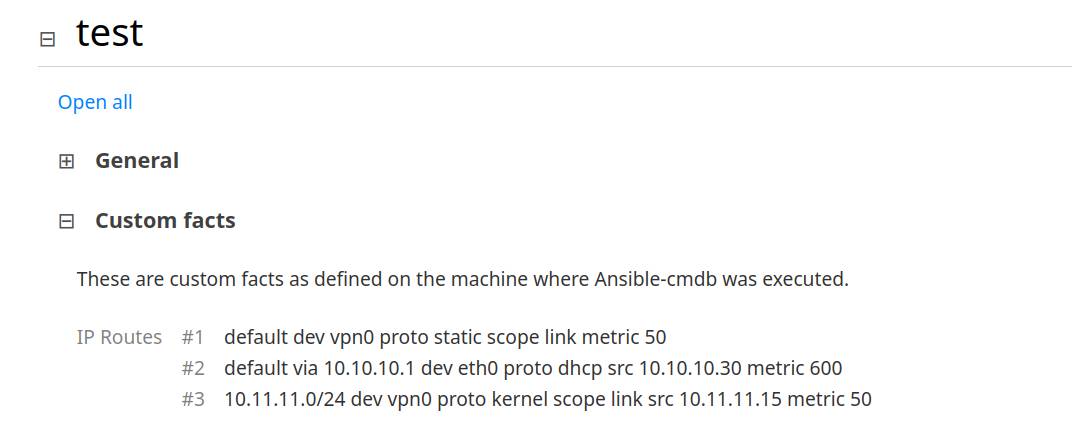
ansible-cmdb allows you to configure custom columns in HTML and much more. I recommend studying the documentation in more detail📚 (links at the end of the article).
Access to cmdb.html by URL in Nginx
If you need to provide this information to someone else, you can add the final HTML as a separate page on your web server, for example Nginx 🌐.
If the web server runs as a user with limited permissions, the easiest option is to create a hardlink to your file in the Nginx site root (conditionally the root is /var/www/html:
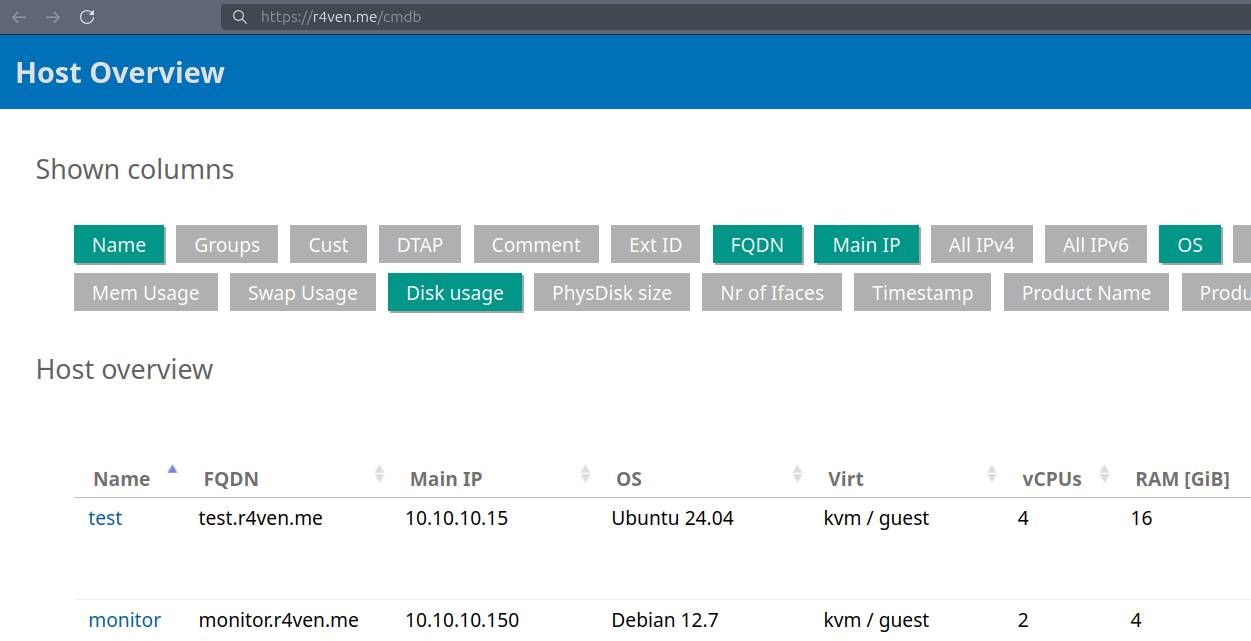
sudo ln "${PWD}"/cmdb/cmdb.html /var/www/html/And in the Nginx config, add for example this location:
server {
    listen 80;
    server_name localhost;

    root /var/www/html;
    index index.html index.htm;

    location / {
        try_files $uri $uri.html $uri/ =404;
    }
}Something like this:
Automating Fact Collection/Updates
There is no way around automation in the world of administration🙂↔️. Let’s write a script for collecting/updating facts and configure its daily launch at 01:00 by a systemd timer in our user’s space (--user).
Create the script file:
nvim ./cmdb/update_cmdb.shFill it:
#!/usr/bin/env bash

set -Eeuo pipefail

export PATH="$PATH:$HOME/.local/bin"

WORK_DIR="$HOME/ansible/"

echo "Script started"

cd "$WORK_DIR"

echo "Get basic facts"
ansible -m setup --tree ./cmdb/facts/basic all &> /dev/null || true

echo "Get custom facts"
ansible-playbook ./cmdb/get_custom_facts.yml &> /dev/null || true

echo "Generate cmdb html file"
ansible-cmdb -p collapsed=1 ./cmdb/facts/{basic,custom} > ./cmdb/cmdb.html

echo "Script done"
echo "--------------------------------------"📝 Note
☝️Do not forget to specify your WORK_DIR.
Save it, make the file executable, create a link in the ~/.local/bin directory for convenience, and check:
chmod +x ./cmdb/update_cmdb.sh

ln -s "${PWD}"/cmdb/update_cmdb.sh ~/.local/bin/update-cmdb

update-cmdb

# modification time
stat -c '%y' ./cmdb/cmdb.htmlNext, create a systemd service unit:
systemctl --user edit --full --force update-cmdb.serviceFill it:
[Unit]
Description=Update ansible cmdb

[Service]
WorkingDirectory=%h/ansible
ExecStart=%h/.local/bin/update-cmdb📝 Note
☝️Also remember to specify your WorkingDirectory.
Now create a timer unit:
systemctl --user edit --full --force update-cmdb.timerFill it:
[Unit]
Description=Update ansible cmdb daily at 01:00

[Timer]
OnCalendar=*-*-* 01:00:00
Persistent=true

[Install]
WantedBy=timers.targetActivate the timer:
systemctl --user enable --now update-cmdb.timerCheck:
systemctl --user status update-cmdb.timer

systemctl --user status update-cmdb.service

journalctl --user -fu update-cmdb📝 Note
💡To force the job to start, run:
systemctl --user start update-cmdb.serviceNow our HTML file will always contain up-to-date data about Ansible hosts👍.
Materials Used
👨💻And…
Don’t forget about our Telegram channel 📱 and chat
Or maybe you want to become a co-author? Then click here🔗
💬 All the best ✌️
That should be it. If not, check the logs 🙂

Comments